Override subject tier assignment manually
Target source data verification (TSDV) is a more complex and sophisticated type of SDV setting as it provides an opportunity to perform more selective configurations compared to global or general types.
The TSDV setting includes the configuration of the TSDV plans that consist of various blocks and tiers to facilitate subject allocation based on certain criteria and design a selective TSDV procedure for various CRFs.
Once your TSDV plans are activated, you can review the result of subject allocation between different tiers of your plans. However, if you find that assignment results for a specific subject are dissatisfactory for your SDV process, you can manually override it and assign the subject to a different tier.
-
In the EDC application header, select the STUDY INFO tab.
-
In the left pane of the page that opens, expand SDV and select the SDV Result tab.
-
On the page that opens, select the Subject Tier Assignment tab.
-
In the table that appears, locate the tier assignment result that you want to update and from the Action column next to it, select Override
 .
.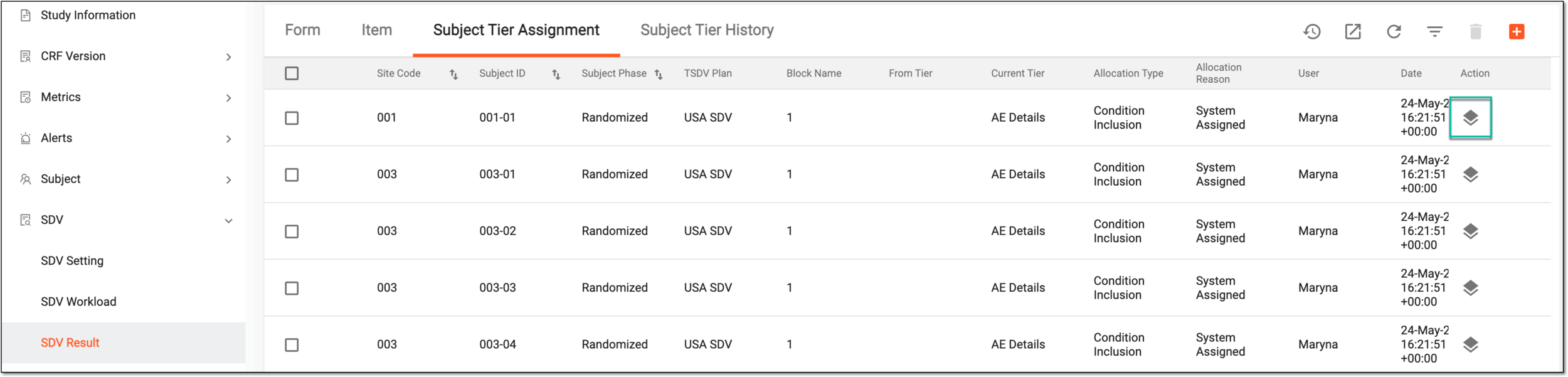 Figure 1. Adding subject tier assignment
-
In the New dialog that appears, configure the subject assignment details as explained in the following table.
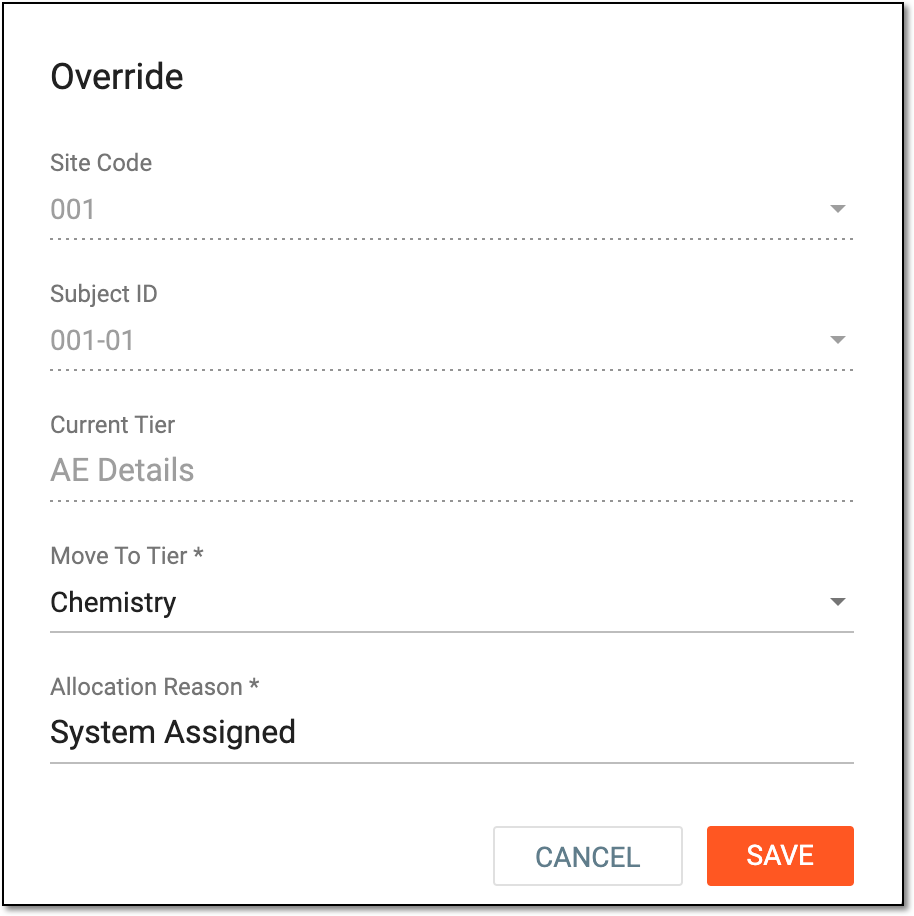 Figure 2. Configuring subject tier assignment
Tip
In the following table, mandatory elements are marked with an asterisk (*).
Element
Details
Site Code
Represents the code of the site to which belongs the subject that you want to reassign to another tier. The field is read-only.
Subject ID
Represents the ID of the subject that you want to reassign to another tier. The field is read-only.
Current Tier
Represents the name of the tier from which you want to manually reassign the subject. The field is read-only.
Move to Tier*
Select the tier to which you want to reassign the subject.
Allocation Reason*
Enter the reason for the manual subject reassignment.
SAVE
Select
 to save the implemented changes.
CANCEL
Select
 to discard the changes without saving.
Once saved, the subject is reassigned to another tier and you can track the results of this operation from the Subject Tier Assignment page.