Configuring general SDV setting
Source Data Verification (SDV) involves the review and comparison of data recorded in the source documents such as laboratory results, medical history, adverse event records, and so on against the data captured on the case report forms (CRFs). During SDV, a trained monitor or clinical research associate (CRA) compares the source data to the CRFs to identify any discrepancies or errors.
Important
Configuration of the SDV procedure depends on the SDV setting type selected for your study—global, general, or target SDV. This section explains the configurations required if the General SDV type is established for the study.
For the general SDV setting type, before the SDV process is started, a plan is developed to outline how much of the CRF data must undergo verification. According to the developed plan and based on the study specifics, the sponsor decides what amount of such data needs to be verified. In the EDC application, you can specify what forms and what percentage of data fields need to undergo SDV by adding the SDV setting record.
For example, you want all of the adverse event (AE) data to be checked against the source documents. To accomplish this, you can add the SDV setting record which needs to specify that 100% of Adverse Events forms in all visits must undergo SDV. In this case, SDV approval is required for all AE forms.
When defining the procedure for the general SDV type, you can add SDV setting records by form, by visit, or by subject as explained in the following sections.
When defining the procedure for the general SDV type, you can add SDV setting records by form. This means that you define if all data fields in a specific CRF or CRFs must undergo SDV or only some random part of it.
-
In the EDC application header, select the STUDY INFO tab.
-
In the left pane of the page that opens, expand SDV and select the SDV Setting tab.
-
On the SDV Setting - General SDV page that opens, select the By Form tab.
-
From the workspace toolbar, select New Item
 .
.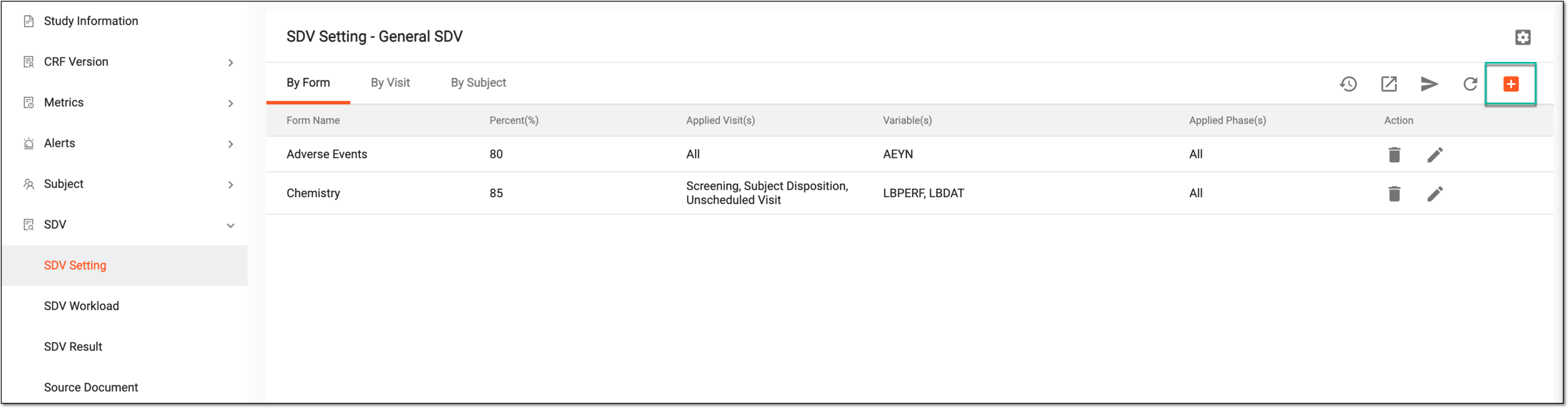 Figure 1. Adding new SDV setting record by form
-
In the Add dialog that appears, fill in the details as explained in the following table.
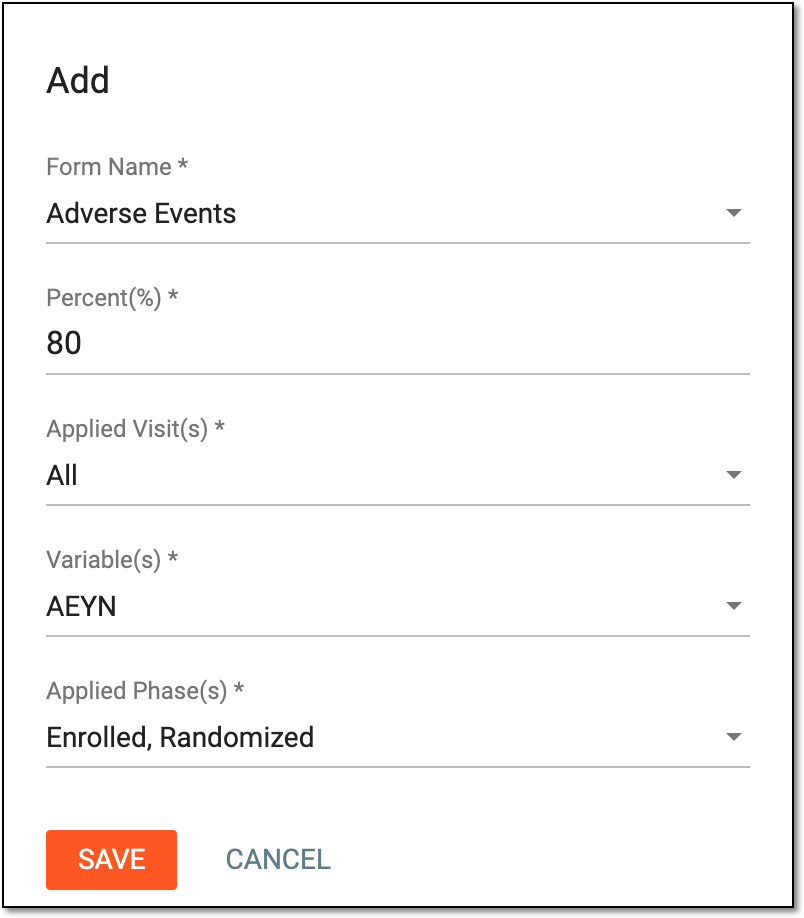 Figure 2. Configuring new SDV setting record by form
Tip
In the following table, mandatory elements are marked with an asterisk (*).
Element
Details
Form Name*
Select the form that must be verified against the source document after completion.
Percent(%)*
Enter the number representing the percentage of form fields out of the general amount of fields that have to be verified against the source document.
For instance, enter 100 if you want all form fields to be verified, or enter 50 to only make the verification of half of the form fields required.
Applied Visit(s)*
Select visits where the configured SDV setting must be applied for the selected form.
Variable(s)*
Select variables to which the configured SDV must be applied on the selected form.
Applied Phase(s)*
Select subject phases to which the configured SDV must be applied on the selected form.
SAVE
Select
 to add the selected form to the list of those to be verified.
CANCEL
Select
 to discard the changes and close the dialog.
Once saved, the SDV setting record is added. You can now execute the SDV setting to apply the configuration.
When defining the procedure for the general SDV type, you can add SDV setting records by visit. This means that you define if all the data collected in CRFs of some visits must undergo SDV or only some random part of it.
-
In the EDC application header, select the STUDY INFO tab.
-
In the left pane of the page that opens, expand SDV and select the SDV Setting tab.
-
On the SDV Setting - General SDV page that opens, select the By Visit tab.
-
From the workspace toolbar, select New Item
.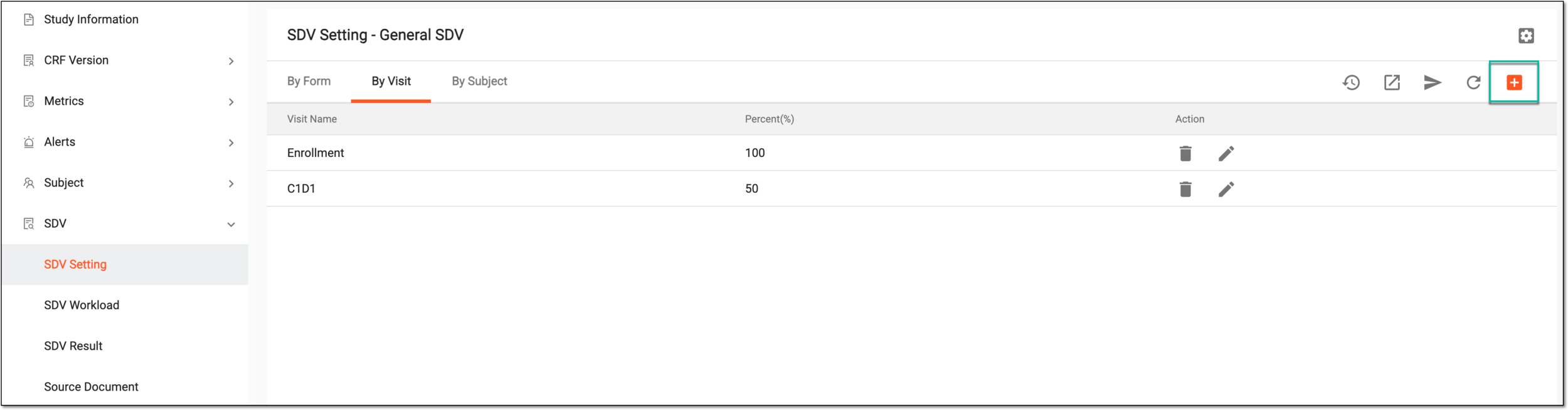 Figure 1. Adding new SDV setting record by visit
-
In the Add dialog that appears, fill in the form as explained in the following table.
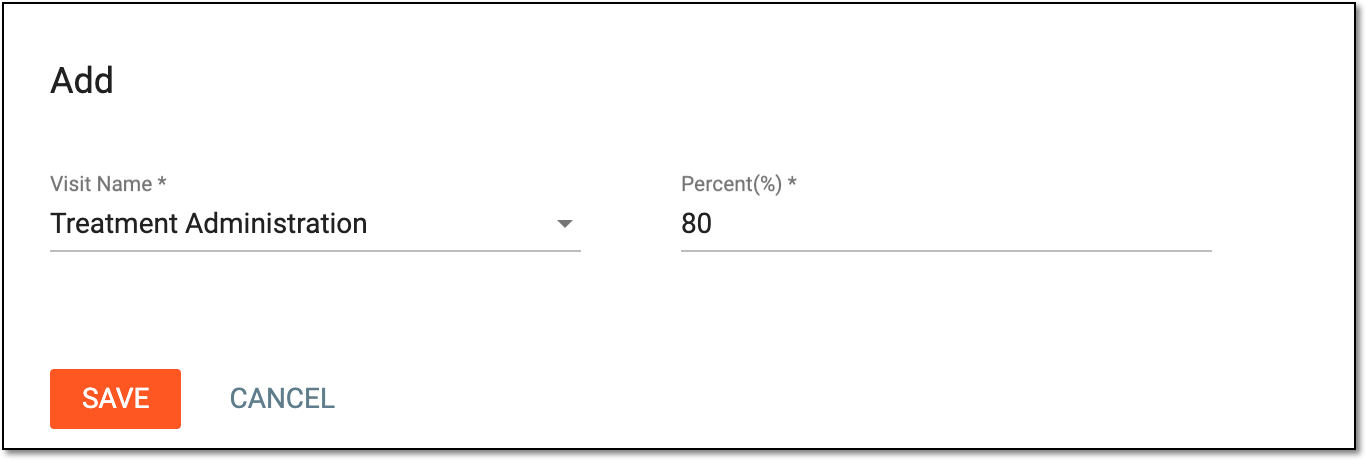 Figure 2. Configuring SDV setting record by visit
Tip
In the following table, mandatory elements are marked with an asterisk (*).
Element
Details
Visit Name*
Select the visit whose forms must be verified against the source document.
Percent(%)*
Enter the number representing the percentage of forms completed at the selected visit that must be verified against the source documents.
For instance, enter 100 if you want all the forms from the visit to be verified, or enter 50 to only make the verification of half of the forms required.
SAVE
Select
to add the selected visit to the list of those to be verified.CANCEL
Select
to discard the changes and close the dialog.
Once saved, the SDV setting record is added. You can now execute the SDV setting to apply the configuration.
When defining the procedure for the general SDV type, you can add SDV setting records by visit. This means that you define if all the data collected in CRFs of all visits for the specific subject must undergo SDV or only some random part of it.
-
In the EDC application header, select the STUDY INFO tab.
-
In the left pane of the page that opens, expand SDV and select the SDV Setting tab.
-
On the SDV Setting - General SDV page that opens, select the By Subject tab.
-
From the workspace toolbar, select New Item
.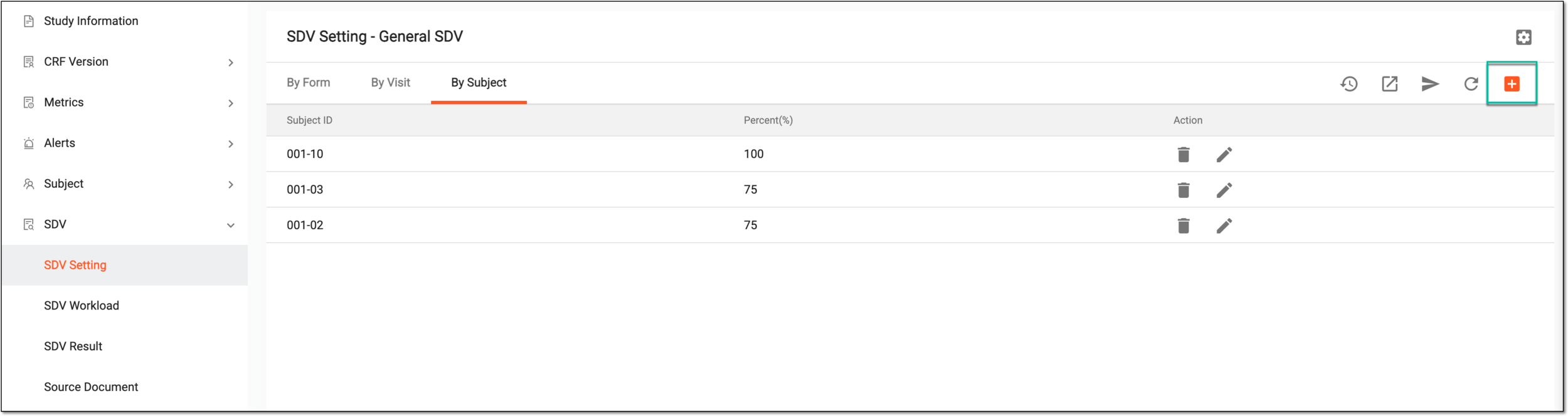 Figure 1. Adding SDV setting record by subject
-
In the Add dialog that appears, fill in the form as explained in the following table.
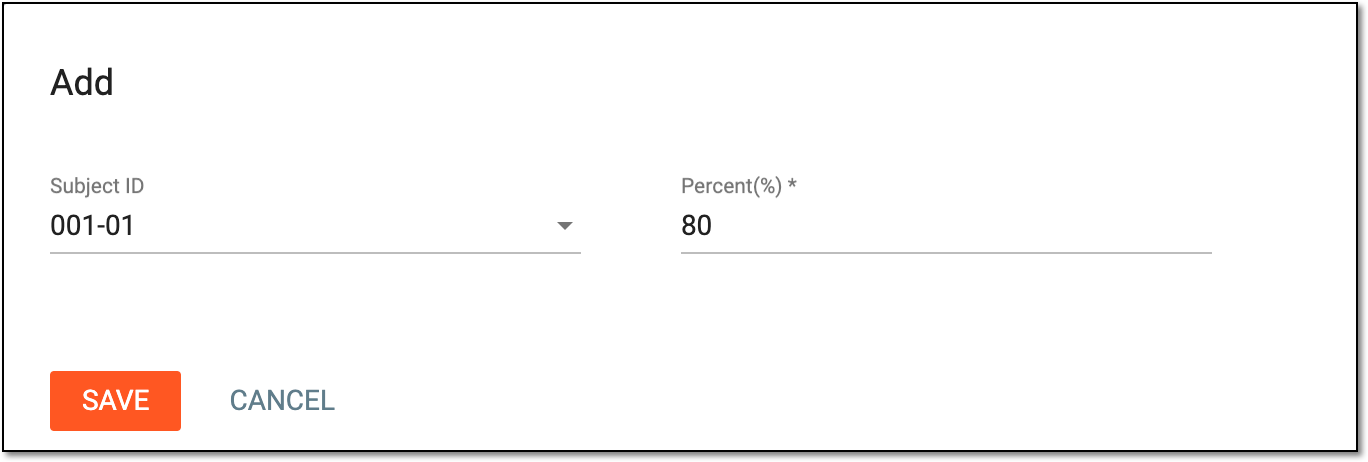 Figure 2. Configuring SDV setting record by subject
Tip
In the following table, mandatory elements are marked with an asterisk (*).
Element
Details
Subject ID*
Select the subject whose CRF data must be verified against the source document.
Percent(%)*
Enter the number representing the percentage of completed forms for the selected subject that must be verified against the source documents.
For instance, enter 100 if you want all the forms for this subject to be verified, or enter 50 to only make the verification of half of the forms required.
SAVE
Select
to add the selected subject to the list of those to be verified.CANCEL
Select
to discard the changes and close the dialog.
Once saved, the SDV setting record is added. You can now execute the SDV setting to apply the configuration.