Add TSDV plan
Source Data Verification (SDV) involves the review and comparison of data recorded in the source documents such as laboratory results, medical history, adverse event records, and so on against the data captured on the case report forms (CRFs).
Target source data verification (TSDV) is a more complex and sophisticated type of SDV setting as it provides an opportunity to perform more selective configurations compared to global or general types.
To outline your TSDV process, you need to add various specific configurations the main of which is the TSDV plan. Based on your study needs and sponsor requirements, these plans can be of three levels as follows:
-
A study-level TSDV plan applies to the entire study and all countries and sites involved. The study-level plan is only one per study and can only exist in an active state individually, meaning that no country- or site-level plans can be active along with the activated study-level plan.
Important
The study-level plan is preconfigured for you in the system and cannot be manually added. However, you can edit or activate/inactivate it as needed according to your study protocol and sponsor requirements.
-
A country-level TSDV plan applies to the selected country and the sites that belong there. The country-level plan can exist in an active state simultaneously with the site-level plans. This way, the sites for which the individual plans are configured follow their logic, and all the rest of the sites within the country follow the country-level TSDV plan.
-
A site-level TSDV plan applies only to an individual site. The site-level plan can exist in an active state simultaneously with the country-level plan overwriting the TSDV logic for the related site only, and the rest of the sites within the country follow the country-level TSDV plan.
Important
To start creating the TSDV plan, ensure you have added the tiers.
This section concentrates on how to create the TSDV plan from scratch. However, you can also create a new one by copying the existing TSDV plan.
-
In the EDC application header, select the STUDY INFO tab.
-
In the left pane of the page that opens, expand SDV and select the SDV Setting tab.
-
On the SDV Setting - Target SDV page that opens, under the TSDV Plan tab, from the workspace toolbar, select New Item
 .
.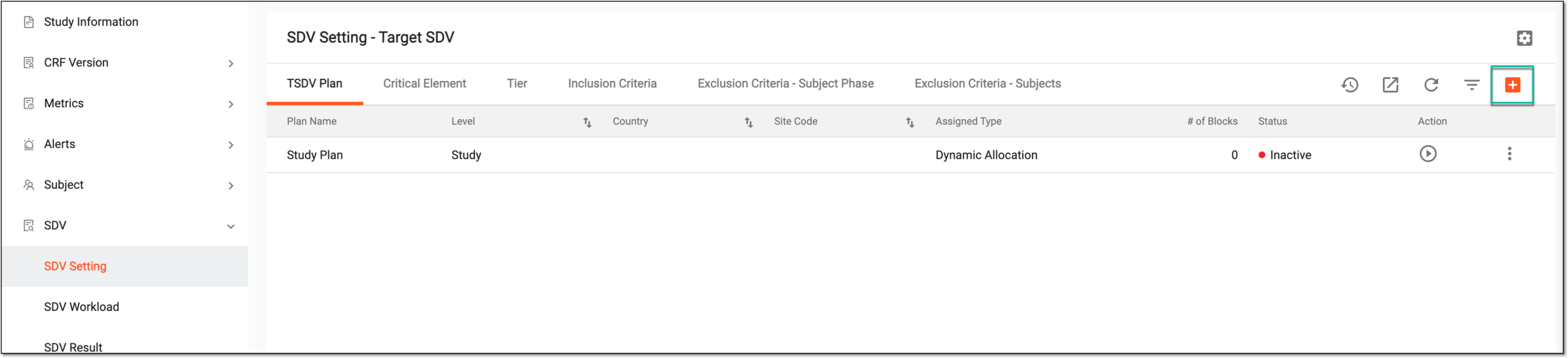 Figure 1. Adding new TSDV plan
-
On the Add Plan page that opens, perform the configurations as explained in the following table.
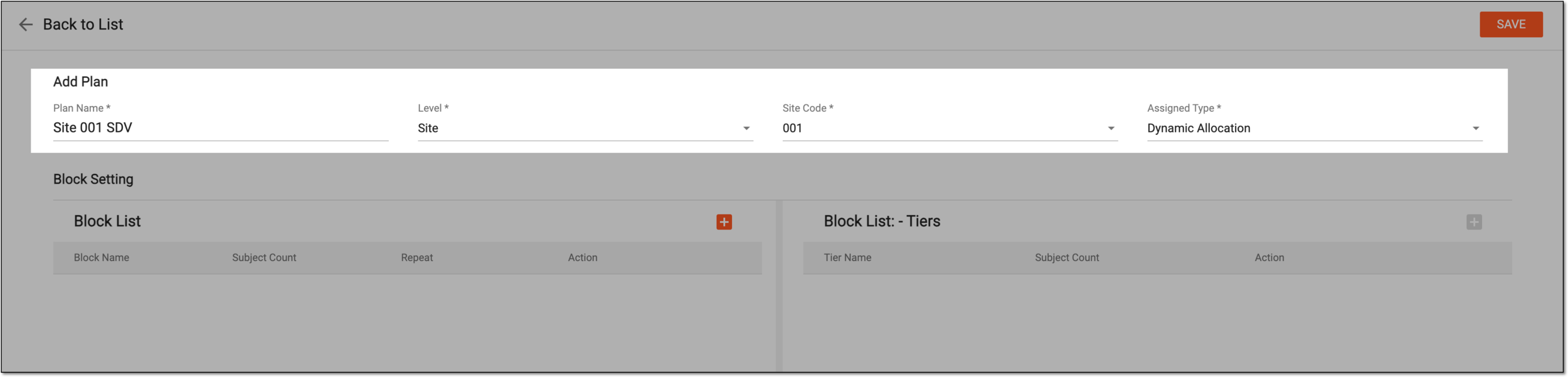 Figure 2. Configuring TSDV plan
Tip
In the following table, mandatory elements are marked with an asterisk (*).
Element
Details
Plan Name*
Enter a descriptive name for your TSDV plan.
Level*
Select the level at which this plan must be applied by the system for SDV—Site or Country.
Country*
Select the country for which this TSDV plan is applicable.
This field is only available for country-level TSDV plans.Site Code*
Select the site for which this TSDV plan is applicable.
This field is only available for site-level TSDV plans.Assigned Type*
Select the type of subject allocation to different SDV blocks according to this plan:
-
Dynamic Allocation: select this type to randomly assign subjects to various blocks for SDV based on the set configurations of the TSDV plan.
-
Sequentially Allocation: select this type to assign subjects to various blocks for SDV sequentially one by one.
-
Permuted Block: select this type to randomly assign subjects to various blocks for SDV based on the set configurations of the TSDV plan while keeping an equal proportion between the blocks at all times.
-
-
In the Block Setting configuration block, add blocks to Block List by selecting New Item
and completing the fields as explained in the following table.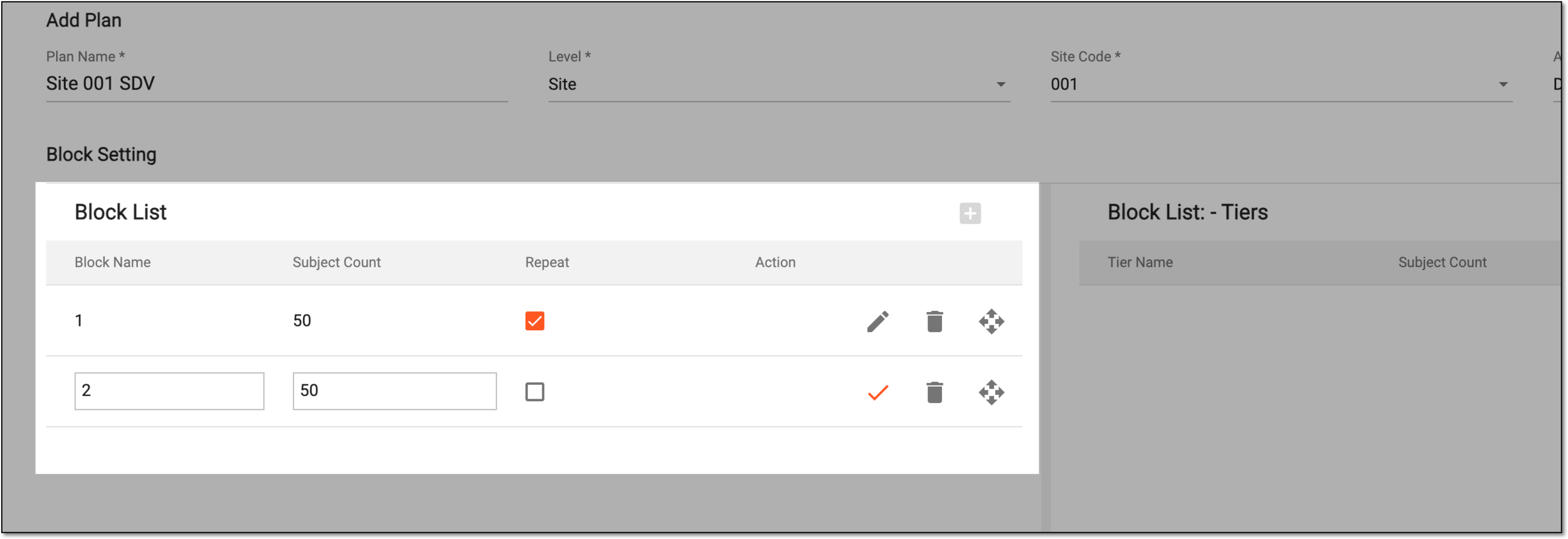 Figure 3. Adding subject blocks
Element
Details
Block Name
Enter the name of the block within the TSDV plan.
Subject Count
Enter how many subjects are to be allocated to this block.
Repeat
Select this checkbox next to the row the configurations of which must be repeated for subject allocation once this block is full.

Select this icon to save the added row of block configurations.

Select this icon to remove the added row of block configurations.

Select this icon to drag the block configuration rows to move them and change their sequence.
-
From the Block List table, select a block and in the Block List - Tiers table, add tiers to the selected block by clicking New Item
and completing the fields as explained in the following table.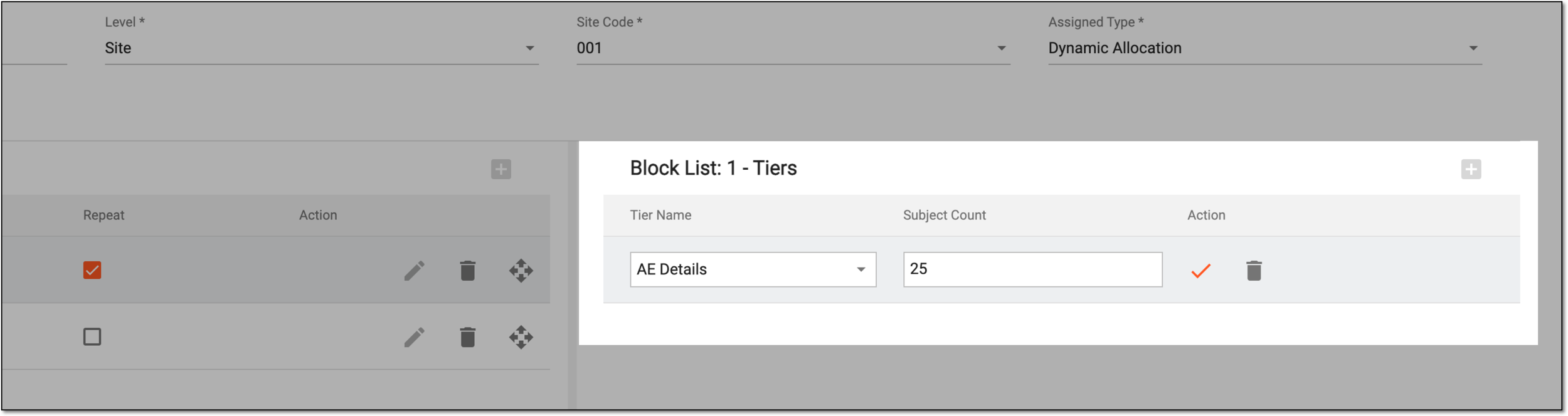 Figure 4. Adding tiers to blocks
Element
Details
Tier Name
Enter the name of the tire you are adding within the block.
Subject Count
Enter how many subjects are to be allocated to this block.
Select this icon to save the added row of tier configurations.
Select this icon to remove the added row of tier configurations.
-
Select
 to save the implemented changes.
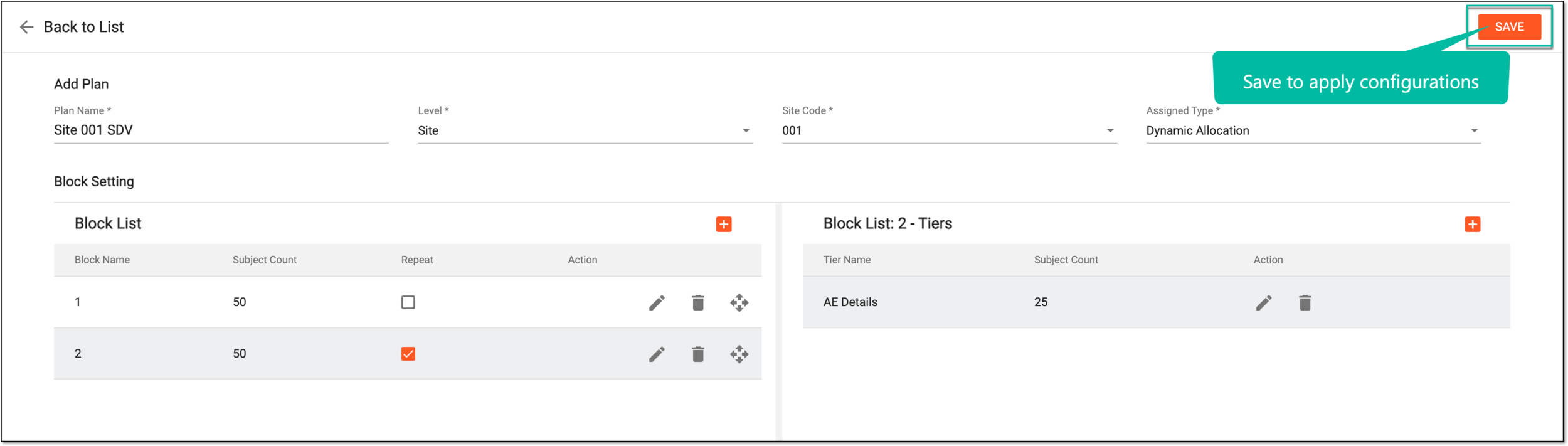 Figure 5. Saving TSDV plan
Once saved, the TSDV plan is added to the system. You can now activate your plan to start the SDV process.
Copy TSDV plan from existing
Source Data Verification (SDV) involves the review and comparison of data recorded in the source documents such as laboratory results, medical history, adverse event records, and so on against the data captured on the case report forms (CRFs).
Target source data verification (TSDV) is a more complex and sophisticated type of SDV setting as it provides an opportunity to perform more selective configurations compared to global or general types.
To outline your TSDV process, you need to add various specific configurations the main of which is the TSDV plan. Based on your study needs and sponsor requirements, you can create your TSDV plan from scratch or copy the existing one and then introduce the needed amendments.
Important
To start amending the TSDV plan, ensure you have added the required tiers.
-
In the EDC application header, select the STUDY INFO tab.
-
In the left pane of the page that opens, expand SDV and select the SDV Setting tab.
-
On the SDV Setting - Target SDV page that opens, from the TSDV Plan list, locate the plan you want to copy and from the Action column next to it, select Copy
 .
. Figure 1. Copying TSDV plan
-
On the Add Plan page that opens, perform the configurations as explained in the following table.
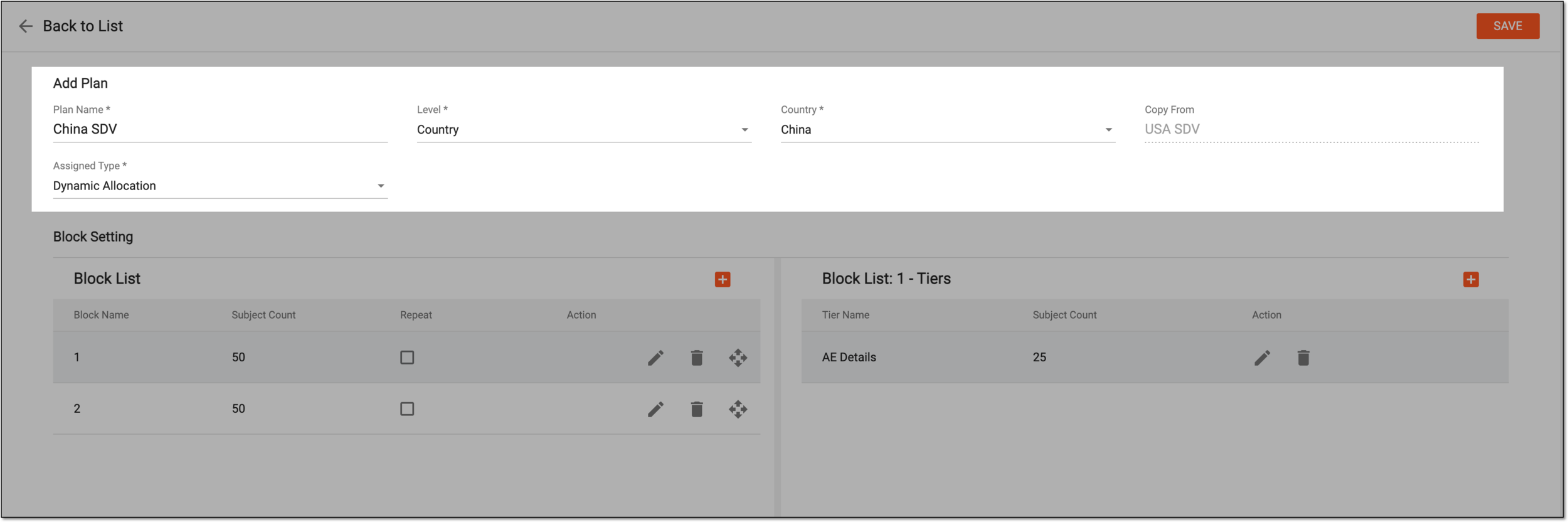 Figure 2. Configuring copied TSDV plan
Element
Details
Plan Name
Enter a descriptive name for your TSDV plan.
Level
Select the level at which this plan must be applied by the system for SDV—Site or Country.
Country
Select the country for which this TSDV plan is applicable.
This field is only available for country-level TSDV plans.Site
Select the site for which this TSDV plan is applicable.
This field is only available for site-level TSDV plans.Copy From
Represents the name of the original TSDV plan based on which this copy is being created.
Assigned Type
Select the type of subject allocation to different SDV blocks according to this plan:
-
Dynamic Allocation: select this type to randomly assign subjects to various blocks for SDV based on the set configurations of the TSDV plan.
-
Sequentially Allocation: select this type to assign subjects to various blocks for SDV sequentially one by one.
-
Permuted Block: select this type to randomly assign subjects to various blocks for SDV based on the set configurations of the TSDV plan while keeping an equal proportion between the blocks at all times.
-
-
In the Block Setting configuration block, add, edit, or remove subject groups of the Block List as explained in the following table.
Figure 3. Managing block list
Element
Details
Block Name
Enter the name of the block within the TSDV plan.
Subject Count
Enter how many subjects are to be allocated to this block.
Repeat
Select this checkbox next to the row the configurations of which must be repeated for subject allocation once this block is full.
Select this icon to add more rows for block configuration.
Select this icon to save the added row of block configurations.
Select this icon to remove the added row of block configurations.
Select this icon to drag the block configuration rows to move them and change their sequence.
-
From the Block List table, select a block and in the Block List - Tiers table, add or edit its tiers of as explained in the following table.
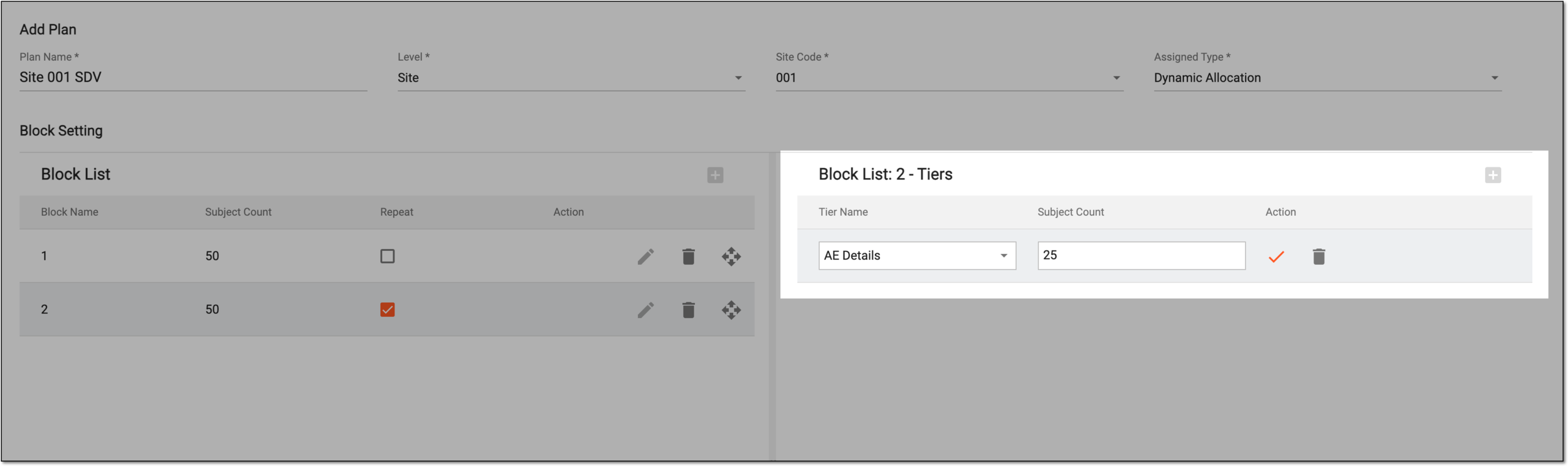 Figure 4. Managing block tiers
Element
Details
Tier Name
Enter the name of the tire you are adding within the block.
Subject Count
Enter how many subjects are to be allocated to this block.
Select this icon to add more rows for tier configuration.
Select this icon to save the added row of tier configurations.
Select this icon to remove the added row of tier configurations.
-
Select
to save the implemented changes.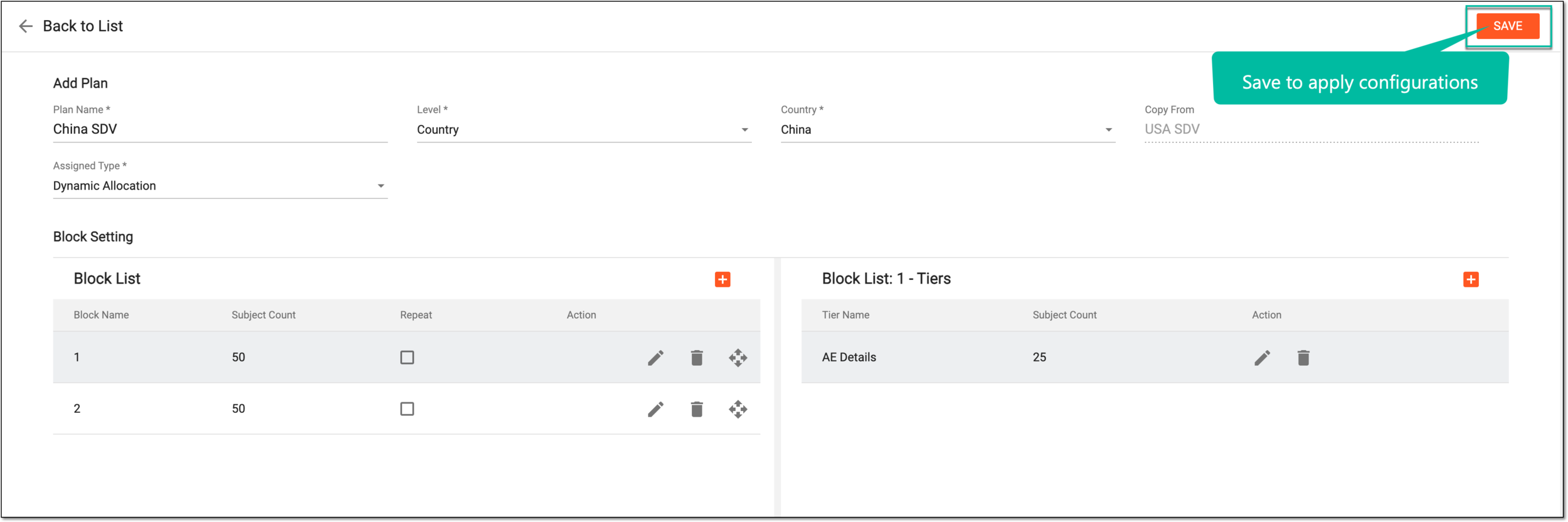 Figure 5. Saving TSDV plan
Once saved, the TSDV plan is updated. You can now activate this plan to start the SDV process.
Activate/Inactivate TSDV plan
Target source data verification (TSDV) is a more complex and sophisticated type of SDV setting as it provides an opportunity to perform more selective configurations compared to global or general types.
To configure your TSDV process, you need to add various specific configurations the main of which is the TSDV plan. Once the TSDV plan is configured, it must be active for the system to perform data verification accordingly. The inactive plans are not used for data verification.
Important
The following TSDV plan activation rules must be followed:
-
The study-level TSDV plan can only be activated if all the other plans are inactivated.
-
The country-level plan can be activated simultaneously with the site-level plans. This way, the sites for which the individual plans are configured follow their logic, and all the rest of the sites within the country follow the country-level TSDV plan.
-
The site-level plan can be activated simultaneously with the country-level plan overwriting the TSDV logic for the related site only, and the rest of the sites within the country follow the country-level TSDV plan.
-
In the EDC application header, select the STUDY INFO tab.
-
In the left pane of the page that opens, expand SDV and select the SDV Setting tab.
-
On the SDV Setting - Target SDV page that opens, under the TSDV Plan tab, locate the plan you want to activate or inactivate. Then from the Action column, select Activate
 or Inactivate
  .
.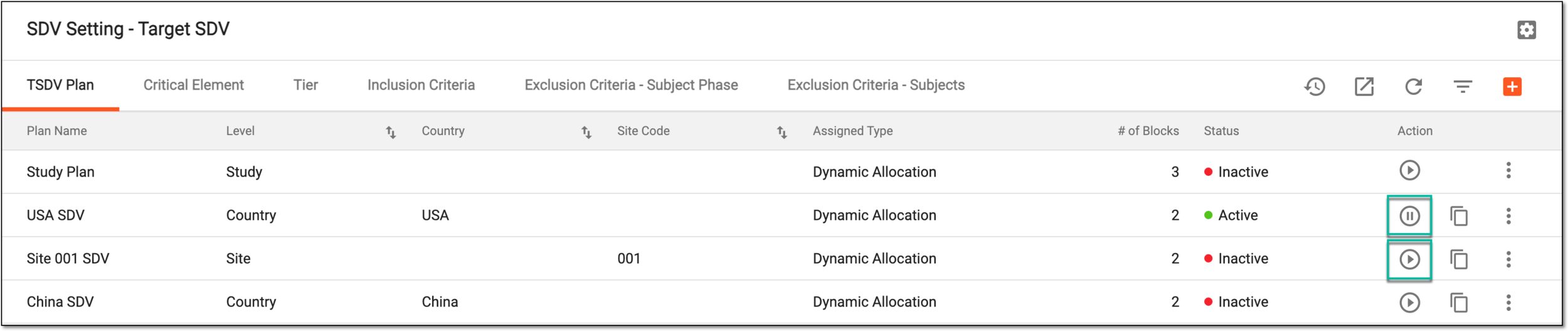 Figure 1. Activating/Inactivating TSDV plan
Once selected, the TSDV plan becomes active or inactive based on your performed action.
Important
If some configurations of your TSDV plan are inaccurate, the activation fails and the system prompts you on the reason via an error message.
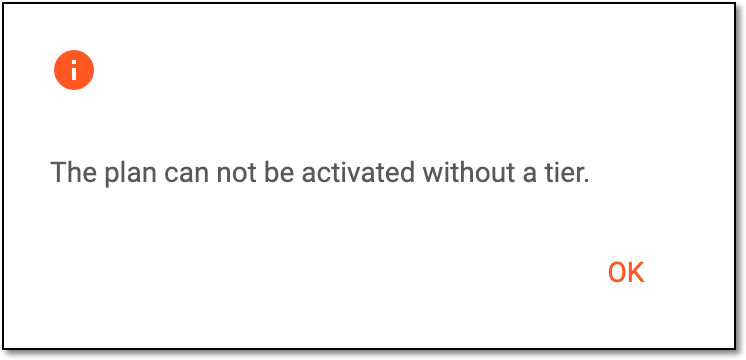 |
Edit TSDV plan
Target source data verification (TSDV) is a more complex and sophisticated type of SDV setting as it provides an opportunity to perform more selective configurations compared to global or general types.
To configure your TSDV process, you need to add various specific configurations the main of which is the TSDV plan. Once the TSDV plan is added, you cannot update such configurations as its name, level, or allocation type. However, you can edit the blocks and tiers within.
Important
To start amending the TSDV plan, ensure you have added the required tiers.
-
In the EDC application header, select the STUDY INFO tab.
-
In the left pane of the page that opens, expand SDV and select the SDV Setting tab.
-
On the SDV Setting - Target SDV page that opens, from the TSDV Plan list, locate the plan you want to update. Then from the Action column next to it, select Edit
 .
.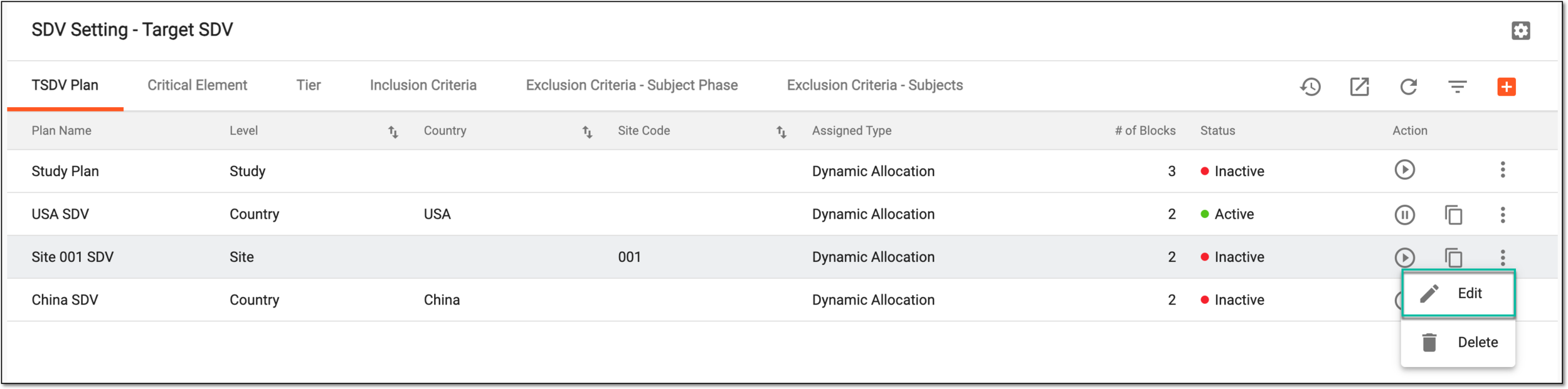 Figure 1. Selecting to edit TSDV plan
-
On the Add Plan page that opens, explore the configurations as explained in the following table.
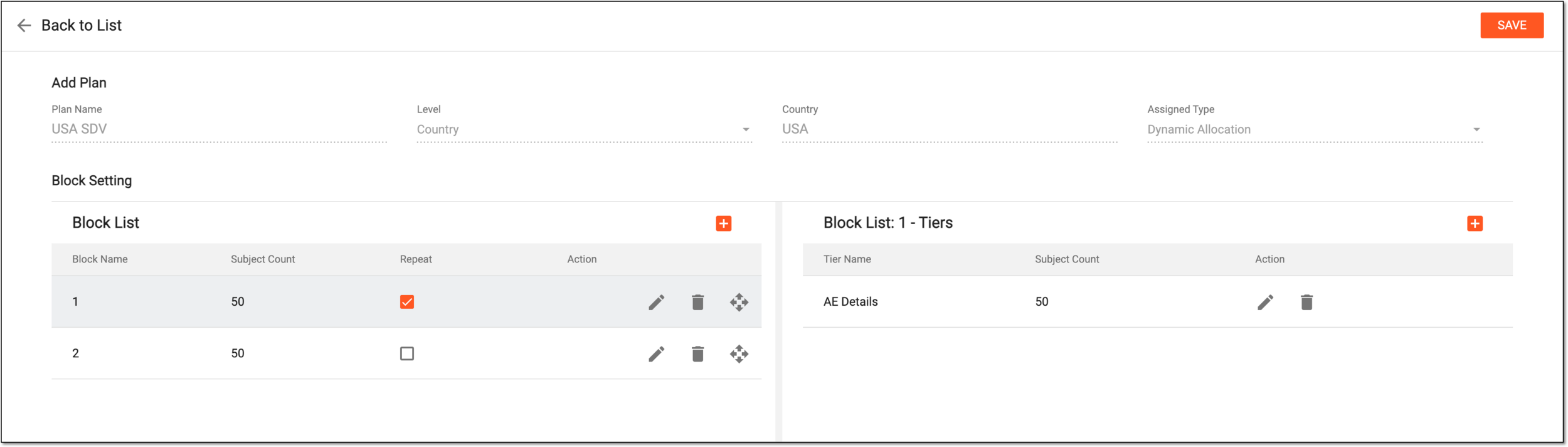 Figure 2. Editing TSDV plan
Element
Details
Plan Name
Represents the name of the TSDV plan. The field is read-only.
Level
Represents the level at which this plan is applied by the system for SDV—Site or Country. The field is read-only.
Country
Represents the country for which this TSDV plan is applicable. The field is read-only.
This field is only available for country-level TSDV plans.Site
Represents the site for which this TSDV plan is applicable. The field is read-only.
This field is only available for site-level TSDV plans.Assigned Type
Represents the type of subject allocation to different SDV blocks according to this plan. The value is read-only and can be one of the following:
-
Dynamic Allocation: select this type to randomly assign subjects to various blocks for SDV based on the set configurations of the TSDV plan.
-
Sequentially Allocation: select this type to assign subjects to various blocks for SDV sequentially one by one.
-
Permuted Block: select this type to randomly assign subjects to various blocks for SDV based on the set configurations of the TSDV plan while keeping an equal proportion between the blocks at all times.
-
-
In the Block Setting configuration block, add, edit, or remove subject groups of the Block List as explained in the following table.
Figure 3. Managing block list
Element
Details
Block Name
Enter the name of the block within the TSDV plan.
Subject Count
Enter how many subjects are to be allocated to this block.
Repeat
Select this checkbox next to the row the configurations of which must be repeated for subject allocation once this block is full.
Select this icon to add more rows for block configuration.
Select this icon to save the added row of block configurations.
Select this icon to remove the added row of block configurations.
Select this icon to drag the block configuration rows to move them and change their sequence.
-
In the same Block Setting configuration block, add or edit tiers of the blocks as explained in the following table.
Figure 4. Managing block tiers
Element
Details
Tier Name
Enter the name of the tire you are adding within the block.
Subject Count
Enter how many subjects are to be allocated to this block.
Select this icon to add more rows for tier configuration.
Select this icon to save the added row of tier configurations.
Select this icon to remove the added row of tier configurations.
-
Select
to save the implemented changes.Figure 5. Saving TSDV plan
Once saved, the TSDV plan is updated. You can now activate this plan to start the SDV process.
Delete TSDV plan
Target source data verification (TSDV) is a more complex and sophisticated type of SDV setting as it provides an opportunity to perform more selective configurations compared to global or general types.
To configure your TSDV process, you need to add various specific configurations the main of which is the TSDV plan. In case the TSDV plan is not used and is no longer relevant, you can delete any of such plans, except for the study-level one.
Important
The study-level plan is preconfigured for you in the system and cannot be deleted. However, you can edit or activate/inactivate it as needed according to your study protocol and sponsor requirements.
-
In the EDC application header, select the STUDY INFO tab.
-
In the left pane of the page that opens, expand SDV and select the SDV Setting tab.
-
On the SDV Setting - Target SDV page that opens, from the TSDV Plan list, locate the plan you want to delete. Then from the Action column next to it, select More
 > Delete .
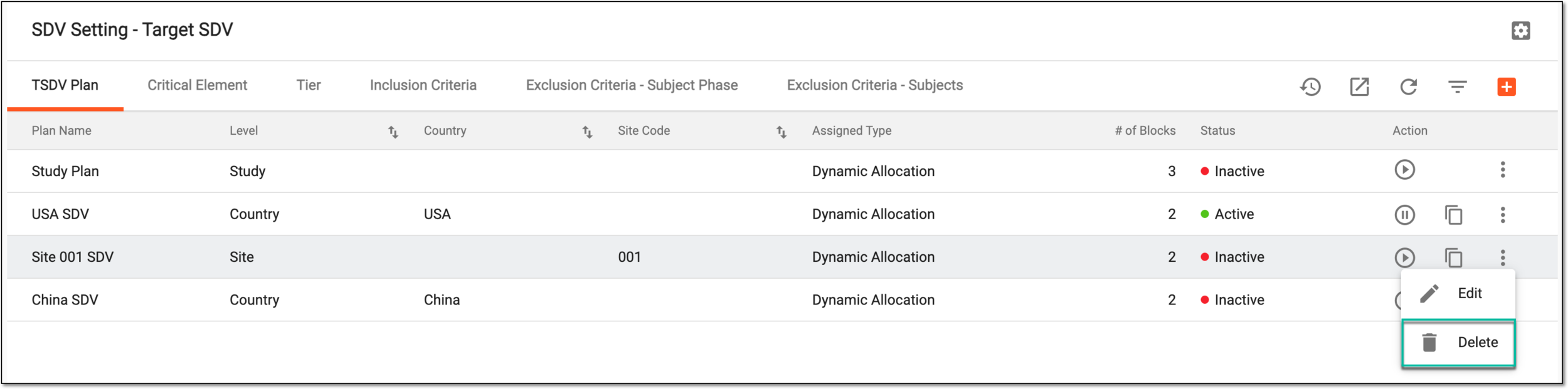 Figure 1. Deleting TSDV plan
-
In the confirmation dialog that appears, select
 to proceed with your action.
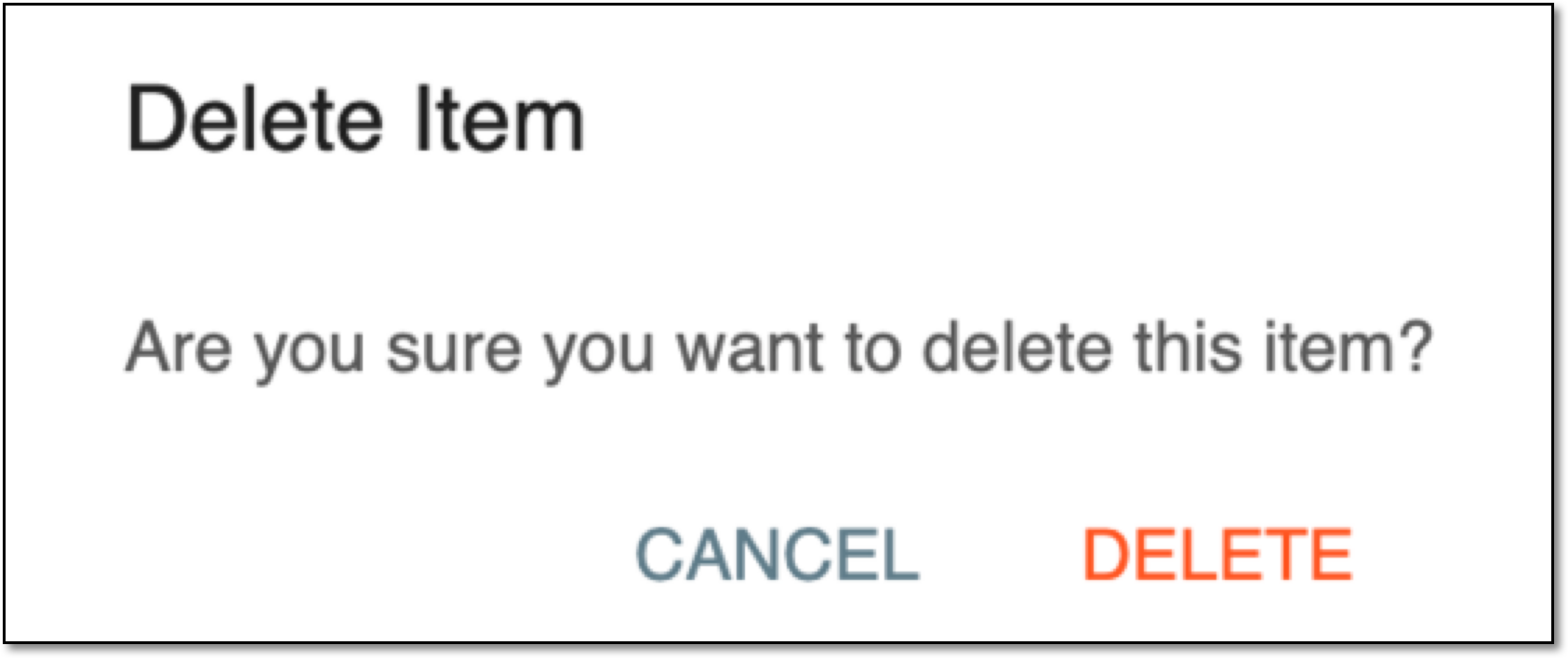 Figure 2. Confirming deletion
Once confirmed, the TSDV plan is deleted.