Add TSDV tier
Target source data verification (TSDV) is a more complex and sophisticated type of SDV setting in EDC than global or general verification types, as it provides an opportunity to perform more selective configurations of the verification process. One such configuration is the tier setting.
Tier is a component of a TSDV plan that includes various sets of forms and visits grouped based on certain criteria.
For instance, you create an "AE Details" tier and include all the "Adverse Events" and "Adverse Events (Details)" forms as well as "Adverse Events" visits of your study. Then, when this tier is added to the TSDV plan, according to that plan all the forms and visits from the tier undergo a mandatory data verification procedure.
You can create as many tiers as required for your study according to the sponsor's requirements and then use these tiers in different TSDV plans as needed.
Important
The All Forms tier is preconfigured for you in the system and cannot be removed, edited, or inactivated. This block includes 100% of all your study forms, thus if it is added to the TSDV plan, all the forms of the study must undergo SDV.
-
In the EDC application header, select the STUDY INFO tab.
-
In the left pane of the page that opens, expand SDV and select the SDV Setting tab.
-
On the SDV Setting - Target SDV page that opens, select the Tier tab.
-
From the workspace toolbar, select New Item

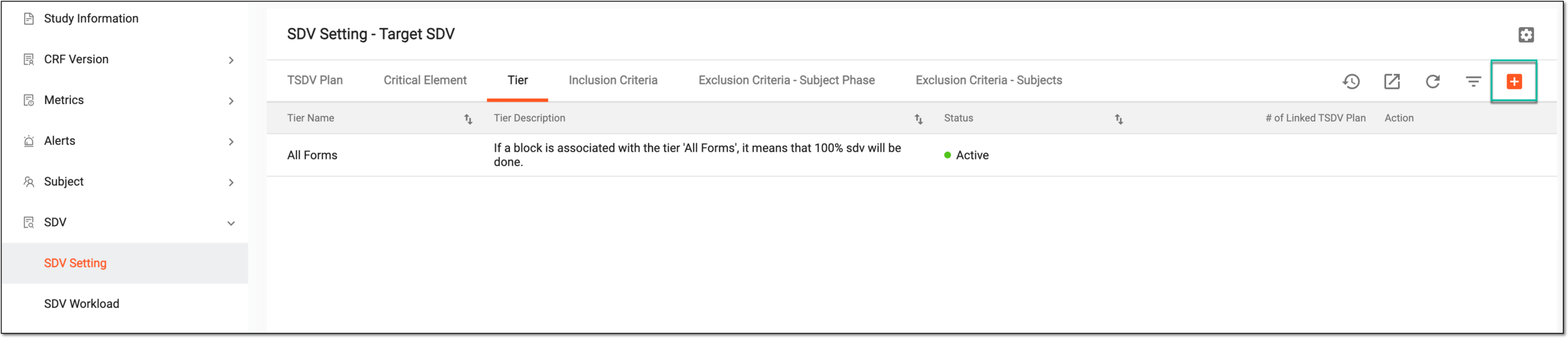 Figure 1. Adding new tier
-
In the Add Tire form that opens, complete the configurations as explained in the following table.
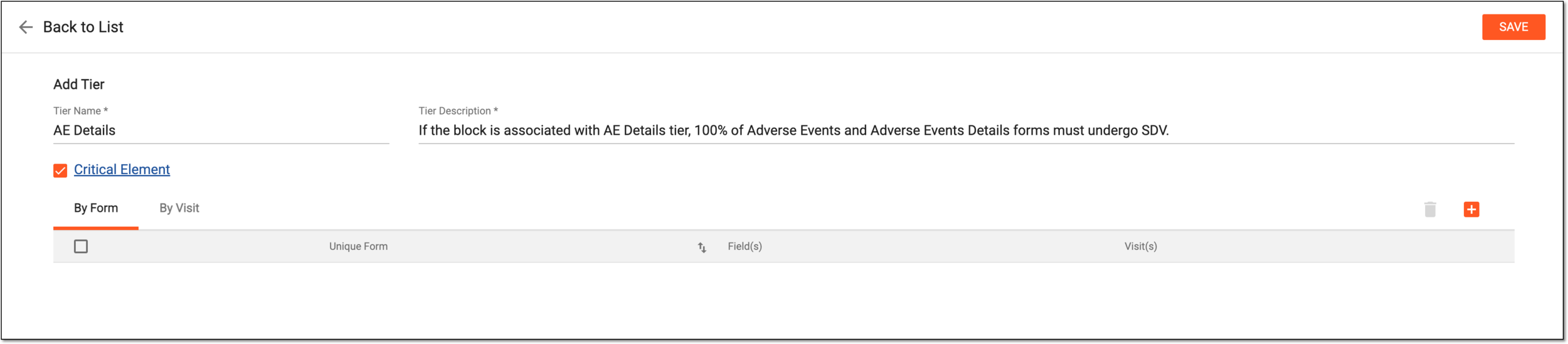 Figure 2. Configuring new tier
Tip
In the following table, mandatory elements are marked with an asterisk (*).
Element
Details
Tire Name*
Enter a descriptive name for the tier.
Tire Description*
Enter a detailed tier description to summarize its purpose and significance. This description helps EDC users to distinguish between tiers when adding them to TSDV plans.
Critical Element
Select the checkbox to include all the currently configured critical elements to this tier or clear the checkbox to exclude such a list.
You can select the Critical Element link to open the dialog and review the current critical element configuration.
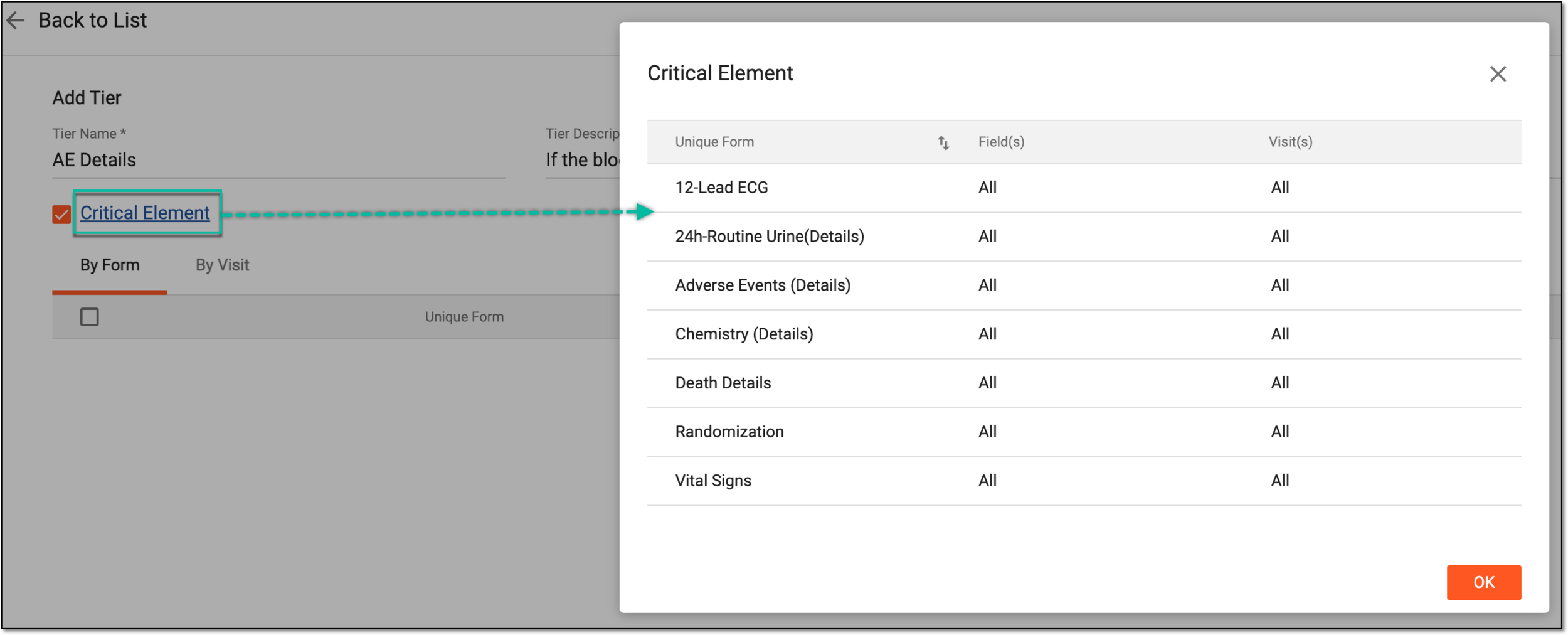 Figure 3. Accessing critical element preview
-
To add forms to the tier, select the By Form tab and perform the following steps.
-
From the workspace toolbar, select New Item
. Then from the expanded list, select the forms or visits to add them to the
configured TSDV tier and click  .
.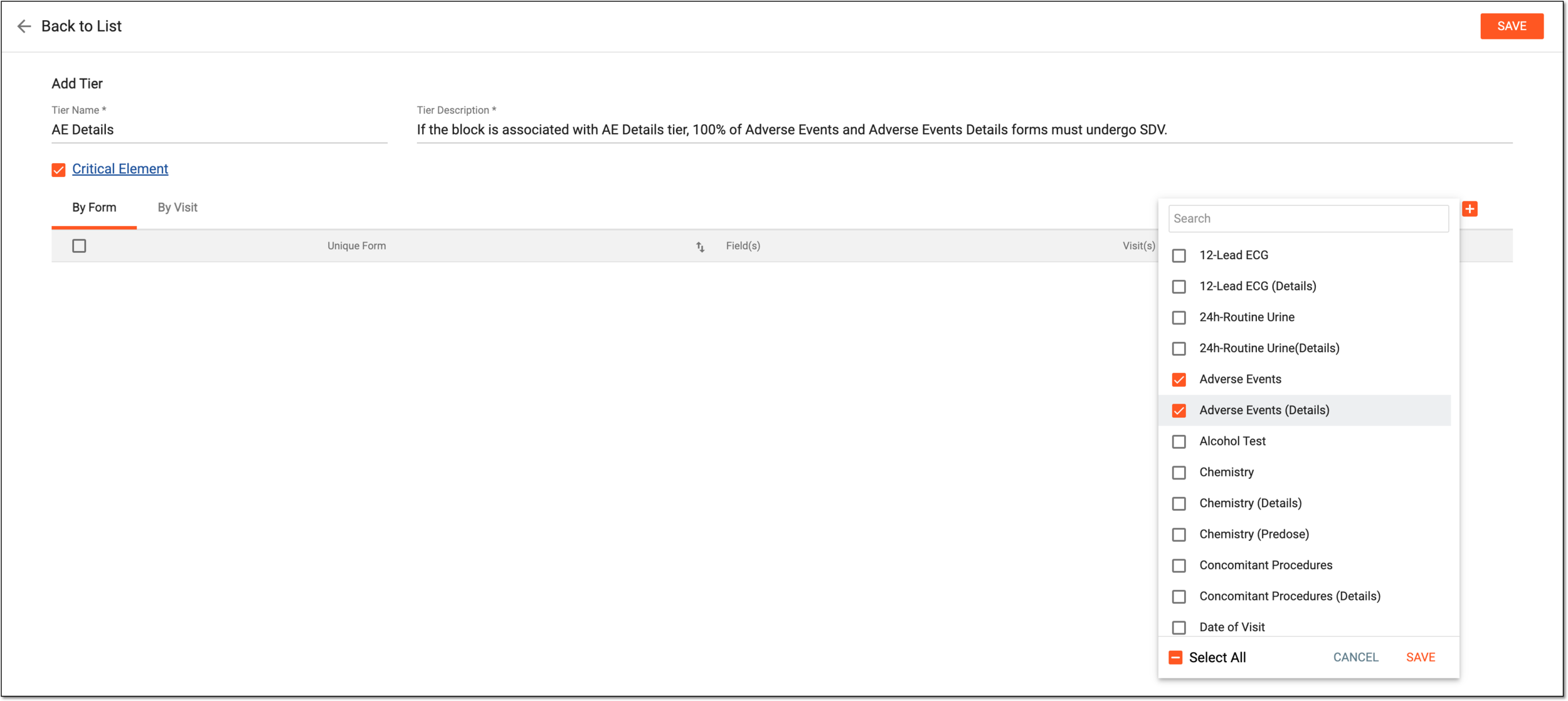 Figure 4. Adding forms to tier
-
To configure specific fields or visits that require SDV in relation to a form, from the respective column, select the value. Then from the expanded list, select the elements intended for SDV and click
.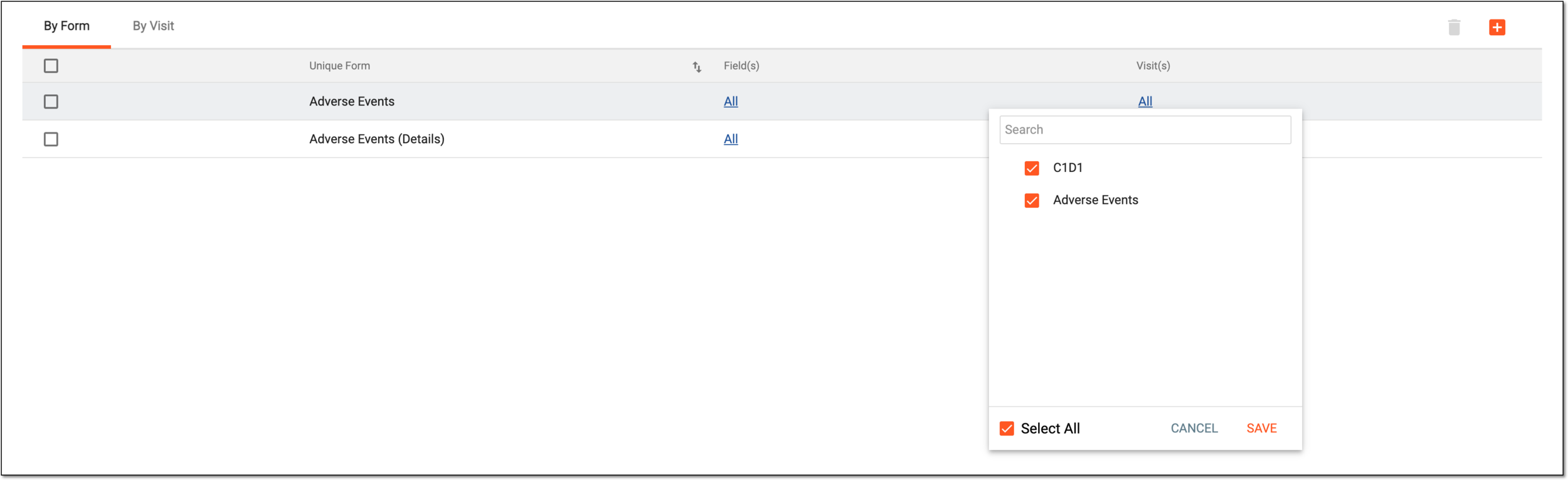 Figure 5. Managing visits related to form
-
-
To add visits to the tier, select the By Visit tab and perform the following steps.
-
From the workspace toolbar, select New Item
. From the expanded list, select the visits to add them to the configured TSDV
tier. Then select .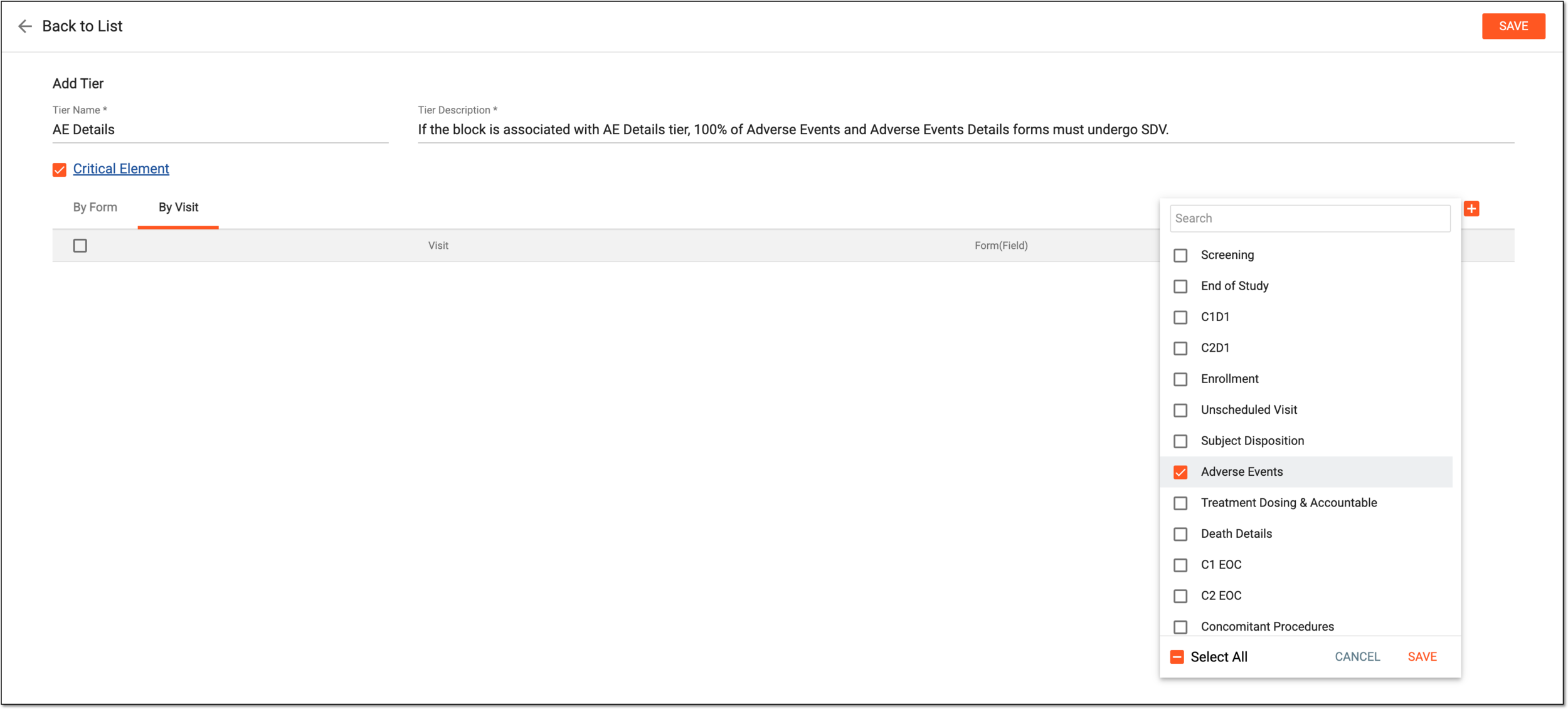 Figure 6. Adding visits to tier
-
To configure specific forms that require SDV in relation to a visit, from the Form(Field) column, select the value. Then from the expanded list, select the elements intended for SDV and click
.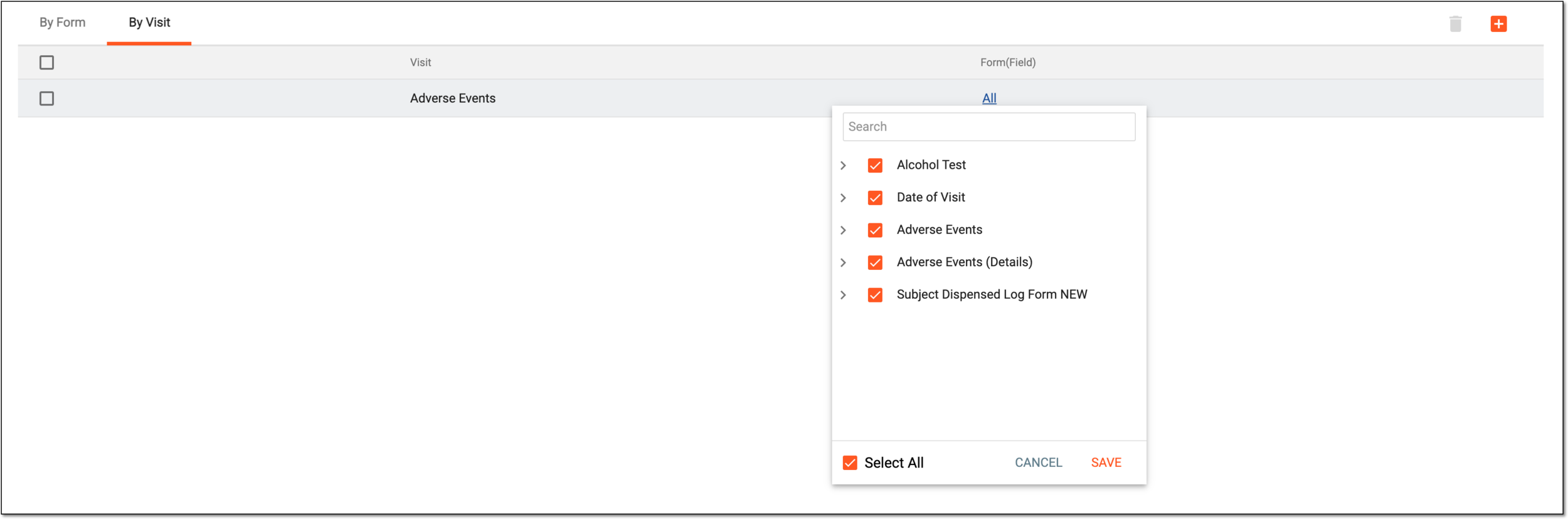 Figure 7. Managing visits related to form
-
-
Select
 to implement the applied changes.
Once saved, the tier is created and can now be used to configure TSDV plans.
Activate/Inactivate TSDV tier
Target source data verification (TSDV) is a more complex and sophisticated type of SDV setting in EDC than global or general verification types, as it provides an opportunity to perform more selective configurations of the verification process. One such configuration is the tier setting.
Tier is a component of a TSDV plan that includes various sets of forms and visits grouped based on certain criteria.
You can create as many tiers as required for your study according to the sponsor's requirements but to be able to use these tiers in different TSDV plans, you need to activate them. On the contrary, if some tier is not ready to be used in TSDV plans, you can inactivate it and make it temporarily unavailable.
-
In the EDC application header, select the STUDY INFO tab.
-
In the left pane of the page that opens, expand SDV and select the SDV Setting tab.
-
On the SDV Setting - Target SDV page that opens, select the Tier tab.
-
In the list of previously configured tiers, locate the one you want to activate or inactivate. Then from the Action column next to it, select Activate
 or Inactivate
  .
.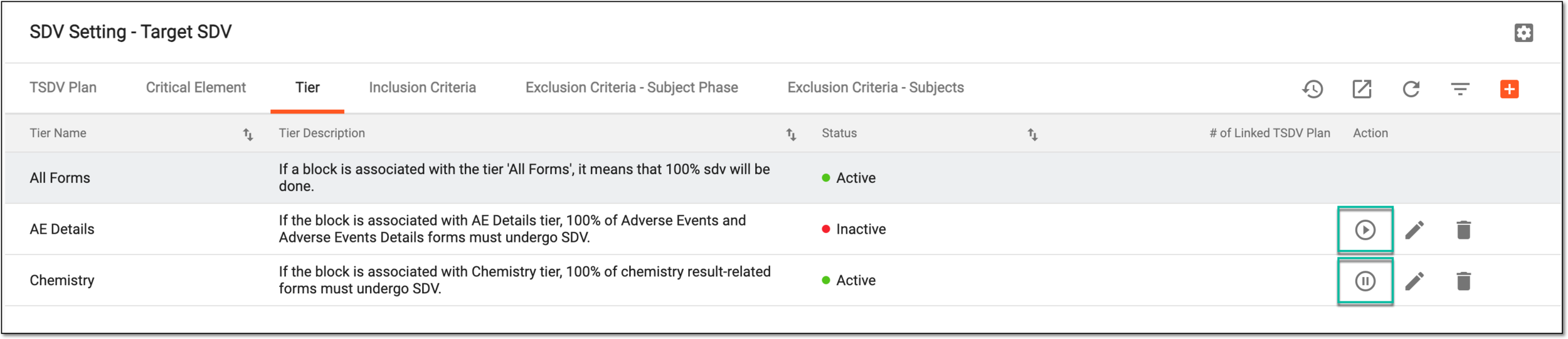 Figure 1. Activating/Inactivating tier
Tip
The All Forms tier is preconfigured for you in the system and cannot be removed, edited, or inactivated. This block includes 100% of all your study forms, thus if it is added to the TSDV plan, all the forms of the study must undergo SDV.
-
In the confirmation dialog that appears, select
 to proceed with your action.
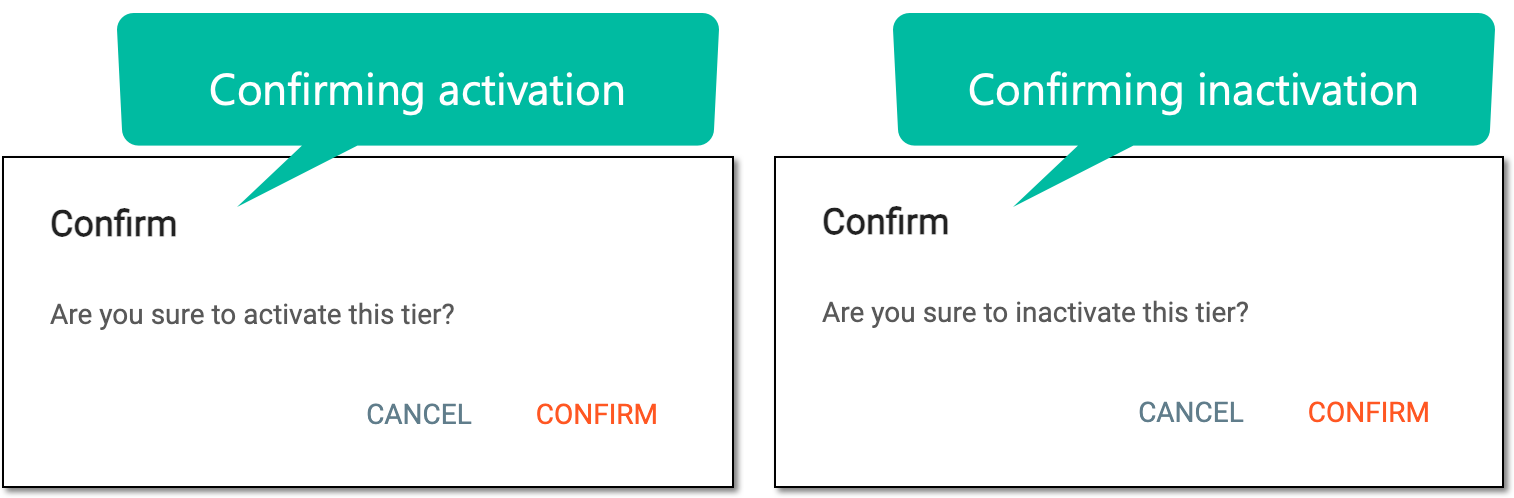 Figure 2. Confirming activation/inactivation
Once confirmed, the tier is activated or inactivated depending on the performed action.
Edit TSDV tier
Target source data verification (TSDV) is a more complex and sophisticated type of SDV setting in EDC than global or general verification types, as it provides an opportunity to perform more selective configurations of the verification process. One such configuration is the tier setting.
Tier is a component of a TSDV plan that includes various sets of forms and visits grouped based on certain criteria.
You can add as many tiers as required for your study or edit the existing ones at any time to follow the sponsor's requirements.
-
In the EDC application header, select the STUDY INFO tab.
-
In the left pane of the page that opens, expand SDV and select the SDV Setting tab.
-
On the SDV Setting - Target SDV page that opens, select the Tier tab.
-
In the list of previously configured tiers, locate the one you want to update. Then from the Action column next to it, select Edit
 .
.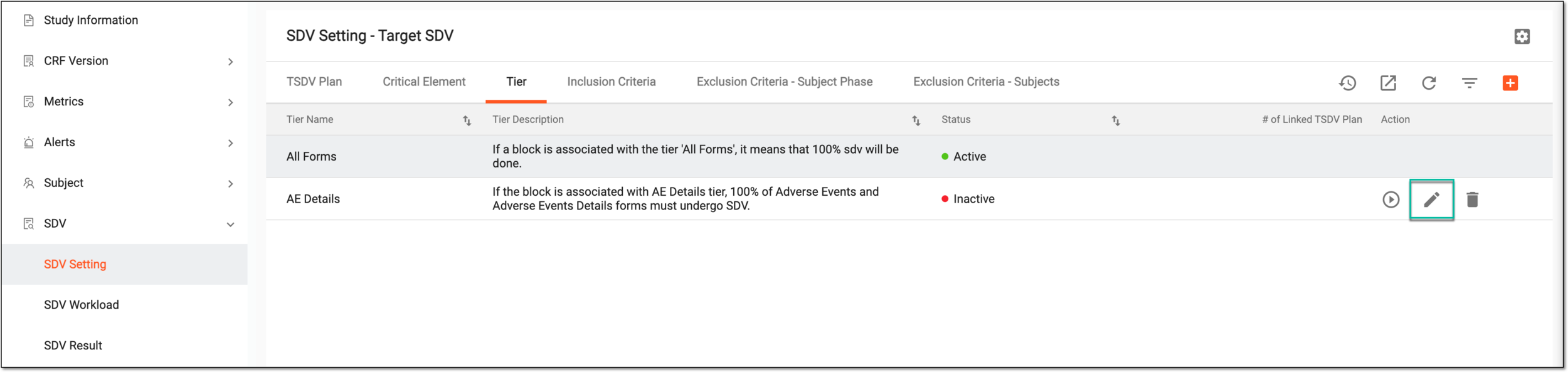 Figure 1. Editing tier
Tip
The All Forms tier is preconfigured for you in the system and cannot be removed, edited, or inactivated. This block includes 100% of all your study forms, thus if it is added to the TSDV plan, all the forms of the study must undergo SDV.
-
On the page that opens, update the fields as explained in the following table.
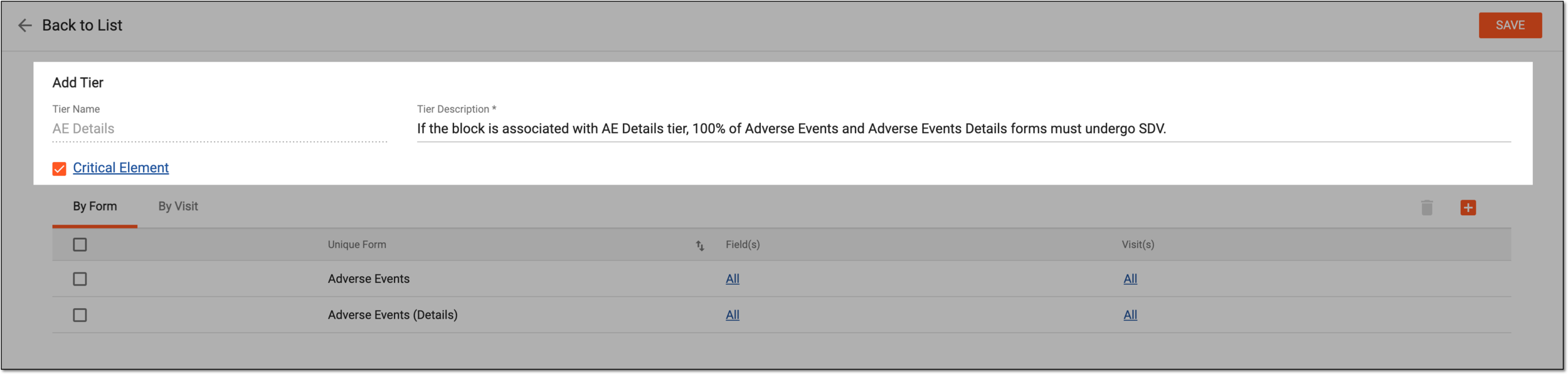 Figure 2. Editing tier configurations
Tip
In the following table, mandatory elements are marked with an asterisk (*).
Element
Details
Tire Name*
Represents the name of the tier and cannot be edited.
Tire Description*
Enter a detailed tier description to summarize its purpose and significance. This description helps EDC users to distinguish between tiers when adding them to TSDV plans.
Critical Element
Select the checkbox to include all the currently configured critical elements to this tier or clear the checkbox to exclude such a list.
You can select the Critical Element link to open the dialog and review the current critical element configuration.
Figure 3. Accessing critical element preview
-
To add forms or visits to the tier, select either By Form or By Visit tab and perform the following steps.
Important
Note that you can only add forms and visits to an inactive tier. For active tiers no form or visit modifications are available.
-
From the workspace toolbar, select New Item
. Then from the expanded list, select the forms or visits to add them to the
configured TSDV tier and click .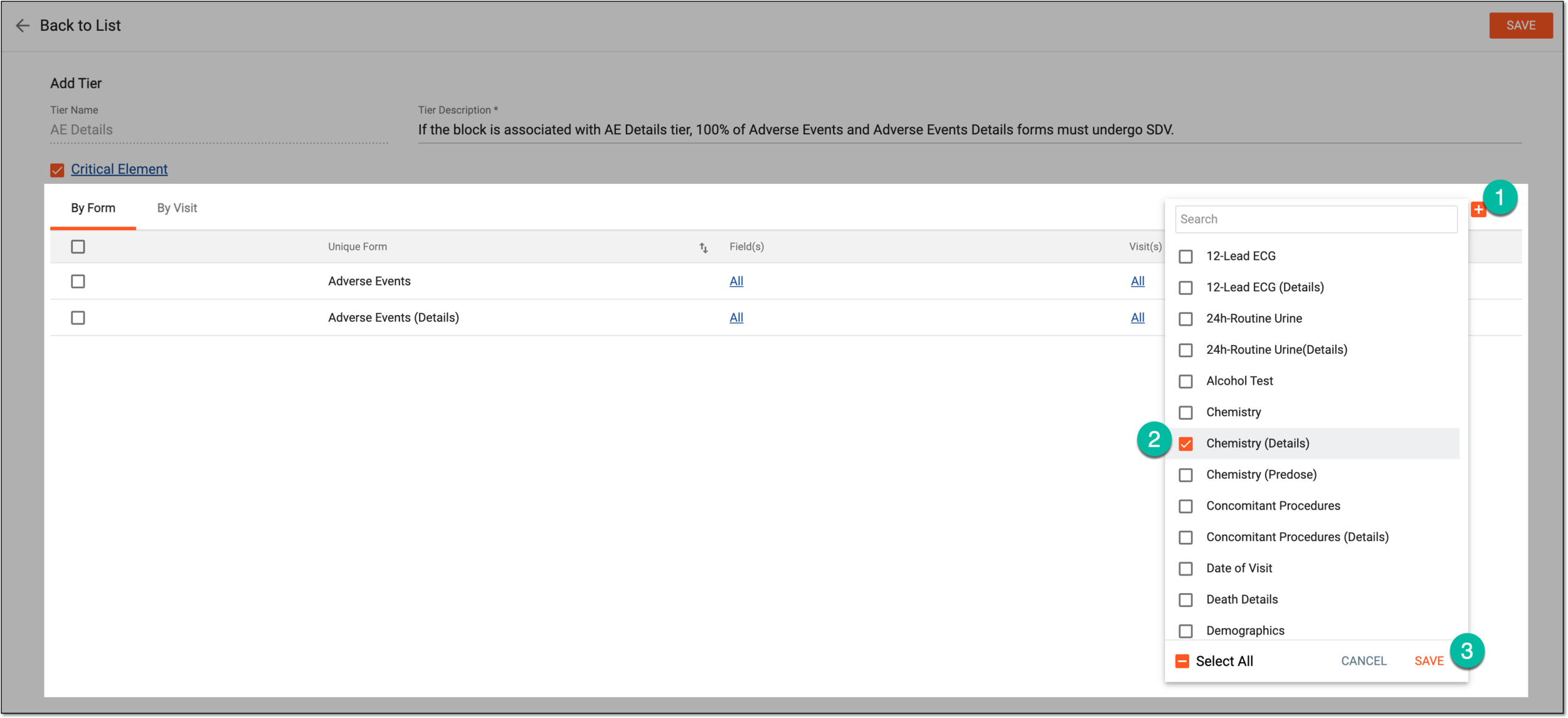 Figure 4. Adding more forms to tier
-
To configure specific elements that require SDV in relation to a form or visit, from the respective column, select the value. Then from the expanded list, select the elements intended for SDV and click
.Figure 5. Managing visits related to form
-
-
To remove forms or visits from the tier, select either By Form or By Visit tab and do one of the actions as follows.
Important
Note that you can only remove forms and visits from an inactive tier. For active tiers no form or visit modifications are available.
-
Select the checkboxes next to the forms or visits you want to delete and from the workspace toolbar, click Delete
 .
. Figure 6. Deleting forms from tier
-
In the confirmation dialog that appears, select
 .
.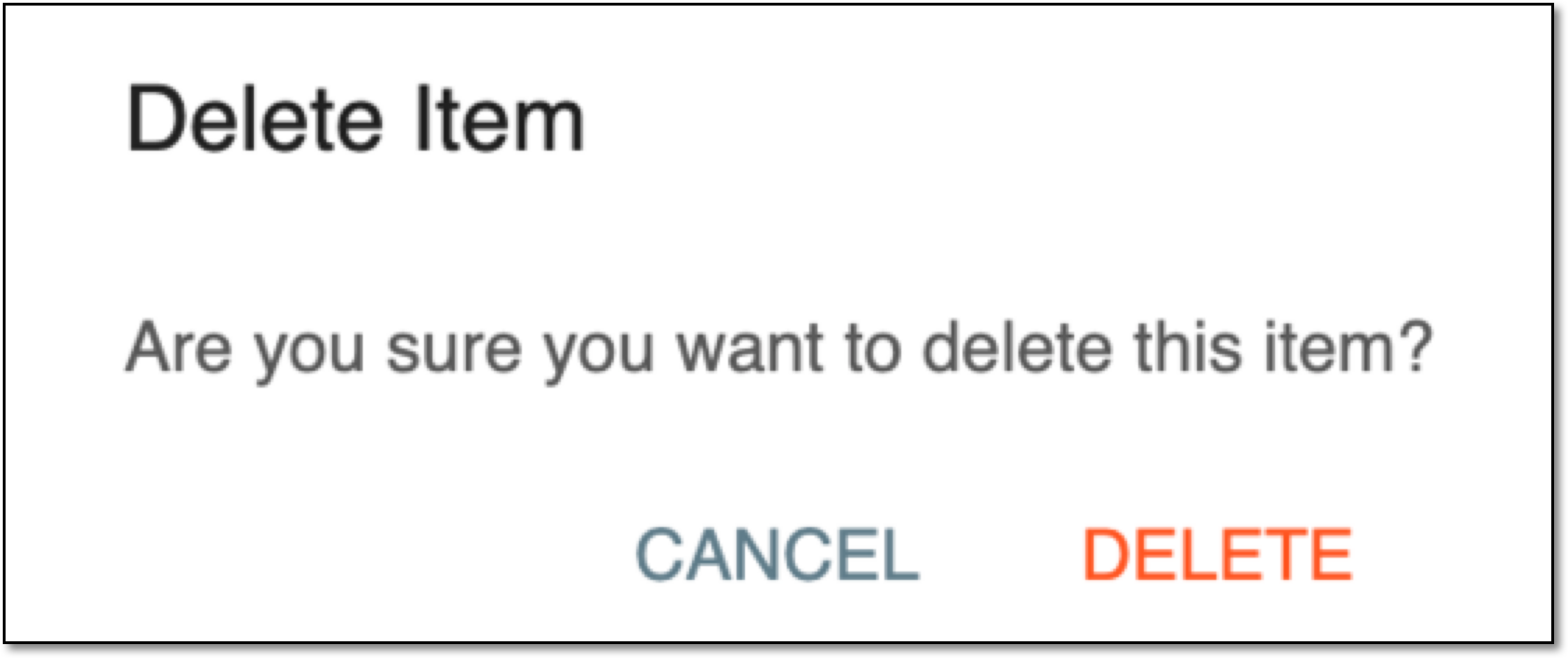 Figure 7. Confirming deletion
-
-
Select
to implement the applied changes.
Once saved, the tier is updated and its new configuration can now be used to configure TSDV plans.
Delete TSDV tier
Target source data verification (TSDV) is a more complex and sophisticated type of SDV setting in EDC than global or general verification types, as it provides an opportunity to perform more selective configurations of the verification process. One such configuration is the tier setting.
Tier is a component of a TSDV plan that includes various sets of forms and visits grouped based on certain criteria.
You can add as many tiers as required for your study or delete the existing ones that are no longer required according to changing sponsor's requirements.
-
In the EDC application header, select the STUDY INFO tab.
-
In the left pane of the page that opens, expand SDV and select the SDV Setting tab.
-
On the SDV Setting - Target SDV page that opens, select the Tier tab.
-
In the list of previously configured tiers, locate the one you want to delete. Then from the Action column next to it, select Delete
.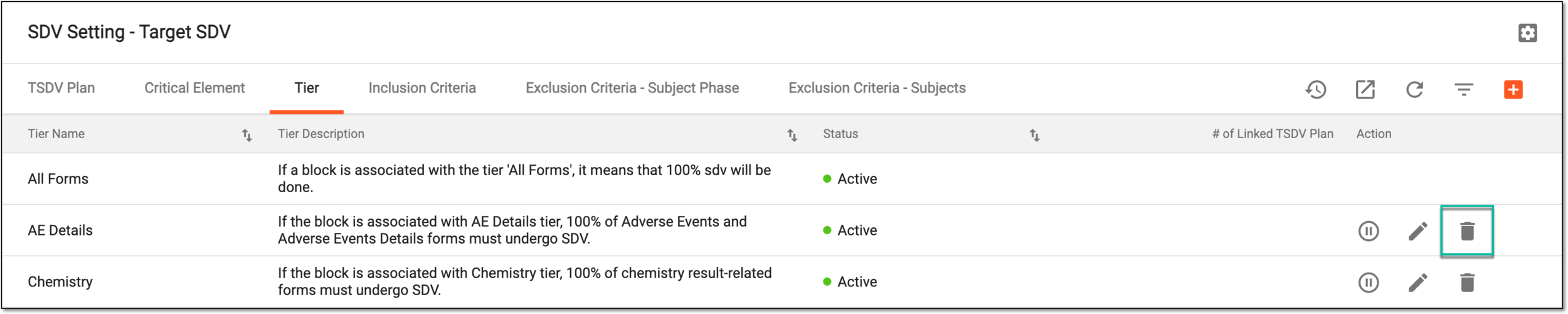 Figure 1. Deleting tier
Tip
The All Forms tier is preconfigured for you in the system and cannot be removed, edited, or inactivated. This block includes 100% of all your study forms, thus if it is added to the TSDV plan, all the forms of the study must undergo SDV.
-
In the confirmation dialog that appears, select
to proceed with your action.Figure 2. Confirming deletion
Once confirmed, the tier is removed.