Configure inclusion criteria
Target source data verification (TSDV) is a more complex and sophisticated type of SDV setting in EDC than global or general verification types, as it provides an opportunity to perform more selective configurations of the verification process. One such configuration is the inclusion criteria setting.
Inclusion criteria are sets of factors upon satisfaction of which the system allocates a portion of data for SDV according to a certain tier within a TSDV plan.
For instance, you want all the Adverse Events forms at the Randomization stage of your study to undergo SDV if they are missing the date and time information. You set up all these conditions for inclusion criteria and specify to which TSDV plan and tier this inclusion factor is intended. Then, once the respective TSDV plan is active and ongoing and some AE forms are submitted with no date and time, they are automatically added to the SDV list.
-
In the EDC application header, select the STUDY INFO tab.
-
In the left pane of the page that opens, expand SDV and select the SDV Setting tab.
-
On the SDV Setting - Target SDV page that opens, select the Inclusion Criteria tab.
-
From the workspace toolbar, select New Item
 .
.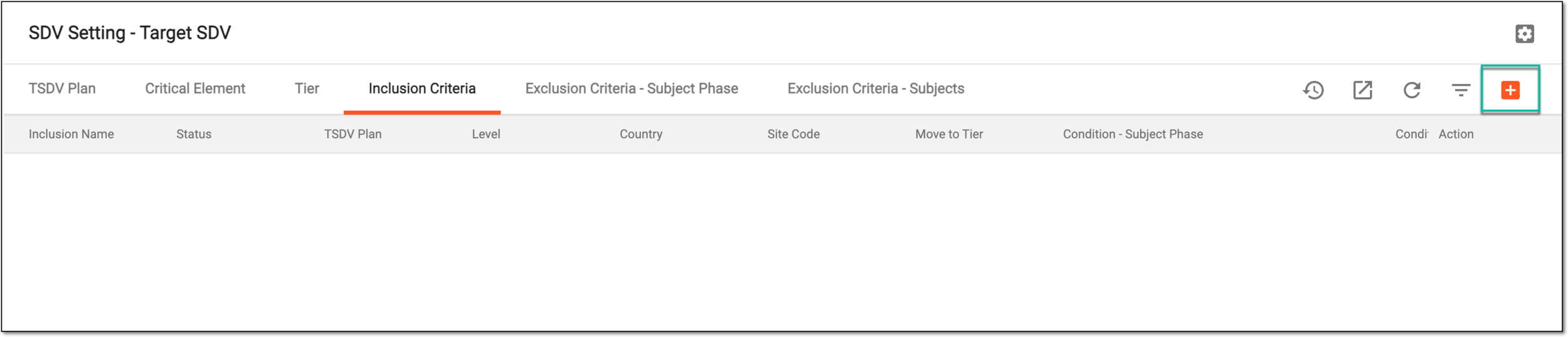 Figure 1. Adding inclusion criteria
-
On the Add Inclusion Criteria page that opens, configure your criteria as explained in the following table.
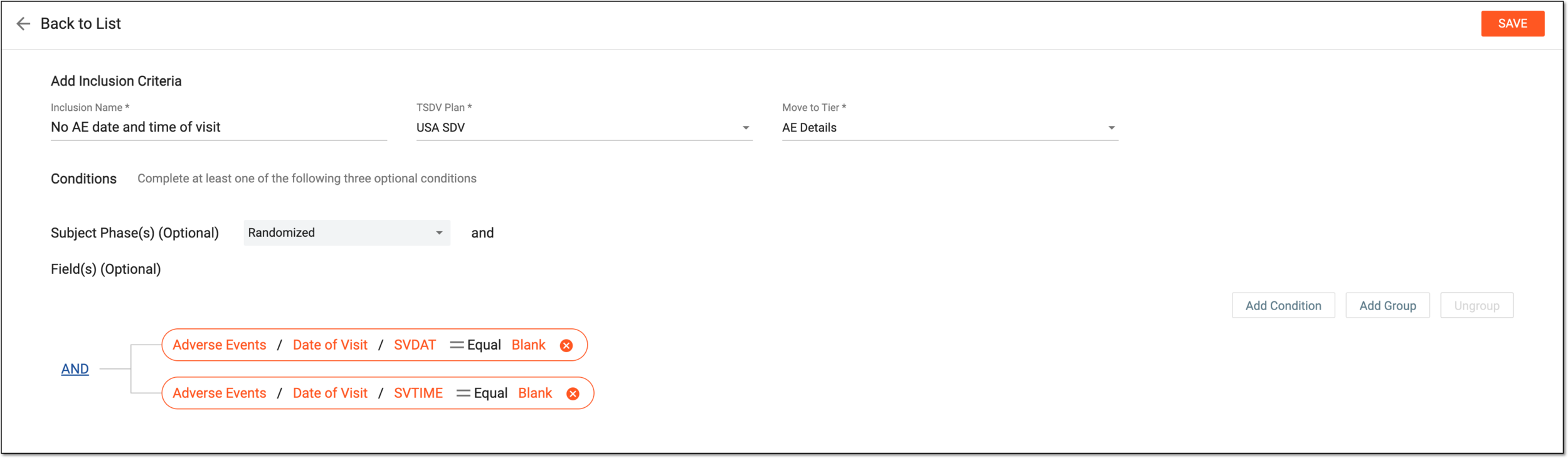 Figure 2. Configuring inclusion criteria
Tip
In the following table, mandatory elements are marked with an asterisk (*).
Element
Details
Inclusion Name*
Enter a descriptive name of your inclusion criteria set.
TSDV Plan*
Select the TSDV plan for which the inclusion criteria are intended.
Move to Tier*
Select the tier to which the portion of data for SDV is allocated once satisfies the set conditions.
Conditions
In this block, specify various formulas to establish the conditions according to which the inclusion criteria are satisfied.
Subject Phase(s) (Optional)
Select a subject phase to make it a condition for inclusion criteria. If selected, only the data elements within this phase qualify to be checked for this inclusion criteria.
Field(s) (Optional)
Select visits, forms, items, and conditions to create an inclusion formula for your criteria.
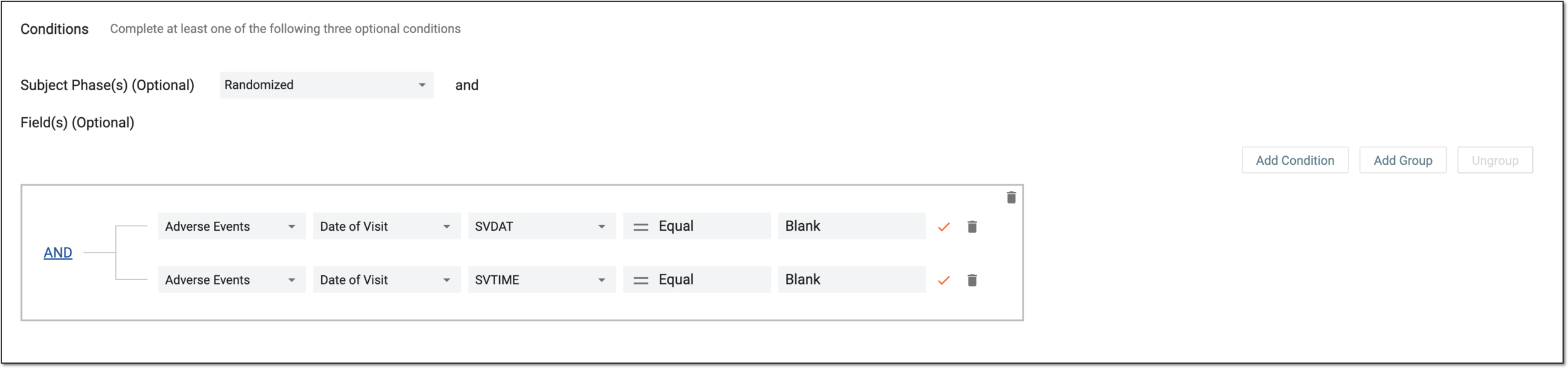 Figure 3. Configuring inclusion criteria condition
Add Condition
Select this button to add a single condition to act as a part of the inclusion criteria.
 Figure 4. Adding condition
Add Group
Select this button to add a group of simultaneous or alternative inclusion conditions.
 Figure 5. Adding condition group
Ungroup
Select one of the previously added groups and then select this button to split a condition group into a set of single-standing conditions.
 /
/
Select to switch between AND/OR options and establish if this is a group of simultaneous or alternative conditions for inclusion.
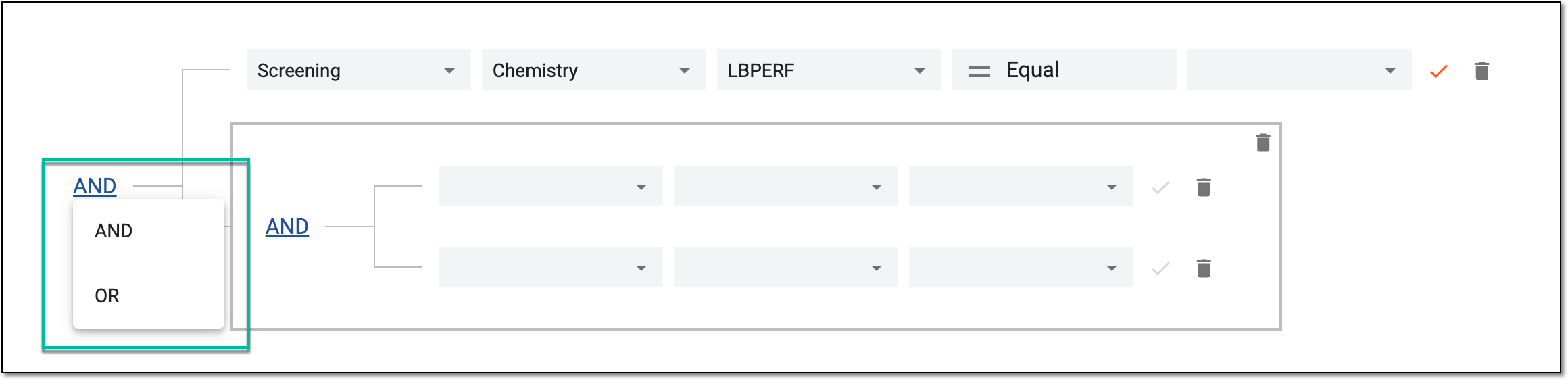 Figure 6. Switching between AND/OR options

Select this option to save the added condition.

Select this option to delete a condition that you do not need.
SAVE
Select
 to save the implemented changes.
Once saved, the inclusion criteria are added to the system and associated with the selected TSDV plan and tier.
Copy inclusion criteria from existing
Target source data verification (TSDV) is a more complex and sophisticated type of SDV setting in EDC than global or general verification types, as it provides an opportunity to perform more selective configurations of the verification process. One such configuration is the inclusion criteria setting.
Inclusion criteria are sets of factors upon satisfaction of which the system allocates a portion of data for SDV according to a certain tier within a TSDV plan.
In EDC, you can create new inclusion criteria by copying and modifying the existing ones. This helps to save time on the configuration of instances that are alike and have very few differences.
-
In the EDC application header, select the STUDY INFO tab.
-
In the left pane of the page that opens, expand SDV and select the SDV Setting tab.
-
On the SDV Setting - Target SDV page that opens, select the Inclusion Criteria tab.
-
On the page that opens, locate the inclusion criteria you want to copy and from the Action column next to it, select Copy
 .
. Figure 1. Copying inclusion criteria
-
On the Add Inclusion Criteria page that opens, update your criteria details as explained in the following table.
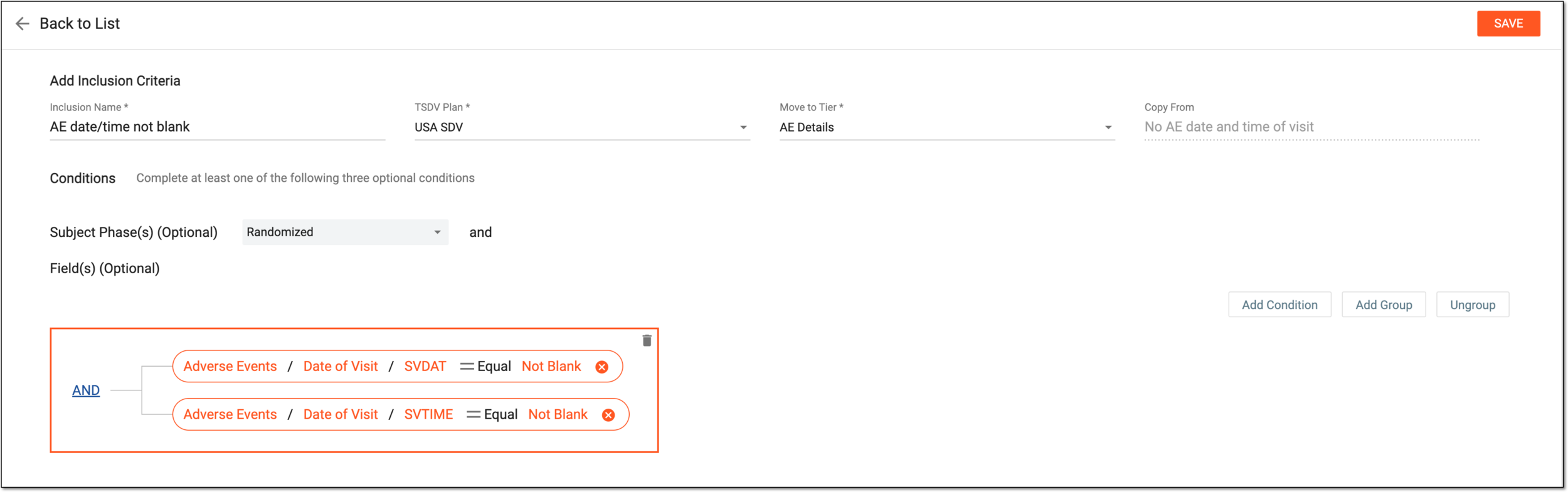 Figure 2. Configuring copied inclusion criteria
Tip
In the following table, mandatory elements are marked with an asterisk (*).
Element
Details
Inclusion Name*
Enter a descriptive name of your inclusion criteria set.
TSDV Plan*
Select the TSDV plan for which the inclusion criteria are intended.
Move to Tier*
Select the tier to which the portion of data for SDV is allocated once satisfies the set conditions.
Copy From
Represents the name of the inclusion criteria based on which this copy is created.
Conditions
In this block, specify new or update the existing formulas to establish the conditions according to which the inclusion criteria are satisfied.
Subject Phase(s) (Optional)
Select a subject phase to make it a condition for inclusion criteria. If selected, only the data elements within this phase qualify to be checked for this inclusion criteria.
Field(s) (Optional)
Double-click a condition to make it editable and select visits, forms, items, and relations to create an inclusion formula for your criteria.
Figure 3. Configuring inclusion criteria condition
Add Condition
Select this button to add a single condition to act as a part of the inclusion criteria.
Figure 4. Adding condition
Add Group
Select this button to add a group of simultaneous or alternative inclusion conditions.
Figure 5. Adding condition group
Ungroup
Select one of the previously added groups and then select this button to split a condition group into a set of single-standing conditions.
/Select to switch between AND/OR options and establish if this is a group of simultaneous or alternative conditions for inclusion.
Figure 6. Switching between AND/OR options
Select this option to save the added condition.
Select this option to delete a condition that you do not need.
SAVE
Select
to save the implemented changes.
Once saved, the new inclusion criteria are created from a copy and associated with the selected TSDV plan and tier.
Activate/Inactivate inclusion criteria
Target source data verification (TSDV) is a more complex and sophisticated type of SDV setting in EDC than global or general verification types, as it provides an opportunity to perform more selective configurations of the verification process. One such configuration is the inclusion criteria setting.
Inclusion criteria are sets of factors upon satisfaction of which the system allocates a portion of data for SDV according to a certain tier within a TSDV plan. However, only the activated inclusion criteria are considered by the system for dala allocation for SDV.
Thus, you can use activation and inactivation features to temporarily enable or disable your inclusion criteria.
This gives you an opportunity, for instance, to make all the configurations in advance, and then activate the needed ones as they become required.
-
In the EDC application header, select the STUDY INFO tab.
-
In the left pane of the page that opens, expand SDV and select the SDV Setting tab.
-
On the SDV Setting - Target SDV page that opens, select the Inclusion Criteria tab.
-
On the page that opens, locate the inclusion criteria you want to activate or inactivate. Then from the Action column next to it, select Activate
 or Inactivate
  .
. Figure 1. Activating/Inactivating inclusion criteria
Once the respective option is selected, the inclusion criteria are activated or inactivated.
Edit inclusion criteria conditions
Target source data verification (TSDV) is a more complex and sophisticated type of SDV setting in EDC than global or general verification types, as it provides an opportunity to perform more selective configurations of the verification process. One such configuration is the inclusion criteria setting.
Inclusion criteria are sets of factors upon satisfaction of which the system allocates a portion of data for SDV according to a certain tier within a TSDV plan. Sometimes, there can be a need to update the details of the previously created inclusion criteria and in EDC, you have an opportunity to update the conditions added to your inclusion criteria.
Important
Upon editing, you cannot change the assigned TSDV plan or tier. Thus, if you want to have similar criteria for different TSDV plans or tiers, consider creating one from a copy.
-
In the EDC application header, select the STUDY INFO tab.
-
In the left pane of the page that opens, expand SDV and select the SDV Setting tab.
-
On the SDV Setting - Target SDV page that opens, select the Inclusion Criteria tab.
-
On the page that opens, locate the inclusion criteria you want to update and from the Action column next to it, select Edit
 .
.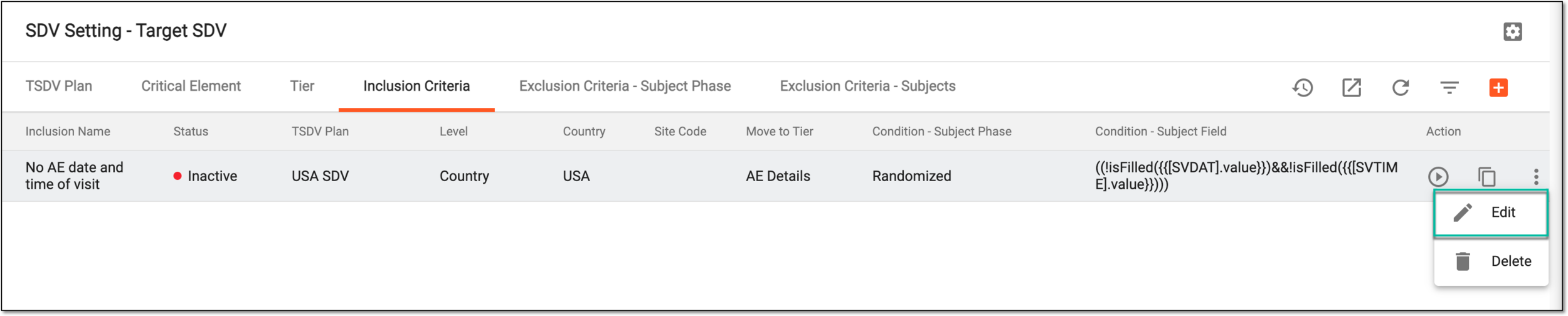 Figure 1. Selecting to edit inclusion criteria
-
On the Add Inclusion Criteria page that opens, update your criteria details as needed. These details are identical to those explained in the table of the Configure inclusion criteria section.
Tip
The Inclusion Name, TSDV Plan, and Move to Tier fields are specified once upon first configuration and are read-only when editing.
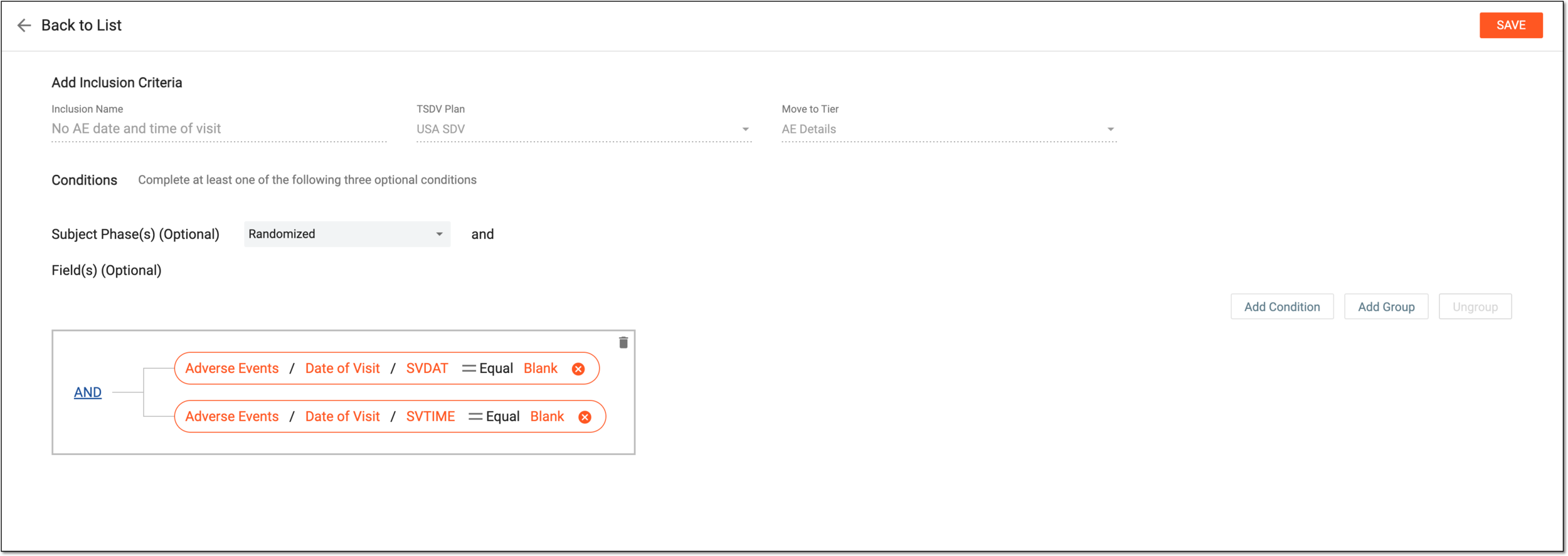 Figure 2. Editing inclusion criteria
-
Select
to implement the changes.
Once saved, the inclusion criteria conditions are updated.
Delete inclusion criteria
Target source data verification (TSDV) is a more complex and sophisticated type of SDV setting in EDC than global or general verification types, as it provides an opportunity to perform more selective configurations of the verification process. One such configuration is the inclusion criteria setting.
Inclusion criteria are sets of factors upon satisfaction of which the system allocates a portion of data for SDV according to a certain tier within a TSDV plan. There can be cases when the inclusion criteria have exhausted their purpose and become irrelevant to your SDV process. In EDC, you can remove such criteria that are no longer needed.
Tip
If you are hesitant about the inclusion criteria being required again in the future, you can consider inactivation instead of deletion.
-
In the EDC application header, select the STUDY INFO tab.
-
In the left pane of the page that opens, expand SDV and select the SDV Setting tab.
-
On the SDV Setting - Target SDV page that opens, select the Inclusion Criteria tab.
-
On the page that opens, locate the inclusion criteria you want to remove. Then from the Action column next to it, select Delete
.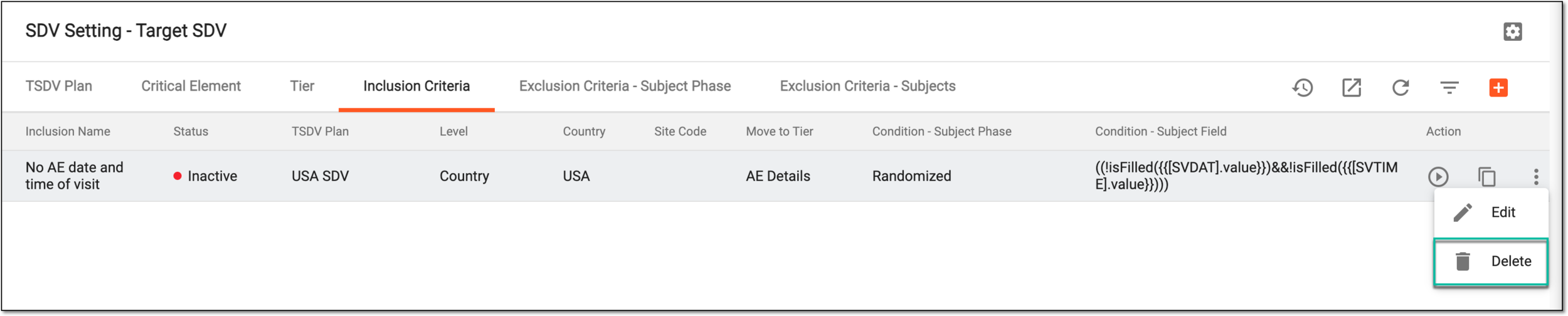 Figure 1. Deleting inclusion criteria
-
In the confirmation dialog that appears, select
 to proceed with your action.
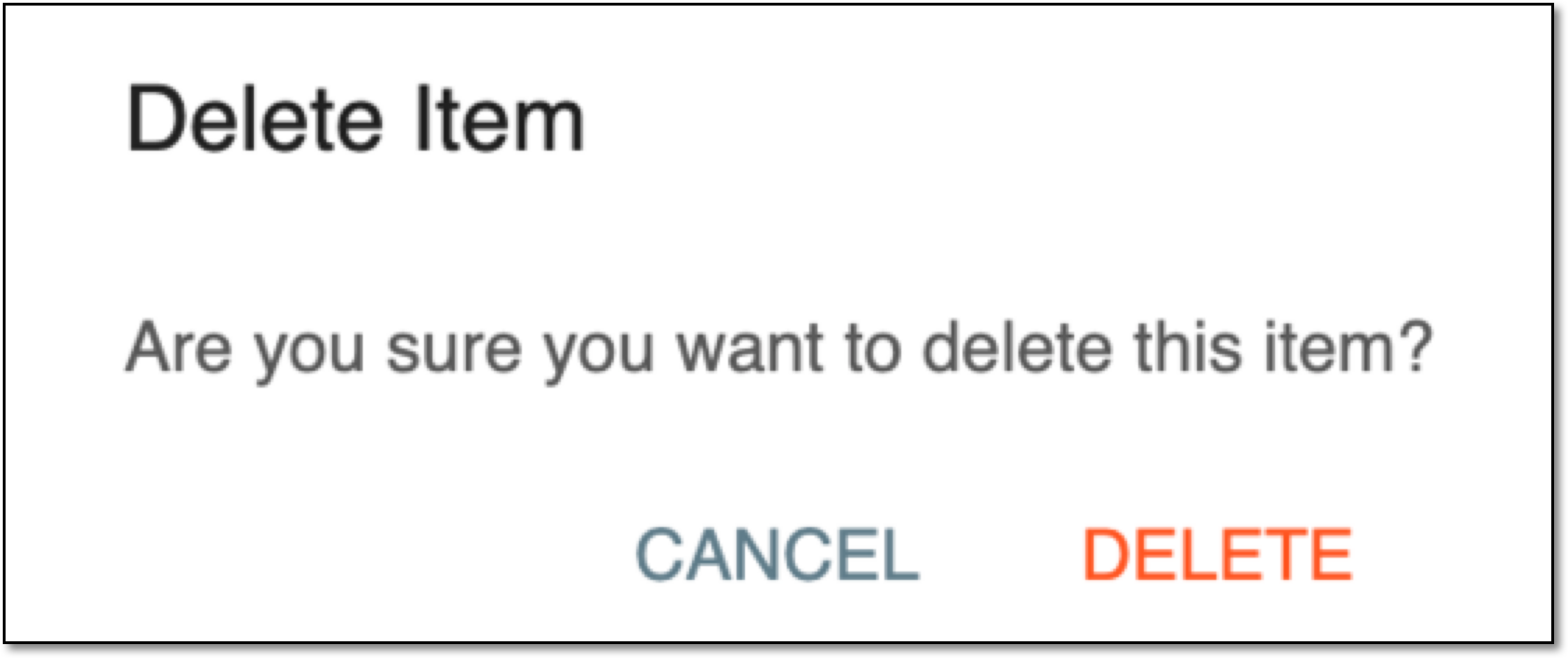 Figure 2. Confirming deletion
Once confirmed, the inclusion criteria are deleted from the system.