Configure permuted block randomization scheme
In IWRS, you can select the randomization method—permuted block or dynamic—per cohort. If you select to use the permuted block (PB) randomization method for a cohort, you need to add and configure the randomization scheme.
A randomization scheme is a plan according to which subjects enrolled in a study are randomized and receive their treatment. In IWRS, for permuted block randomization, you can configure a scheme in two ways as explained in the following sections.
Important
For periods with scrambled randomization numbers, only the System Generated randomization scheme is available.
For the permuted block randomization scheme, you can preconfigure the file in CSV or XLSX format and then upload it to IWRS. In the uploaded file, you have to specify certain stratification parameters, such as age, gender, disease severity, or other, based on which subjects are allocated to their treatment groups and then receive their randomization numbers.
Important
This method is available if, upon adding the randomization scheme, the following parameters are chosen:
-
The Manual Upload type
-
The Block Stratified randomization method
-
The Use predefined strata option enabled
Watch this short video and learn how to configure a randomization scheme from the manually uploaded file in IWRS and proceed to study the detailed instructions as described in the following procedure.
-
In the IWRS application header, select the TREATMENT DESIGN tab.
-
On the page that opens, in the left pane, select the Period subtab.
-
In the Period List table that appears, locate the period of your interest. Then in the Period Name column, select the value to open the period configurator.
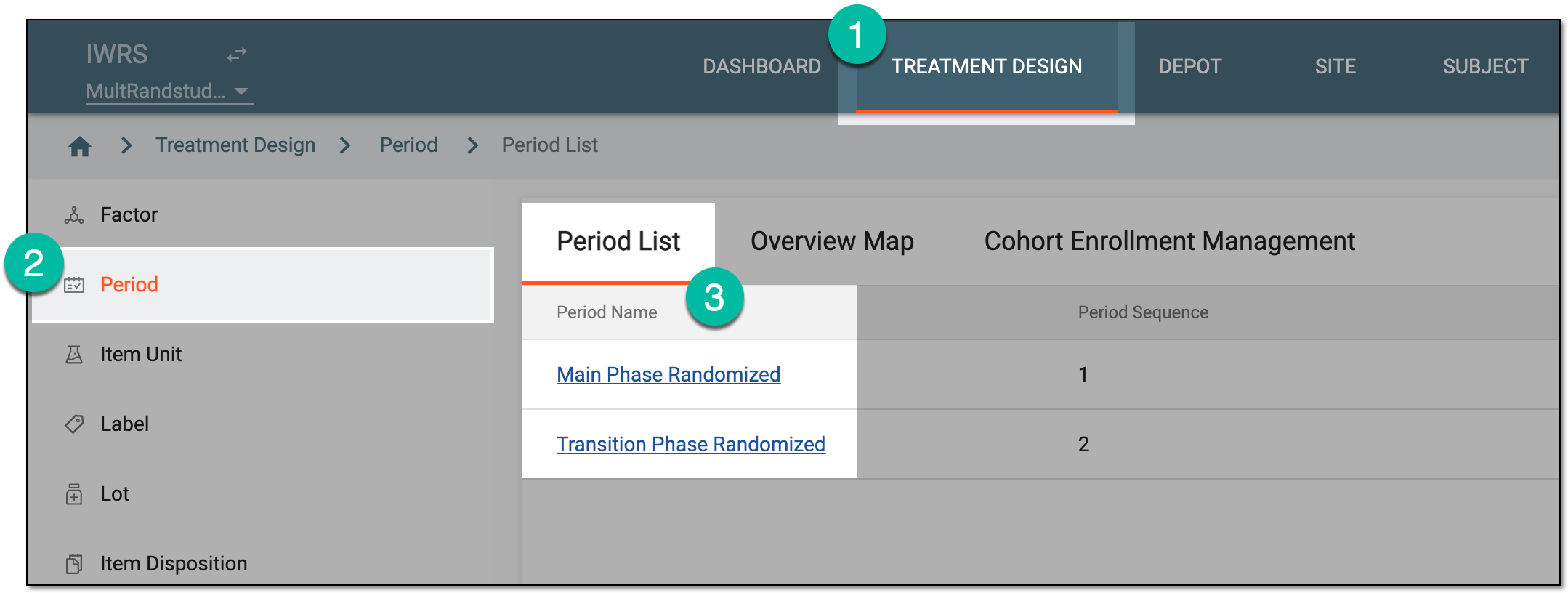 Figure 1. Selecting period to configure
-
In the period configurator, drill down the explorer tree and select File Upload And Map
 .
. -
In the File Upload And Map dialog that appears, in the Upload File & Mapping Field step, select the Upload File icon and upload a file from your computer.
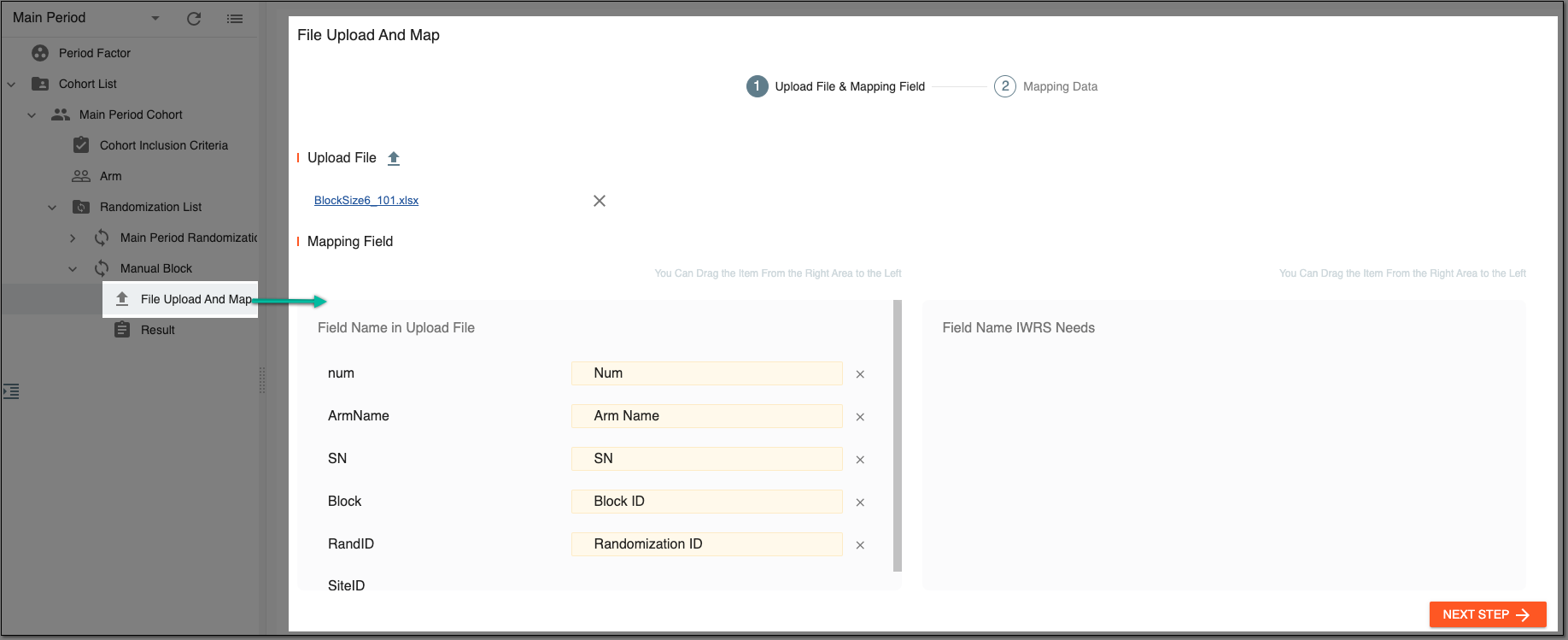 Figure 2. Uploading file and mapping fields
Important
The system only supports files in CSV and XLSX format.
-
In the Mapping Field block, the fields parsed from the file are displayed in the Field Name In Uploaded File section. Map them to the system fields by dragging the respective cards from Field name IWRS Needs and matching them to the respective option under Field Name In Uploaded File.
The fields you have to map depend on the randomization method as specified in the following table.
Tip
The system automatically maps the fields whose names are identical to the ones in IWRS.
If the Stratified by Sites option is enabled when adding the randomization scheme, the Site field must be mapped as well.
Randomization method
Fields to be mapped
Block
Num, Arm Name, Randomization ID, Block ID, SN
Stratified
Num, Arm Name, Randomization ID, Strata
Block Stratified
Num, Arm Name, Randomization ID, Strata, Block ID, SN
Complete
Num, Arm Name, Randomization ID
-
Select
 to proceed to the next step.
 -
In the Mapping Data step, map the data in the file to the fields (such as Arm, Strata, and so on) by dragging the cards from the right to the left.
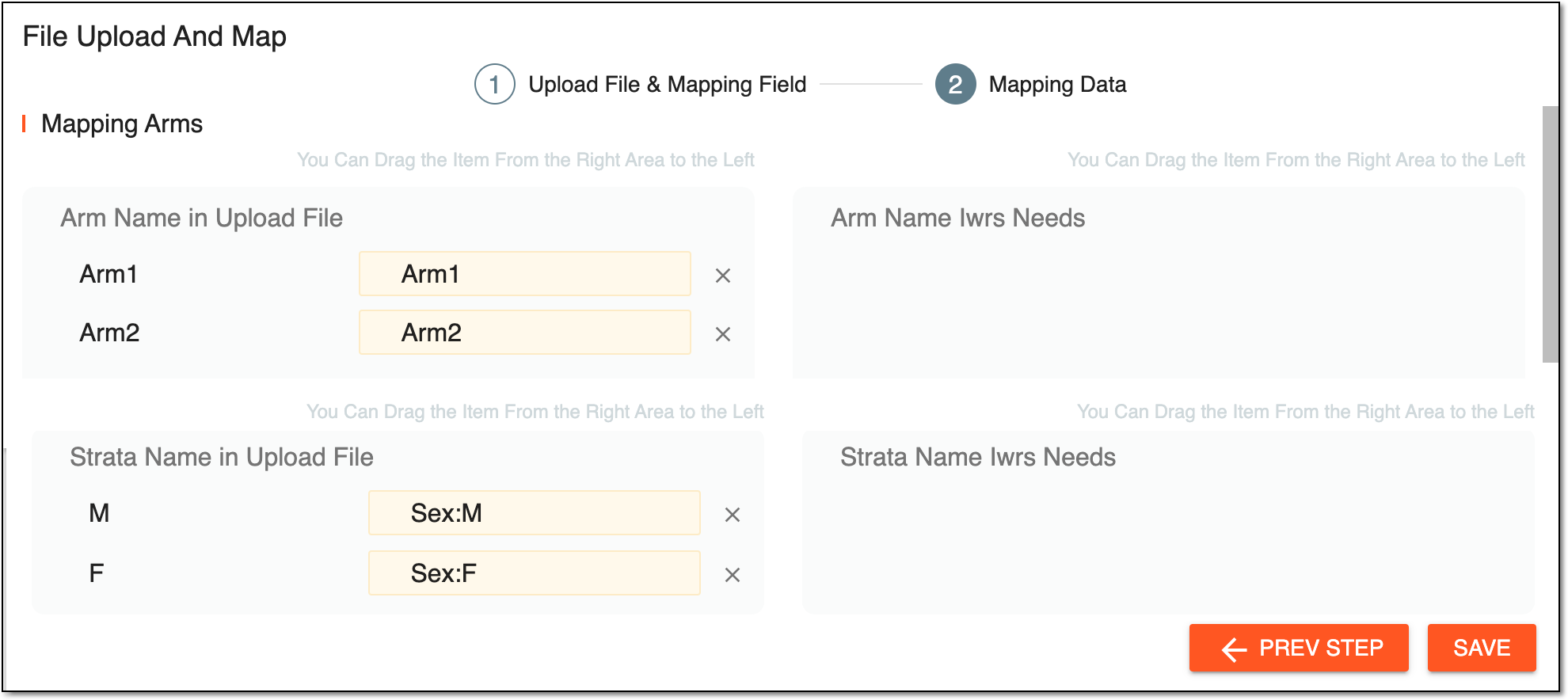 Figure 3. Mapping data
Tip
If needed, select
 to return to the Upload File & Mapping
Field step.
to return to the Upload File & Mapping
Field step. -
Select
 to implement the changes and complete the configuration of the randomization scheme.
Once you have saved the setting, the system implements the randomization scheme and you can view the result of the randomization.
For the permuted block randomization scheme, you can preconfigure the file in CSV or XLSX format and then upload it to IWRS. In the uploaded file, you must specify parameters such as block numbers, arm names, randomization numbers, and others. This file does not have predefined stratification parameters, such as age, gender, and so on. Thus, when uploading such a file to the system, you need to manually set up stratification parameters for the subjects to be properly allocated to certain blocks and receive their randomization numbers.
Important
This method is available if, upon adding the randomization scheme, the following parameters are chosen:
-
The Manual Upload type
-
The Block Stratified randomization method
-
The Use predefined strata option disabled
-
In the IWRS application header, select the TREATMENT DESIGN tab.
-
On the page that opens, in the left pane, select the Period subtab.
-
In the Period List table that appears, locate the period of your interest. Then in the Period Name column, select the value to open the period configurator.
Figure 1. Selecting period to configure
-
In the period configurator, drill down the explorer tree to the needed cohort and randomization scheme. Then select Stratified Factor
 .
.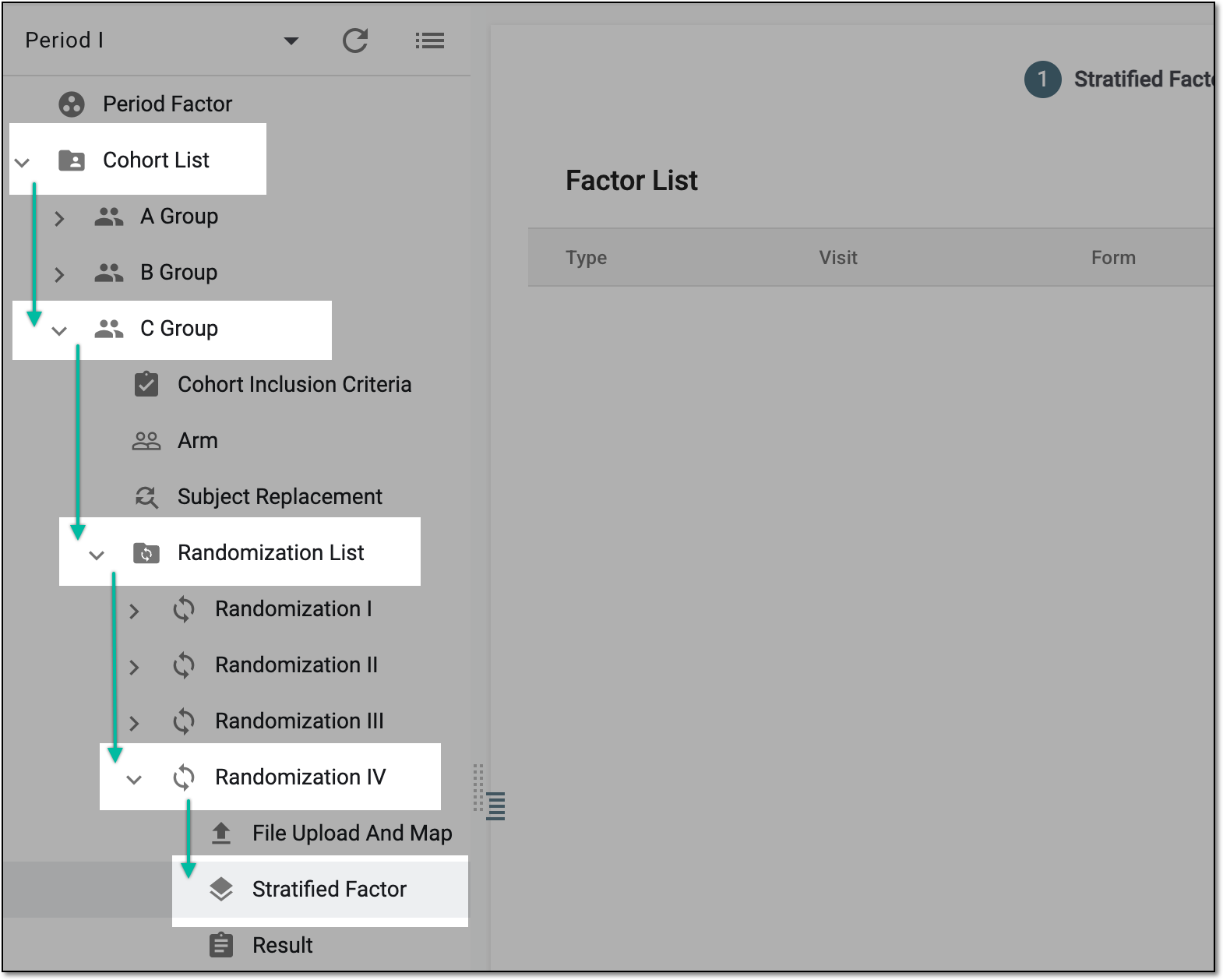 Figure 2. Drilling down to needed randomization strata setup
-
At the Stratified Factor stage, add the stratified factors you need: above the Factor List table that appears, in the workspace toolbar, select New Item
 .
. Figure 3. Selecting option to add stratification factor
-
In the Add dialog that appears, define the stratified factor parameters as suggested in the following table.
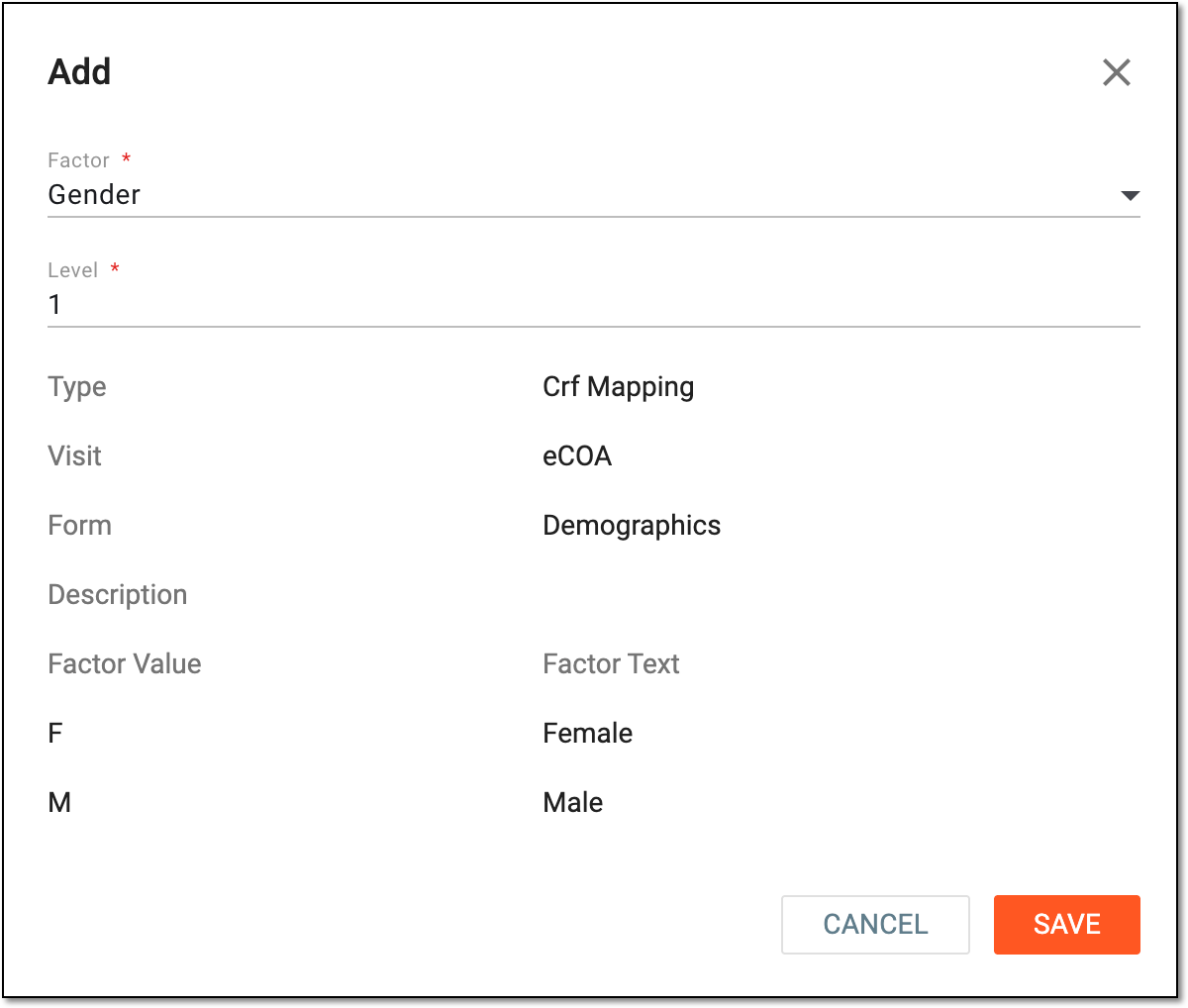 Figure 4. Adding stratified factor
Tip
In the following table, mandatory elements are marked with an asterisk (*).
Element
Details
Factor*
Select the stratified factor populated from the Period Factor table.
Level*
Indicate the level of strata. The system preferentially stratifies subjects with higher-level factors.
Type
Represents the type of selected factor as follows:
-
Manual: the factor created in IWRS, and its data is not synced from EDC.
-
CRF Mapping: the factor created in SD and pushed to IWRS automatically. Depending on the SD setting, the factor value can be entered in IWRS and pushed to EDC, or entered in EDC and pushed to IWRS.
-
System: the factor created in IWRS and mapped to Date or Numeric item in EDC. It can be a date or number range. When the data is entered in EDC and pushed to IWRS, the system maps the factor value according to the range within which the data is located.
Visit
Represents the name of visit at which the factor value is recorded to the system.
Form
Represents the name of the case report form (CRF) in which the factor value is recorded to the system.
Description
Represents the description of the factor value if any.
Factor Value
Represents the factor value as is, for instance, M for male gender factor.
Factor Text
Represents the descriptive text of the factor value, for instance, Male for M factor value.
SAVE
Select
to add your stratified factor.CANCEL
Select
 to stop defining your stratified factor, discard any changes, close the dialog, and return to the factor list of the
Stratified Factor stage
to stop defining your stratified factor, discard any changes, close the dialog, and return to the factor list of the
Stratified Factor stage -
-
Once all the needed factors are added, select
and go to the Factor Setting stage where
stratification is visualized.The stratification schema differs depending on the Stratified Strategy value selected upon randomization scheme creation.
-
For Hierarchical strategy, the visualized schema displays hierarchical levels of stratification factors according to your settings.
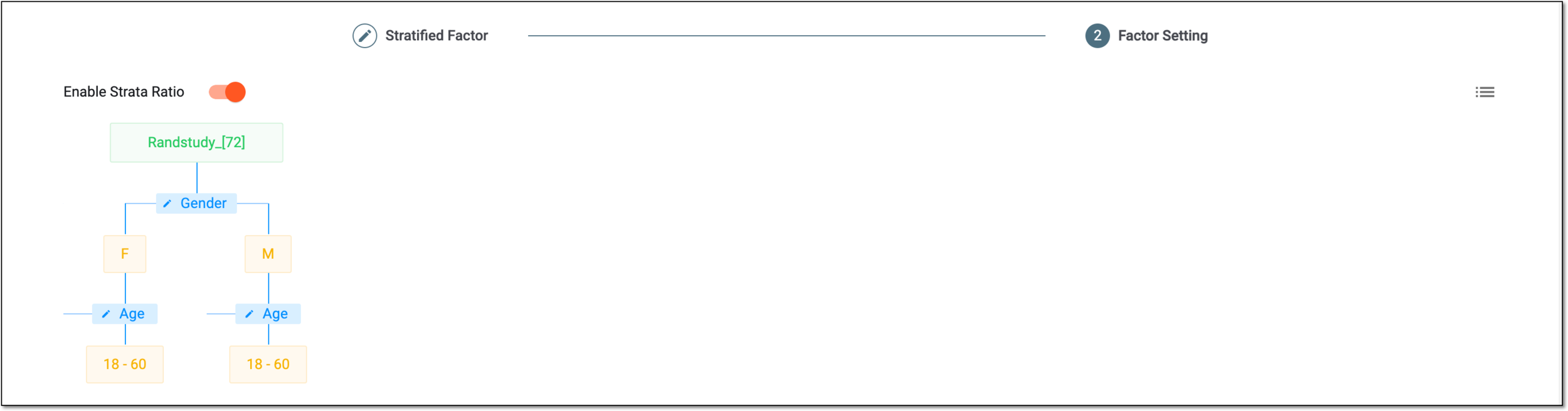 Figure 5. Analyzing visualized hierarchical stratification
-
For Parallel strategy, the equipollent stratification schemas are displayed for each factor according to your settings.
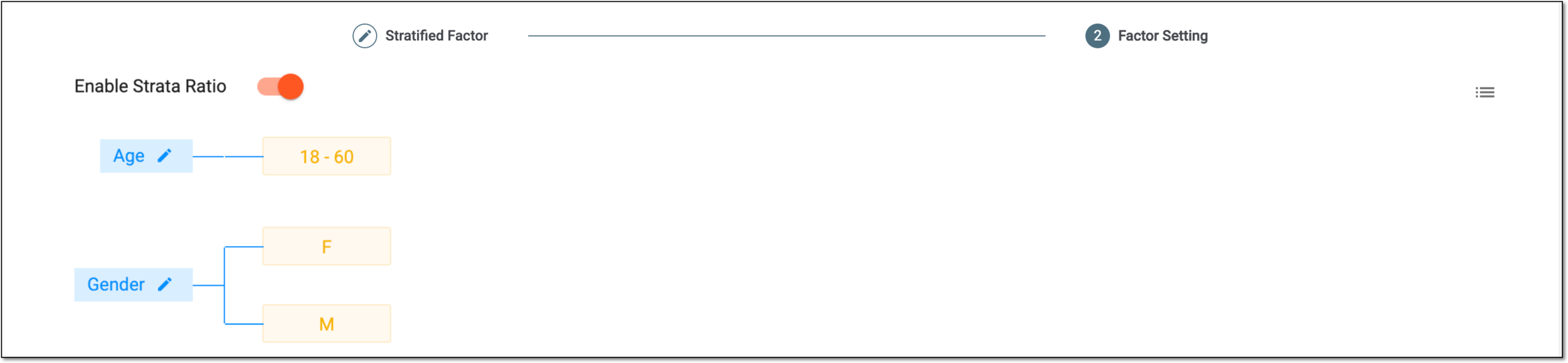 Figure 6. Analyzing visualized parallel stratification
Tip
Select the list icon
 to open the Factor List dialog and review all stratification factors
involved in your randomization scheme in the form of a table.
to open the Factor List dialog and review all stratification factors
involved in your randomization scheme in the form of a table.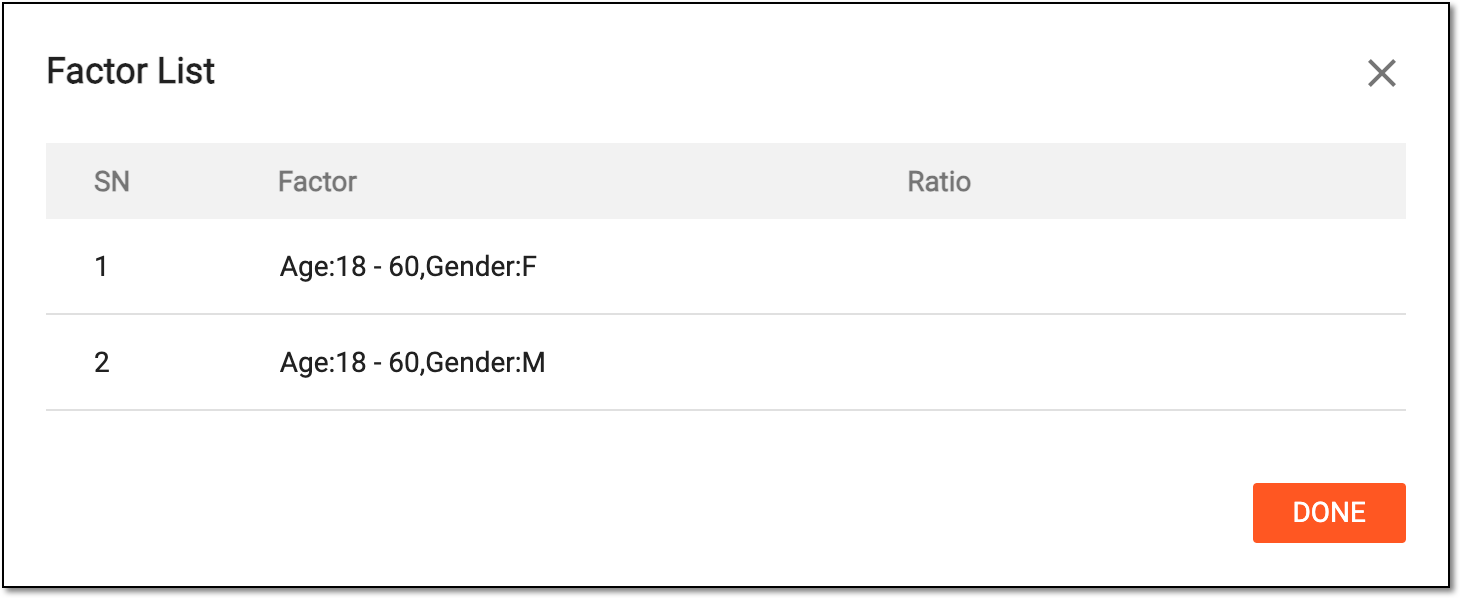 Figure 7. Reviewing stratification factor list
-
-
Turn the Enable Strata Ratio toggle as follows.
-
Turn the toggle on to enable the configuration of the stratification factor ratio and set the proportion of participants from each stratum to be included in the randomization process.
If turned on, you can now set up the ratio of each factor.
-
Turn the toggle off to disable the configuration of the stratification factor ratio. In this scenario, the system does not limit the assignment of participants between randomization blocks based on their strata.
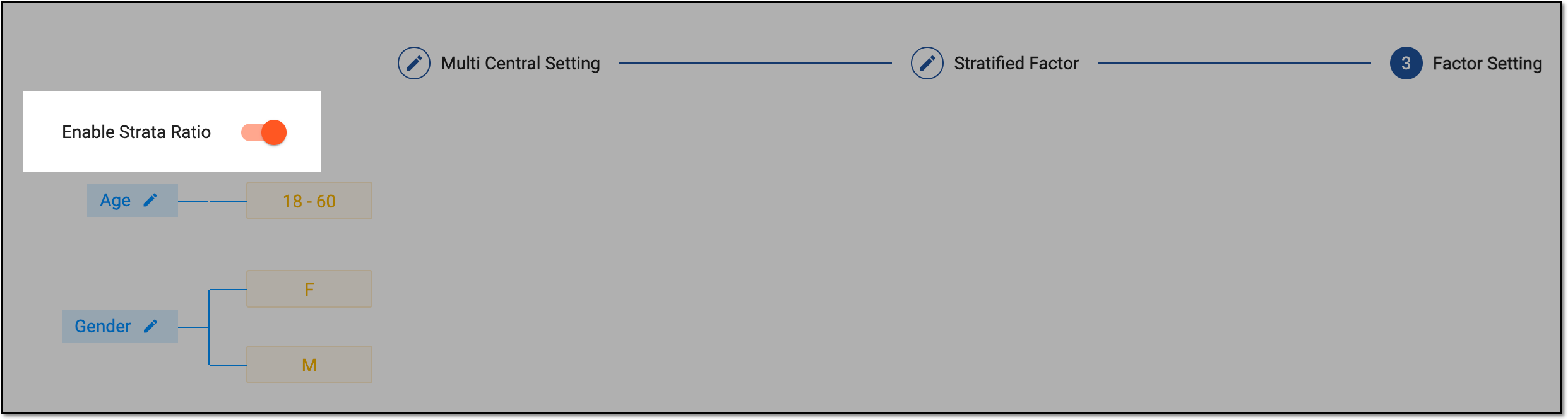 Figure 8. Enabling strata ratio
-
-
For the enabled strata ratio, set the needed parameters by selecting the stratified factor tiles and setting their ratio in the Edit Ratio dialog that appears.
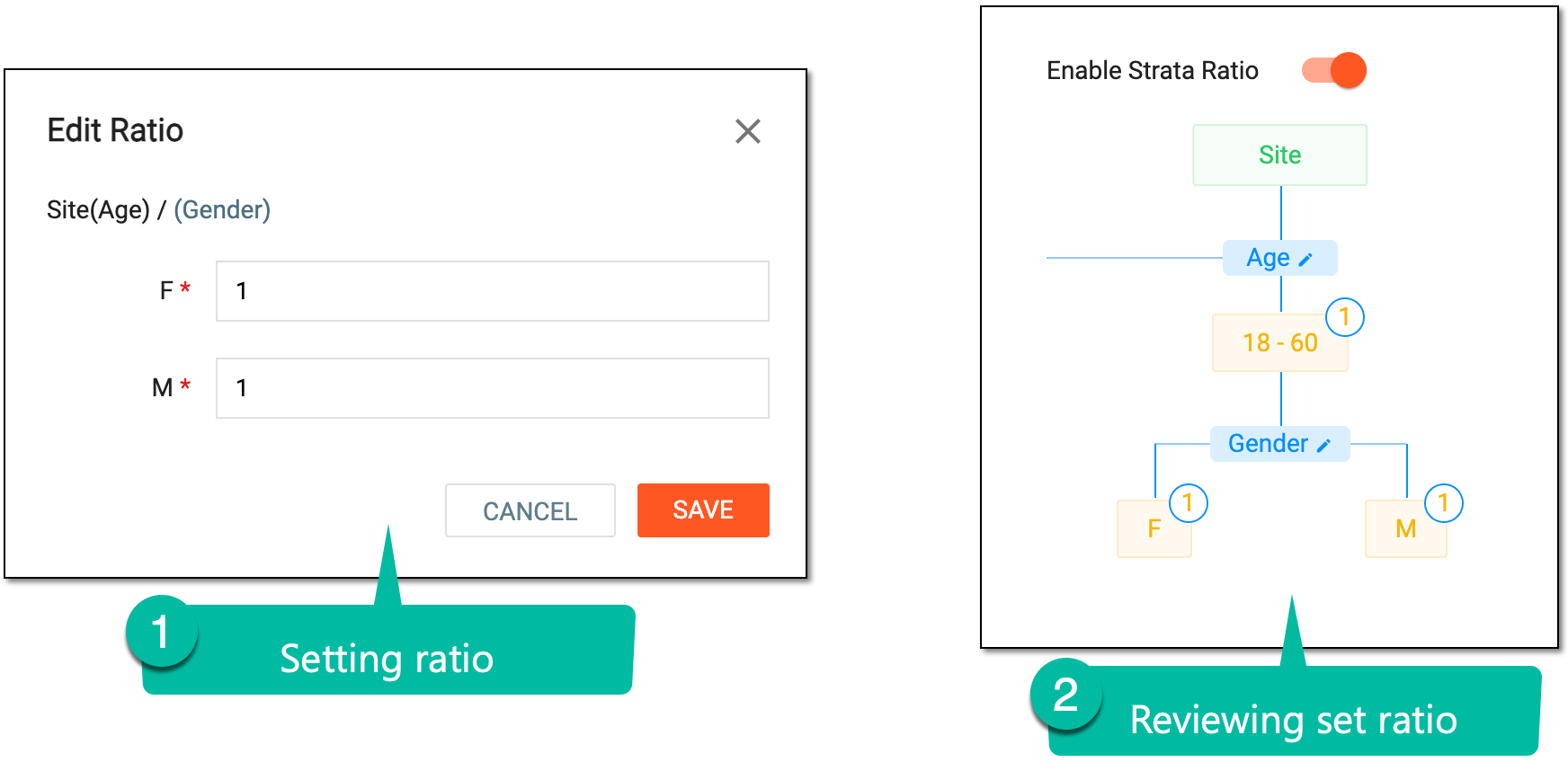 Figure 9. Setting factor ratio
Important
The ratio set for stratification factors at this stage can be changed following the same procedure if the randomization status is Draft, Ongoing, or Suspended.
If the ratio changes, the system recalculates the limits of subject assignment to blocks for subsequent randomization. If, according to the new ratio setting, the limit of the block is achieved, no more subjects are randomized to that block.
-
To proceed with the randomization scheme file upload, in the explorer tree, select File Upload And Map
. Then on the page
that opens, select Upload File .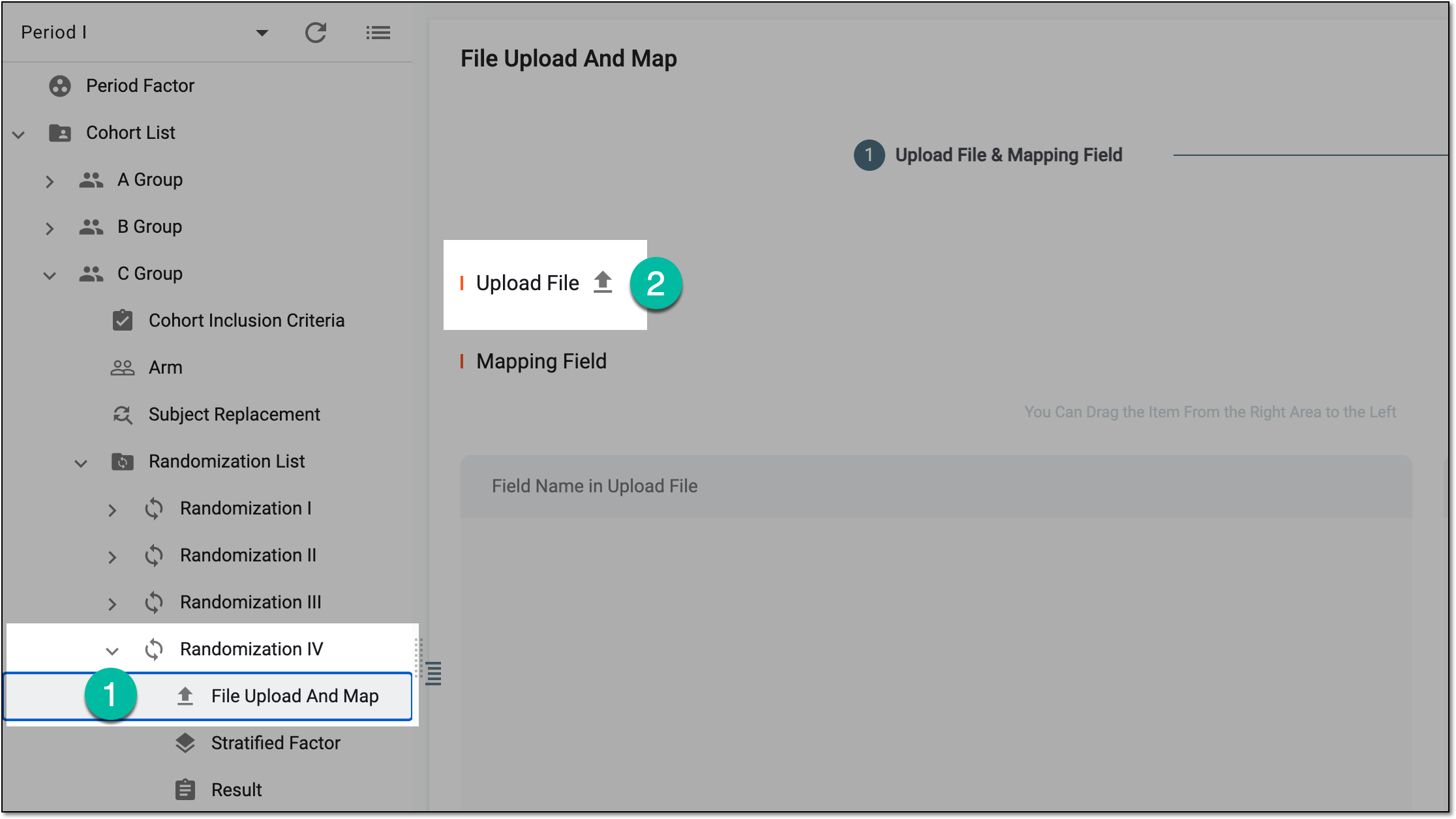 Figure 10. Accessing file upload for randomization scheme
-
In the Mapping Field block, map the file fields to the system ones by dragging the cards from Field name IWRS Needs and matching them to the respective cards under Field Name In Uploaded File. Then select
.Tip
The system automatically maps the fields whose names are identical to the ones in IWRS.
If the Stratified by Sites option is enabled when adding the randomization scheme, the Site field must be mapped as well.
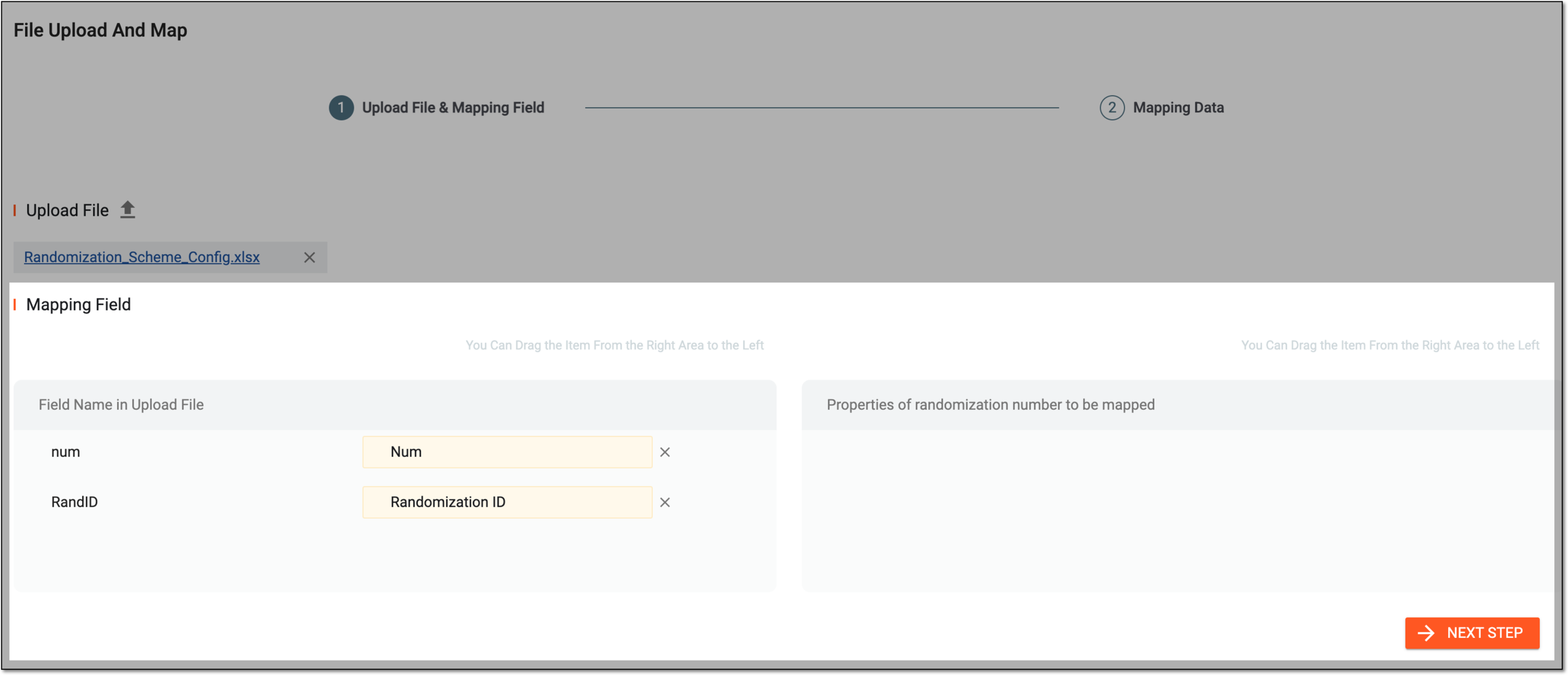 Figure 11. Mapping fields from file to system
-
At the Mapping Data step, in the Mapping Arms block, map the arms from the file to the system ones by dragging the respective cards from Arm Name IWRS Needs and matching them to the respective cards under Arm Name in Upload File. Then select
.Tip
If needed, select
to return to the Upload File & Mapping
Field step.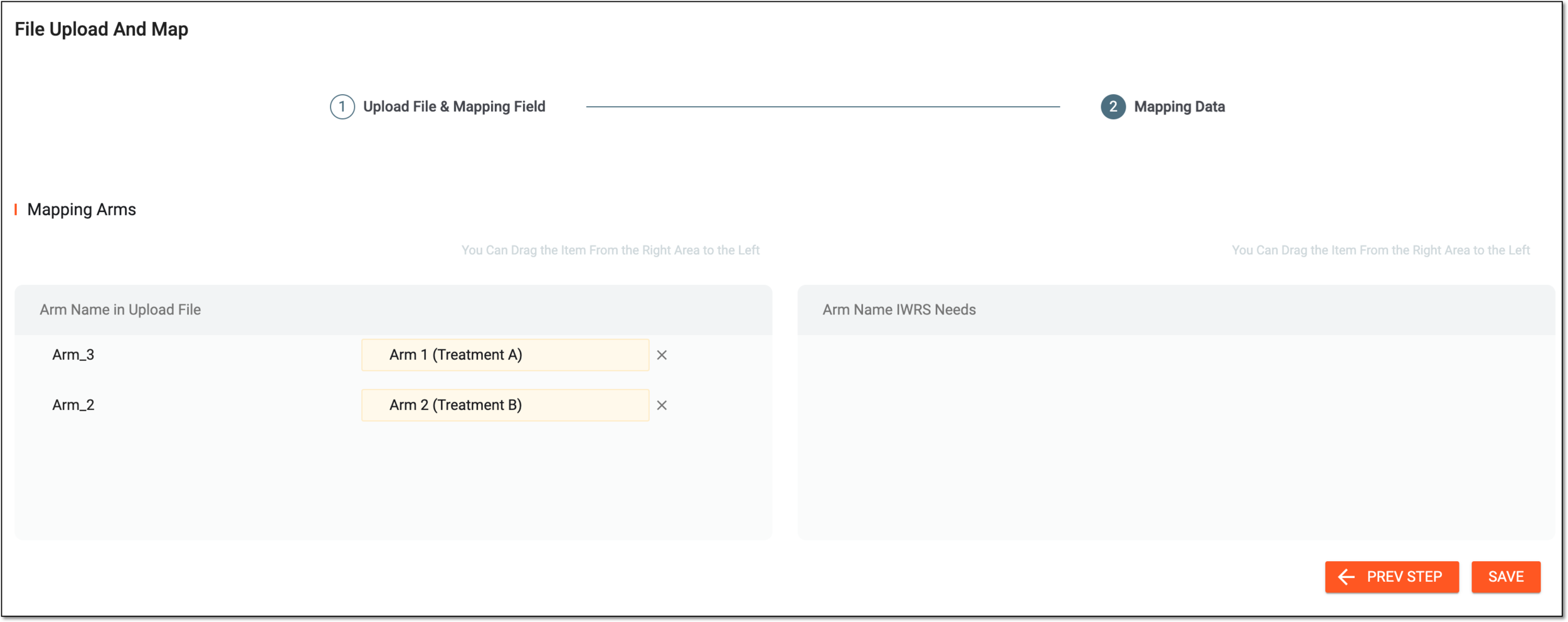 Figure 12. Mapping arms
Once you have saved the setting, the system implements the randomization scheme and you can view the result of the randomization.
In IWRS, you can select the randomization method—permuted block or dynamic—per cohort. If you select to use the permuted block (PB) randomization method for a cohort, the first configurational step is to add the randomization scheme.
A randomization scheme is a plan according to which subjects enrolled in a study are randomized and receive their treatment. The IWRS system supports the configuration of a randomization scheme by setting the randomization parameters from scratch.
Watch this short video and learn how to configure a randomization scheme from scratch in IWRS and proceed to study the detailed instructions as described in the following procedure.
-
In the IWRS application header, select the TREATMENT DESIGN tab.
-
On the page that opens, in the left pane, select the Period subtab.
-
In the Period List table that appears, locate the period of your interest. Then in the Period Name column, select the value to open the period configurator.
Figure 1. Selecting period to configure
-
In the period configurator, drill down the explorer tree and select Scheme
 .
. -
In the Scheme Setting form that opens, configure your scheme by defining the parameters as described in the following table.
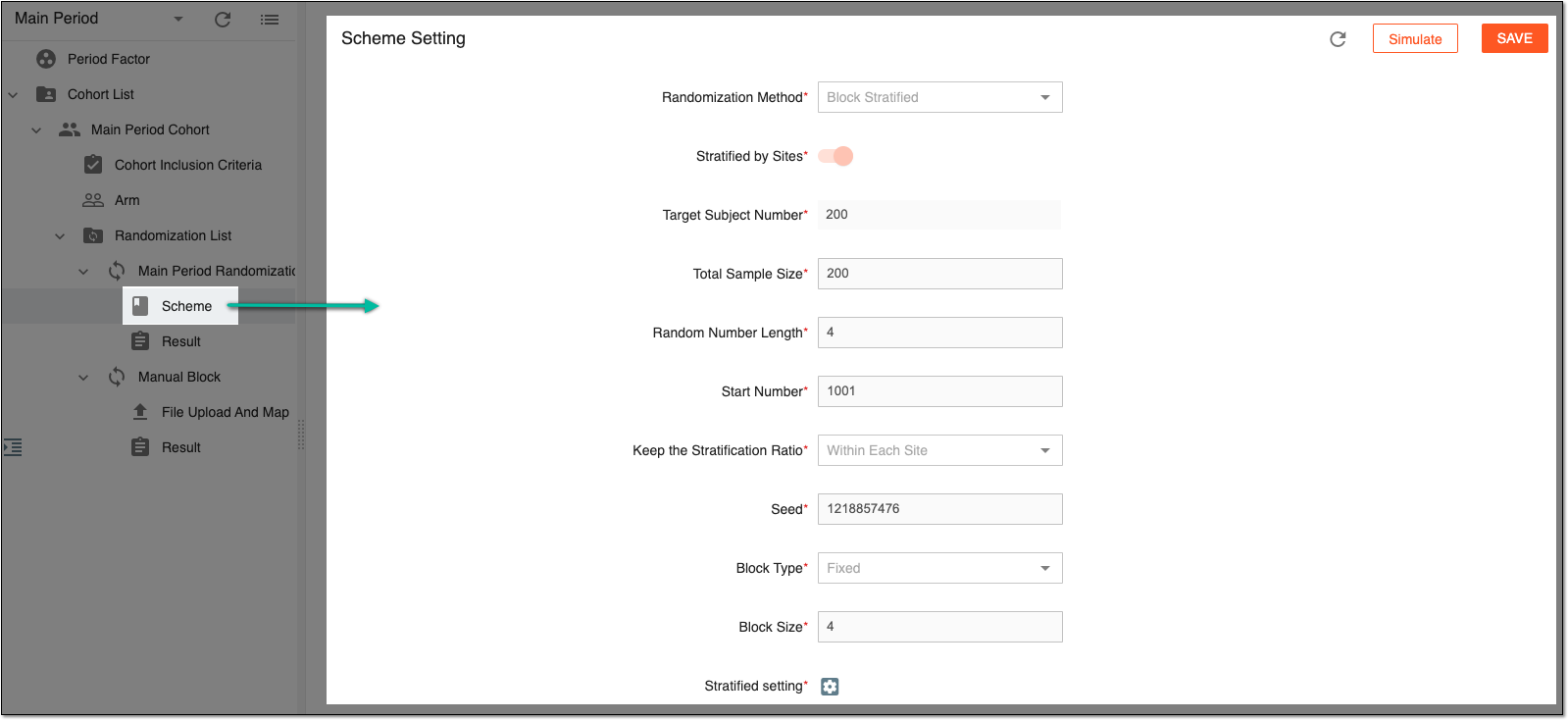 Figure 2. Defining system-generated randomization scheme
Tip
In the following table, mandatory elements are marked with an asterisk (*).
Element
Details
Randomization Method*
A read-only field that represents the randomization method you selected when you added the randomization scheme.
Stratified by Sites*
A read-only field indicating that the randomization scheme has been created with the Stratified by Sites option enabled. When this option is enabled, the site is automatically used as the stratified factor with the highest priority.
Target Subject Number*
A read-only field indicating the expected number of subjects for the study as defined in the eClinical CTMS application.
Total Sample Size*
Enter the expected number of subjects for randomization.
Random Number Length*
Enter the length (a number of digits) of the randomization ID.
Start Number*
Enter the starting number of the randomization ID.
Keep the Stratification Ratio*
Expand the dropdown list and select one of the following:
-
Within Each Site: this option means that randomization will distinguish between sites. If a stratum is full at a particular site, subjects with the same stratification factors at that site will not be able to randomize.
-
Over the Entire Study: this option means that the stratified blocks are the same throughout the study.
Seed*
Enter the seed number for the randomization, usually to reproduce the randomization.
Block Type*
Select one of the following:
-
Fixed: this option means that the block has a fixed size.
-
Variable: this option means that the block size can vary. If selected, in the Block Size Range* field that appears, enter a valid block size range. Once done, the system will then automatically fill in the feasible block size.
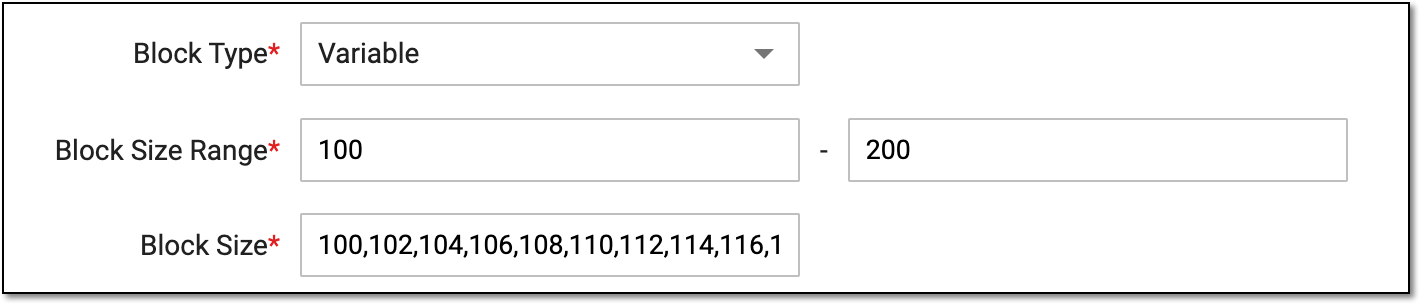 Figure 3. Setting block type and size range
The Block Type field is displayed only when the randomization method is set to Block or Block-stratified.Block Size*
Enter the number of subjects that a block can accommodate. The block size must be a multiple of the number of arms in the cohort.
This field is only displayed if the randomization method is set to Block or Block-stratified.Stratified setting*
Is only available for stratified and multicentral randomization. Select the gear icon and proceed to the stratified factor setting.
Simulate
Select
 to generate the randomization.
SAVE
Select
to save the changes and return to the settings later.Important
The fields of the form may vary depending on the randomization method you choose when adding a system-generated randomization scheme.
-
Once simulated, the randomization is generated according to your scheme. You can view the randomization result under the
Result  node.
node.