Update phase settings
In clinical trials, a subject phase constitutes a pathway marking the progression of participants through various stages of the study. Each phase serves as a milestone that captures the subject's journey and is integral to the overall trial design and scientific integrity.
The Study Designer application provides various tools to configure the subject phase flow. Firstly, you need to add phases to the designed flowchart so then you can establish a mapping between them to maintain consistency with the course participants must navigate. When this is done, the additional phase settings can be configured to better reflect the specific objectives of the clinical trial.
-
In the Study Designer application header, select the SUBJECT PHASE tab.
 Figure 1. Accessing subject phase configuration
-
From the toolbar, select the latest unlocked CRF version, otherwise, you cannot work with subject phases.
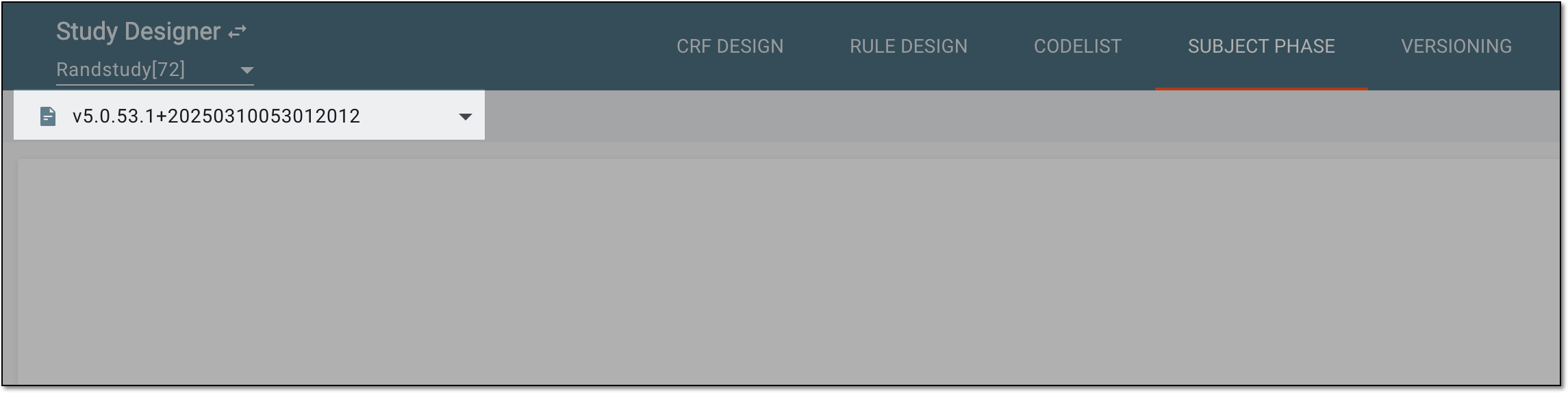 Figure 2. Selecting unlocked CRF version
-
In the contents panel, select the needed phase tile. Then from the workspace toolbar, select Edit
 .
.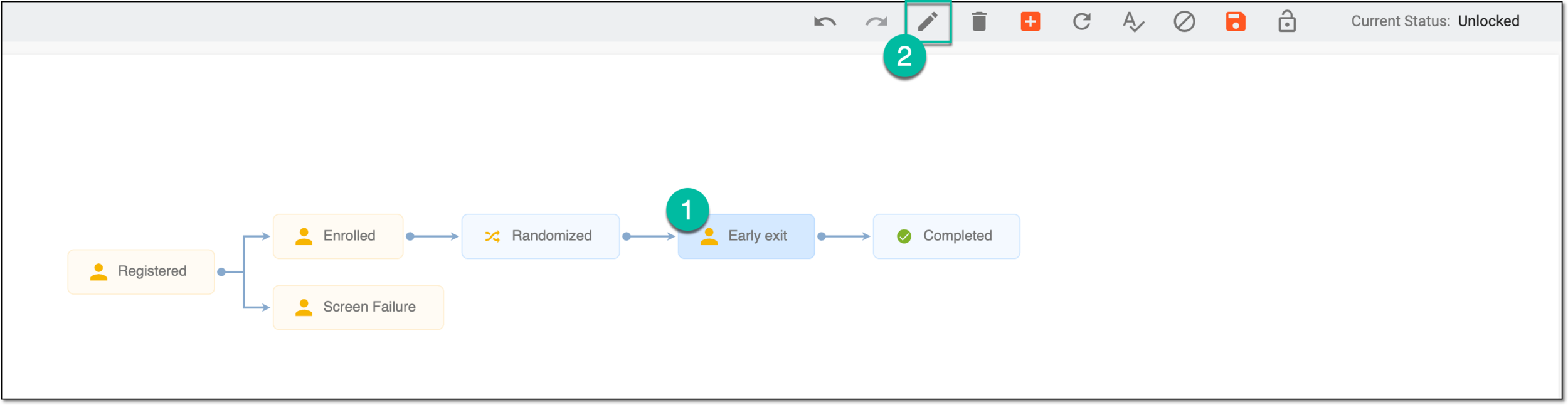 Figure 3. Selecting option to update phase
Tip
Alternatively, double-click the needed phase tile.
-
In the dialog that appears, under the Basic tab, update phase settings as explained in the following table.
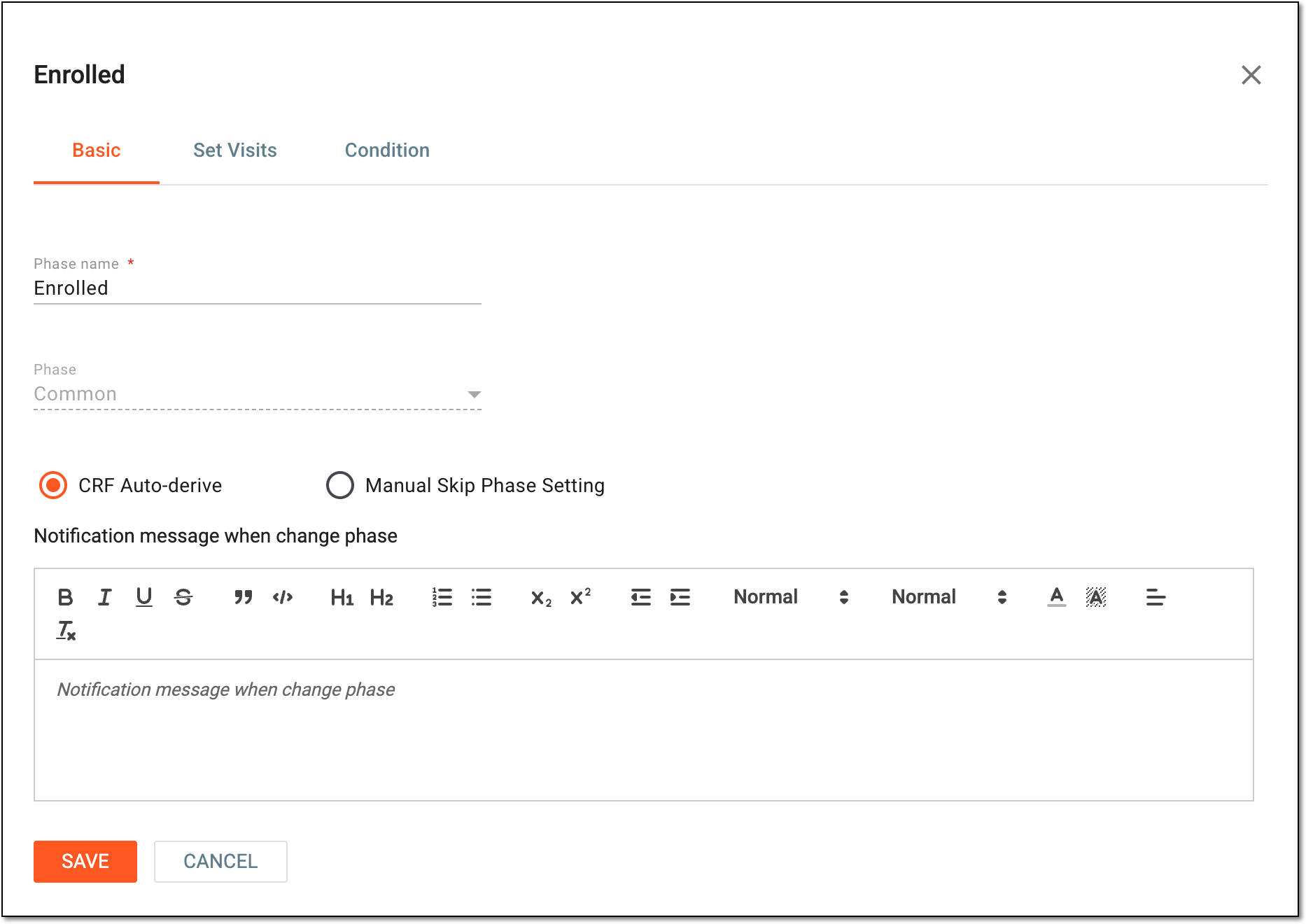 Figure 4. Updating phase settings
Element
Details
Phase name
Update the name of the phase if needed.
Phase
View the type of the selected phase:
-
Registered: the phase intended for subject registration in the study. Registered subjects are screened—checked for suitability for participation—and either enroll or fail the screening and cease further pathing through the trial.
-
Screen Failure: the final phase reached if the subject is found unsuitable to participate further in the study. This phase can be added multiple times as there can be different trial stages when the subject becomes unsuitable to proceed.
-
Randomized: the phase intended for subject randomization and allocation to their treatment groups.
For the Randomized phase, you may need to associate it with visits and fill out the randomization form. -
Common: the phase intended for main study activities with enrolled subjects—those who passed the screening. This phase can comprise treatment and data collection, however, is not intended for randomization. This phase can be added multiple times to accurately reflect the potential pathways a subject may traverse.
-
Completed: the phase intended for subjects who completed all required trial activities per protocol—had their last visit, final lab tests, and so on.
-
Enter Sub Study: the phase intended for subject transition from master study to substudy once meeting the required conditions or completing certain activities.
For instance, the subject is registered in the master study and found suitable to participate in a substudy. You can manually select the Enter Sub Study phase in EDC to move the subject from the master to the substudy, eliminating the need to register them again.
CRF Auto-derive
Select this option for the automatic assignment of the phase to subjects during the data entry process in EDC. The condition for this automation process must be configured afterward.
Note that only some subject phases can be automatically derived due to study specifics.Manual Skip Phase Setting
Select this option to enable the possibility to manually skip some previous phases during the data entry in EDC. The condition to enable the manual skip must be configured afterward.
Note that this configuration is only available for some subject phases due to study specifics.Notification message when change phase
Enter and format a text that is to be shown in the notification upon the assignment of the phase to subjects during the data entry in EDC.
Note that the notification configuration is only available for some subject phases due to study specifics.SAVE
Select
 to update phase settings.
Note that if you have selected either the CRF Auto-derive or Manual Skip Phase Setting option, you need to apply additional configurations available in the dialog before saving.CANCEL
Select
 to prevent the phase settings update.
 -
-
After updating phase settings, from the toolbar, select Save
 to apply the changes.
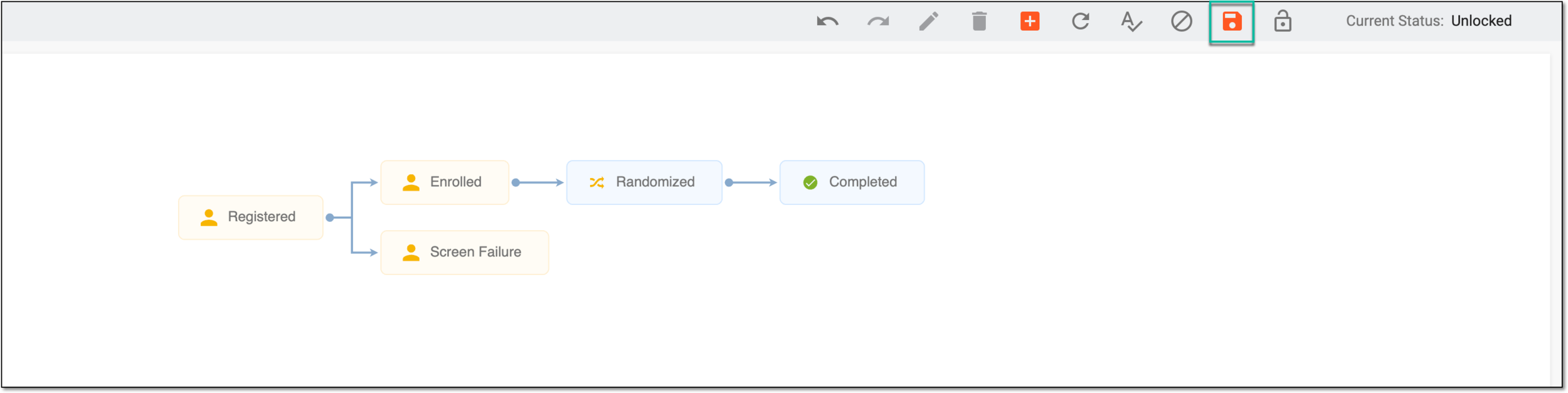 Figure 5. Saving phase settings
Once saved, phase settings are updated.