Associate phase with visits
In clinical trials, a subject phase constitutes a pathway marking the progression of participants through various stages of the study. Each phase serves as a milestone that captures the subject's journey and is integral to the overall trial design and scientific integrity.
The Study Designer application provides various tools to configure the subject phase flow. Firstly, you need to add phases to the designed flowchart so then you can establish a mapping between them to maintain consistency with the course participants must navigate. When this is done, some phases can be associated with visits.
This association ensures that only certain visits are available to subjects when they are in a specific phase. The linking of phases to relevant visits enhances study efficiency by making sure that subjects undergo appropriate procedures at each stage of the clinical trial.
For example, you can associate the Registered phase with the Screening visit. In EDC, only the Screening visit with its forms will be available for data entry for subjects in the Registered phase.
Important
You cannot associate visits to the subject phase of the Enter Sub Study type when designing subject phases of the master study.
-
In the Study Designer application header, select the SUBJECT PHASE tab.
 Figure 1. Accessing subject phase configuration
-
From the toolbar, select the latest unlocked CRF version, otherwise, you cannot work with subject phases.
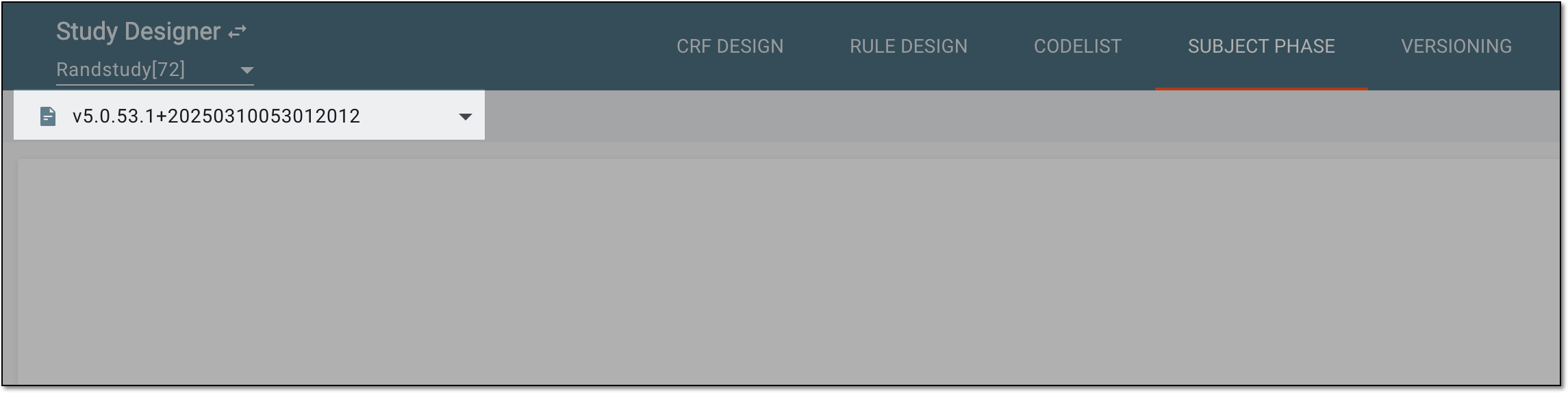 Figure 2. Selecting unlocked CRF version
-
In the contents panel, select the needed phase tile. Then from the workspace toolbar, select Edit
 .
.Tip
Alternatively, double-click the needed phase tile.
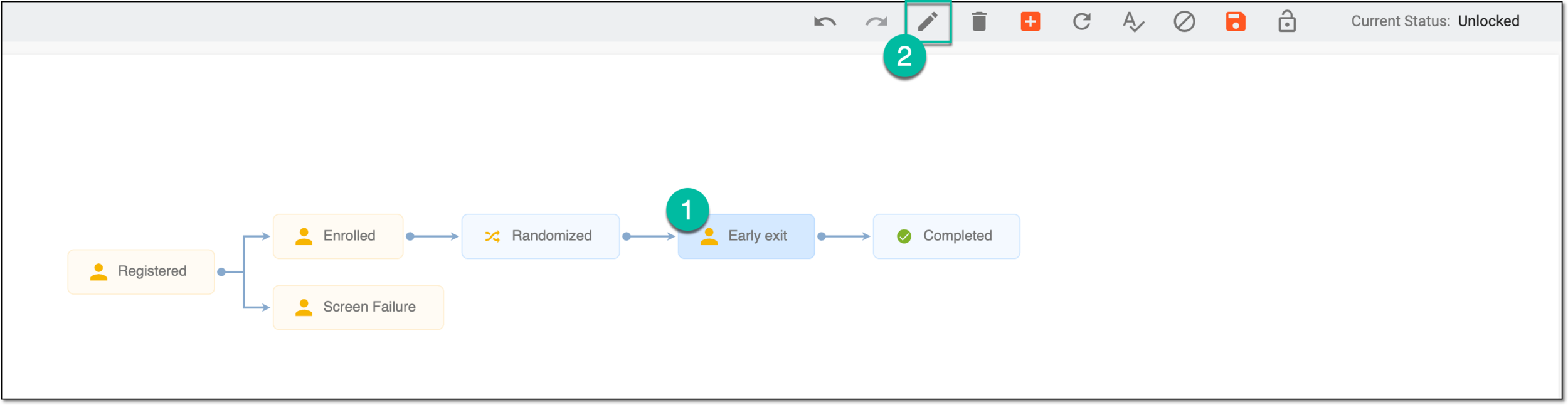 Figure 3. Selecting option to update phase
-
In the dialog that appears, go to the Set Visits tab to select checkboxes next to the visits you want to associate with the phase.
Important
Note that if no visits are selected for association with a certain phase, all of them become available for subjects when they enter this phase in EDC.
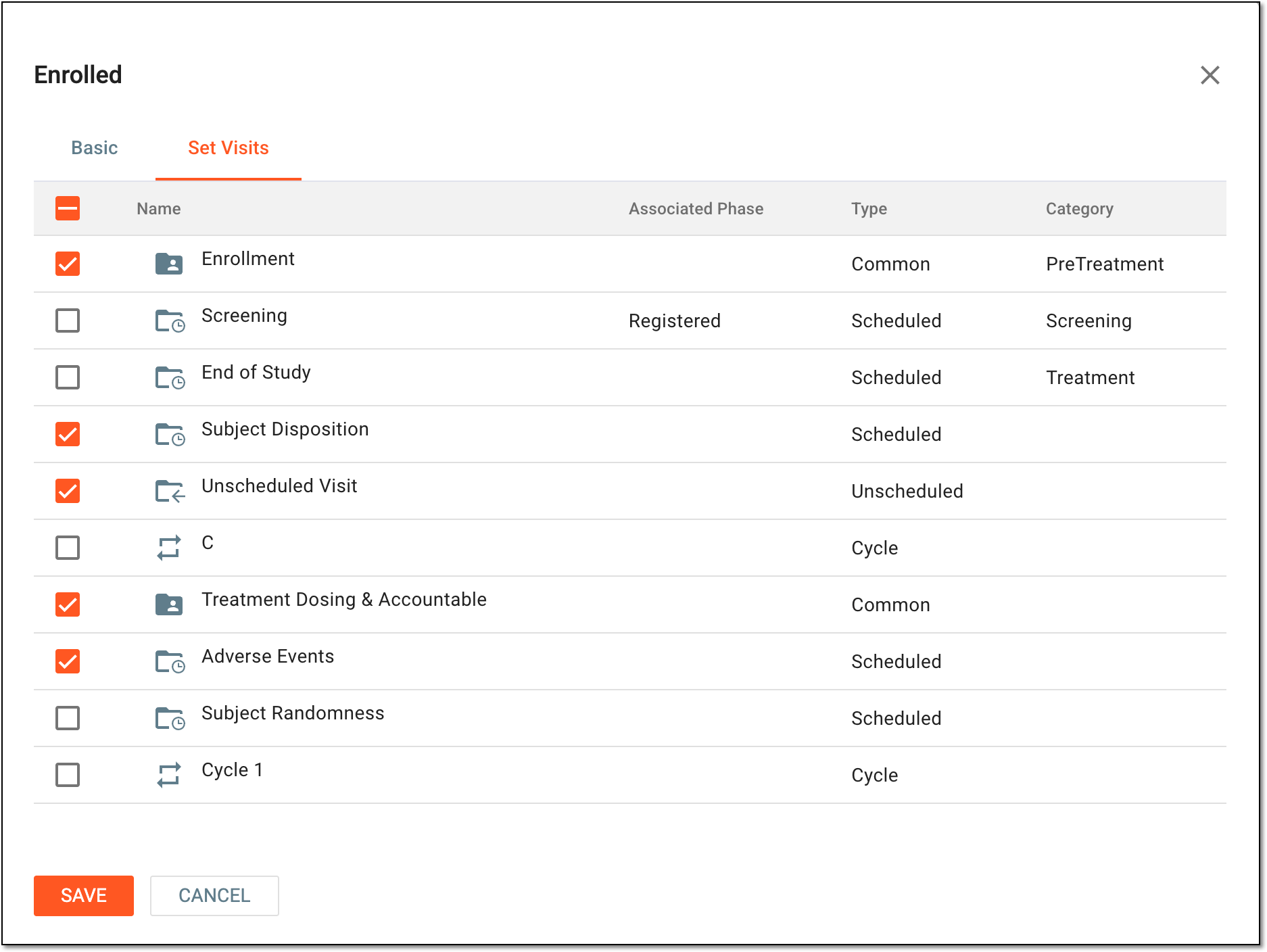 Figure 4. Associating phase with visits
-
Select
 to associate a phase with visits.
 -
After updating phase settings, from the toolbar, select Save
 to apply the changes.
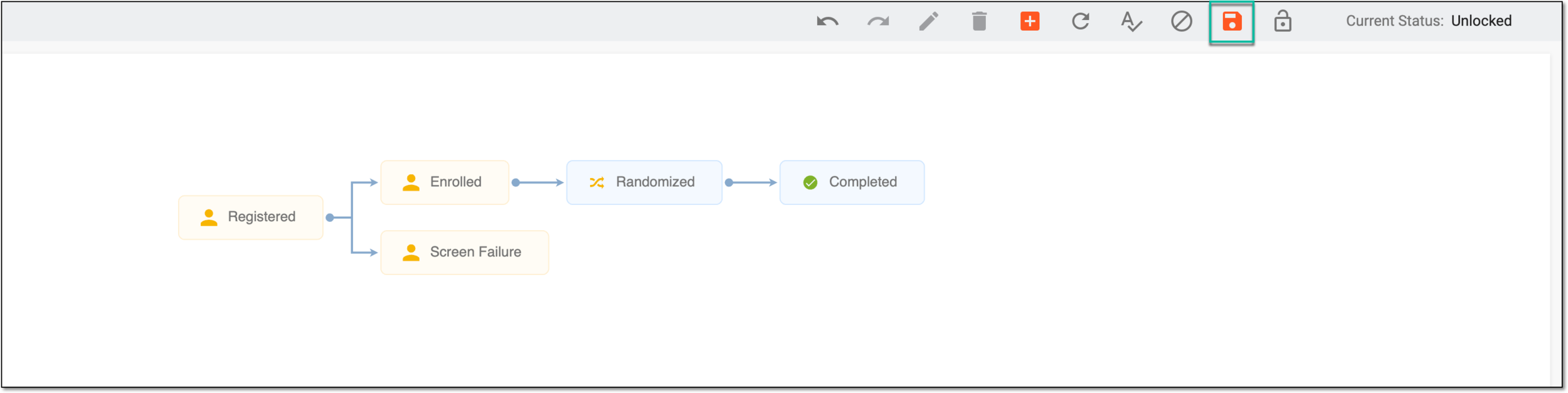 Figure 5. Saving phase settings
Once saved, the subject phase is associated with study visits.