Establish mapping between phases
In clinical trials, a subject phase constitutes a pathway marking the progression of participants through various stages of the study. Each phase serves as a milestone that captures the subject's journey and is integral to the overall trial design and scientific integrity.
The Study Designer application provides a variety of tools to configure the subject phase flow. Firstly, you need to add phases to the designed flowchart so then you can establish a mapping between them to maintain consistency with study requirements, thus plotting the course participants must navigate. This configuration can be achieved through an intuitive interface that helps with outlining clear transitions between phases during the trial's execution.
-
In the Study Designer application header, select the SUBJECT PHASE tab.
 Figure 1. Accessing subject phase configuration
-
From the toolbar, select the latest unlocked CRF version, otherwise, you cannot work with subject phases.
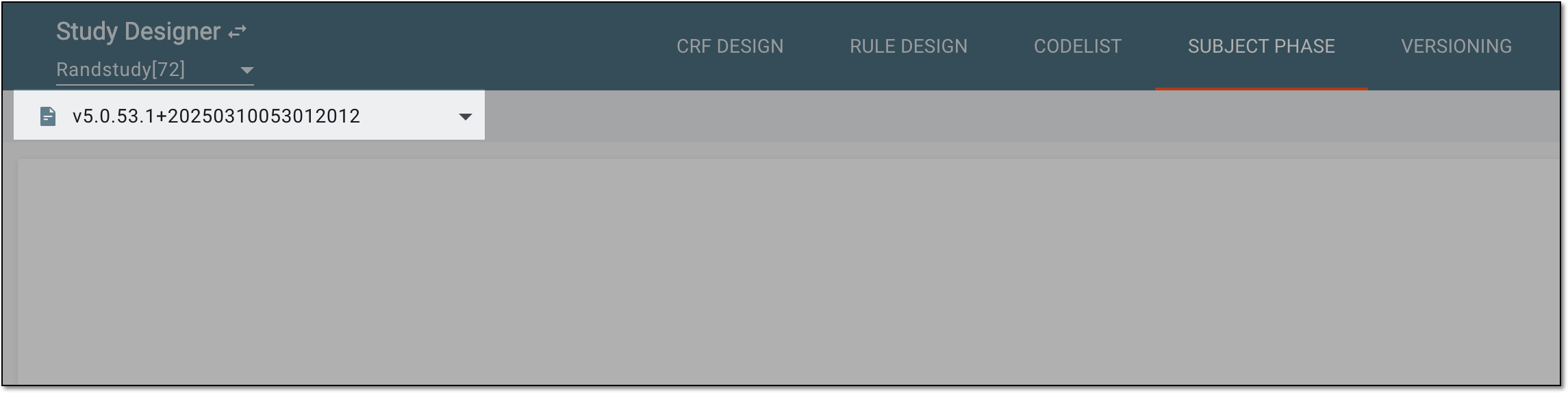 Figure 2. Selecting unlocked CRF version
-
In the contents panel, select and drag the needed phase tile to the desired location.
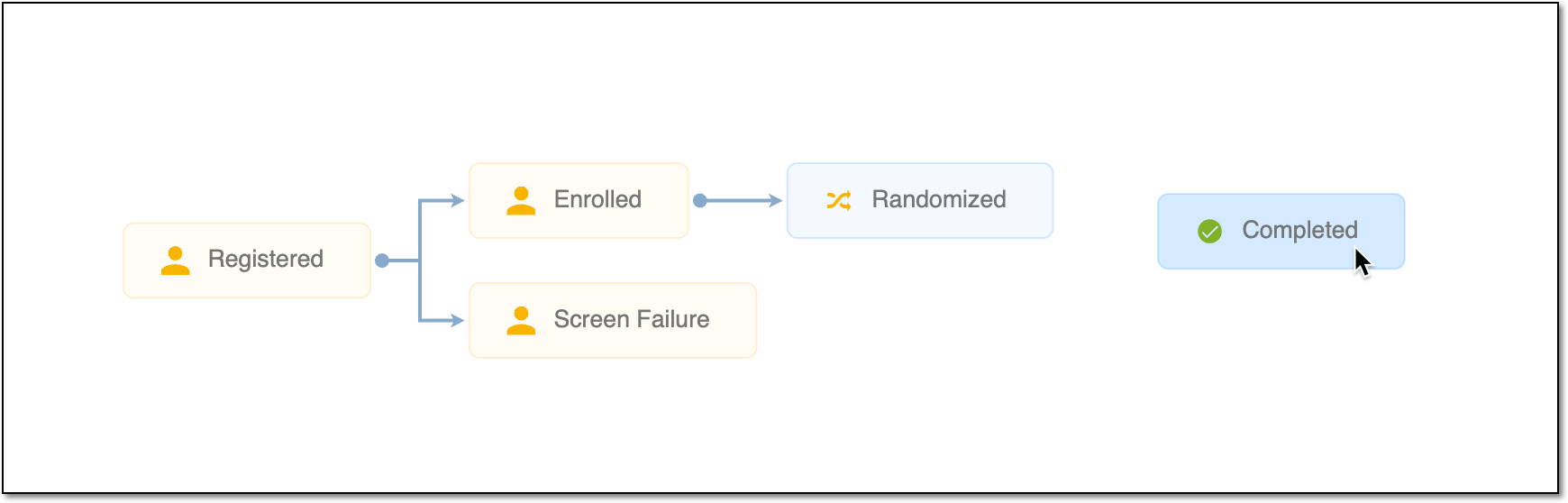 Figure 3. Placing phase tile
-
Hover over the right border of the phase tile you want to map, and then select and drag the blue arrow that appears on the left border of the target phase tile to establish the mapping. Repeat the same operation to map other phases.
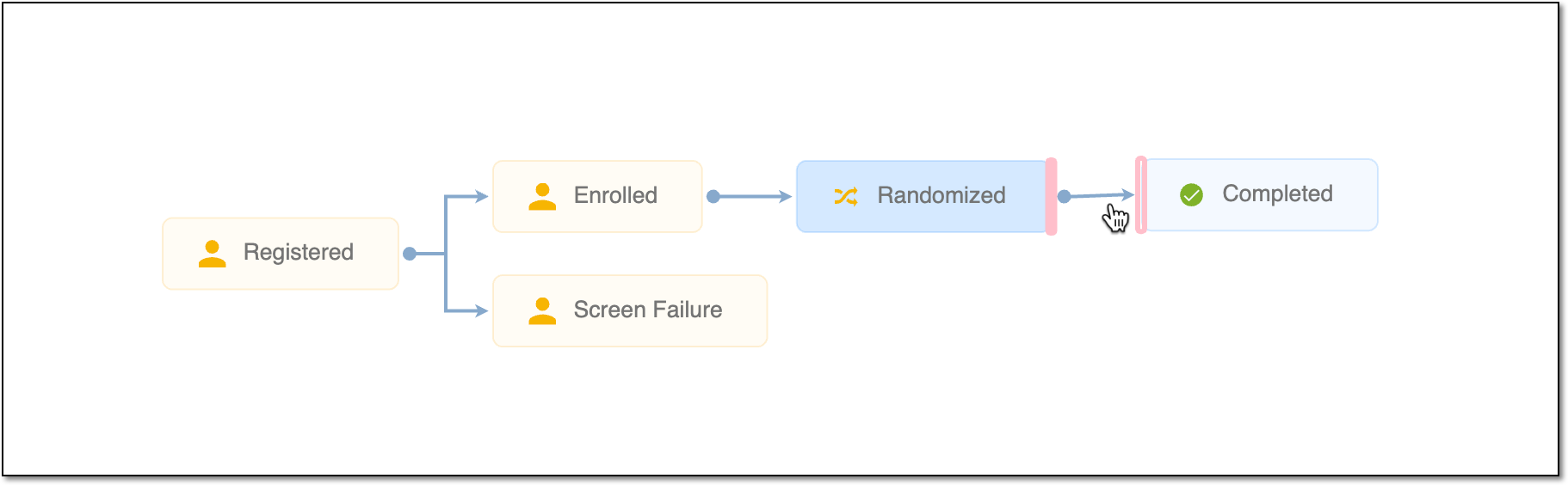 Figure 4. Establishing mapping between phases
Tip
To change the mapping between two phase tiles, select the arrow that has been drawn previously, and then select and drag the arrowhead to another target phase tile. To delete the established mapping, select the needed arrow and press Delete on your keyboard.
-
After the mapping is established between phases, from the toolbar, select Save
 to apply the phase configuration.
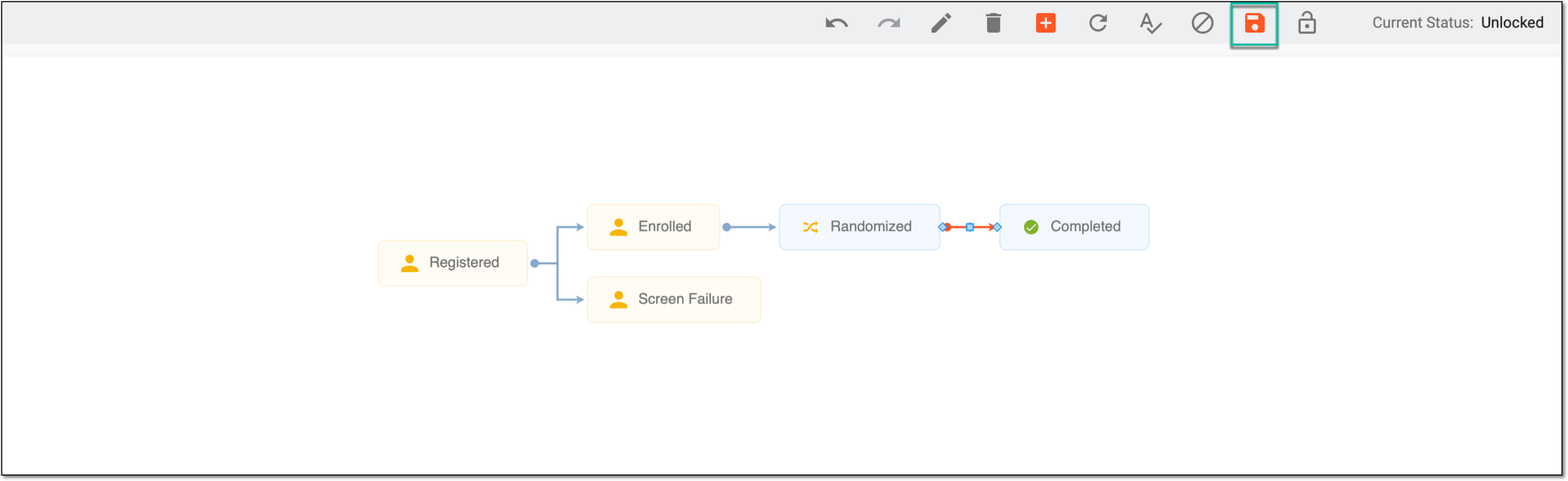 Figure 5. Saving phase mapping configuration
Once saved, the mapping between phases is established. You can now proceed with updating phase settings.