Set CRF autoderive condition
In clinical trials, a subject phase constitutes a pathway marking the progression of participants through various stages of the study. Each phase serves as a milestone that captures the subject's journey and is integral to the overall trial design and scientific integrity.
The Study Designer application provides various tools to configure the subject phase flow. Firstly, you need to add phases to the designed flowchart so then you can establish a mapping between them to maintain consistency with the course participants must navigate. When this is done, the CRF autoderive condition can be configured for some phases.
This condition determines the automatic progression of subjects between the phases based on specific data points captured on the CRF. By setting up this condition, the system can automatically update a subject's phase or skip a phase in response to certain triggers or criteria met. The automation ensures consistency in how subjects move through the study and reduces manual data handling.
For example, the subject's data is entered in the Exclusion Criteria form during the Screening visit. The CRF autoderive condition can be configured to automatically assign subjects to the Screen Failure phase when the entered data satisfies the defined condition. This indicates that the subject is not suitable for further participation in the trial.
-
In the Study Designer application header, select the SUBJECT PHASE tab.
 Figure 1. Accessing subject phase configuration
-
From the toolbar, select the latest unlocked CRF version, otherwise, you cannot work with subject phases.
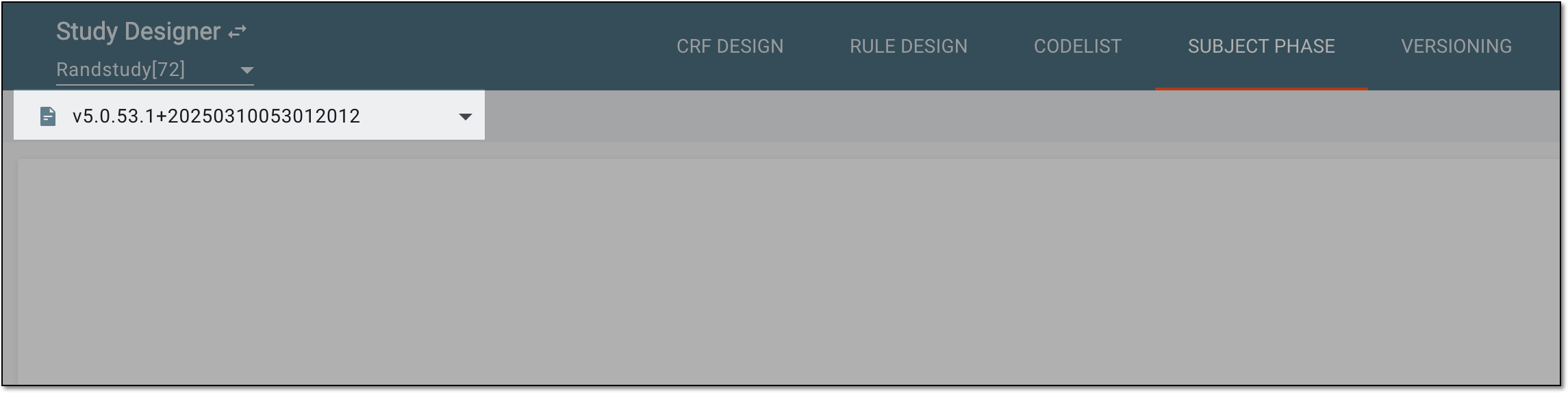 Figure 2. Selecting unlocked CRF version
-
In the contents panel, select the needed phase tile. Then from the workspace toolbar, select Edit
 .
.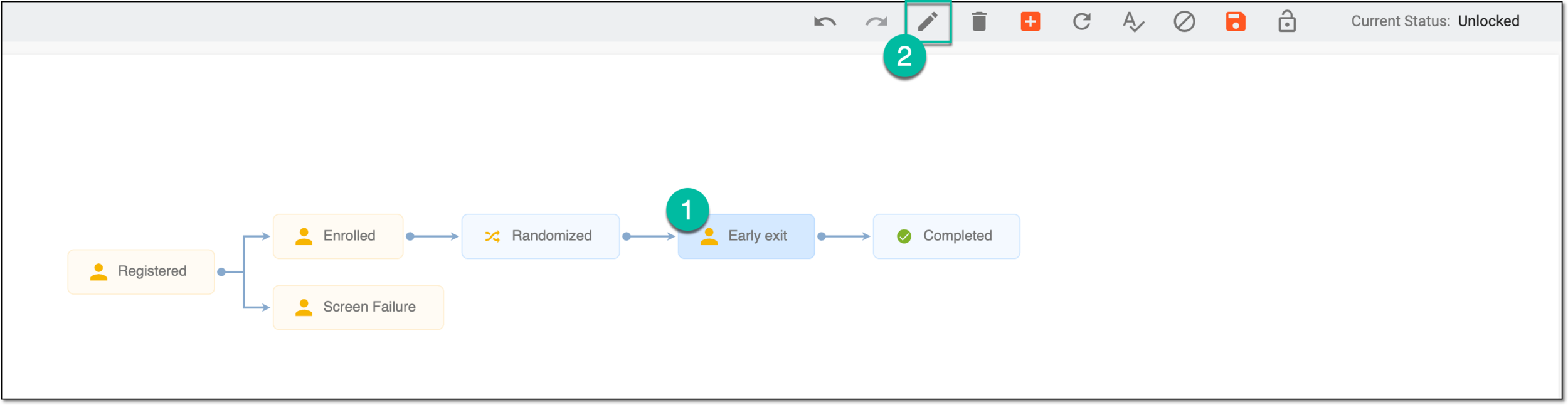 Figure 3. Selecting option to update phase
Tip
Alternatively, double-click the needed phase tile.
-
In the dialog that appears, under the Basic tab, select the CRF Auto-derive option.
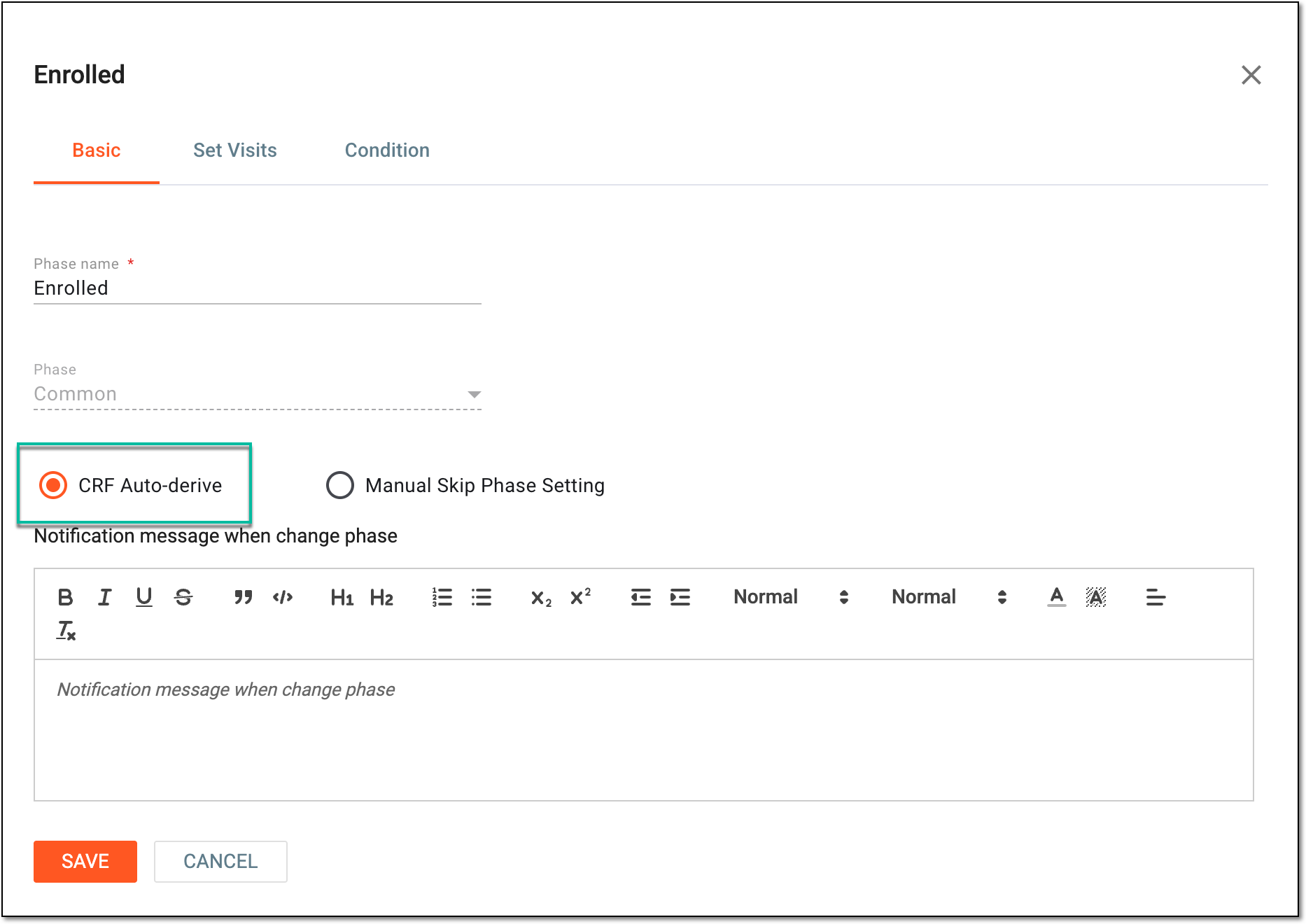 Figure 4. Selecting CRF Auto-derive option
Tip
You may not need to select this option if it has been previously selected during phase creation.
-
In the same dialog, select the Condition tab where you need to enter a condition under the Expression block. You can use the visits tree to navigate between various forms in order to select variables necessary for defining the condition.
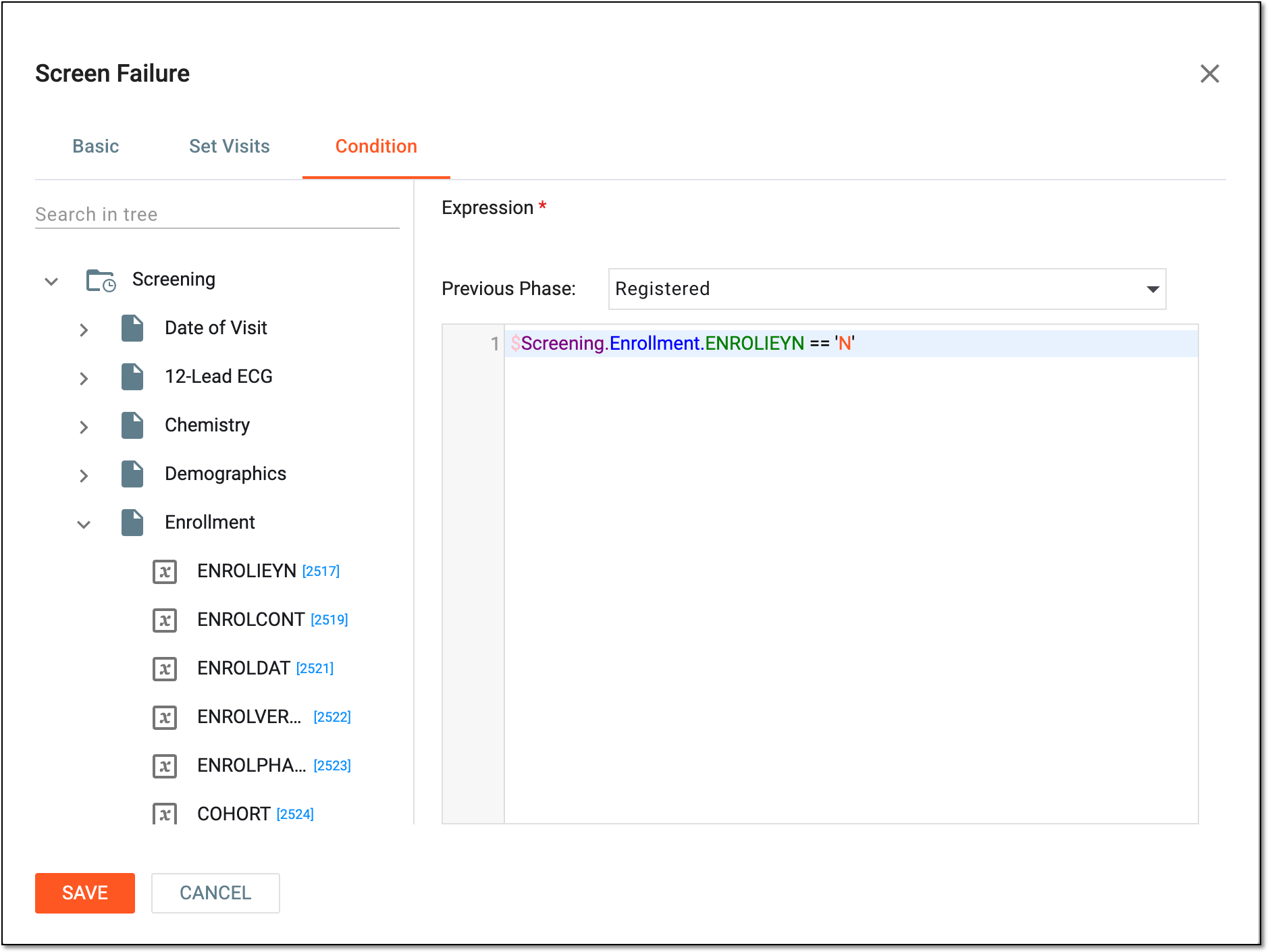 Figure 5. Defining CRF autoderive condition
-
Select
 to apply the CRF autoderive condition.
 -
After updating phase settings, from the toolbar, select Save
 to apply the changes.
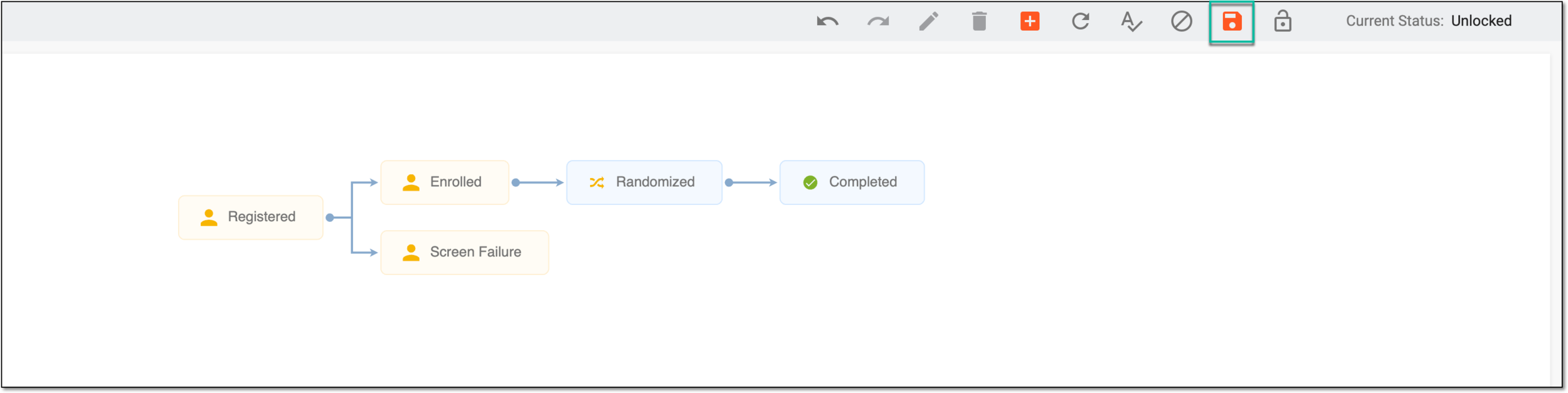 Figure 6. Saving phase settings
Once saved, the CRF autoderive condition is set. The corresponding phase is assigned to subjects when they meet the condition criteria during data entry in EDC.