Add global expression
When configuring visits, you can add validation rules or edit checks to question items or dependencies to forms. Validation rules and edit checks help ensure that the data entered into the form is accurate and consistent, thus preventing the inclusion of invalid values. Moreover, by adding validation rules, you can enforce adherence to the protocol requirements, ensuring that data is collected in a standardized and consistent manner.
In the Study Designer application, you can create customized rule-related expressions that can be reused across various forms during the CRF design. You may create as many expressions as needed in order to facilitate the future manual form configuration, thus satisfying study requirements and data collection procedures.
-
In the Study Designer application header, select the RULE DESIGN tab.
-
In the left pane of the page that opens, select Global Expression.
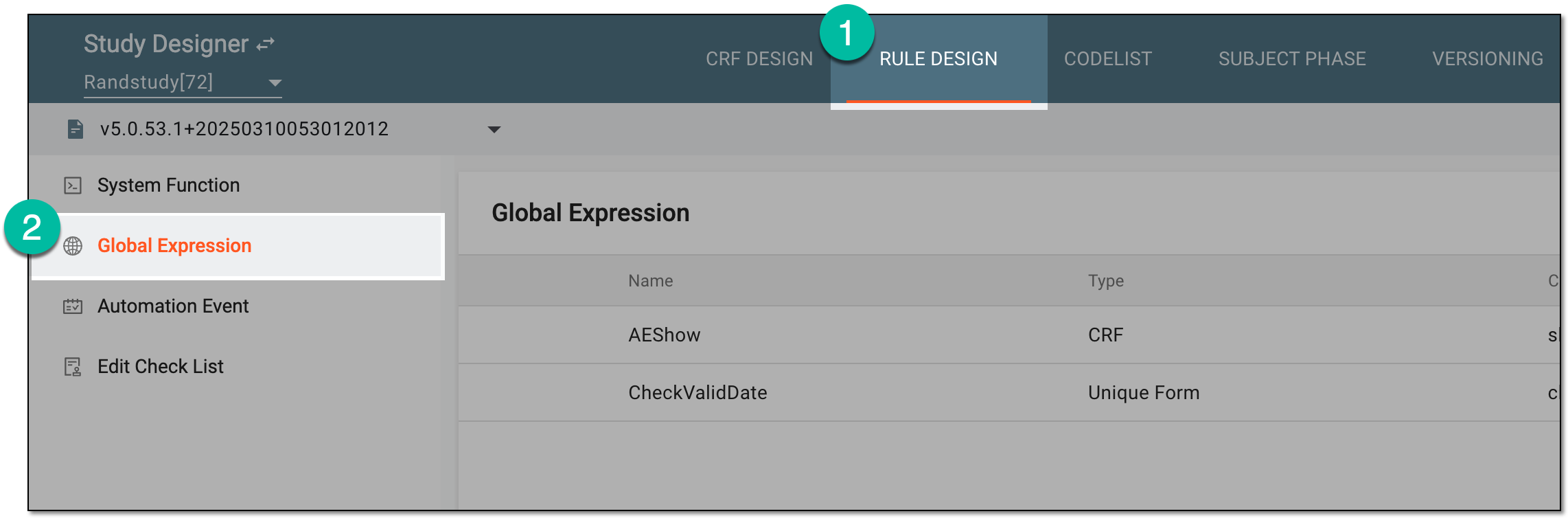 Figure 1. Accessing global expressions
-
In the toolbar, select the latest unlocked CRF version, otherwise, you cannot work with global expressions.
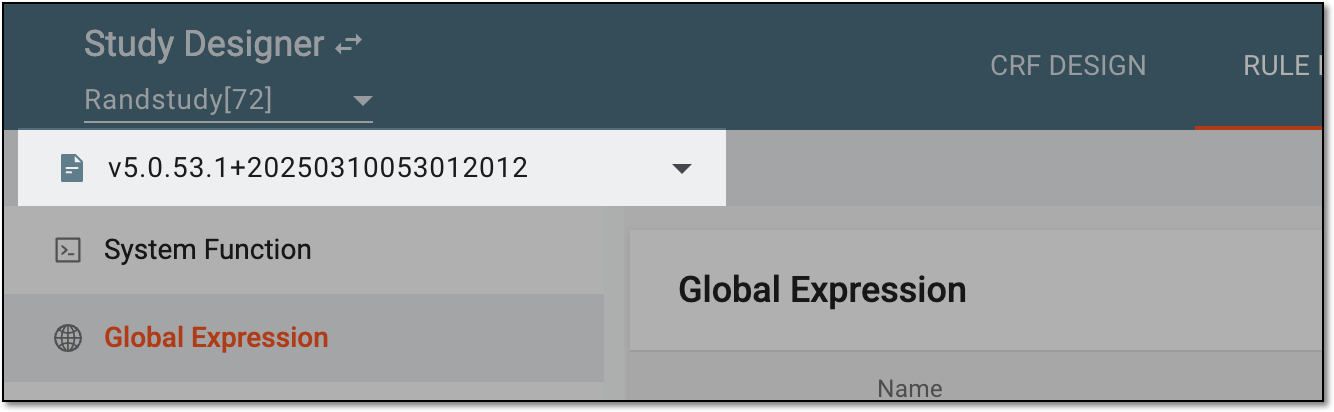 Figure 2. Selecting unlocked CRF version
-
From the workspace toolbar of the Global Expression table, select New Item
 .
. Figure 3. Selecting option to add global expression
-
In the dialog that appears, configure the global expression as explained in the following table.
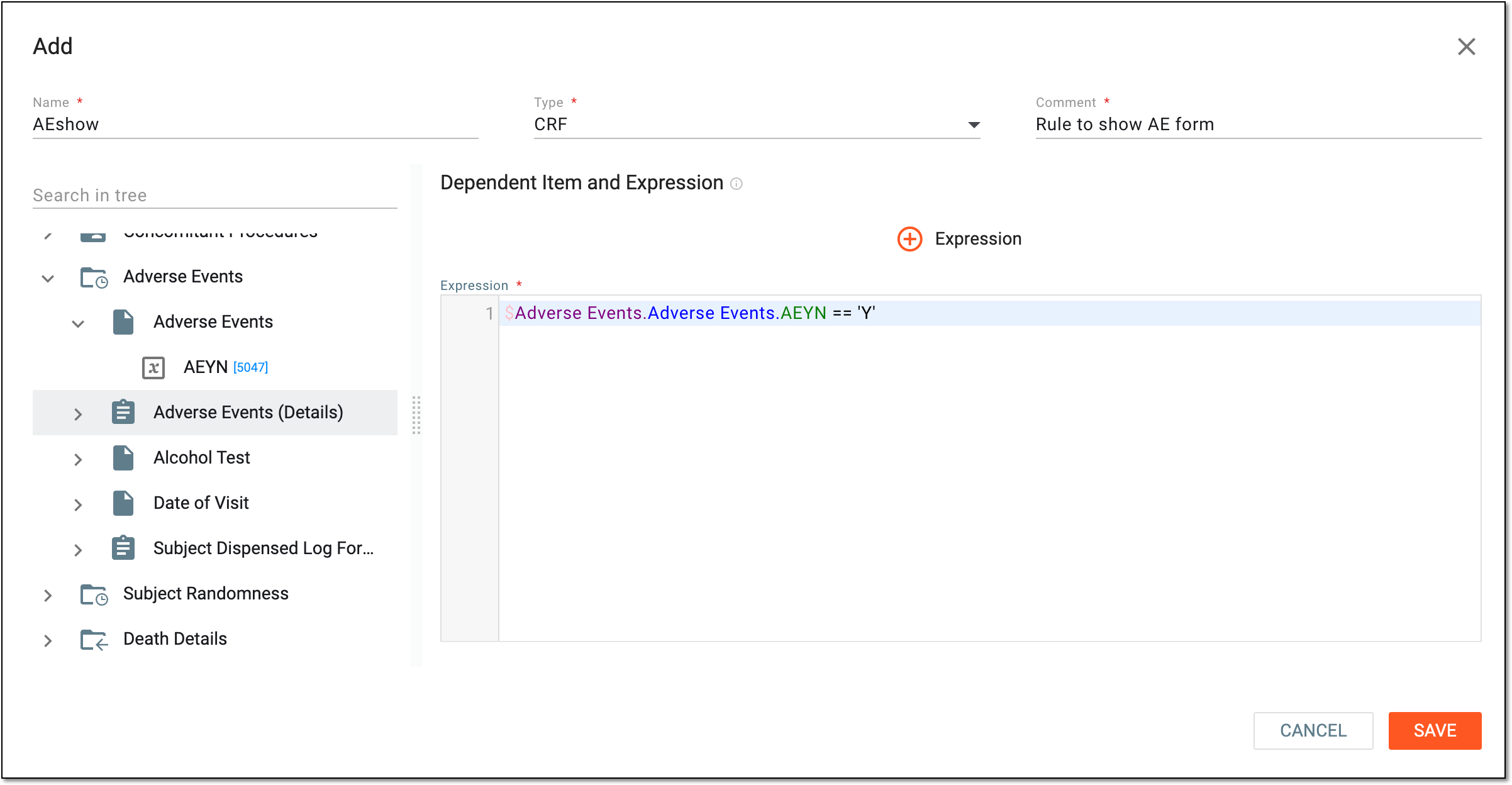 Figure 4. Adding global expression
Element
Details
Name*
Enter a unique name for the global expression you create.
Type*
Select one of the following options:
-
Unique Form: when you intend to create a rule for a specific unique form. Once reused for this unique form, the rule is automatically applied to all linked visit forms.
-
CRF: when you intend to create a rule for a specific visit form. Such a rule only applies to this form afterward.
Comment*
Enter a short description for the global expression you create.
Dependent Item and Expression
In the Expression text box, start designing a global expression. You can also select
 to add an expression
placeholder that you can use for the purpose of organization.
to add an expression
placeholder that you can use for the purpose of organization.You can use the following entry options when designing an expression:
-
Press Shift + @ to automatically prompt functions.
-
Press Shift + # to automatically prompt conditions.
-
Press Shift + $ to automatically prompt the list of visits, then forms, and then variables to select for the expression.
-
Press ` to automatically prompt the list of other global expressions to reference.
-
From the tree panel, select and drag the necessary variable to use it in the expression configuration.
SAVE
Select
 to create a global expression.
CANCEL
Select
 to stop the global expression creation.
 -
Once saved, the global expression is added. You can now reference it when designing rules for forms and question items.