Add validation rule (edit check) to question item
The Study Designer application enables study teams to configure CRFs for clinical trial visits with a variety of tools. There are various form field options such as text fields, checkboxes, dropdown menus, date pickers, and more. You can place these fields on the form canvas, arrange them as needed, and make sure they are associated with the corresponding variables.
When maintaining a form, you can add validation rules or edit checks to question items. Validation rules and edit checks help ensure that the data entered into the form is accurate and consistent, thus preventing the inclusion of invalid or implausible values. Moreover, by adding validation rules, you can enforce adherence to the protocol requirements, ensuring that data is collected in a standardized and consistent manner.
Before adding validation rules or edit checks to question items, make sure you understand the difference between the two notions:
-
A validation rule is a criterion or constraint applied to data to ensure its accuracy, consistency, and compliance with predefined standards or requirements. It defines the acceptable values, formats, ranges, or logical relationships for specific data fields. Validation rules can be applied at various stages of data collection, including pre-entry, during entry, or post-entry.
-
An edit check is a predefined condition or set of conditions that the data must satisfy. If the data fails to meet the specified conditions, a query will be generated for the corresponding fields in EDC. Edit checks are generally associated with real-time data validation during data entry.
Important
By updating a unique form, you introduce changes to all visit forms linked to it and vice versa.
-
In the Study Designer application header, select the CRF DESIGN tab.
-
In the toolbar, select the latest draft CRF version marked with the respective unlock symbol
 , otherwise, you cannot perform any actions.
 Figure 1. Selecting latest draft CRF version
-
In the left pane that appears, expand the unique form or any visit directory. Then select the needed form.
Tip
To locate the needed forms faster, use Search
 on the workspace toolbar of the
left pane.
on the workspace toolbar of the
left pane.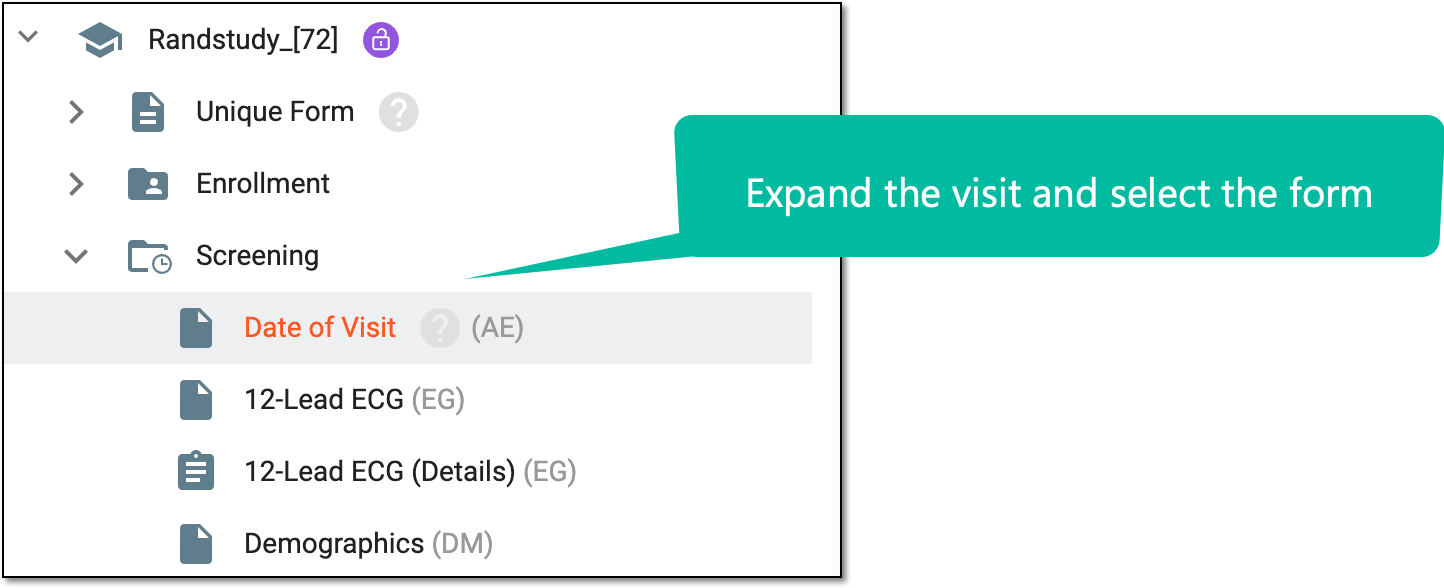 Figure 2. Accessing form to configure
-
On the form content page that appears, next to the needed item, select Edit Check
 .
.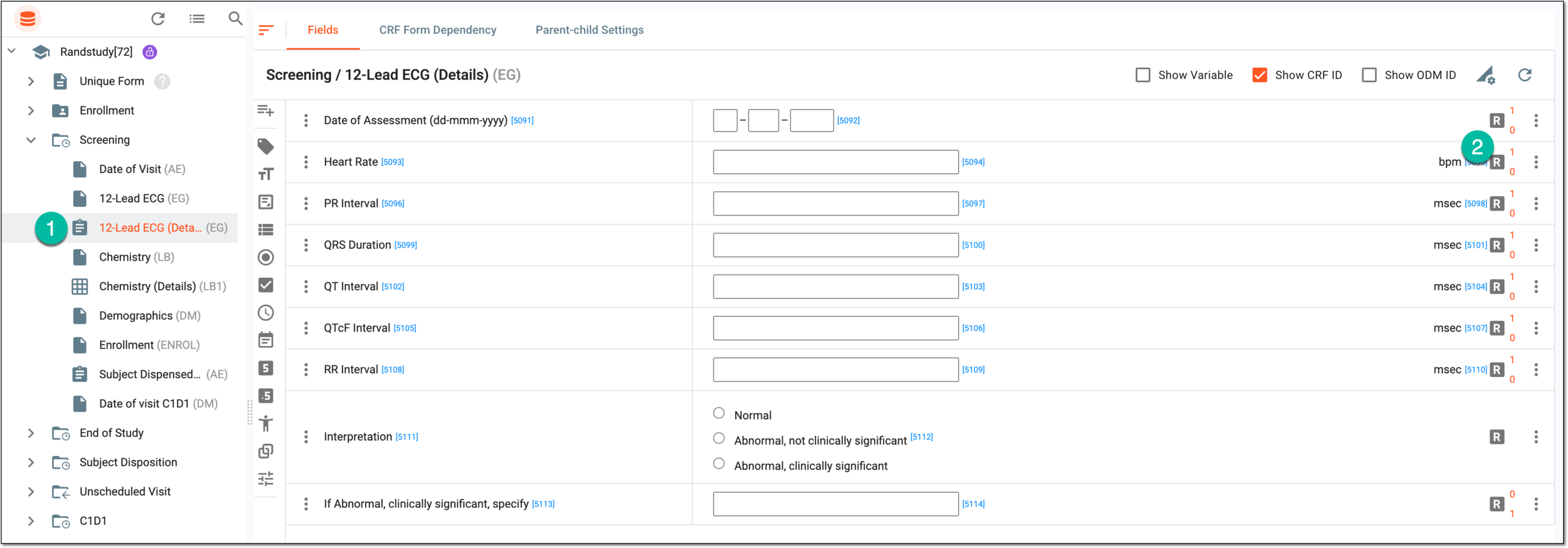 Figure 3. Accessing form and rule design for item
-
On the Rule List page that opens, from the workspace toolbar, select New Item
 .
. Figure 4. Selecting option to add new rule
Tip
If there are already added validation rules or edit checks, you can perform one of the following actions with them:
-
Edit
 : select this option to update the needed validation rule or edit check.
 -
Activate
 or Inactivate
  : select this option to activate or deactivate the needed validation rule or edit check.
 -
Delete
 : select this option to delete any unnecessary validation rule or edit
check.
: select this option to delete any unnecessary validation rule or edit
check.
-
-
In the Add Rule dialog that appears, configure a validation rule or edit check condition in one of the two ways:
-
Simple setting: provides a limited variety of tools to configure conditions. The details of how to do this type of configuration are explained in the following table.
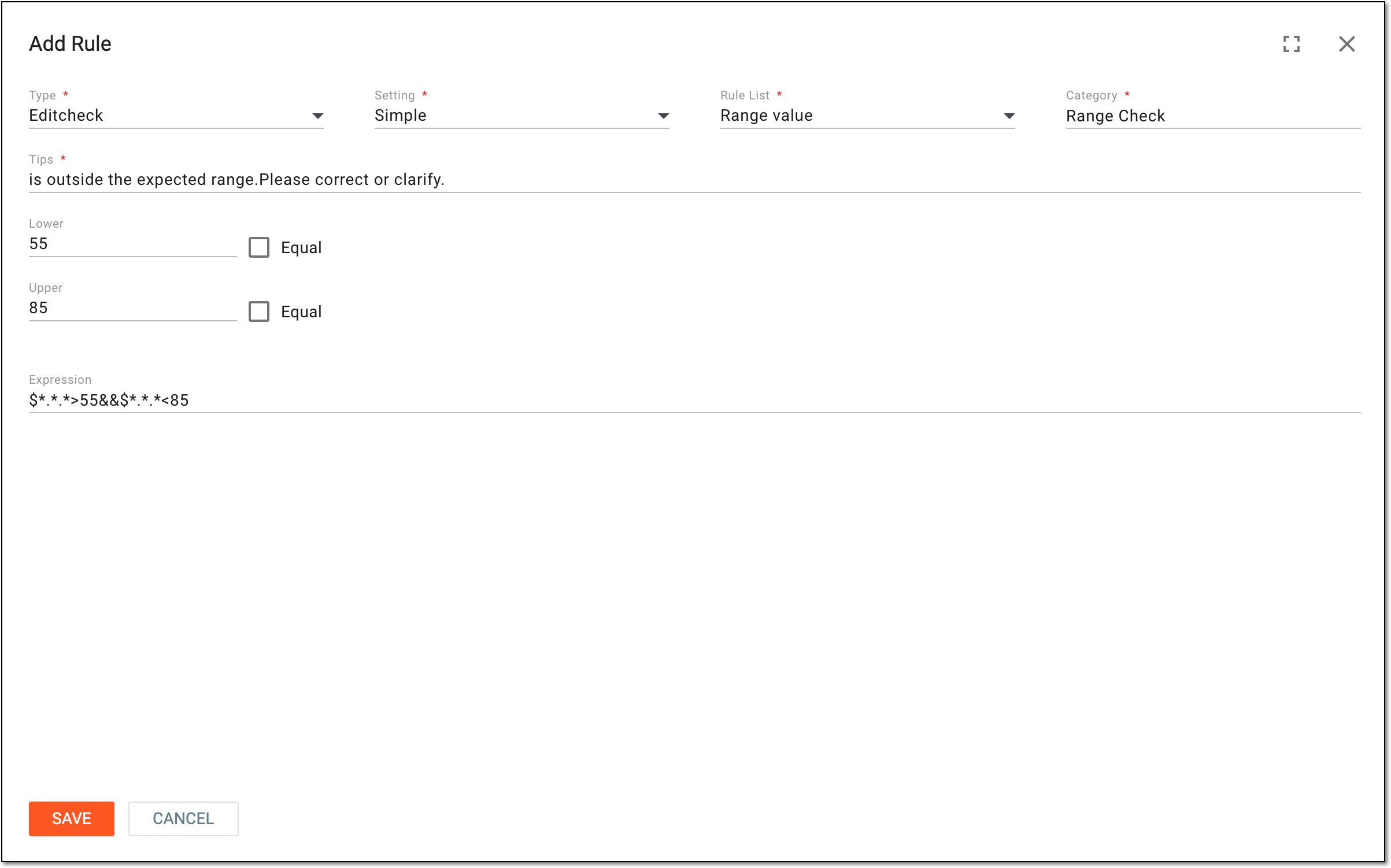 Figure 5. Applying simple setting
Tip
In the following table, mandatory elements are marked with an asterisk (*).
Element
Details
Type*
Select the type of rule that you want to create, which can be either Validation or Editcheck.
Setting*
Select the Simple setting.
Rule List*
From the dropdown menu, select one of the available rules based on the condition you wish to add. For example, you can select the Comparison of two dates rule if it is intended to compare date values.
Category*
Select the category of the created rule. You can pick it either from the dropdown list or enter it manually.
Tips*
Enter the text to be included in the query that can be generated if the data entered in EDC fails to meet the specified criterion.
Criterion block*
The block includes a variety of parameters to specify depending on the selected rule.
Expression
Represent the rule expression that is generated based on the configured parameters. You cannot update this expression manually.
SAVE
Select
 to add the rule.
CANCEL
Select
 to cancel adding the rule.
 -
Full setting: suitable for advanced users with a good knowledge of the SAS code programming. The details of how to do this type of configuration are explained in the following table.
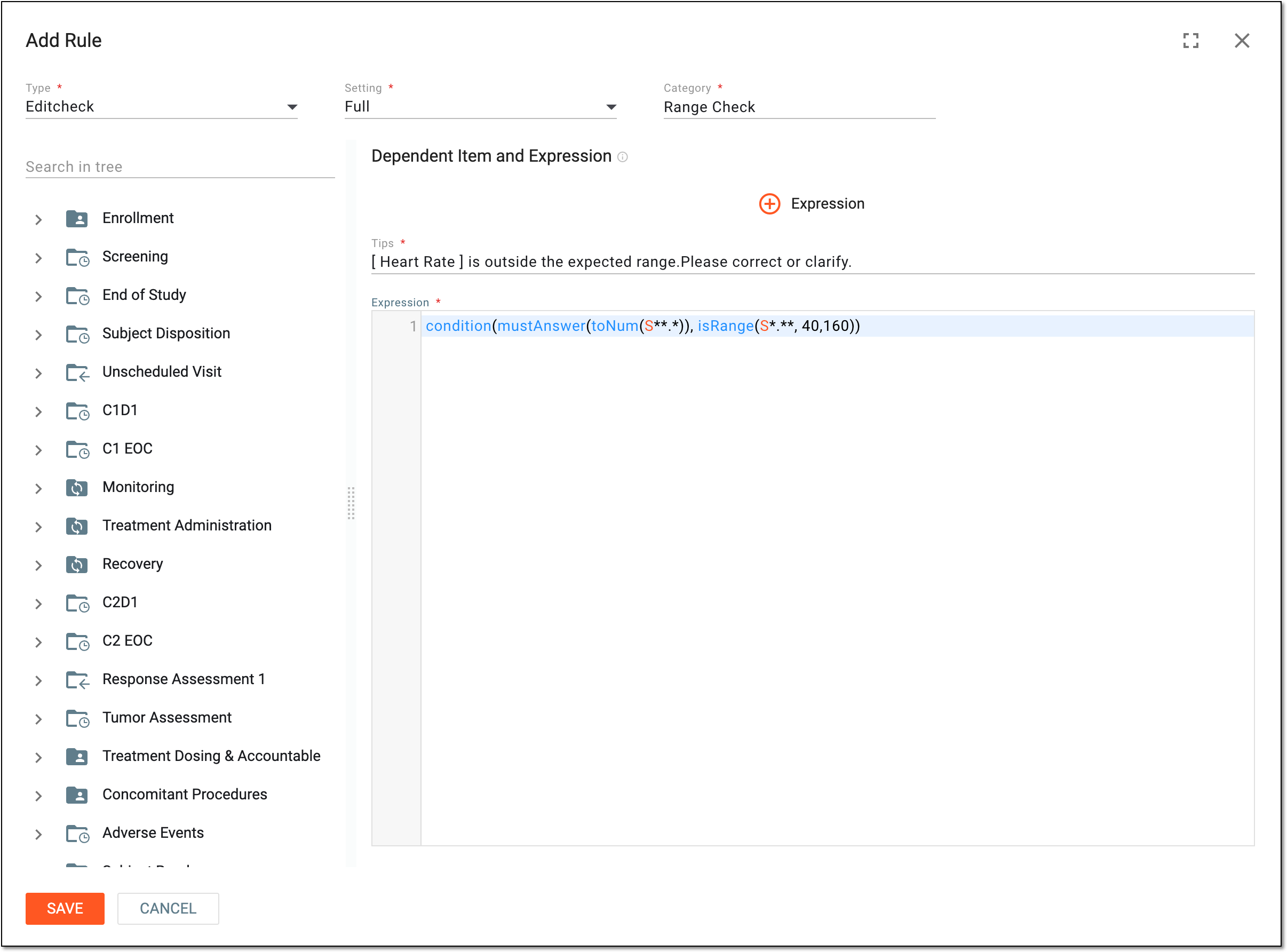 Figure 6. Applying full setting
Tip
In the following table, mandatory elements are marked with an asterisk (*).
Element
Details
Type*
Select the type of rule that you want to create, which can be either Validation or Editcheck.
Setting*
Select the Full setting.
Category*
Select the category of the created rule. You can pick it either from the dropdown list or enter it manually.
Form tree
In this tree with all study unique forms, select field variables to be used for configuring an expression.
Tips*
Enter the text to be included in the query that can be generated if the data entered in EDC fails to meet the specified expression.
Expression*
In the expression text box, configure a rule manually using the SAS language syntax. Select
 to add an expression placeholder that you may use
for the purpose of organization.
to add an expression placeholder that you may use
for the purpose of organization.You can also use the following entry options when designing an expression:
-
Press Shift + @ to automatically prompt functions.
-
Press Shift + # to automatically prompt conditions.
-
Press Shift + $ to automatically prompt the list of visits, then forms, and then variables to select for the expression.
-
From the tree panel, select and drag the necessary variable to use it in the expression configuration.
SAVE
Select
to add the rule.CANCEL
Select
to cancel adding the rule. -
-
Once saved, the validation rule or edit check is added to the item. You can now continue to maintain forms with available actions.