View global expression references
When configuring visits, you can add validation rules or edit checks to question items or dependencies to forms. Validation rules and edit checks help ensure that the data entered into the form is accurate and consistent, thus preventing the inclusion of invalid values. Moreover, by adding validation rules, you can enforce adherence to the protocol requirements, ensuring that data is collected in a standardized and consistent manner.
In the Study Designer application, you can create customized rule-related expressions that can be reused across various forms during the CRF design. These expressions, once created, can be conveniently applied across multiple forms. You can then track all instances where a particular global expression has been utilized, enabling easy monitoring and management of expressions throughout various forms.
-
In the Study Designer application header, select the RULE DESIGN tab.
-
In the left pane of the page that opens, select Global Expression.
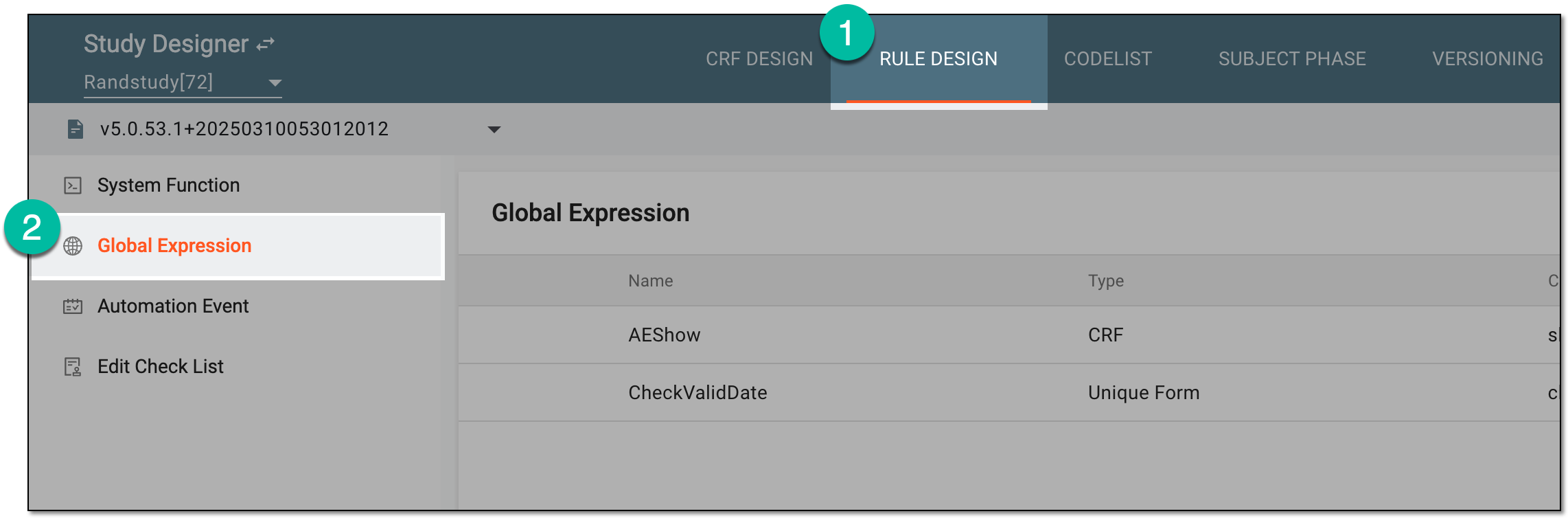 Figure 1. Accessing global expressions
-
In the toolbar, select the needed CRF version.
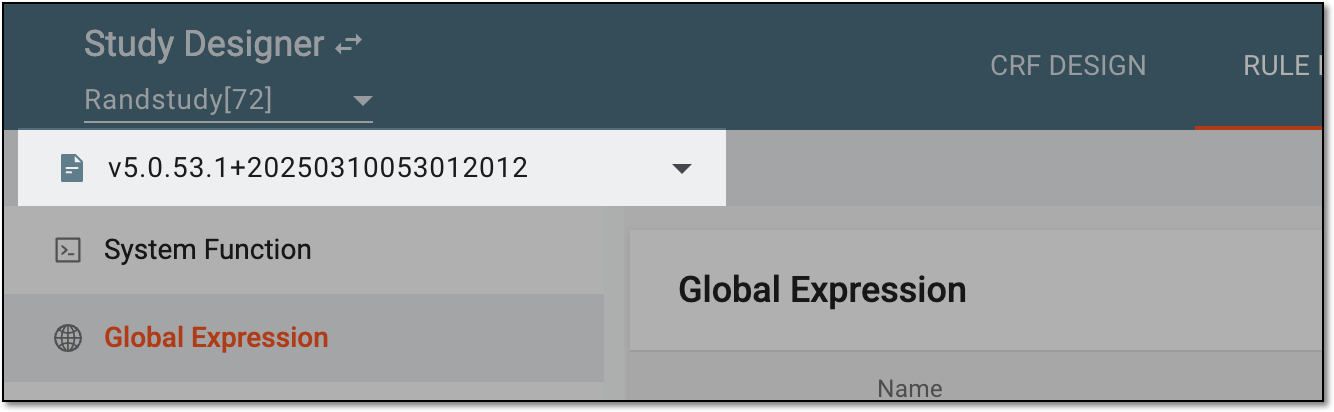 Figure 2. Selecting unlocked CRF version
-
In the Global Expression table, select Reference Rule
 next to the needed global
expression.
next to the needed global
expression. Figure 3. Selecting option to view global expression references
-
In the Reference Rule dialog that appears, navigate between the Item Rule and Automation Event tabs to view where the global expression is referenced, meaning reused.
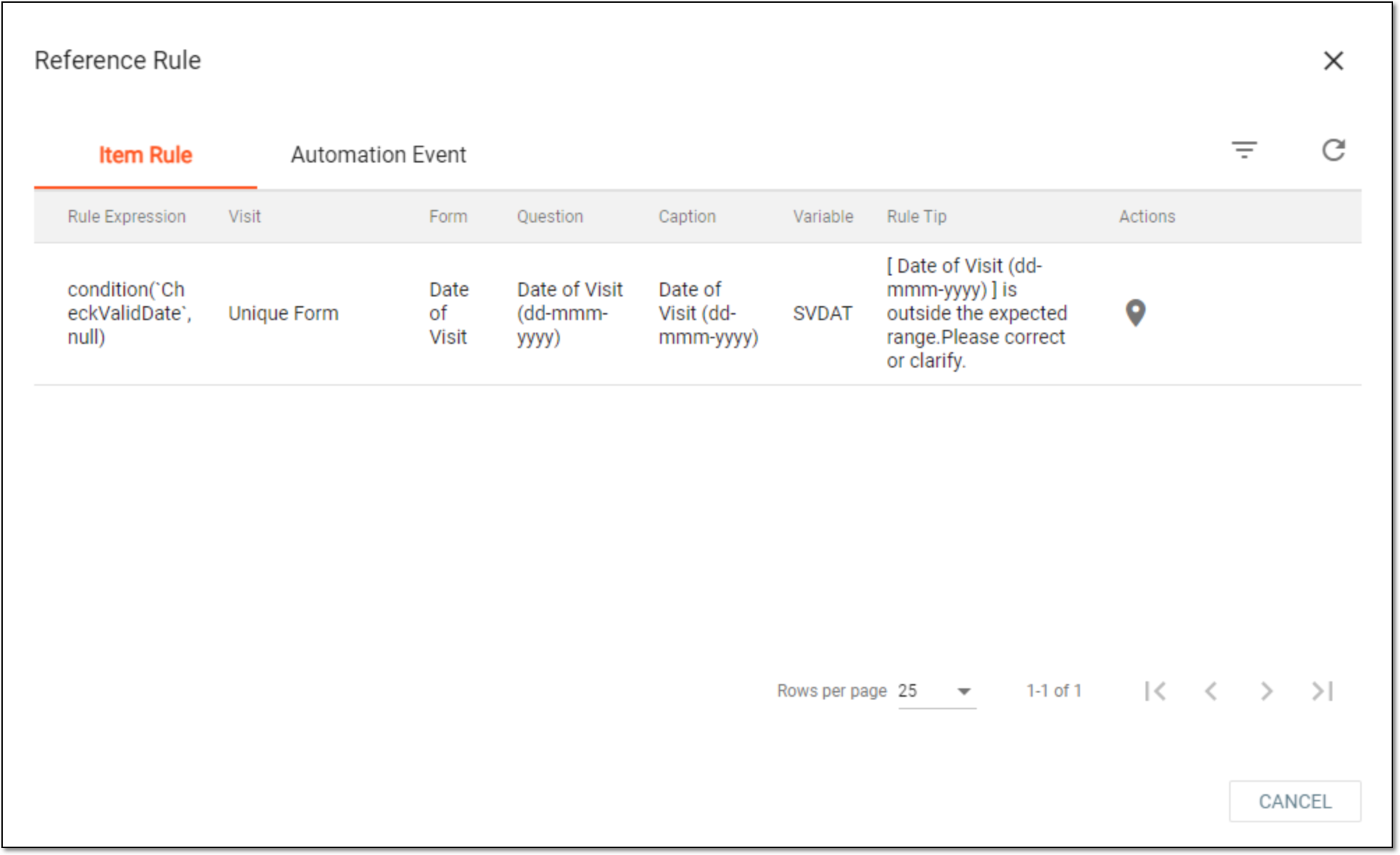 Figure 4. Viewing global expression references
Tip
Select Go to location
 next to any reference to navigate to the question item, form, or automation event
where the expression is reused.
next to any reference to navigate to the question item, form, or automation event
where the expression is reused. -
Select
 or
or  to close the Reference Rule dialog.
The global expression references have been viewed.