View site quarantine details
In IWRS, from the Quarantine page, you can manage the product units and container units from your site inventory or shipped to your site that have been quarantined for some reason, for instance, if the packaging is damaged or the origin of the drug is questionable.
You can view the details for each batch of quarantined items on your site at any time.
-
In the IWRS application header, select the SITE tab.
-
In the Site List table that appears, select the site for which you want to view the quarantine details.
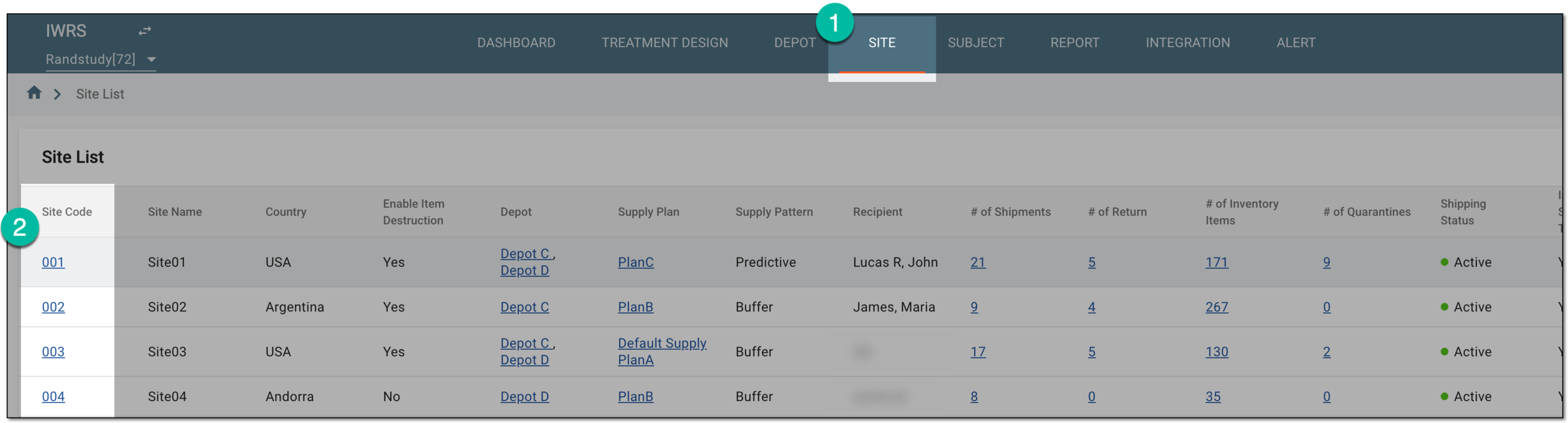 Figure 1. Selecting site to view details
-
On the page that opens, in the left pane, select the Quarantine subtab.
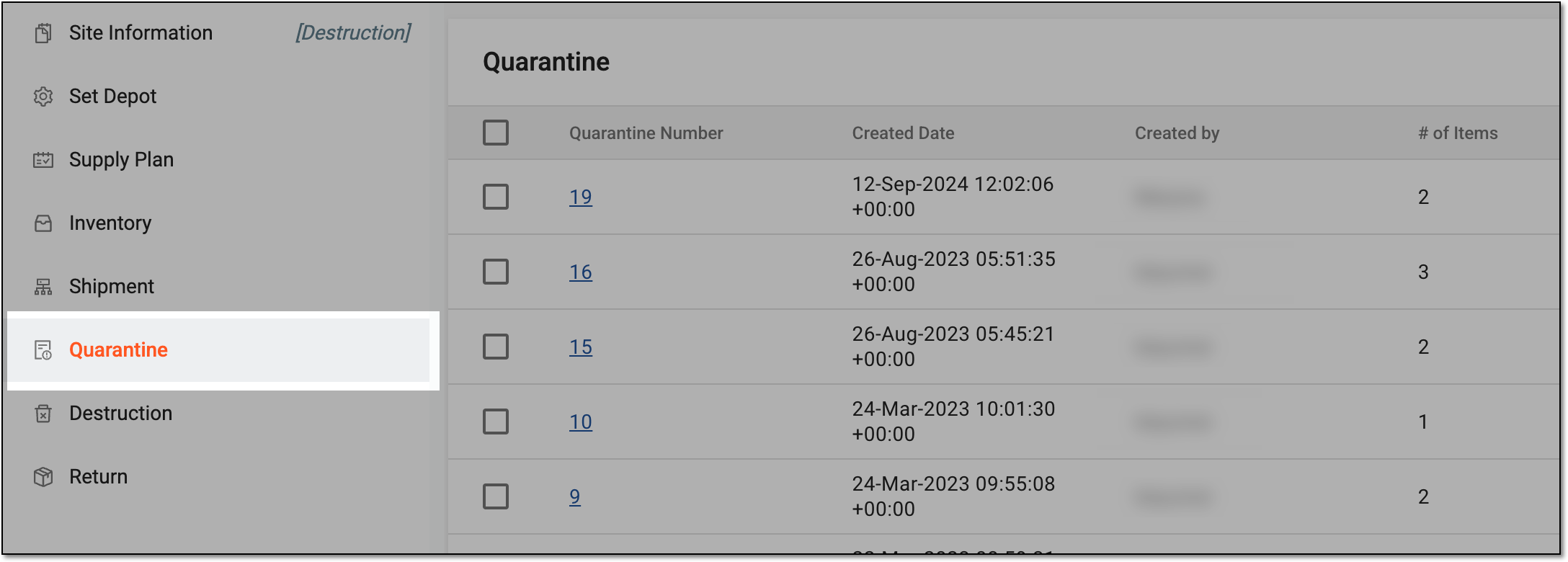 Figure 2. Accessing site quarantine list
-
In the Quarantine table that appears, locate the quarantine that you want to view and select its Quarantine Number value.
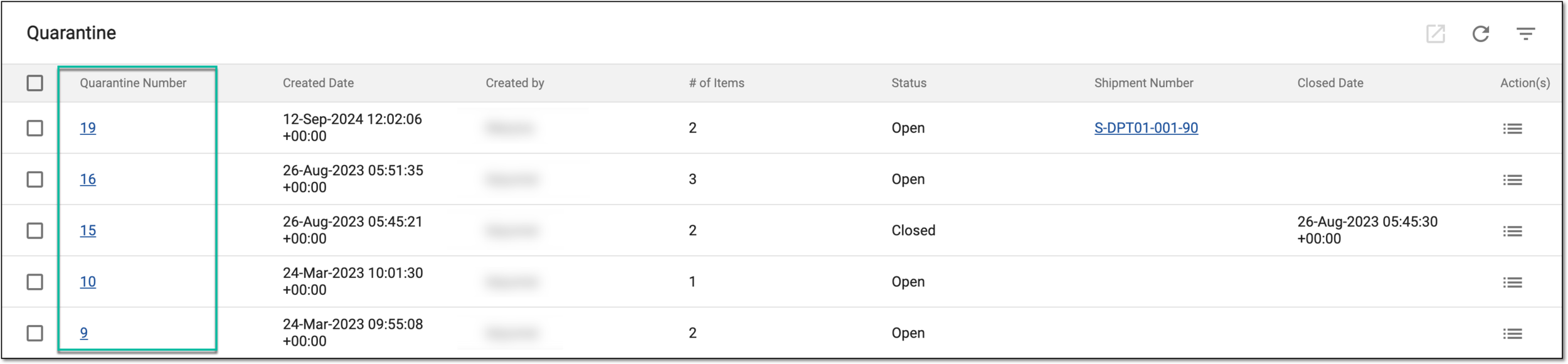 Figure 3. Accessing site quarantine details
-
On the Details page that opens, you can view the quarantine details explained in the following table.
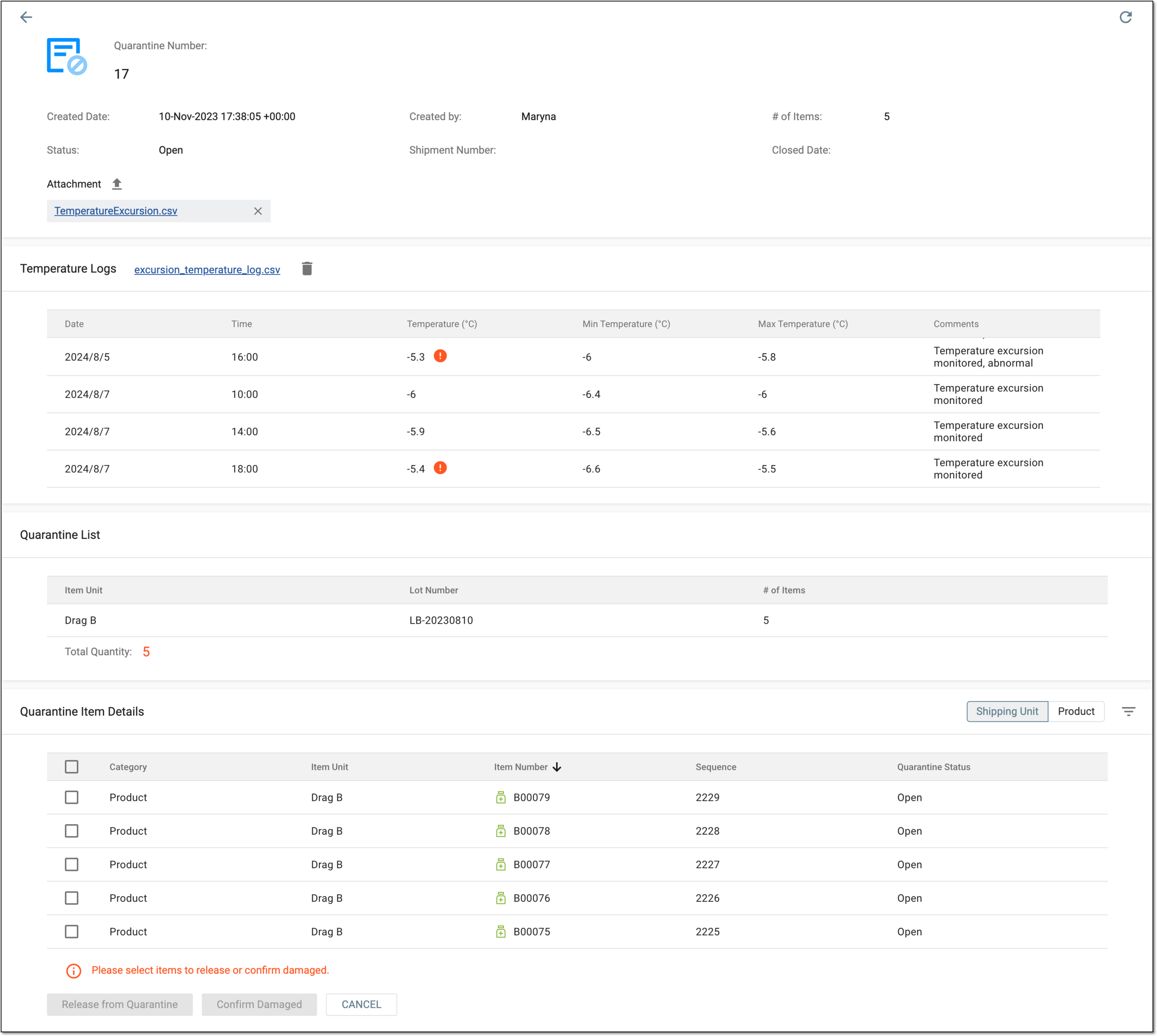 Figure 4. Quarantine details page
Element
Details
Quarantine Number
Represents the sequence number of the quarantine in your site that is automatically assigned by the system when you put items in a new quarantine.
Created Date
Represents the date when the quarantine is created in IWRS by putting items in it.
Status
Represents the current quarantine status of an item.
Created By
Represents the name of the user who created the quarantine.
Shipment Number
Represents the identification number of the shipment within which the items in the quarantine were delivered to the site and marked as quarantined.
# of Items
Represents the number of quarantined items in a batch.
Closed Date
Represents the date when the quarantine is closed by either releasing items from quarantine or confirming they are damaged.
Attachment
Select the upload symbol
 to attach a file of any format supporting important details on the items in quarantine.
Here, you can also find the file uploaded upon shipment receipt or from this page directly. Select the cross symbol
 next to the file if you need to delete the attachment.
The attachment functionality is only available if it is enabled under the Study Information module.Upload Temperature Logs
Select the upload symbol
to attach a temperature log file in CSV to provide the item temperature regiment details upon shipment receipt.This option is only available if no temperature log file has been uploaded yet, as only one log can exist per quarantine.The temperature log maintenance feature can be enabled or disabled for your study from the Study Information module.Temperature Logs
This block is only available if the temperature log CSV file is uploaded for the quarantine, as all the details are pulled from the file and cannot be configured in the system.The temperature log maintenance feature can be enabled or disabled for your study from the Study Information module.[File Name]
Represents the temperature log CSV file uploaded upon shipment receipt or via the Upload Temperature Logs option here. From the temperature log file, are pulled the item temperature regimen details provided further here.
Select the file name to download the temperature log file to your computer.
Delete
Select
 to remove the existing temperature log file and in the confirmation dialog that appears, enter the reason for your action.
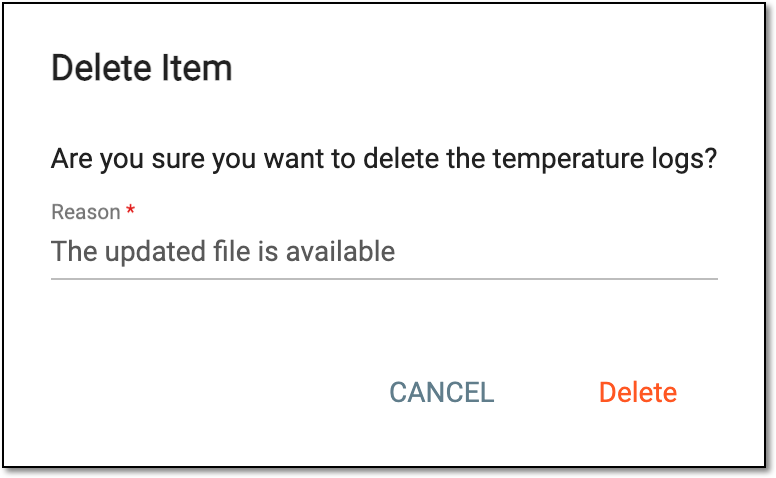 Figure 5. Confirming temperature log deletion
Date
Represents the date when the temperature log is captured for the shipment.
Time
Represents the time when the temperature log is captured for the shipment.
Temperature (°C)
Represents the actual temperature of the shipment at the specified time.
Min Temperature (°C)
Represents the lowest limit of the acceptable temperature range for the items of the shipment.
Max Temperature (°C)
Represents the highest limit of the acceptable temperature range for the items of the shipment.
Comments
Represents the conclusion for the temperature monitoring as stated by the responsible person.
For instance, it can be as follows:
-
Temperature within acceptable range: the comment added if the actual shipment temperature is lower than the maximum and higher than the minimum accepted.
-
Temperature excursion monitored!: the comment added if the actual shipment temperature is lower than the minimum or higher than the maximum accepted.
Quarantine List
Item Unit
Represents the proper name of the items in quarantine, for instance, Vitamin C.
Lot Number
Represents the number of the lot within which the items in quarantine were released.
# of Items
Represents the number of items for each item unit currently in quarantine.
Quarantine Item Details
Shipping Unit/Product
Switch between these filters to display the inventory statistics either by both shipping units (containers and products) or only by products.
This filters are only available if container units are configured for your study.Category
Represents one of the following:
-
Product: the item is a preconfigured product unit, the name of which you can see in the Item Unit column.
-
[Container category]: the item is a container unit; the container category names are configured upon adding container units to the system, for instance, Large Box and Medium Box.
Item Unit
Represents the proper name of the items in quarantine, for instance, Vitamin C.
Item Number
Represents the unique identification number of the product or container unit.
Sequence
Represents the sequential number of the product or container unit assigned to it in the system.
Quarantine Status
Represents the current quarantine status of an item.
-
Once you have viewed the details of the quarantine, you can also release the items from quarantine or confirm them as damaged.