Export quarantine details
In IWRS, from the Quarantine page, you can manage the product units and container units from your site inventory or shipped to your site that have been quarantined for some reason, for instance, if the packaging is damaged or the origin of the drug is questionable.
If needed, you can export the details for each batch of quarantined items and work with it offline as per your business needs, for instance, to share the information with the personnel who have no access to the IWRS system.
-
In the IWRS application header, select the SITE tab.
-
In the Site List table that appears, select the site for which you want to export the quarantine details.
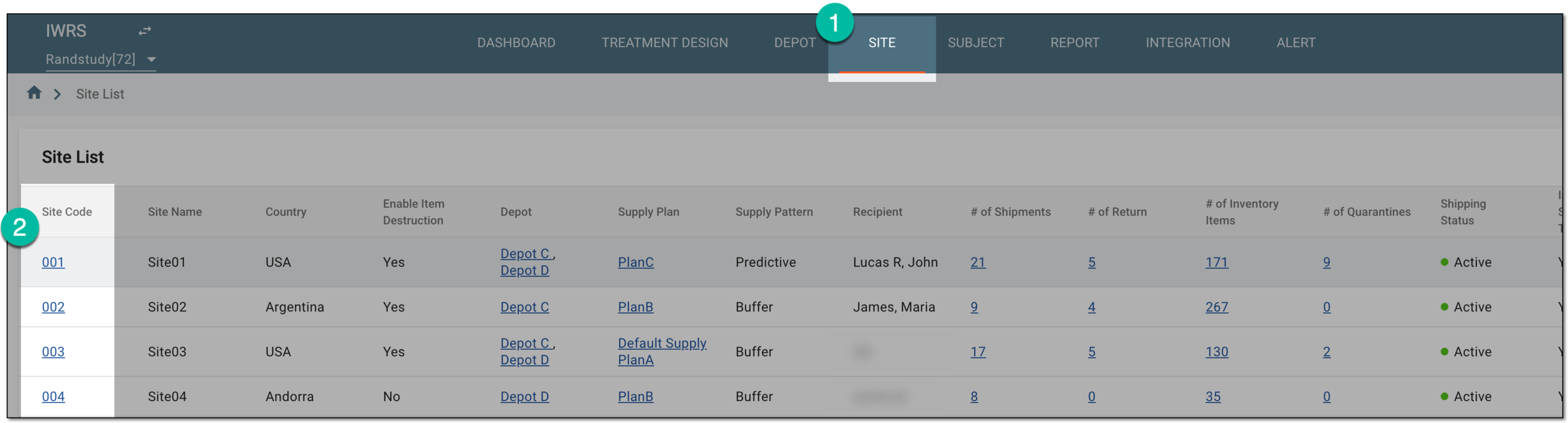 Figure 1. Selecting site to view details
-
On the page that opens, in the left pane, select the Quarantine subtab.
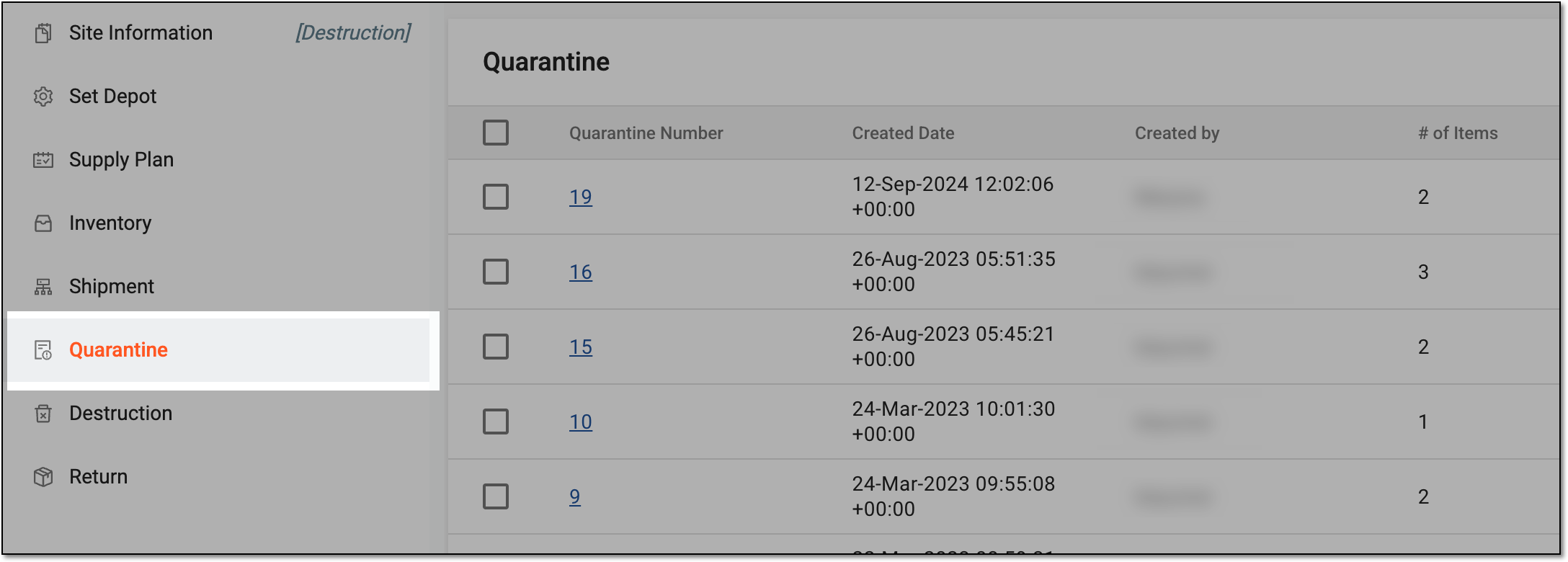 Figure 2. Accessing site quarantine list
-
In the Quarantine table that appears, next to the quarantines for which you want to export the details, select the checkboxes.
-
From the workspace toolbar, select Export
 and follow the prompts to save the file on your computer.
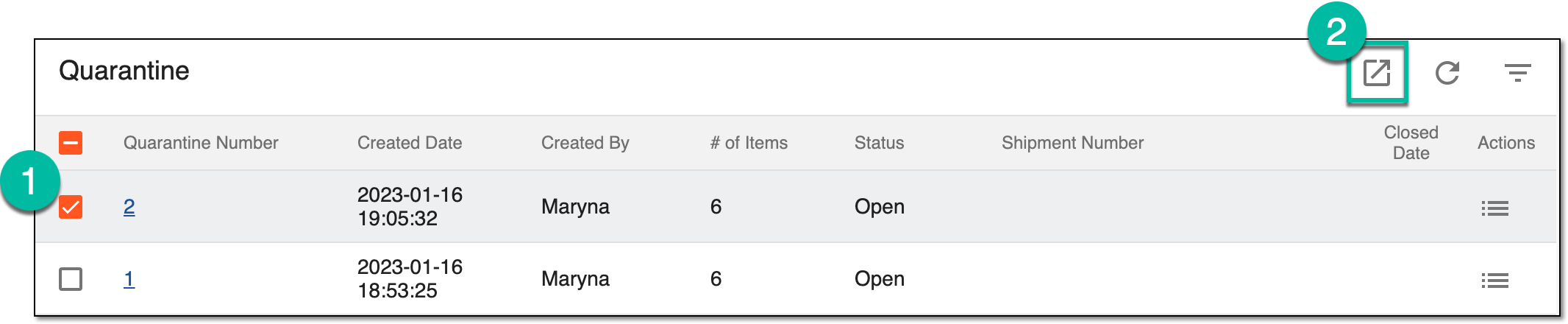 Figure 3. Exporting quarantine details
-
Once selected, the widget appears displaying your download progress. Select the widget to open the My Downloads dialog.
 Figure 4. Downloads widget
-
In the My Downloads dialog that opens, you can find the following tabs:
-
Preparing: under this tab, you can find all the files whose export is in progress, and they are not yet ready for download.
-
Download is Ready: under this tab, you can find all the files whose export is complete, and they can be downloaded to your computer.
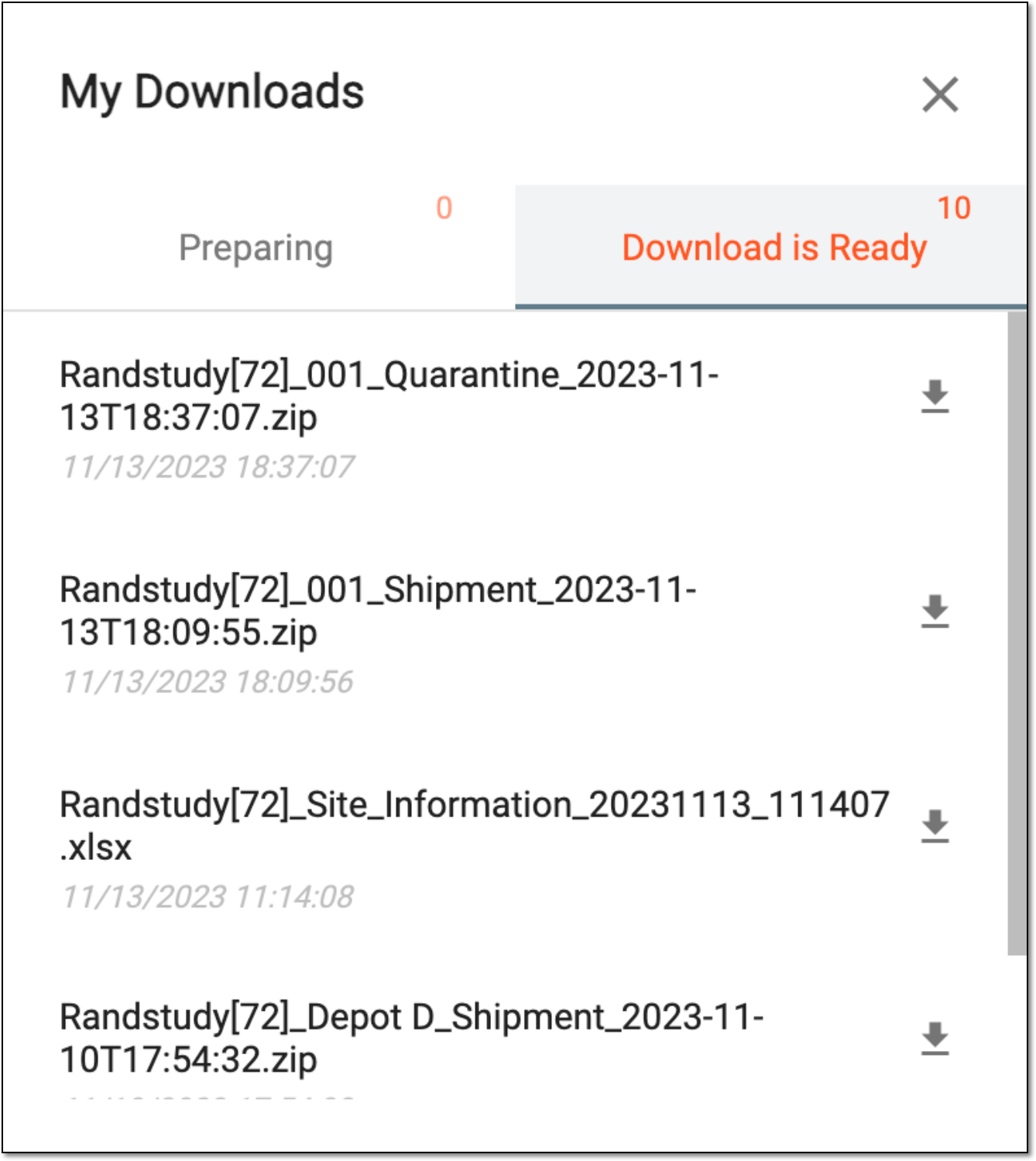 Figure 5. Viewing downloads
-
-
Under the Download is Ready tab, next to the file that you want to download, select

Upon saving, the ZIP archive with the XLSX files for the quarantines you exported is available on your computer. Each XLSX file contains information on the lot numbers, item units, items, and other details for the exported quarantines.