Check email template reference details
An email template is a reusable preconfigured entity that simplifies mailing management in the system. By preparing email templates you save time on specifying mailing details every time you need to configure a system notification for some event.
In CTMS, you can check the reference items for the template—the complete list of exact locations where a particular email template is used. This may be useful when you want to edit the template or delete it, but the system is hindering the action. Thus, you need to find out where the template is used to fix the issue.
-
In the CTMS application header, select the LIBRARY tab.
-
From the left pane of the page that opens, select Email Template.
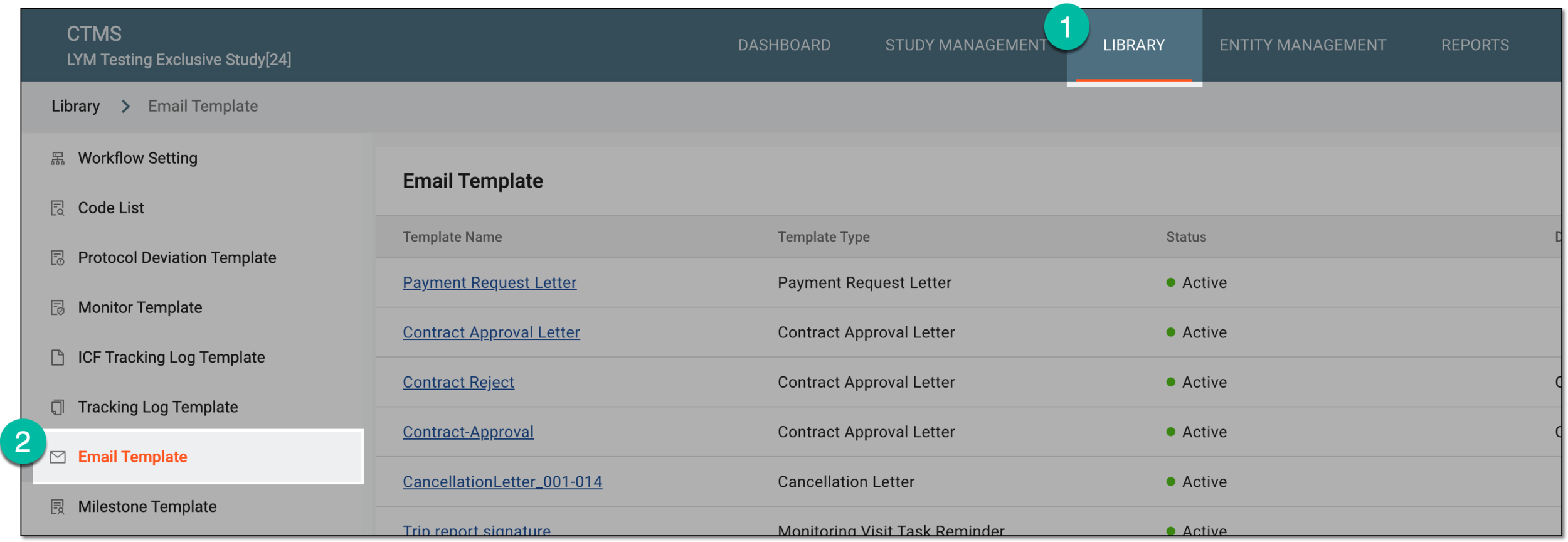 Figure 1. Accessing email templates
-
From the Email Template table, locate the template for which you want to view the reference details. Then next to the template, select Reference Item
 .
. Figure 2. Accessing reference details for email template
-
In the Reference Item dialog that appears, analyze the required details as explained in the following table.
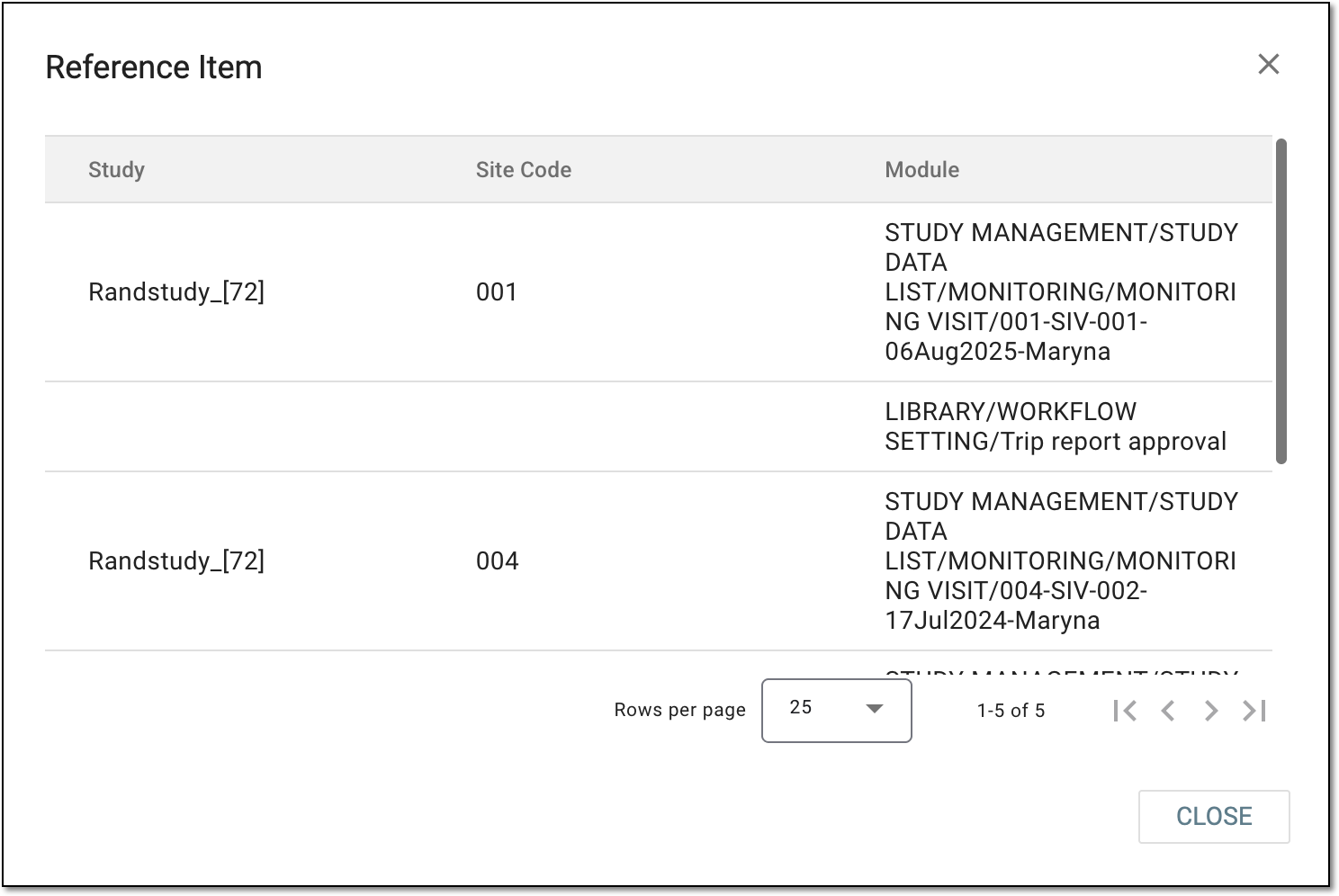 Figure 3. Checking list of reference items for email template
Element
Details
Study
Represents the name of the study for which the email template is used. The value can be empty if the template is used in an instance that is reusable for multiple studies, for instance, in a workflow setting that can be used for all studies handled by the sponsor in CTMS.
Site Code
Represents the code of the study site for which the email template is used. The value can be empty if the template is used in an instance that is reusable for multiple study sites in CTMS.
Module
Represents the exact path to the module of CTMS and the instance where the email template is used, such as the Monitoring Visit module and the monitoring visit name, Workflow Setting and the workflow name, and so on.
CLOSE
Select
 to close the Reference Item dialog and return to the Email Template
list.
to close the Reference Item dialog and return to the Email Template
list.
You have analyzed all the locations where the email template is referenced in CTMS and can now make an informed decision on its further handling.