Activate/Inactivate email template
An email template is a reusable preconfigured entity that simplifies mailing management in the system. By preparing email templates you save time on specifying mailing details every time you need to configure a system notification for some event.
In CTMS, you can activate or inactivate your email templates according to your current business needs. Only active email template can be assigned to any system entities of CTMS, such as workflows, monitoring visits, trip reports, and so on. You may want to inactivate an email template if your current study requirements do not use it anymore but you suspect that in the future, another study may require using the same email template. In such a scenario, you can inactivate an email template, and later, when required, you can make it active again.
-
In the CTMS application header, select the LIBRARY tab.
-
From the left pane of the page that opens, select Email Template.
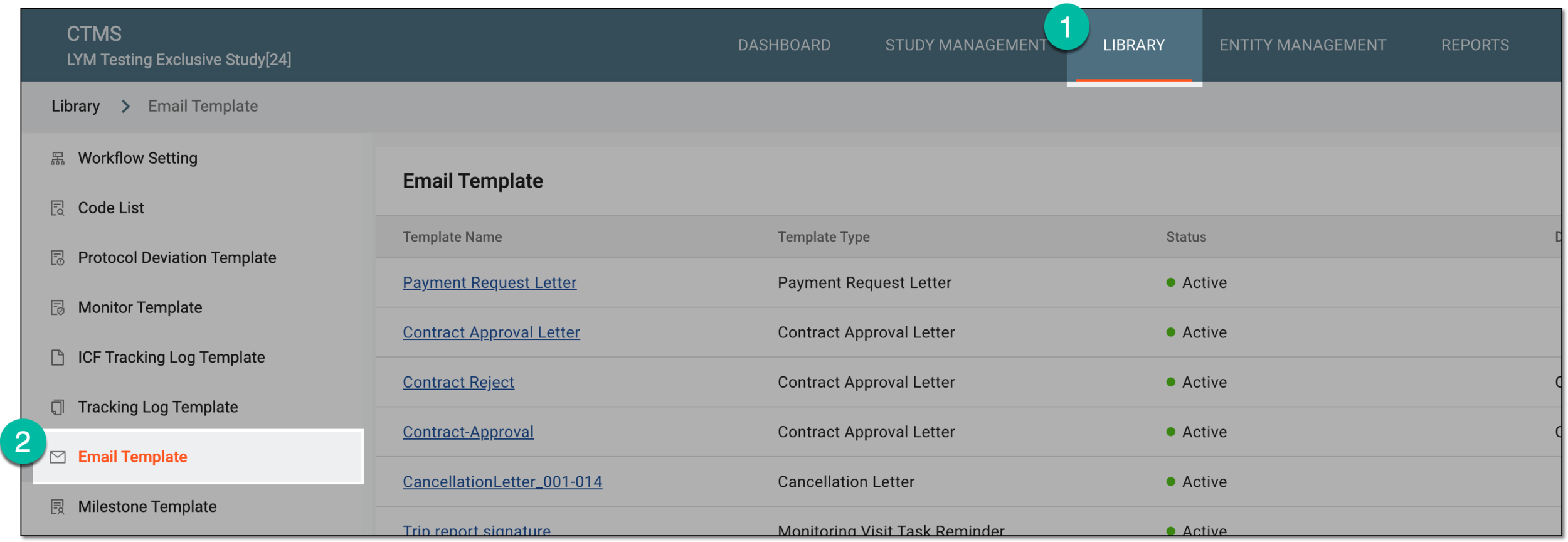 Figure 1. Accessing email templates
-
From the Email Template table, locate the active template that you want to inactivate or an inactive template that you want to activate.
-
Next to the template, select one of the following actions:
-
Inactivate
 : to make the currently active email template inactive and unavailable for selection in various
functionalities of CTMS.
: to make the currently active email template inactive and unavailable for selection in various
functionalities of CTMS. -
Activate
 : to make the currently inactive email template active again and available for selection when performing
respective configurations in CTMS.
: to make the currently inactive email template active again and available for selection when performing
respective configurations in CTMS.
 Figure 2. Activating or inactivating email template
-
-
For inactivation, in the Reason dialog that appears, enter a reason for your action and select
 to proceed.
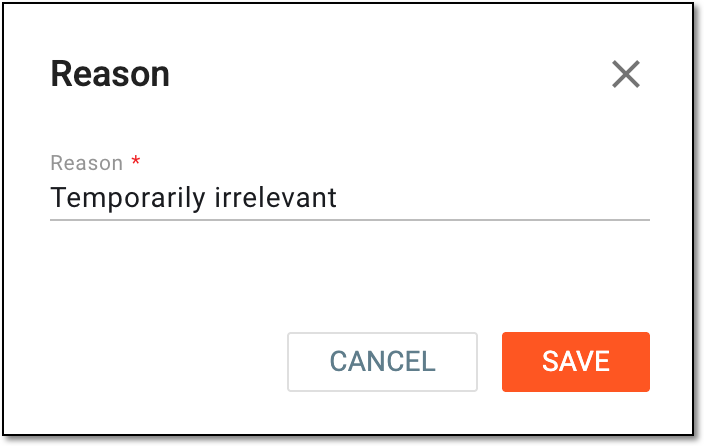 Figure 3. Providing inactivation reason
Based on your action, the email template is inactivated or activated.