Analyze operation history for email template
An email template is a reusable preconfigured entity that simplifies mailing management in the system. By preparing email templates you save time on specifying mailing details every time you need to configure a system notification for some event.
In the course of a clinical trial, various modifications can be made to the email templates, and it is vital to keep record of such changes for compliance and traceability reasons. The operation history provides an exhaustive, structured log of events, helping you trace what they were, who performed them, and when.
-
In the CTMS application header, select the LIBRARY tab.
-
From the left pane of the page that opens, select Email Template.
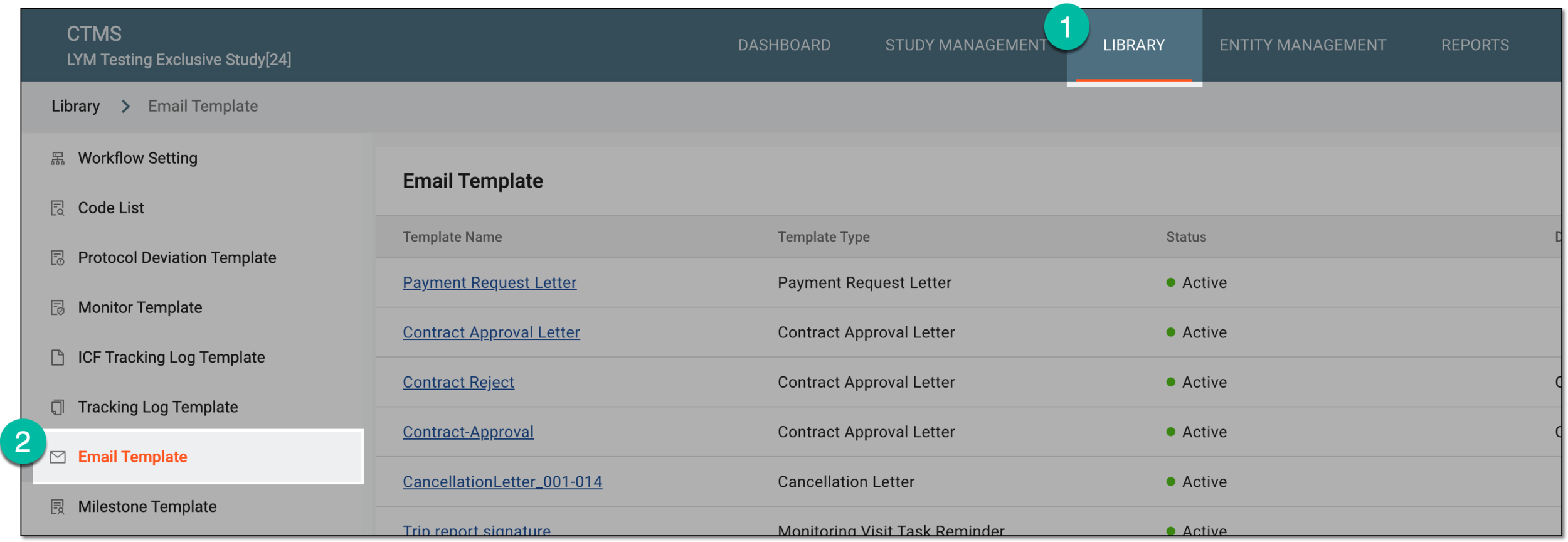 Figure 1. Accessing email templates
-
From the Email Template table, locate the template for which you want to view the operation history. Then next to the template, from the Actions column, select More
 > Operation History
  .
. Figure 2. Accessing operation history for email template
-
In the Operation History dialog that appears, analyze the available details as explained in the following table.
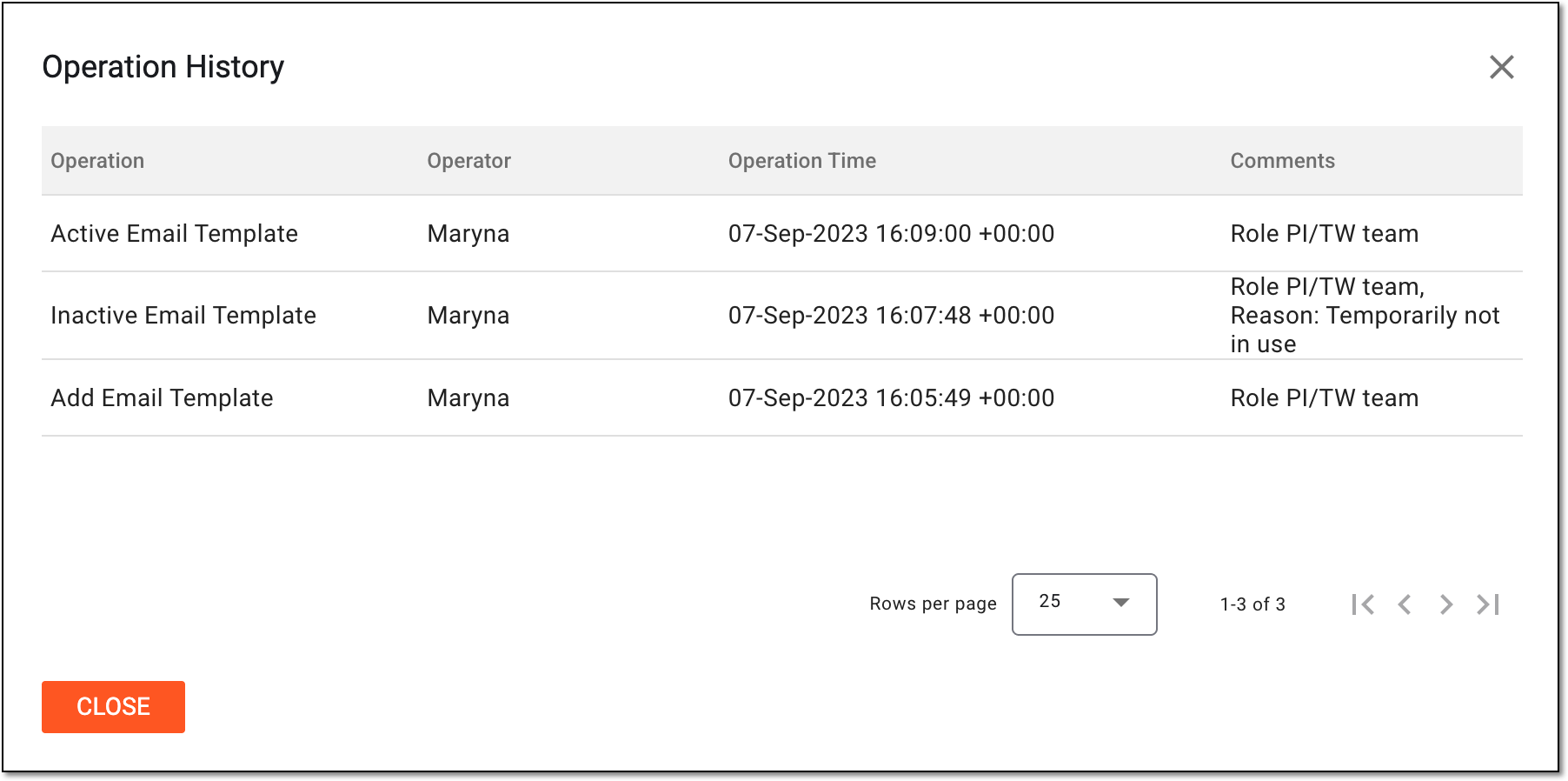 Figure 3. Analyzing operation history for email template
Element
Details
Operation
Represents the action performed with the email template, such as adding, editing, activation and so on.
Operator
Represents the name of the user who performed the action with the email template.
Operation Time
Represents the exact date, time, and time zone indicator when the action was performed with the email template.
Comment
Represents the details pertinent to the performed operation and the text of the comment entered by the user, if any. For instance, for template inactivation, the comment includes the user role, user group, and the reason entered when inactivating the template.
CLOSE
Select
 to close the dialog and return to the Email Template page.
You have analyzed the history of operations for the email template.