Create site-to-site shipment
In a clinical trial, sites are locations that, amongst other activities, cover the process of dispensation—providing subjects with items as per their treatment. To have enough items in the inventory to dispense to subjects, from time to time, the site has to request supply shipments from a depot. Usually, the depots operate as site suppliers, however, in IWRS, you can set some sites to also supply items.
In IWRS, you can manage your shipments in product units or container units based on your business requirements. To be able to ship products in containers, the respective container units must be configured for your study.
Important
The site-to-site shipment option must be enabled for both supply and recipient sites to create such requests between them.
You cannot create a new supply shipment for the site if it already has a shipment in the Requested status that is not confirmed by the supply site. This logic is designed to avoid duplicate requests.
-
In the IWRS application header, select the SITE tab.
-
On the Site List page that opens, in the table, select the site for which you want to create a site-to-site shipment request.
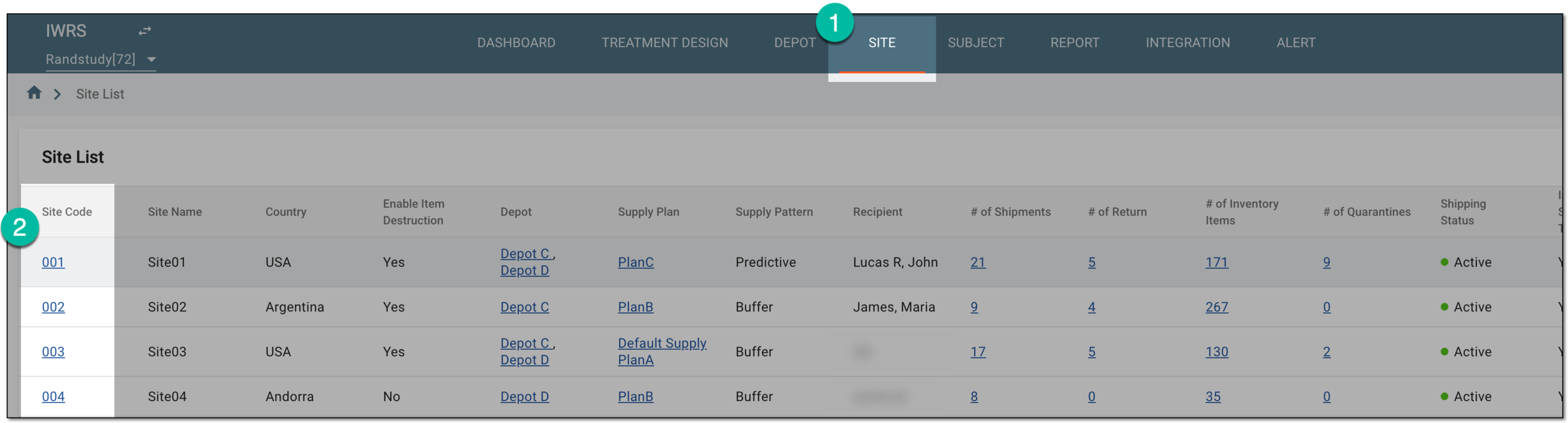 Figure 1. Selecting site to open its details
-
On the page that opens, in the left pane, select the Shipment subtab.
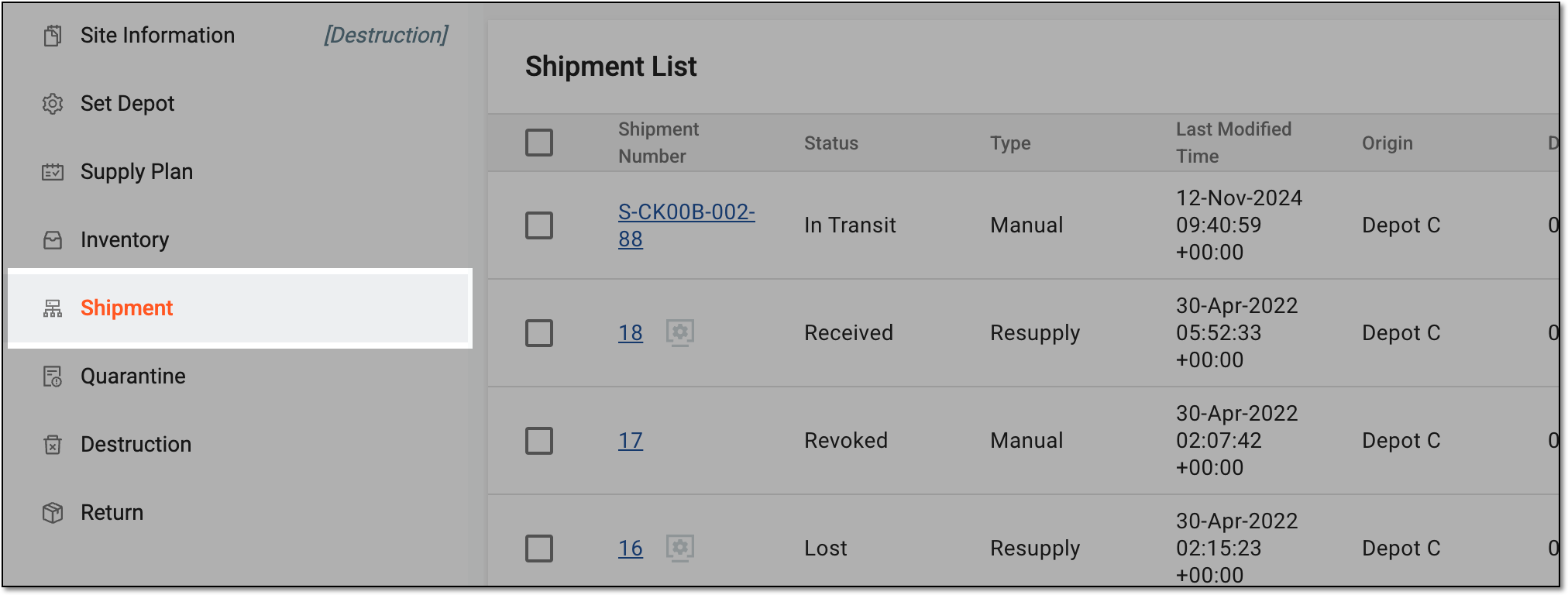 Figure 2. Accessing site shipments
-
On the Shipment page that opens, from the workspace toolbar, select Add
 and then
New Site to Site Shipment.
and then
New Site to Site Shipment. Figure 3. Selecting to create new site-to-site shipment
-
On the New Shipment page that opens, complete the first part of the Item Unit stage of the shipment request as explained in the following table.
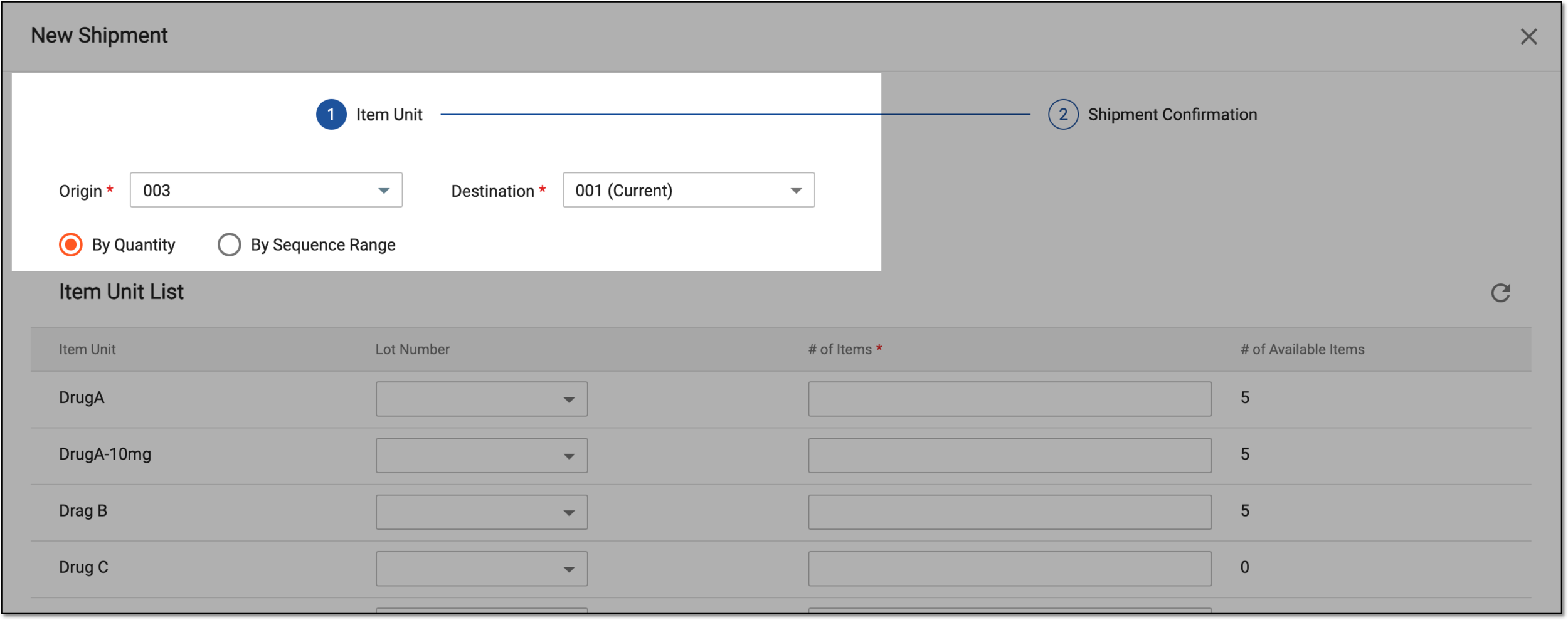 Figure 4. Completing item unit stage of site-to-site shipment request
Tip
In the following table, mandatory elements are marked with an asterisk (*).
Element
Details
Origin*
Select the site from which the shipment is to be sent.
Destinations*
Select the site, that you want to be the recipient of the requested items. Usually, you can select only the currently selected site.
By Quantity
Select this option if you want to specify the number of item units you wish to request from the supplier.
For instance, you know the specific lot(s) number from which you need a certain quantity of items.
By Sequence Range
Select this option if you want to specify the range of item unit sequential numbers within which you want your requested items to be.
For instance, you know that in the study, all the "DrugA" numbers are from 1 to 1000, and the "DrugA-100mg" numbers are from 1001 to 2000. Thus, you can specify the 1-1000 range to request all the "DrugA" items available with the supply depot.
-
Once the needed option is selected—by quantity or sequence range—proceed to complete the shipment request as follows.
Upon selection of the preferred form of item request as By Quantity, in the Item Unit List table that appears, complete the fields as explained in the following table.
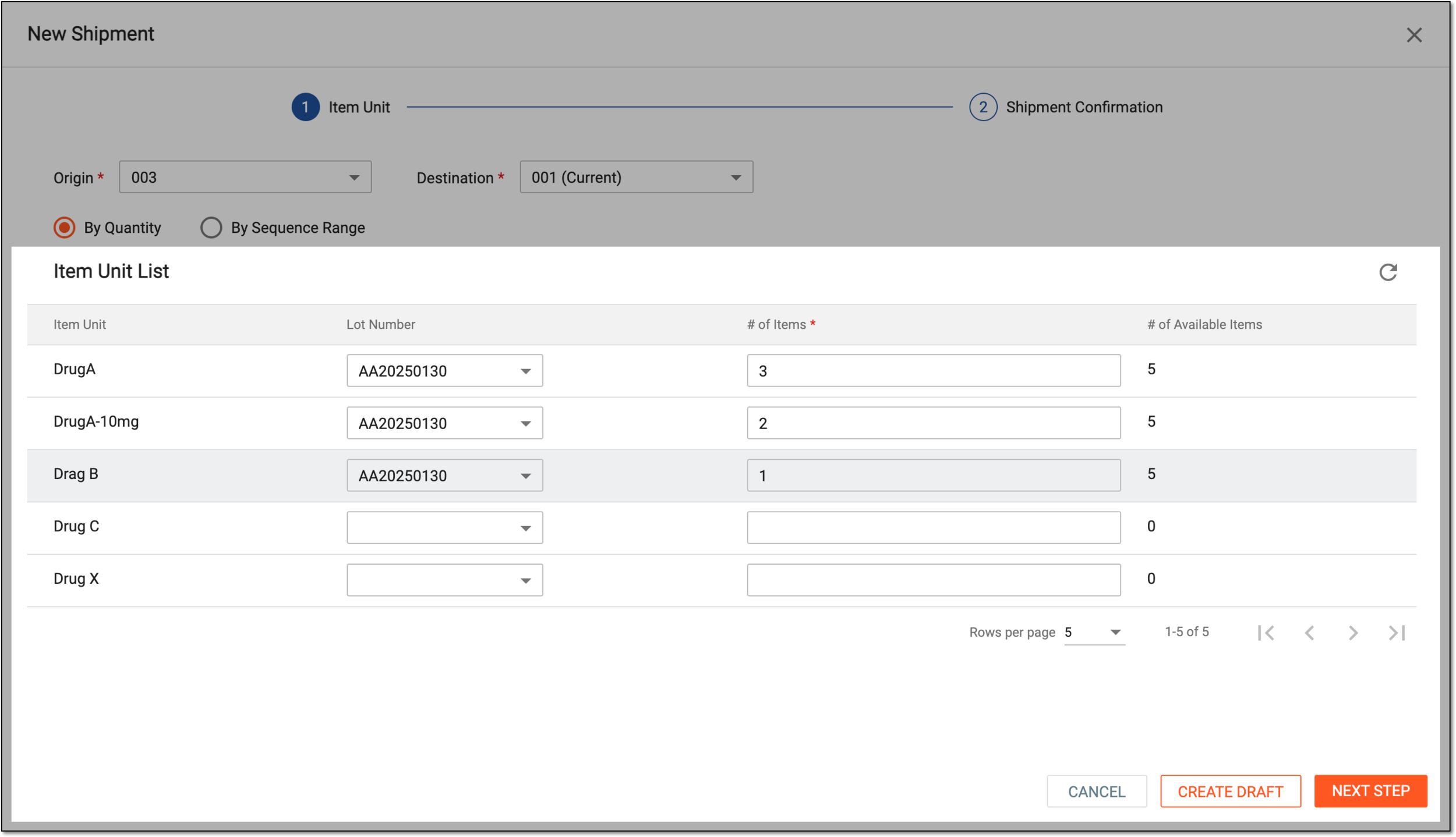 Figure 5. Requesting items by quantity
Tip
In the following table, mandatory elements are marked with an asterisk (*).
Element
Details
Item Unit
Is automatically populated with all the available item units of the selected site.
Lot Number
Select the lot number from which you need to request items.
# of Items*
Enter the number of items that you need to request in a current shipment.
To send out the shipment, the # of Items value must be less than # of Available Items. Otherwise,
                                        you cannot initiate the shipment but you can save it as a draft.
If there are any other reasons preventing you from adding items to the shipment, you will see the respective prompt below the field.# of Available Items
Is automatically populated with the number of available items for the item unit at the supply site based on the specified Lot Number value.
NEXT STEP
Select
 to save the applied changes and proceed to the Shipment Confirmation step.
CREATE DRAFT
Select
 if you want to save the shipment as a draft and return to it later, for instance, with amendments. Upon saving
as a draft, no shipment request is sent and the shipment obtains the Draft status.
if you want to save the shipment as a draft and return to it later, for instance, with amendments. Upon saving
as a draft, no shipment request is sent and the shipment obtains the Draft status.CANCEL
Select
 to cancel the shipment creation.
Upon selection of the preferred form of item request as By Sequence Range, in the Item Unit List table that appears, complete the fields as explained in the following table.
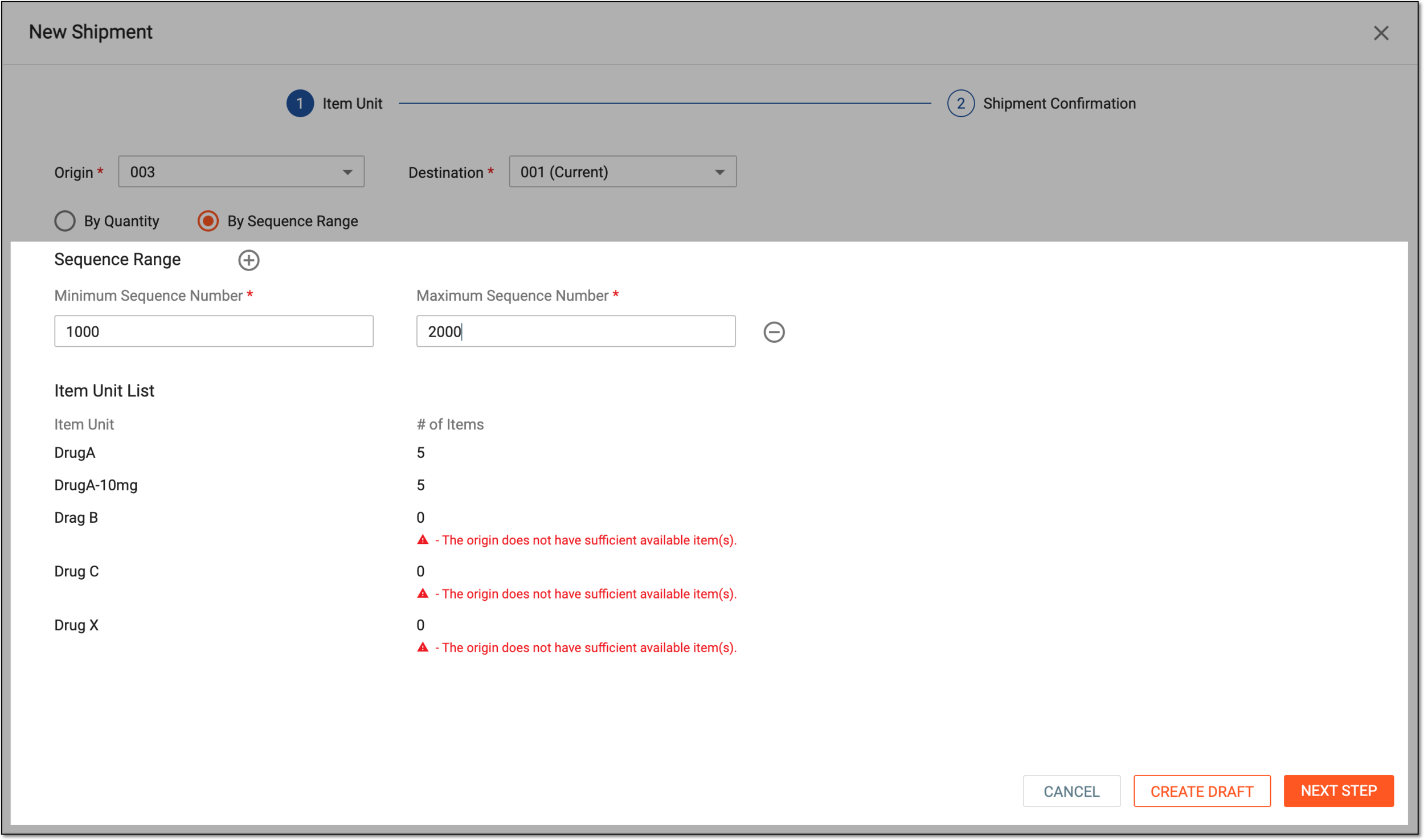 Figure 6. Requesting items by sequence range
Tip
In the following table, mandatory elements are marked with an asterisk (*).
Element
Details
Sequence Range

Select the plus symbol to add a new row and set another sequence number range from which you want to request items.
Minimum Sequence Number*
Enter the lowest sequence number of the range from which you want to request items, for instance, 1000. As a result, only the items with the sequence number 1000 and above are added to the shipment request.
Maximum Sequence Number*
Enter the highest sequence number of the range from which you want to request items, for instance, 5000. As a result, only the items with the sequence number 5000 and below are added to the shipment request.
Item Unit List
Item Unit
Is automatically populated with all the item units of the selected sequence range available in the selected site inventory.
# of Items*
Is automatically populated with the number of items for the respective unit available in the selected site inventory.
If there is any reason preventing you from adding items to the shipment, you see the respective prompt below the field.NEXT STEP
Select
to save the applied changes and proceed to the Shipment Confirmation step.CREATE DRAFT
Select
to save the shipment as a draft for further use and amendments, no shipment request is sent upon this action.
The saved shipment obtains the Draft status.CANCEL
Select
to cancel the shipment creation. -
At the Shipment Confirmation step, review the shipment details you have specified in the previous step.
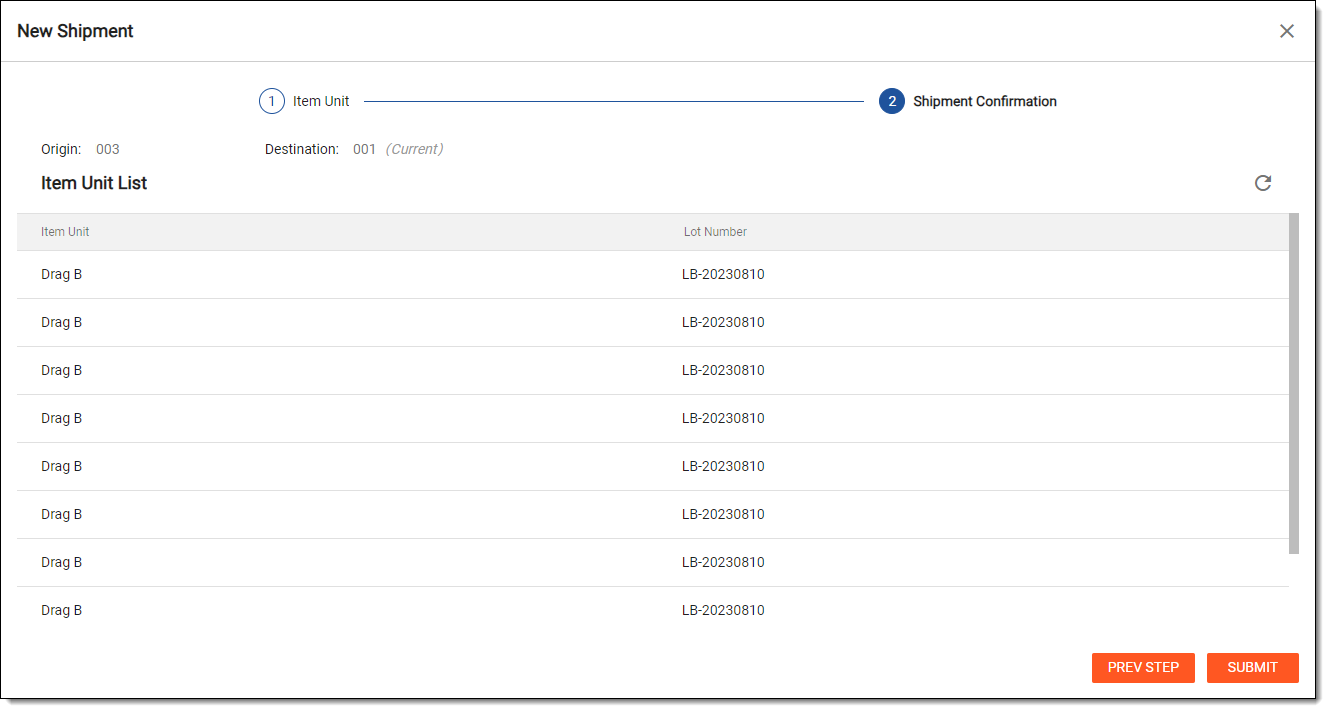 Figure 7. Reviewing shipment details
-
After reviewing the details, select
 to confirm your shipment request and place the order with the supply site.
Tip
If needed, select
 to return to the previous step and modify your request.
Upon submitting, you have created the supply shipment request for a certain quantity of items or all the items that belong to the specified sequence number range. An email is sent to the recipients of the supply site to notify them of the requested shipment. The user can also manually resend the notification email to recipients if needed.