Create supply shipment for site as blinded user
In a clinical trial, sites are the locations where the subject treatment (item dispensation) occurs. To have enough items in the inventory, the site needs to have them supplied. A blinded user can create a supply shipment request for stock replenishment that is sent to the respective depot or site.
However, in order to conceal the identity of drugs from the blinded user, such user orders the same quantity of all items available on-site, irrespective of the requirement. This ensures that when the drugs are restocked, all items of the stock are replenished in the same quantity, making it impossible to differentiate between the items.
On the contrary, if for example, a blinded user orders one unit of item number 0001. Upon stock replenishment, the stock of Drug A is increased by one item, thus the blinded user can easily deduce that item number 0001 is Drug A. Therefore, blinded users only order the same quantity of all items available on-site.
Important
You cannot create a new supply shipment for the site if it already has a shipment in the Requested status that is not confirmed by the depot. This logic is designed to avoid duplicate requests.
-
In the IWRS application header, select the SITE tab.
-
On the Site List page that opens, in the table, select the site code of your interest.
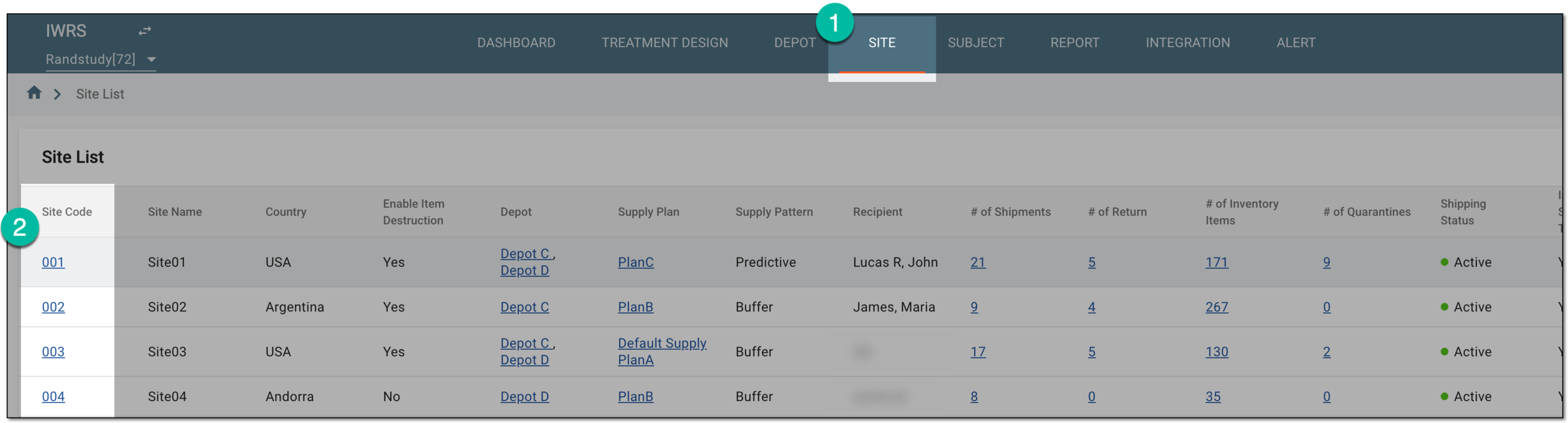 Figure 1. Selecting site to open its details
-
On the page that opens, in the left pane, select the Shipment subtab.
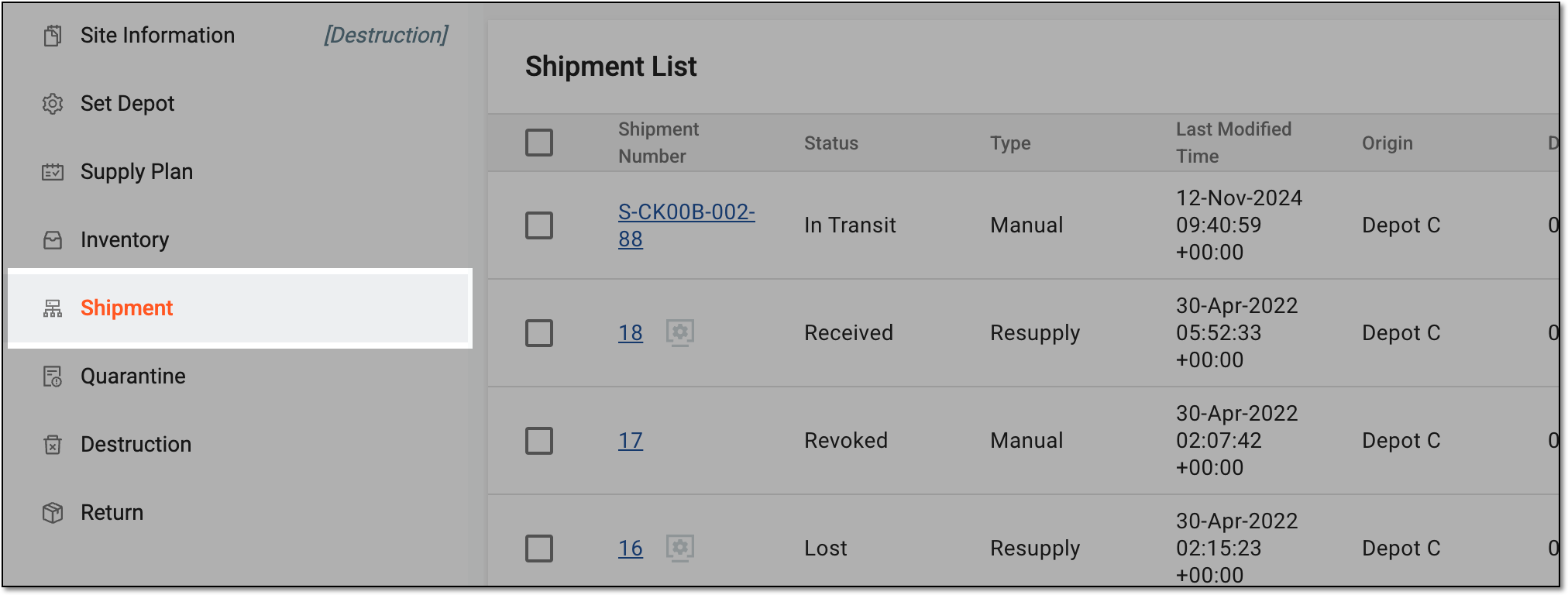 Figure 2. Accessing site shipments
-
On the Shipment page that opens, from the workspace toolbar, select Add
 and then
New Supply Shipment.
and then
New Supply Shipment. Figure 3. Creating new supply shipment
-
In the New Supply Shipment dialog that opens, complete the fields as explained in the following table.
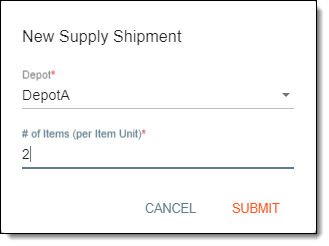 Figure 4. Filling new shipment form details
Tip
In the following table, mandatory elements are marked with an asterisk (*).
Element
Details
Depot*
Select the depot from which you want to receive the item supply.
# of Items (per item Unit)*
Enter the number of items that you need to request in the shipment. The number of items must be less than or equal to the number of available items at the depot.
If you enter a value greater than the number of available items, a dialog appears informing you that the depot inventory is not sufficient for the request. You can then enter a smaller value
                                  instead.
If there are any other reasons preventing you from adding items to the shipment, you will see the respective prompt below the field.SUBMIT
Select
 to request the shipment.
CANCEL
Select
 to dismiss changes without saving and return to the
Shipment List page.
to dismiss changes without saving and return to the
Shipment List page.
Upon saving, the shipment is added to the list of shipments on the Shipment List page and obtains the Requested status. An email is sent to the recipients of the supply depot to notify them of the requested shipment. The user can also manually resend the email if needed.