View item status details report
The Item Status Details report displays the statistics of completion and review for individual fields of the case report forms (CRFs) configured for the study. In this report, you can find all the required details: for which site, visit, and subject the form items are completed, any manual or system queries waiting for resolution, and other details.
-
In the application header, select the REPORTS tab.
-
On the page that opens, in the left pane, select the CRF Status subtab to expand the list of available reports and select Item Status Details.
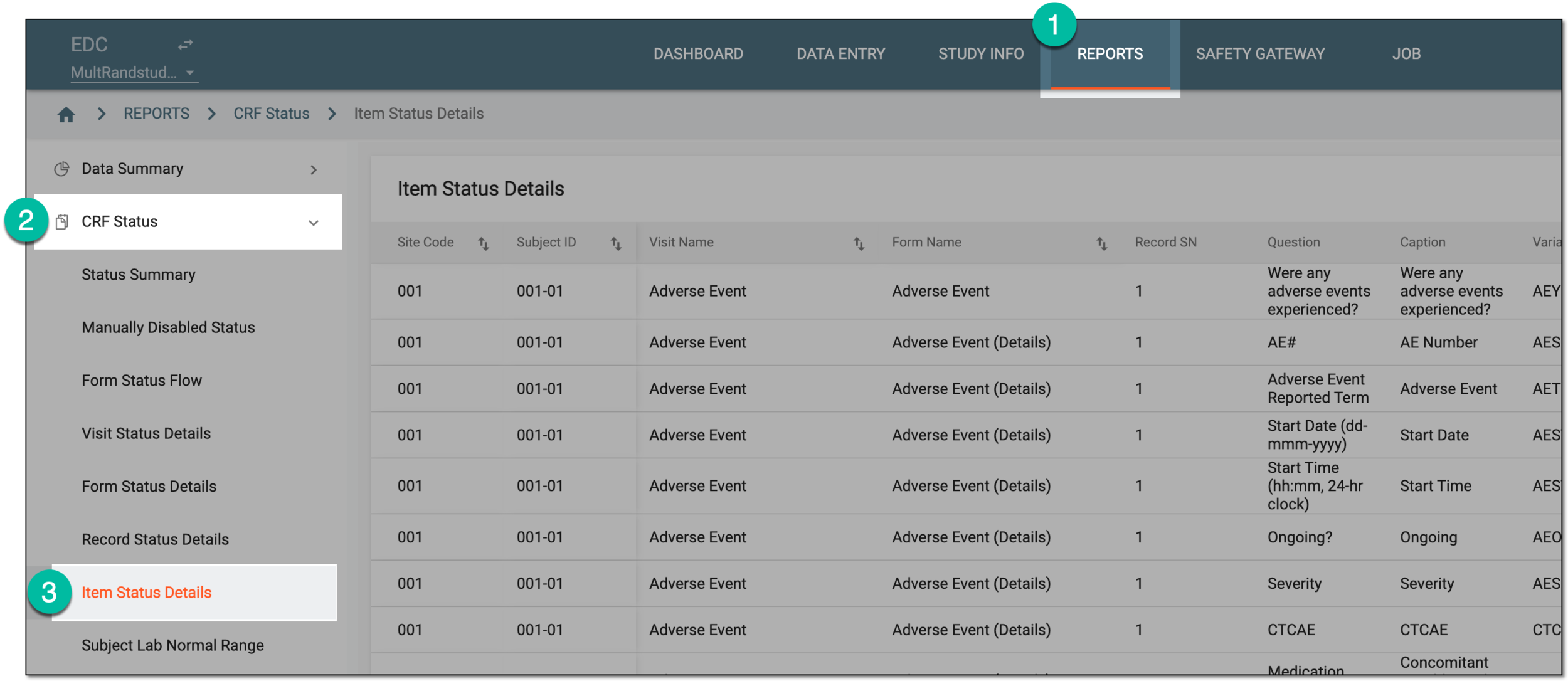 Figure 1. Accessing item status details
Tip
In the Next Level column of the grid, you can select a corresponding hyperlink to go to another page where you can view the CRF item details pertaining to any item and make the necessary changes if needed.
-
In the Item Status Details table that opens, analyze the data as explained in the following table.
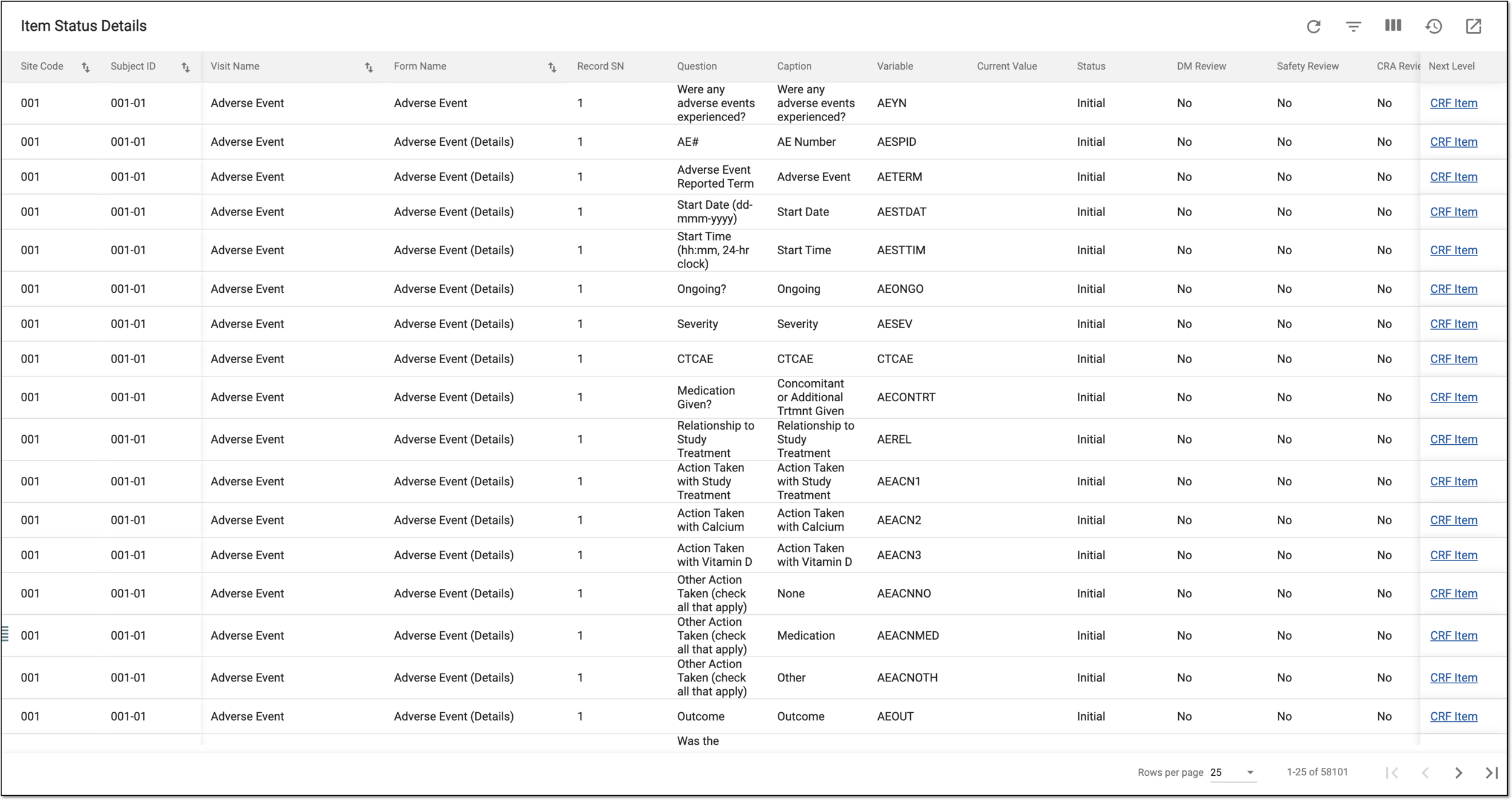 Figure 2. Analyzing record status details
Important
The available statuses depend on the review and approval stages configured for your study via EDC and SD.
Column
Details
Site Code
Represents the code of the site where the data collection occurs.
[Unique ID Label]
Represents the unique identifier of the subject for whom the data collection occurs.
The column name depends on the unique ID label configuration of your study in IWRS.Visit Name
Represents the name of the subject visit at which the data collection occurs.
Form Name
Represents the name of the log CRF to which the data record belongs.
Record SN
Represents the sequential number of the record of the CRF on which the data is captured.
Question
Represents the name of the item for which the data is entered.
Caption
Represents the question text visible on the CRF for which the data is entered.
Variable
Represents the individual piece of collected data that is captured and stored in the respective domain. It represents a specific attribute or characteristic that can vary among subjects in a study.
For instance, the AETERM variable captures the verbatim term outlining the adverse event for the patient, such as "Fever," "High blood pressure," and so on, and the AESTDAT variable always captures the date when the adverse event started.
Current Value
Represents the data entry currently recorded on the CRF for the respective question.
Status
Represents the current state of the item in terms of data collection:
-
Initial: the data collection for the form where the item resides is not initiated or not submitted.
-
Incomplete: the data is entered for the item but the form where the item resides is not completed yet.
-
Complete: the data collection is completed for this item and the form is submitted.
DM Review
Represents one of the following:
-
Yes: the data review for the item is completed by the data manager (DM).
-
No: the data review for the item is not completed by the DM.
-
N/A: the DM review does not apply to this item.
CRA Review
Represents one of the following:
-
Yes: the data review for the item is completed by the clinical research associate (CRA).
-
No: the data review for the item is not completed by the CRA.
-
N/A: the CRA review does not apply to this item.
Safety Review
Represents one of the following:
-
Yes: the data review for the item is completed by the safety team.
-
No: the data review for the item is not completed by the safety team.
-
N/A: the safety review does not apply to this item.
SDV
Represents one of the following:
-
Yes: the source data verification (SDV) is completed for the item.
-
No: the SDV is not completed for the item.
-
N/A: the SDV does not apply to this item.
Next Level
Select the CRF Item hyperlink to access the respective form under the DATA ENTRY tab and update the data entry if needed.
-
Once the report details are studied, you can leave the page or perform other suggested manipulations.