Analyze data entry audit report
The Audit report is a tool for analyzing each data input or any data changes in the case report forms (CRFs) of your study. The report shows information on all the actions taken on subject data, the old and new values that are changed, the name of the user who performed the change, and the date and time it took place. The report includes both active instances—subjects, forms, and such—and inactive ones, so that you can analyze your study data disregarding its current status.
-
In the EDC application header, select the REPORTS tab.
-
On the page that opens, in the left pane, select the Data Summary subtab to expand the list of available reports and select Audit.
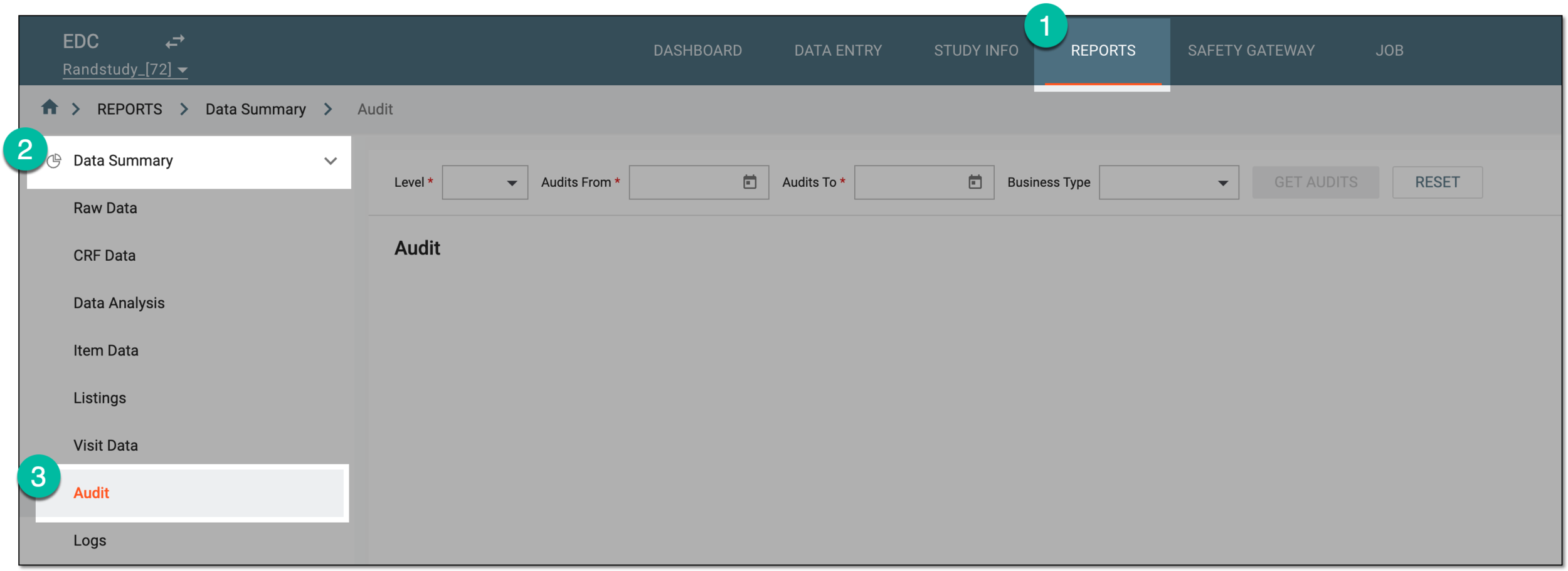 Figure 1. Accessing audit report
-
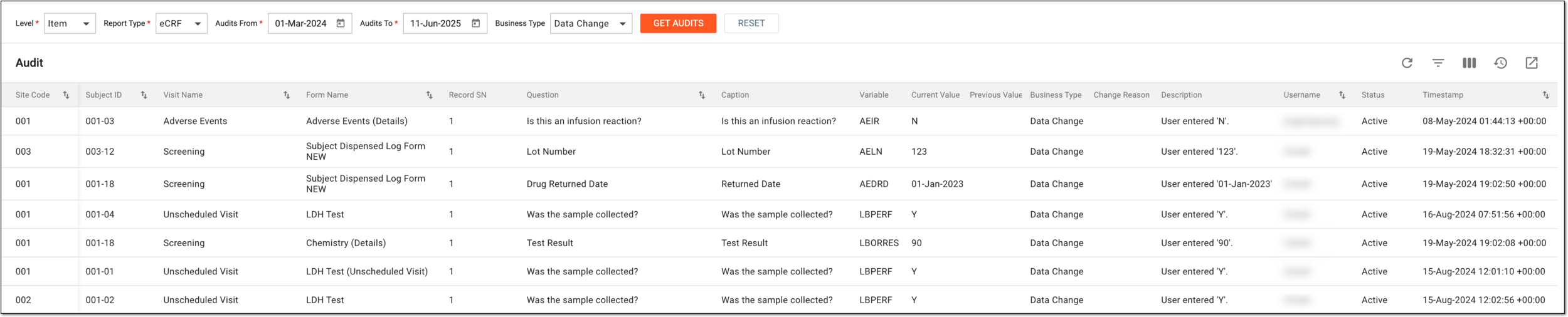
On the Audit page that appears, in the report header, set the filters and sorting tools to view specific data. Use the filters as explained in the following table.
 Figure 2. Setting filters and sorting audit report
Tip
In the following table, mandatory elements are marked with an asterisk (*).
Element
Details
Level*
Select the level by which you want to sort out the audit report records as follows.
-
Subject: select this level to review the log of operations performed with your study subjects, such as creation, activation/inactivation, phase change, site change, and more.
-
Visit: select this level to review the log of operations performed with your study visits, such as status change, data change, and more.
-
Form: select this level to review the log of operations performed with your study CRFs, such as status change or activation/inactivation.
-
Record: select this level to review the log of operations performed with specific records of your study CRFs, such as status change or activation/inactivation.
-
Item: select this level to review the log of operations performed with specific items (fields) of your study CRFs, such as data change, status change, or queries.
Report Type*
Select the type of report you want to generate:
-
eCRF: select this type to review the log of operations performed with the CRFs in the EDC application.
-
eDiary: select this type to review the log of operations performed with the CRFs in the eDiary mobile application.
-
eCOA: select this type to review the log of operations performed with the CRFs in the eCOA mobile application.
This filter is only available for the visit, form, record, and item report levels. For the subject-level reports, you
                                  cannot select the type.
Audits From
Select the start date to outline the period for which you want to sort out the audit report records.
Audits To
Select the end date to outline the period for which you want to sort out the audit report records.
Business Type
Select the business type of the operation by which you want to sort out the audit report records, such as Data Change, Status Change, and so on.
The business types available in the list differ depending on the selected level of the report.GET AUDITS
Select
 to view the audit reports.
RESET
Select
 to reset the filters applied.
 -
The audit report is generated as configured. The set of columns and the data within depend on the configured filtering and sorting parameters. Use the table filters feature, to sort out and analyze the report as needed.