Analyze system log report
In a clinical trial, all the system actions might have consequences and should be traceable and accessible for further reporting. In EDC, the user operation log report can help you track all user actions within the system so that they can be accounted for and resolved accordingly.
Due to the report's extensiveness, the search mechanism is available to easily find and analyze the selected content of your interest, for instance, reviewing log data for a certain system module, study instance (such as site, subject, or else), or even for a specific system user or a certain time frame.
-
In the EDC application header, select the REPORTS tab.
-
On the page that opens, in the left pane, select the Data Summary subtab to expand the list of available reports and select Logs.
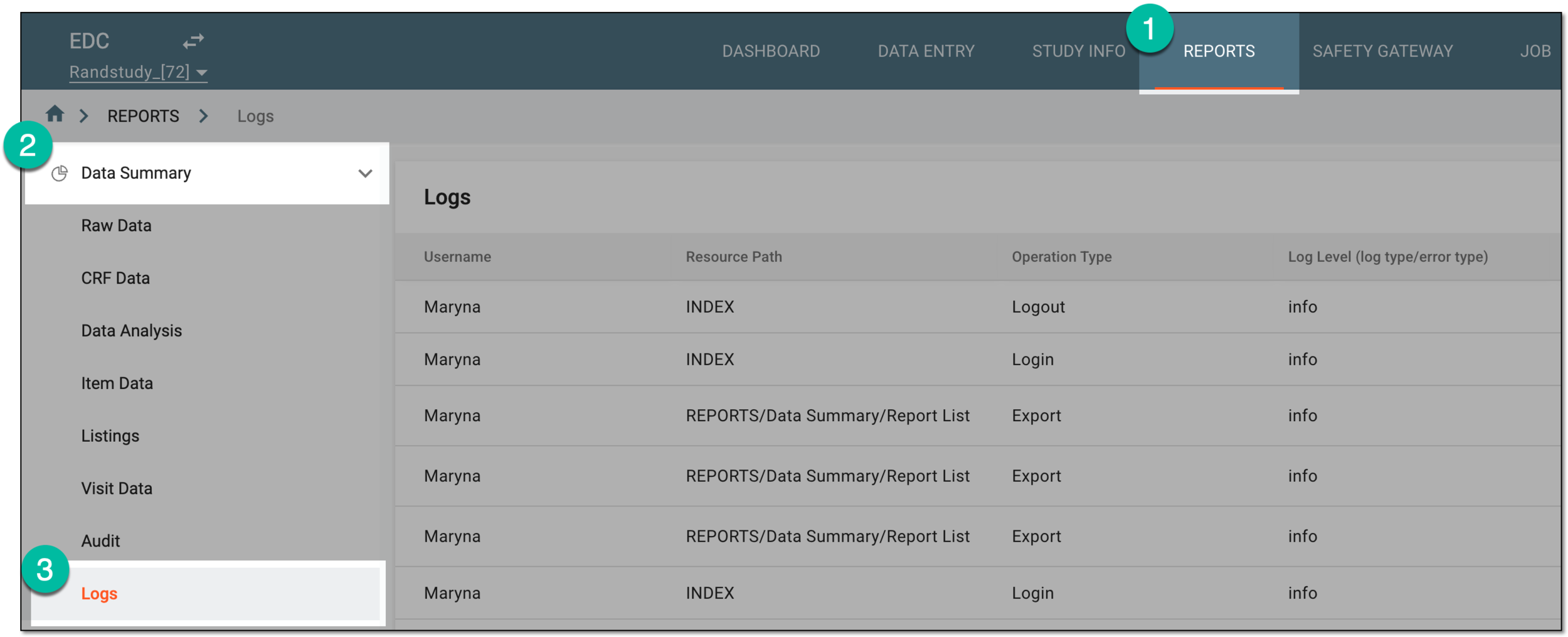 Figure 1. Accessing log report
-
On the Logs page that opens, from the workspace toolbar, select Search
 .
. Figure 2. Accessing search option for logs
-
In the FILTERS panel that appears, apply the search parameters as explained in the following table.
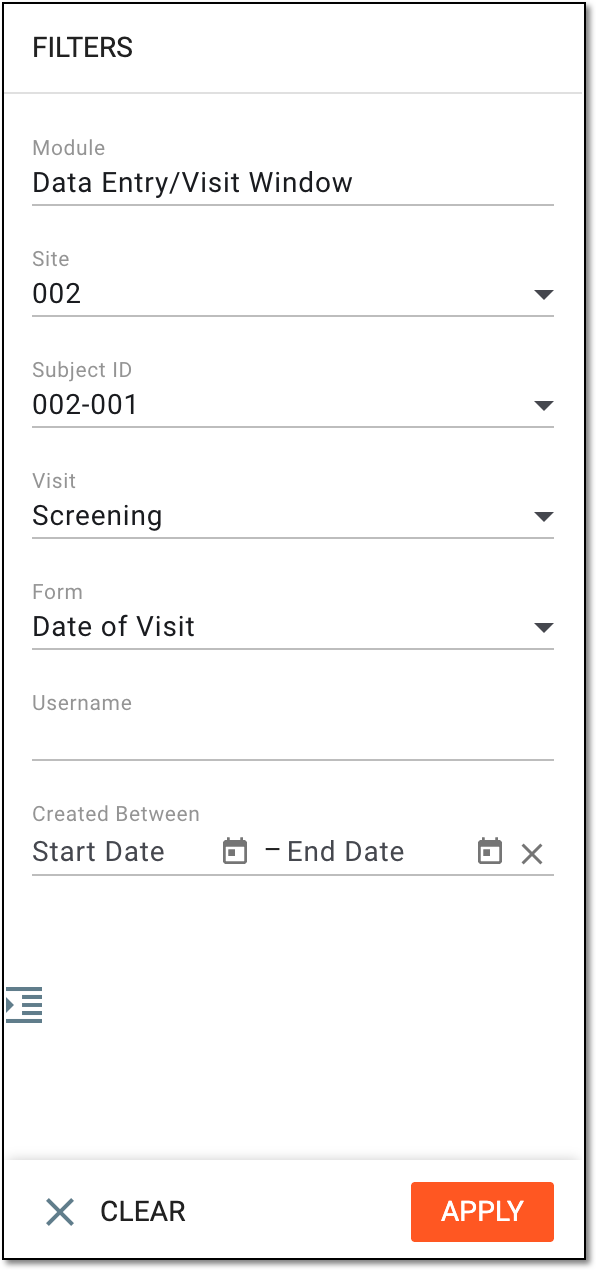 Figure 3. Applying filter conditions to log report
Element
Details
Module
Select the system module or app whose operational log records you want to review.
The eDiary App and eCOA App options are available only if the study is using these mobile applications for data collection.Site
Select the site for which you want to review the operational log records. This will include data entry, visit status changes, and such other operations in EDC associated with a certain site.
[Unique ID Label]
Select the unique ID of the subject whose operational log records you want to review. This will include data entry, phase changes, and such other operations in EDC associated with a certain subject.
The field name depends on the unique ID label configuration of your study in IWRS.Visit
Select the visit whose operational log records you want to review. This will include data entry, status change, review, and such other operations in EDC associated with a certain subject visit.
You can only select a visit if you have selected a certain subject.Form
Select the name of the case report form (CRF) whose operational log records you want to review. This will include data entry, form status change, data review, and such other operations in EDC associated with a certain CRF.
You can only select a form if you have selected a certain visit.Username
Enter the name of the user whose log of system operations you want to review.
Created Between
Start Date
Select a date to set the initial value of the time frame within which you want to view the log report.
End Date
Select a date to set the end value of the time frame within which you want to view the log report.
APPLY
Select
 to reveal the log records of filtered data.
CLEAR
Select
 to dismiss the filters and return to all report records view.
 -
In the Logs table, review the filtered or all data as explained in the following table.
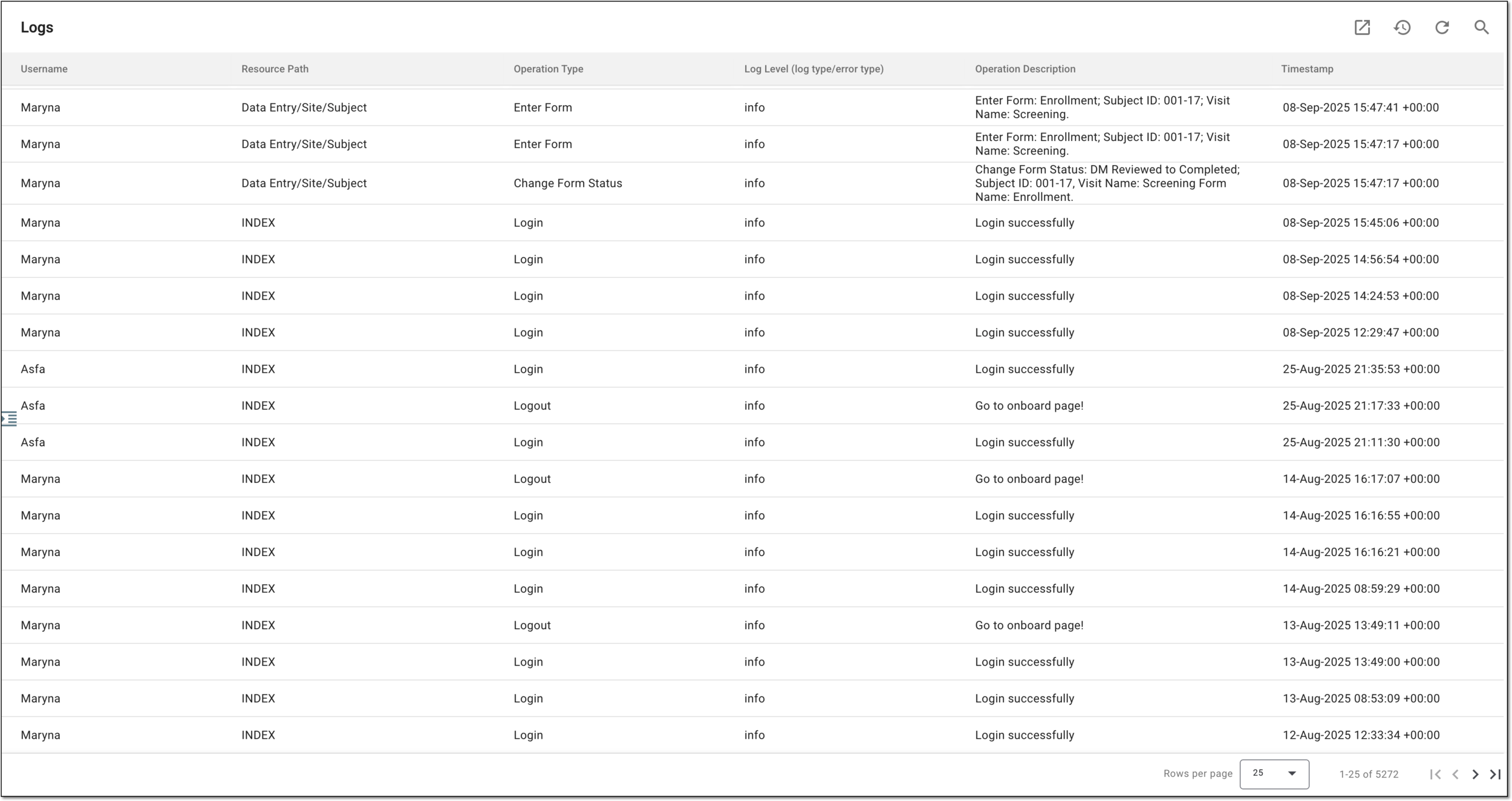 Figure 4. Analyzing log report
Column
Details
Username
Represents the name of the system user who operated.
Resource Path
Represents the name of the system module (or the path to it provided via a slash) where the operation is made.
Operation Type
Represents the category of the perform action—export, logout, change, and such.
Log Level (log type/error type)
Represents the operation of what kind is recorded—informative action record or error log.
Operation Description
Represents a descriptive record of the performed operation.
Timestamp
Represents the date, time, and time zone indicator when the operation was made.
You have analyzed the operational log of EDC.