Update subject details
The subject details can be edited. This may be necessary, for example, to change from an autogenerated to a manually entered subject ID or change the date of the subject enrollment.
Important
The ID editing feature can be disabled upon the sponsor's request to prevent non-compliant IDs from being created or modified.
For more information on how to disable ID editing via the STUDY INFO page, refer to the Configuring unique ID for subjects section.
-
In the EDC application header, select the DATA ENTRY tab.
-
On the site list page that opens, select the tile representing the site with which you want to work.
 Figure 1. Accessing site
-
In the table, next to the needed subject, select Edit
 .
. -
In the open dialog, update the fields as needed. These fields are identical to the ones explained in the table of the Create new subject section.
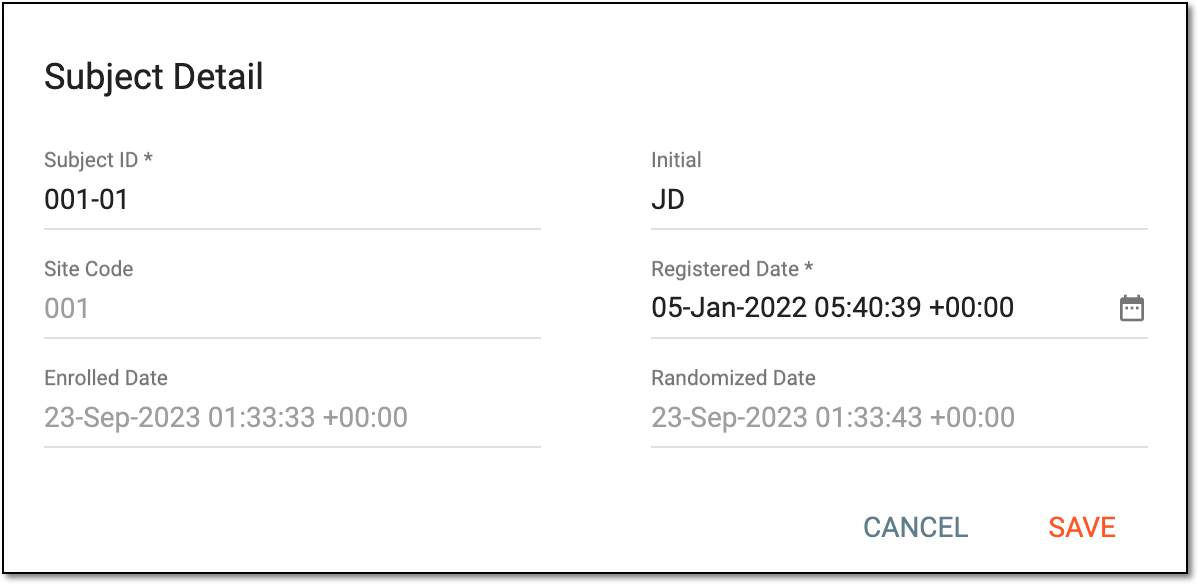 Figure 2. Updating subject details
Important
You can also update the dates of subject enrollment, randomization, and so on if change phase date settings are enabled for specific subject phases.
-
Select
 to implement the changes.
Once the changes are saved, the subject ID is updated. The action is recorded by the system, and the history of such actions can be reviewed via the Audit Trail functionality.