Activate/Inactivate subject
If you want to collect data from certain subjects, make sure they are in an active state. If the enrolled subjects are inactive, they cannot be used for data entry.
Tip
You can activate or inactivate the existing subject at any time during the study.
-
In the EDC application header, select the DATA ENTRY tab.
-
On the site list page that opens, select the tile representing the site with which you want to work.
 Figure 1. Accessing site
-
In the table, next to the needed subject, select More
 and select one of the following:
-
To activate a subject, select Activate
 .
. -
To inactivate a subject, select Inactivate
 .
.
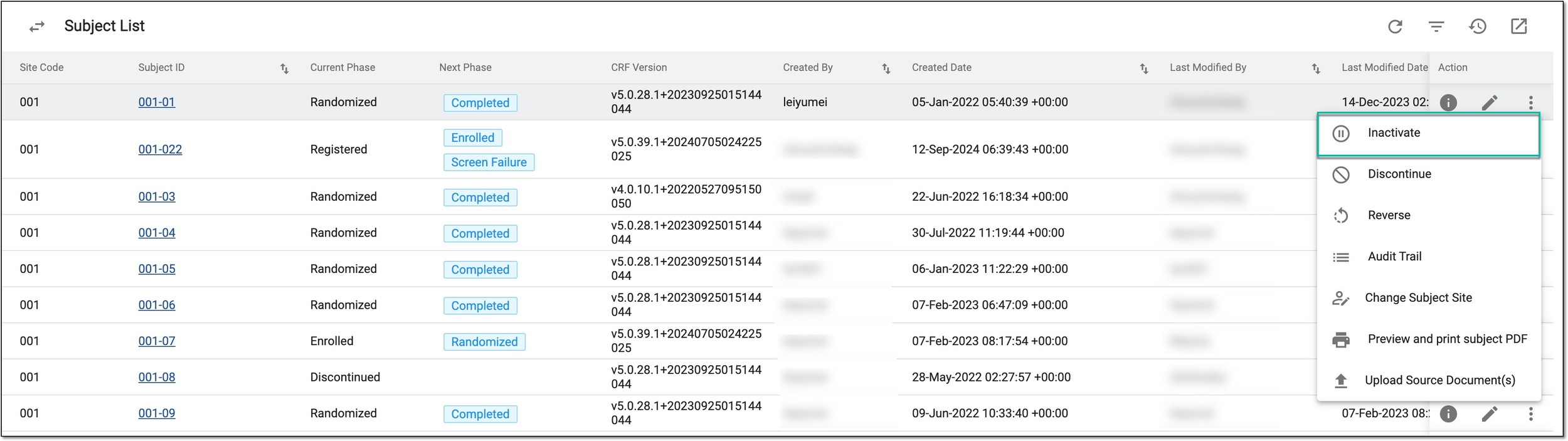 Figure 2. Inactivating active subject
-
-
In the Change Reason dialog that appears, provide the reason why the subject needs to be activated/deactivated and select
 to confirm your action.
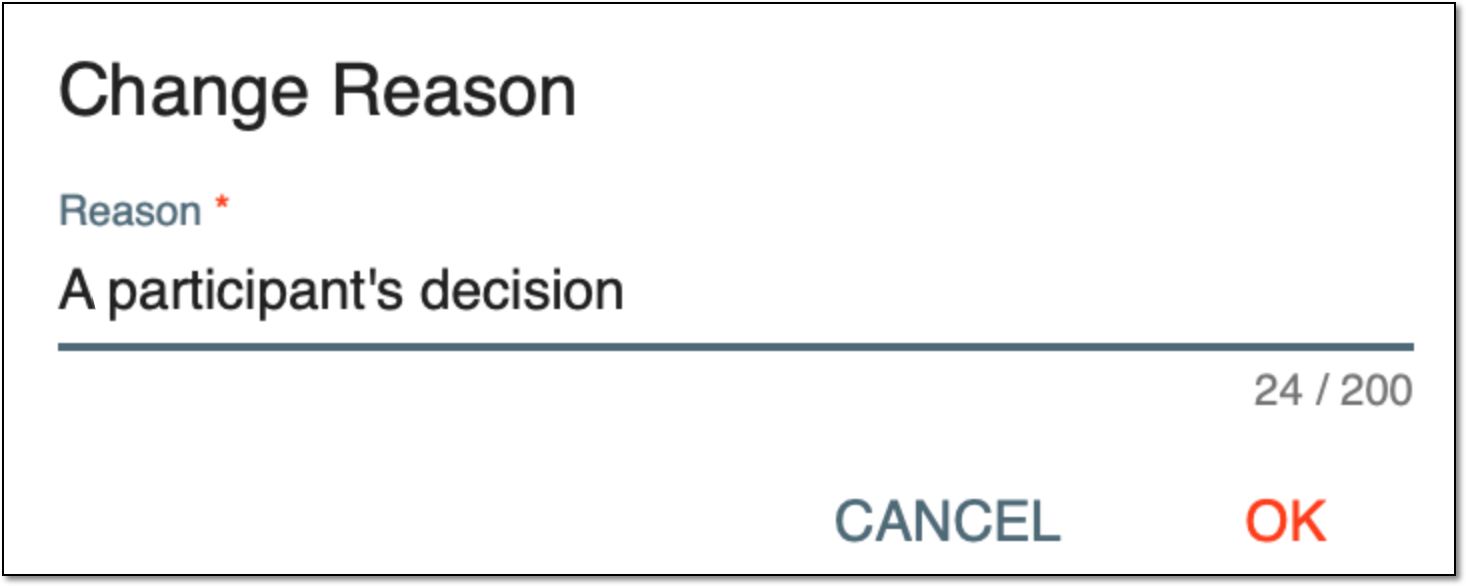 Figure 3. Providing reasons for activating/deactivating subject
Once confirmed, the subject status changes to active/inactive, respectively.
The action is recorded by the system, and the history of such actions can be reviewed via the Audit Trail functionality. On the Subject Visit Overview page, the respective message can be found for the inactive subject.
