View valid file statistics
In eTMF, the Valid File Statistics report provides easy access to files that are considered valid in the system, meaning that they have received their final approval after the proper audit. The files in the report are divided by their zone, section, and artifact, and then by levels (study, country, or site), versions (master or appended), and finalization status. This gives you easy access to specific file groups for detailed analysis.
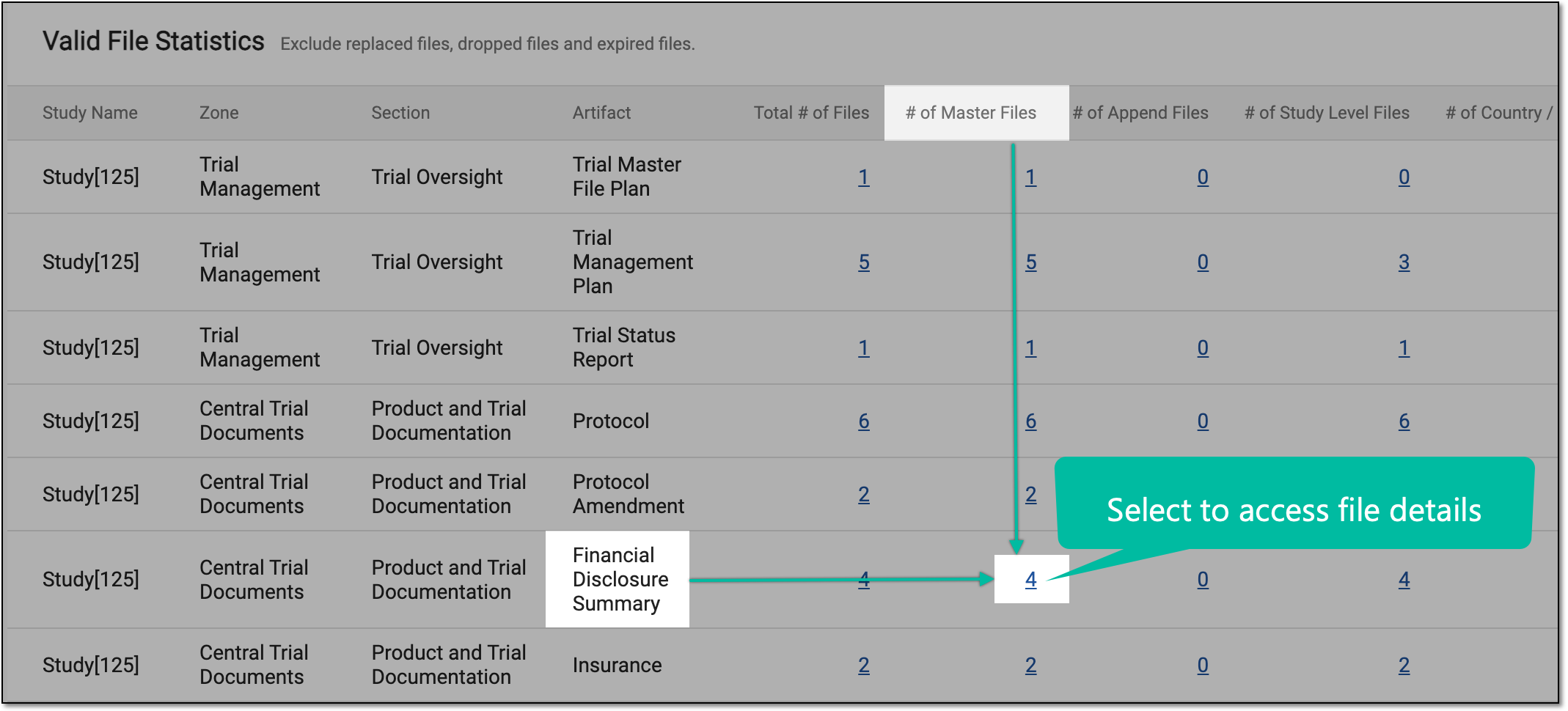
For instance, using this report, you can access all master files of the Financial Disclosure Summary artifact-level directory and review their details via the File Detail Sheet report in one click.
Important
To view this report, you must have the Valid File Statistics permission granted to your user role via the ADMIN application.
The report does not include replaced, expired, or dropped (failed auditing) files.
-
In the eTMF application header, select the REPORT tab.
-
On the page that opens, in the left pane, expand TMF Report and select Valid File Statistics.
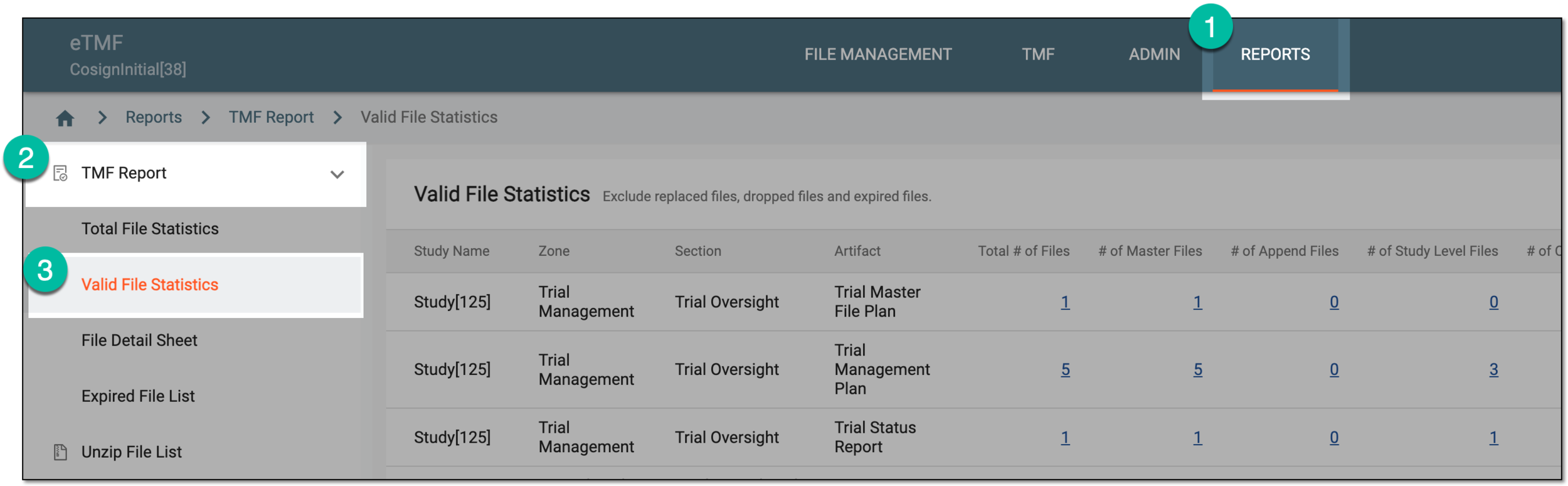 Figure 2. Accessing valid file statistics
-
In the Valid File Statistics table that opens, view details of statistics of valid files in the following table.
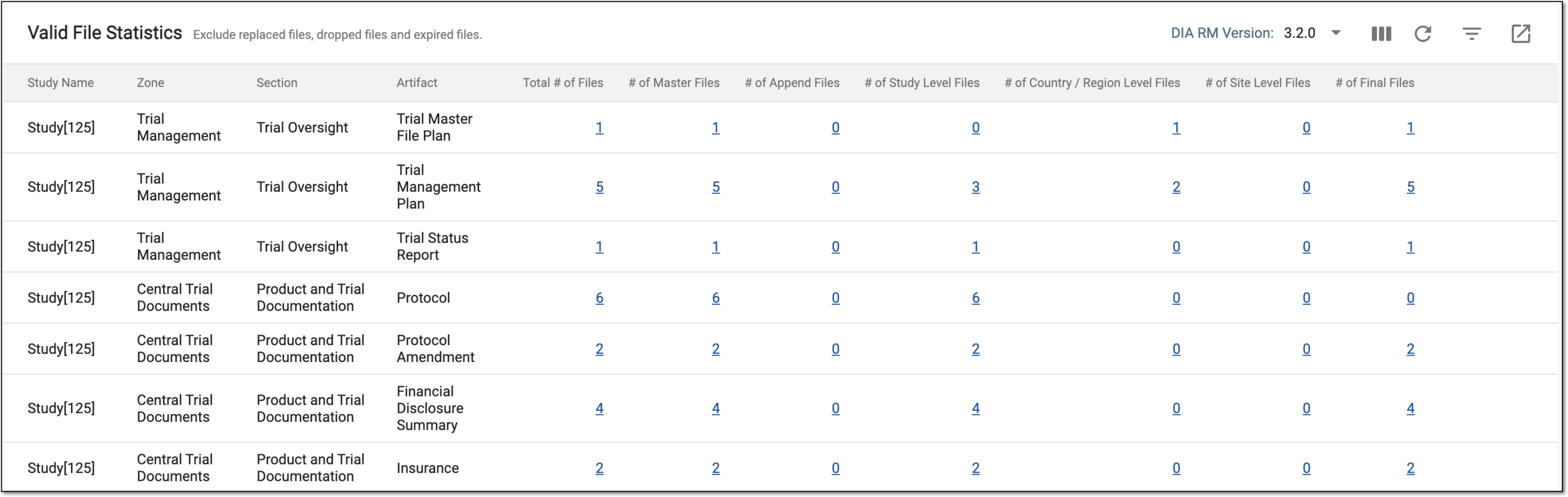 Figure 3. Viewing valid file statistics
Tip
From the DIA RM Version dropdown menu on the workspace toolbar, select the version of the Drug Information Association Reference Model for the Valid File Statistics report to only display the files that belong to that version.
Column
Details
Study Name
Represents the name of the study to which the file belongs.
Zone
Represents the zone to which the file belongs in the Essential Documents storage.
Section
Represents the section to which the file belongs in the Essential Documents storage.
Artifact
Represents the artifact to which the file belongs in the Essential Documents storage.
Total # of Files
Represents the total number of files under the specific artifact.
The value is also a hyperlink that, once selected, redirects you to the File Detail Sheet report filtered according to your
                                  selection.
# of Master Files
Represents the number of files that are from the master file group. The master file is the first file uploaded to the main repository that can be later appended with supplementary documents providing additional information or supporting the master file.
The value is also a hyperlink that, once selected, redirects you to the File Detail Sheet report filtered according to your
                                  selection.
# of Append Files
Represents the number of files that are from the append file group. Appended files are supplementary documents added to the system to provide additional information or support the master file.
The value is also a hyperlink that, once selected, redirects you to the File Detail Sheet report filtered according to your
                                  selection.
# of Study Level Files
Represents the number of files that are from the study level—containing information necessary for all study participants, regardless of their country or site of location.
The value is also a hyperlink that, once selected, redirects you to the File Detail Sheet report filtered according to your
                                  selection.
# of Country/Region Level Files
Represents the number of files from the country or region level, containing information necessary for all study participants within a specific country or region, regardless of the site to which they belong.
The value is also a hyperlink that, once selected, redirects you to the File Detail Sheet report filtered according to your
                                  selection.
# of Site Level Files
Represents the number of files from the site level—containing information necessary for all study participants that belong to the specific site.
The value is also a hyperlink that, once selected, redirects you to the File Detail Sheet report filtered according to your
                                  selection.
# of Final Files
Represents the number of files with the status Final—the files that have received final approval or signature by the respective auditors.
The value is also a hyperlink that, once selected, redirects you to the File Detail Sheet report filtered according to your
                                  selection.
You have viewed the valid file statistics report. You can also export the report data to work with it offline.