View total file statistics
The Total File Statistics report shows the total number of files in eTMF in their various statuses—Dropped, Final, and In Progress—and for each study, zone, section, and artifact.
Important
To view this report, you must have the Total File Statistics permission granted to your user role, via the ADMIN application.
-
In the eTMF application header, select the REPORT tab.
-
On the page that opens, in the left pane, expand TMF Report and select Total File Statistics.
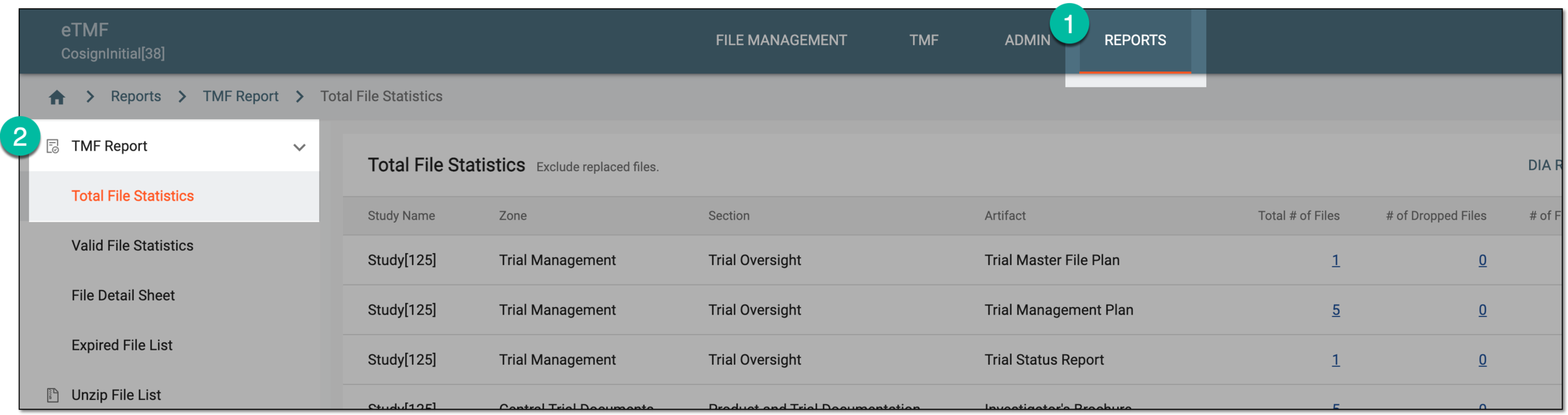 Figure 1. Accessing total file statistics
-
In the Total File Statistics table that opens, view details of the statistics of the total number of files in eTMF in the following table.
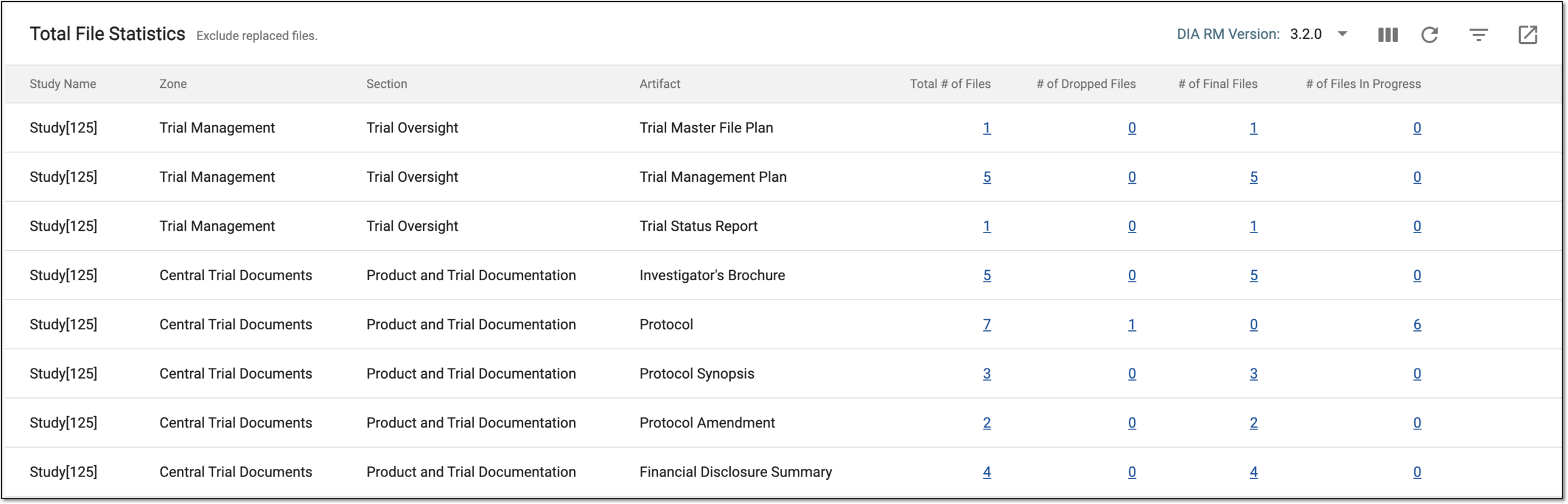 Figure 2. Viewing total file statistics details
Tip
From the DIA RM Version dropdown menu on the workspace toolbar, select the version of the Drug Information Association Reference Model for the Total File Statistics report to only display the files that belong to that version.
Column
Details
Study Name
Represents the name of the study to which the file belongs.
Zone
Represents the zone to which the file belongs in the Essential Documents storage.
Section
Represents the section to which the file belongs in the Essential Documents storage.
Artifact
Represents the artifact to which the file belongs in the Essential Documents storage.
Total # of Files
Represents the total number of files under a specific artifact.
The value is also a hyperlink that, once selected, redirects you to the File Detail Sheet report filtered according to your
                                  selection.
# of Dropped Files
Represents the total number of files whose status is Dropped—the file has not passed the final audit.
The value is also a hyperlink that, once selected, redirects you to the File Detail Sheet report filtered according to your
                                  selection.
# of Final Files
Represents the total number of files whose status is Final—the file has received its final approval or signature by the respective auditors.
The value is also a hyperlink that, once selected, redirects you to the File Detail Sheet report filtered according to your
                                  selection.
# of Auditing Files
Represents the total number of files whose status is Auditing. These are the files that are awaiting approval or are approved—the intended operation with the file is in the process of auditing.
The value is also a hyperlink that, once selected, redirects you to the File Detail Sheet report filtered according to your
                                  selection.
You have viewed the total file statistics report. You can also export the report data to work with it offline.