ICF tracking log queries
To track ICF completion for subjects of your study, you need to add ICF tracking records to your log and complete the forms as per the selected ICF tracking log template.
For all the ICF tracking log records, if there are any inconsistencies, questionable items, or other uncertainties about the provided data, you can open a query for the responsible personnel—mostly CRA—to address and resolve the issue.
In CTMS, you can manage the ICF tracking log queries as explained in the following sections.
To track ICF completion for subjects of your study, you need to add ICF tracking records to your log and complete the forms as per the selected ICF tracking log template.
Once the record is completed, you can review its details and if there are any inconsistencies, questionable items, or other uncertainties about the provided data, you can open a query for the responsible personnel—mostly CRA—to address and fix the issue.
-
Access the study management page in one of the following ways:
-
In the CTMS application header, select the DASHBOARD tab and then select the study dashboard of your interest.
 Figure 1. Accessing study management from dashboard
-
In the CTMS application header, select the STUDY MANAGEMENT tab. Then from the Study Data List table, select the study name of your interest.
 Figure 2. Accessing study management from study data list
-
-
On the page that opens, from the left pane, select ICF > ICF Tracking Log.
-
In the ICF Tracking Log table that appears, locate the record for which you want to view the details and open a query. Then from the Action(s) column next to it, select Go
 .
.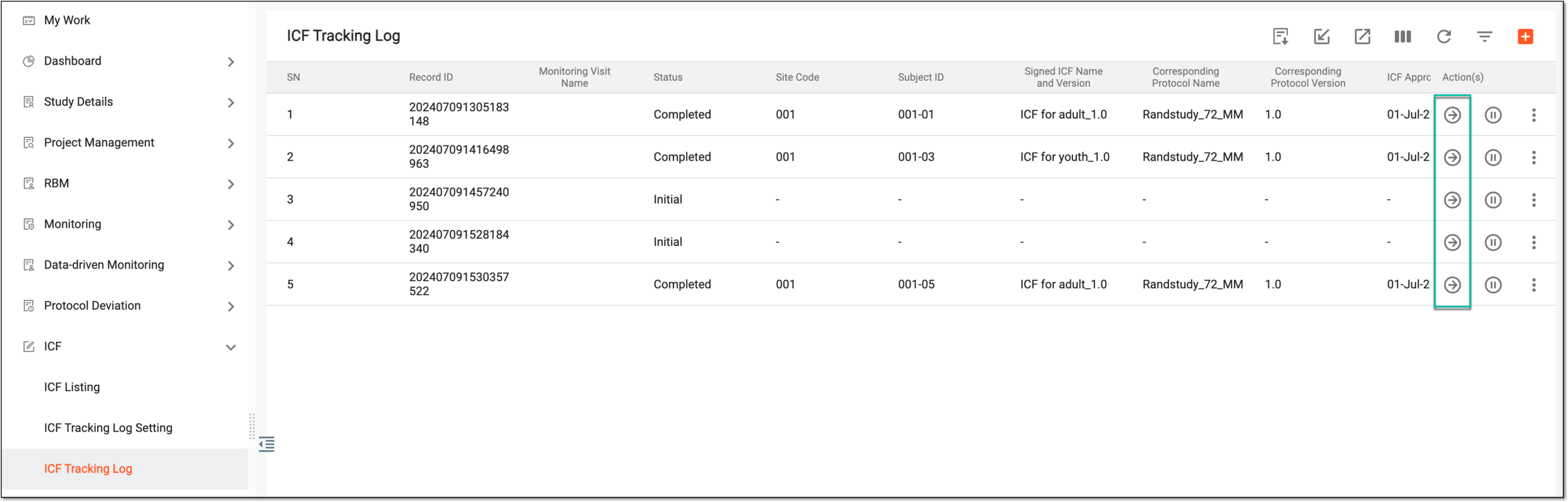 Figure 3. Accessing record details
-
In the form that opens, go to the item for which you want to open a query. Then from the Action(s) column next to it, select
 > Open Query
  .
.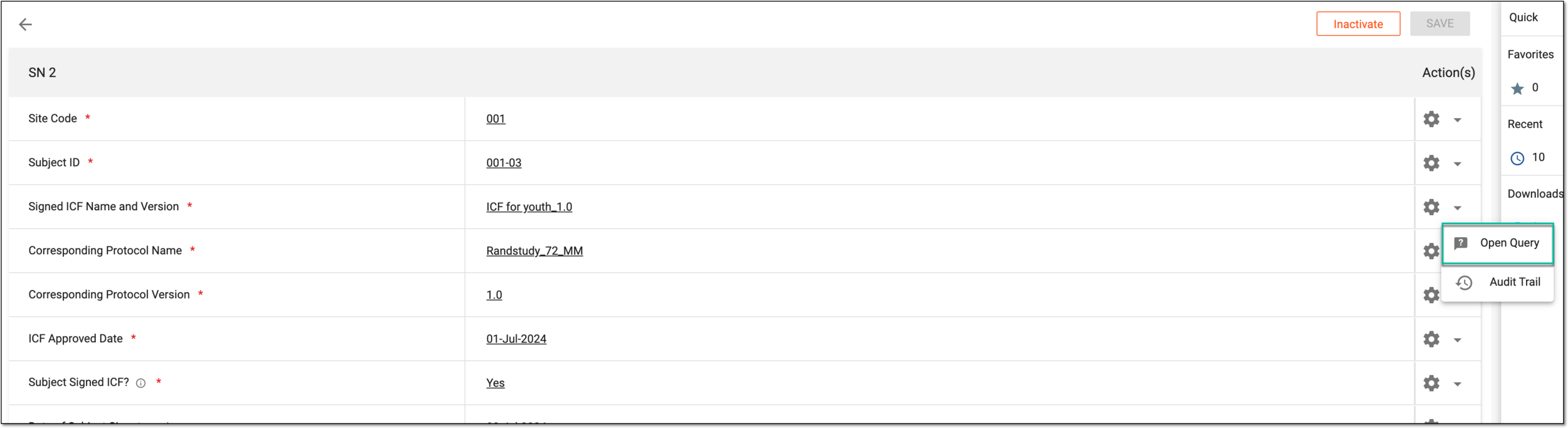 Figure 4. Opening query
-
In the Manual Query dialog that opens, provide the details as explained in the following table.
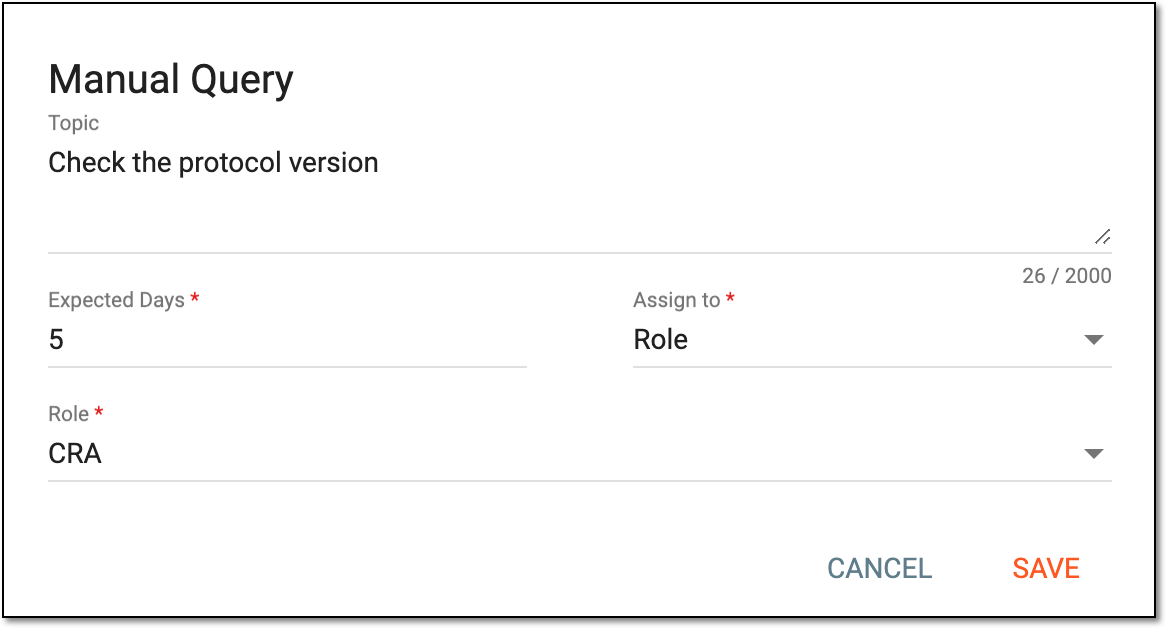 Figure 5. Providing query details
Tip
In the following table, mandatory elements are marked with an asterisk (*).
Element
Details
Topic*
Enter the request, suggestion, or another inquiry about an ICF tracking record item and want to be addressed.
Expected Days*
Enter the number of days to outline the expected period for query resolution.
Assigned to*
Select one of the following options:
Assignee*
Select the user to whom you want to assign the query for resolution. By default, the user who completed the form is selected.
This field is only available if, in the Assigned to field, the Assignee
                                        option is selected.
Role*
Select the user role to which you want to assign the query for resolution.
This field is only available if, in the Assigned to field, the Role option
                                        is selected.
SAVE
Select
 to proceed with query creation.
CANCEL
Select
 to discard the changes without saving.
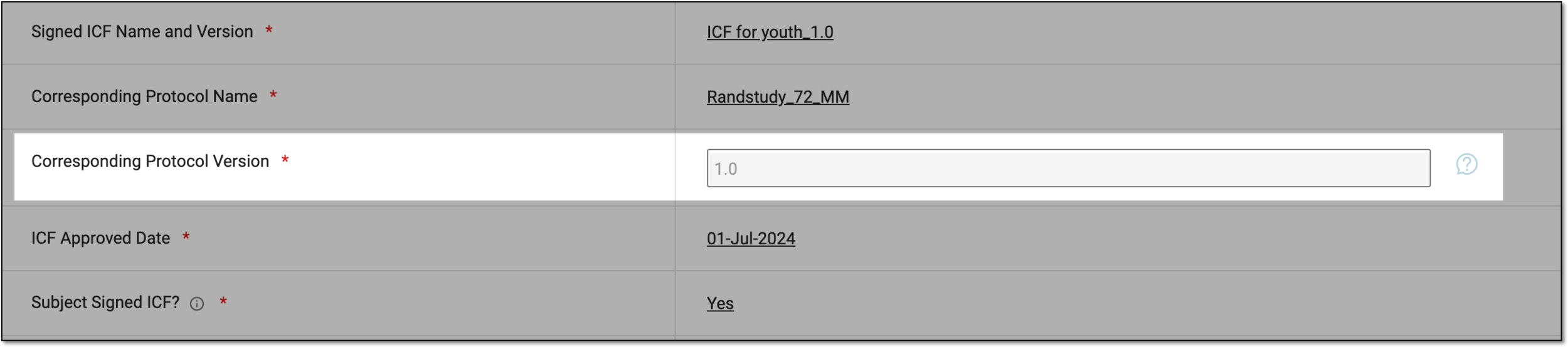
Once saved, the query is opened. If the query reminder is configured for the ICF tracking log queries, the assignee gets notified about a new query via email and can resolve this query.
To track ICF completion for subjects of your study, you need to add ICF tracking records to your log and complete the forms as per the selected ICF tracking log template.
Once the record is completed, if there are any inconsistencies, questionable items, or other uncertainties about the provided data, a query can be opened for the responsible personnel—mostly CRA—to address and fix the issue. If you are the assignee for a query, you get an email notification and can resolve the query in the system. Resolving a query means addressing the issue it concerns and closing it.
For instance, if the query suggests that the date stated in the ICF tracking log record is questionable, resolving this query would mean verifying that the date is correct or fixing it to become correct, and then closing the query.
-
Access the study management page in one of the following ways:
-
In the CTMS application header, select the DASHBOARD tab and then select the study dashboard of your interest.
Figure 1. Accessing study management from dashboard
-
In the CTMS application header, select the STUDY MANAGEMENT tab. Then from the Study Data List table, select the study name of your interest.
Figure 2. Accessing study management from study data list
-
-
On the page that opens, perform one of the following actions:
-
On the My Work dashboard, select the Queries tile to start working on the queries assigned to you.
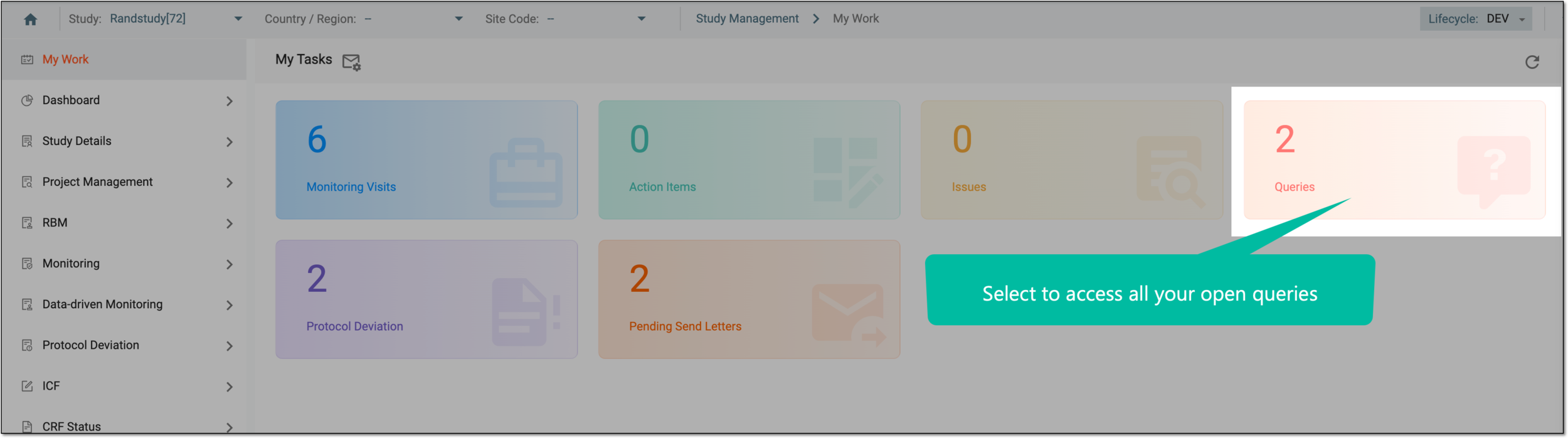 Figure 3. Accessing all your queries
-
In the left pane, select ICF > ICF Tracking Log. Then from the list, locate the ICF record with the query that you want to resolve, and from the Action(s) column next to it, select Go
.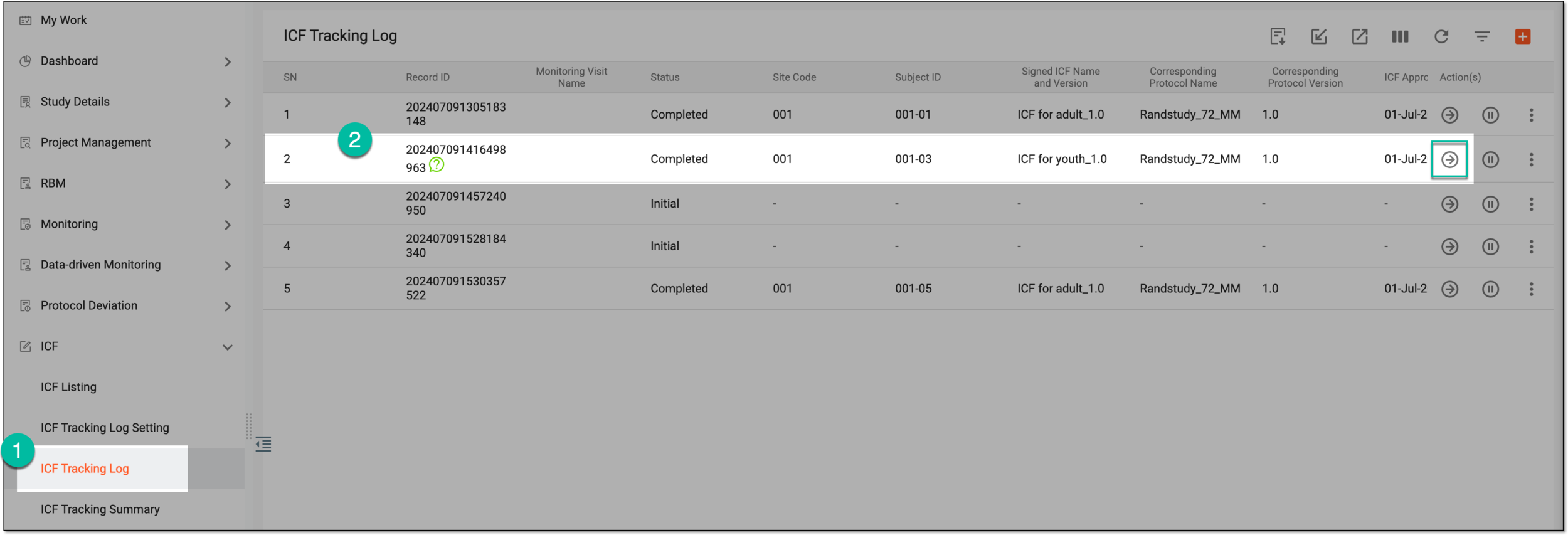 Figure 4. Accessing ICF record log
-
-
On the form page that opens, go to the data item with a query and select My Open Query
 .
. -
In the Manual Query panel that expands, review the query details and if required, fix and save the data in the queried item. If you are changing any details, provide the reason for your amendments.
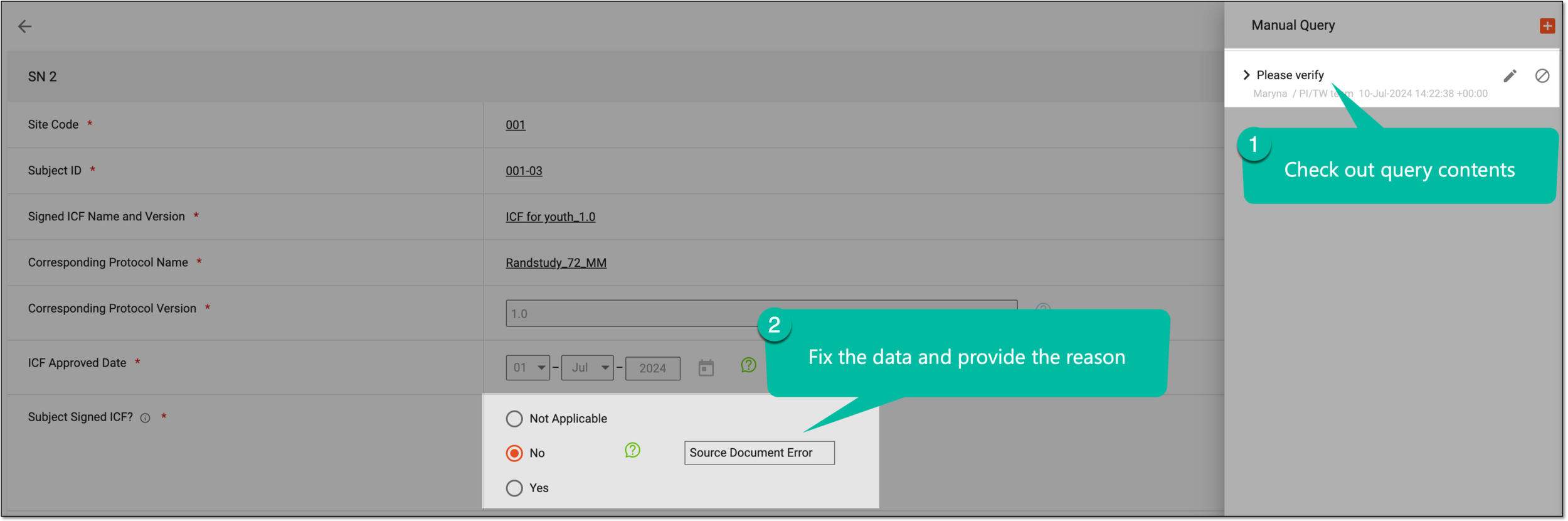 Figure 5. Reviewing query and fixing item content
-
Once the query is addressed and you do not anticipate further actions on it, close the query by selecting Close
 next to
it.
next to
it.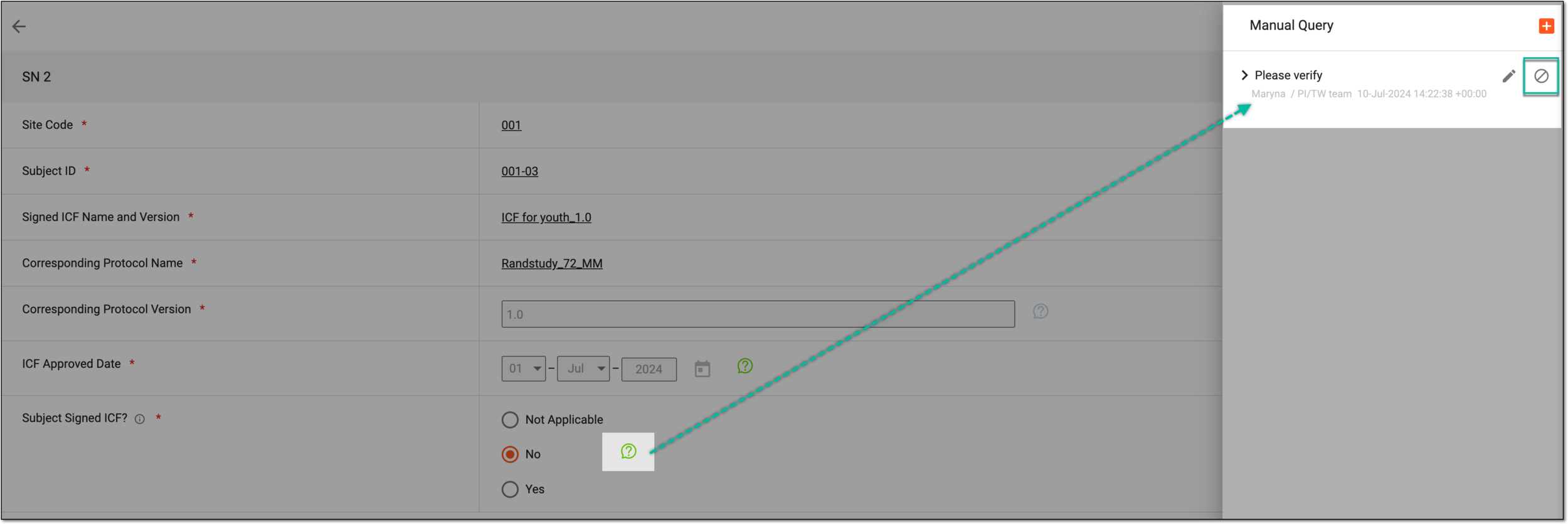 Figure 6. Closing query
-
Optionally, add your reply to a query to provide additional comments or explanations.
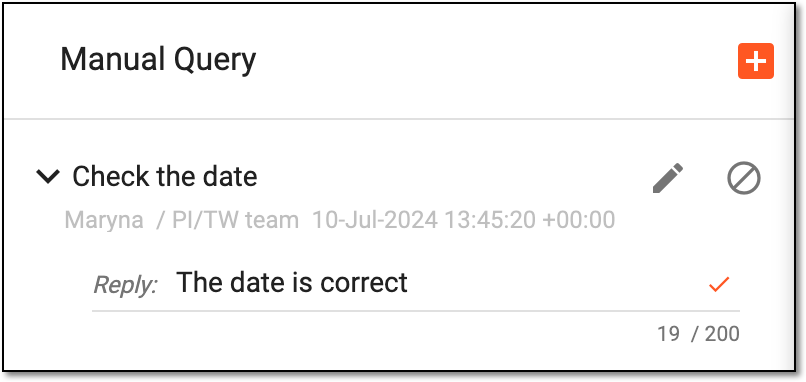 Figure 7. Replying to query
You have resolved and closed the query to finalize its status in the system to Closed Query  .
.

To track ICF completion for subjects of your study, you need to add ICF tracking records to your log and complete the forms as per the selected ICF tracking log template.
Once the record is completed, if there are any inconsistencies, questionable items, or other uncertainties about the provided data, a query can be opened for the responsible personnel—mostly CRA—to address and resolve the issue. If at any time you notice that the query requires additional details, or you want to change the expected resolution period, or you want to substitute the assignee, you can do so by editing the open query.
Important
You cannot edit the queries that are closed.
-
Access the study management page in one of the following ways:
-
In the CTMS application header, select the DASHBOARD tab and then select the study dashboard of your interest.
Figure 1. Accessing study management from dashboard
-
In the CTMS application header, select the STUDY MANAGEMENT tab. Then from the Study Data List table, select the study name of your interest.
Figure 2. Accessing study management from study data list
-
-
On the page that opens, perform one of the following actions:
-
On the My Work dashboard, select the Queries tile to start working on the queries assigned to you.
Figure 3. Accessing all your queries
-
In the left pane, select ICF > ICF Tracking Log. Then from the list, locate the ICF record with the query that you want to edit, and from the Action(s) column next to it, select Go
.Figure 4. Accessing ICF record log
-
-
On the form page that opens, go to the data item with a query and select My Open Query
if you are the query
assignee or Open Query  if you are not the assignee.
 -
In the Manual Query panel that expands, close the query by selecting Edit
 next to it.
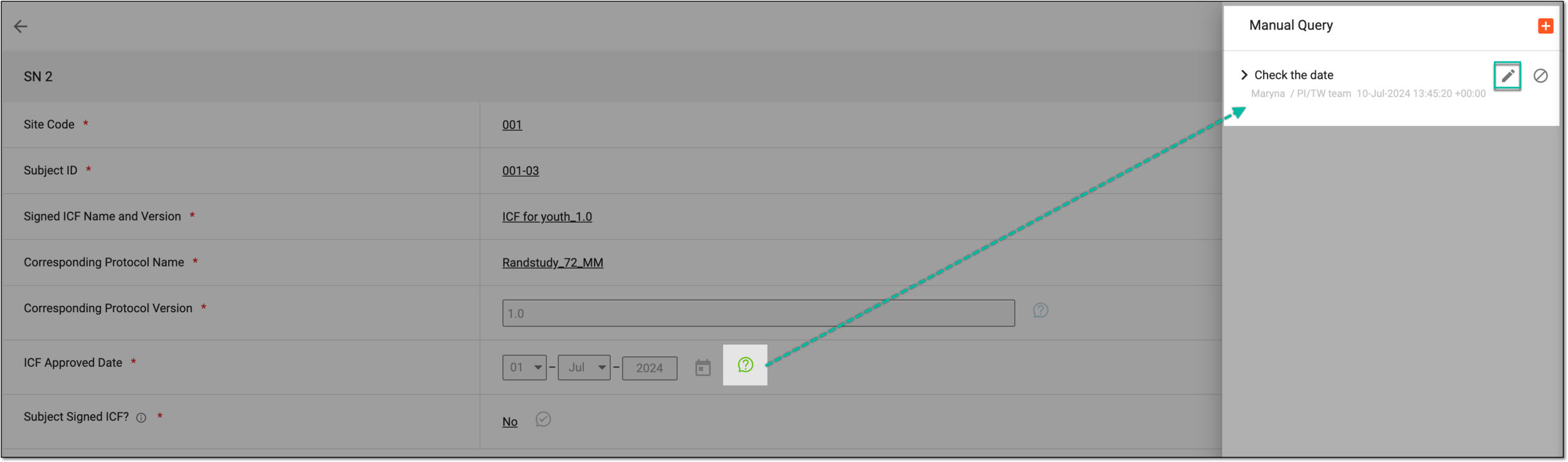 Figure 5. Selecting to edit query
-
In the Manual Query dialog that opens, update the details as explained in the following table.
Figure 6. Updating query details
Tip
In the following table, mandatory elements are marked with an asterisk (*).
Element
Details
Topic*
Enter the request, suggestion, or another inquiry about an ICF tracking record item and want to be addressed.
Expected Days*
Enter the number of days to outline the expected period for query resolution.
Assigned to*
Select one of the following options:
Assignee*
Select the user to whom you want to assign the query for resolution. By default, the user who completed the form is selected.
This field is only available if, in the Assigned to field, the Assignee
                                        option is selected.
Role*
Select the user role to which you want to assign the query for resolution.
This field is only available if, in the Assigned to field, the Role option is selected.SAVE
Select
to implement the changes.CANCEL
Select
to discard the changes without saving. -
Optionally, add your reply to a query to provide additional comments or explanations.
Figure 7. Replying to query
Once saved, you have updated the query.
To track ICF completion for subjects of your study, you need to add ICF tracking records to your log and complete the forms as per the selected ICF tracking log template.
Once the record is completed, if there are any inconsistencies, questionable items, or other uncertainties about the provided data, a query can be opened for the responsible personnel—mostly CRA—to address and resolve the issue. If you are the assignee for a query or its creator, you can close the query that is no longer valid, got resolved, or else. Closing the query means finalizing its status and acknowledging that the issue it represents is resolved.
-
Access the study management page in one of the following ways:
-
In the CTMS application header, select the DASHBOARD tab and then select the study dashboard of your interest.
Figure 1. Accessing study management from dashboard
-
In the CTMS application header, select the STUDY MANAGEMENT tab. Then from the Study Data List table, select the study name of your interest.
Figure 2. Accessing study management from study data list
-
-
On the page that opens, perform one of the following actions:
-
On the My Work dashboard, select the Queries tile to start working on the queries assigned to you.
Figure 3. Accessing all your queries
-
In the left pane, select ICF > ICF Tracking Log. Then from the list, locate the ICF record with the query that you want to close, and from the Action(s) column next to it, select Go
.Figure 4. Accessing ICF record log
-
-
On the form page that opens, go to the data item with a query and select My Open Query
if you are the query
assignee or Open Query if you are not the assignee. -
In the Manual Query panel that expands, close the query by selecting Close
next
to it.Figure 5. Closing query
-
Optionally, add your reply to a query to provide additional comments or explanations.
Figure 6. Replying to query
You have closed the query to finalize its status in the system to Closed Query .