Complete/Edit ICF tracking record
To track ICF completion for subjects of your study, you need to add ICF tracking records and complete the forms according to the ICF tracking log template selected for the study.
Sometimes, you have insufficient details to complete the added record right away and you want to leave it and return to record completion later. In this section, you can learn how to complete the previously added ICF tracking record with the Initial status or edit the data in those that are already completed.
Important
With the ICF Tracking Log > Write permission granted to your user role in ADMIN, you can complete the initial ICF tracking records added by you. However, with the ICF Tracking Log > Override permission, you can complete the records added by other users and edit those that are already completed, following the same procedure.
-
Access the study management page in one of the following ways:
-
In the CTMS application header, select the DASHBOARD tab and then select the study dashboard of your interest.
 Figure 1. Accessing study management from dashboard
-
In the CTMS application header, select the STUDY MANAGEMENT tab. Then from the Study Data List table, select the study name of your interest.
 Figure 2. Accessing study management from study data list
-
-
On the page that opens, from the left pane, select ICF > ICF Tracking Log.
-
In the ICF Tracking Log table that appears, locate the record in the Initial status that you want to complete. Then from the Actions column next to it, select Go
 .
.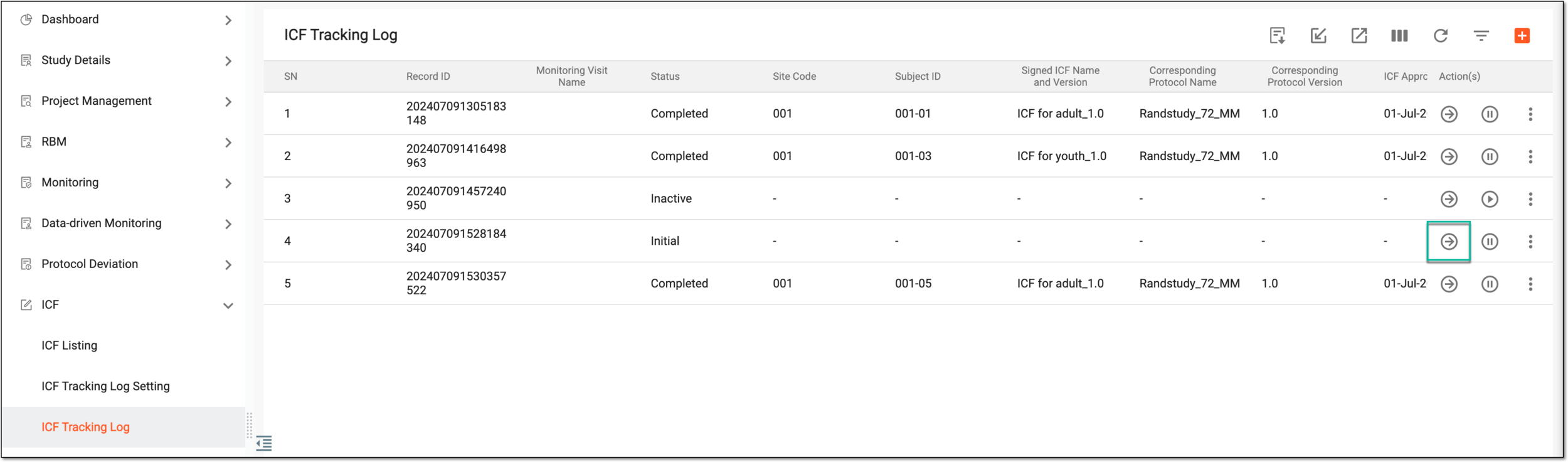 Figure 3. Accessing record completion page
-
In the form that opens, complete the details according to your study requirements. The form fields depend on the ICF tracking log template selected for your study.
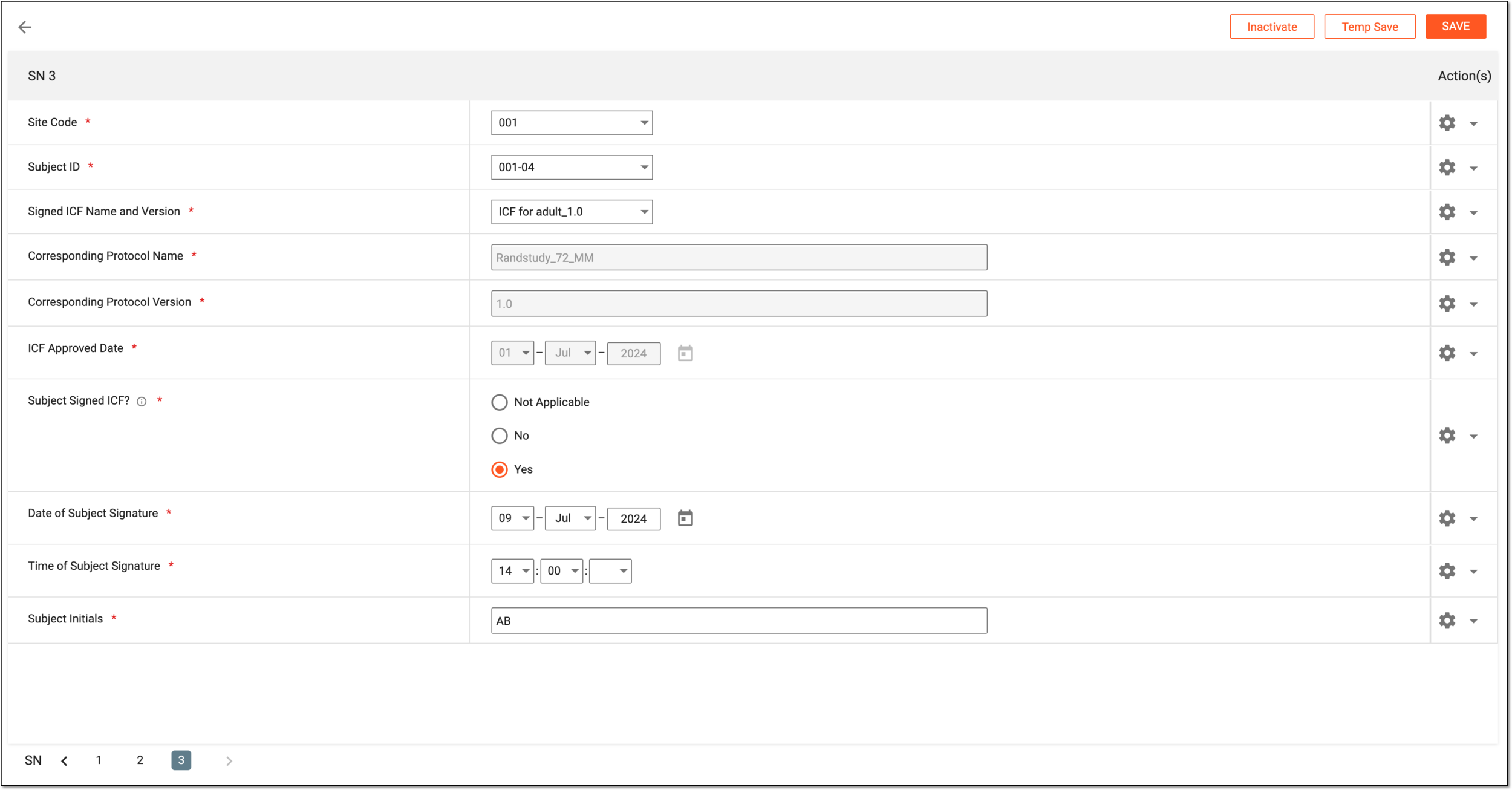 Figure 4. Completing ICF tracking record form
Tip
If you want to leave the page without saving the changes, the system prompts you with a respective suggestion.
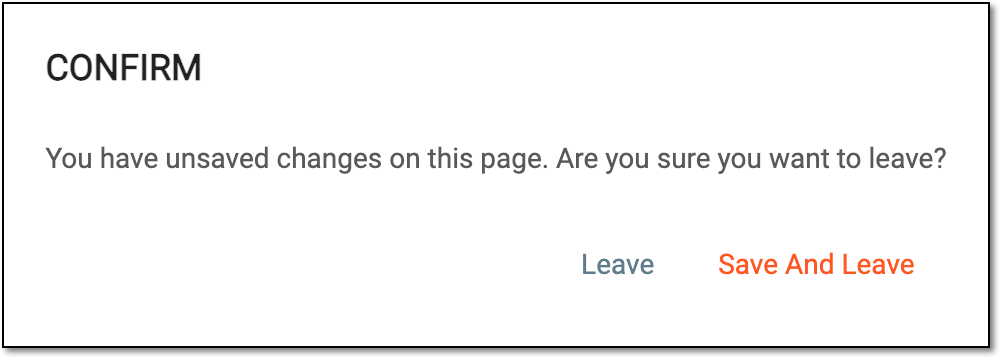 Figure 5. Confirming to leave page
-
Once the form is completed, there are a few actions available to you as explained in the following table.
Action
Details
SAVE
Select
 to save and submit the completed form.
Temp Save
Select
 to save the changes if the form is not entirely completed or requires further details. Thus, the form remains in the Initial status until completed.
Inactivate
Select
 to deactivate the ICF tracking record. For deactivation, you must provide the reason.
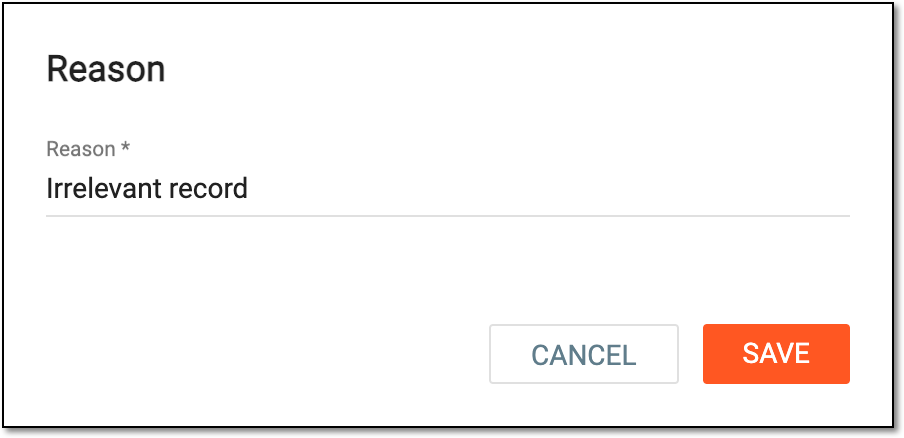 Figure 6. Providing deactivation reason
Activate
Select
 to activate the previously deactivated ICF tracking record. For activation, you must provide the reason.
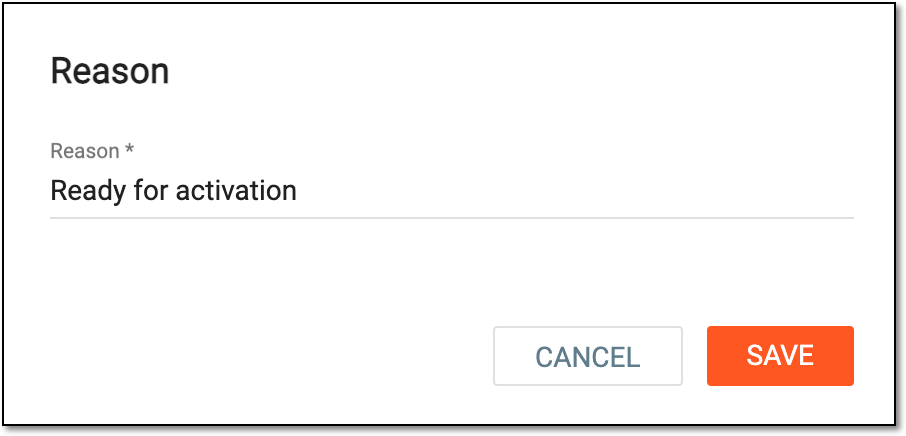 Figure 7. Providing activation reason
Upon saving, the form is submitted and its status becomes Completed.