Activate/Inactivate ICF tracking record
To track ICF completion for subjects of your study, you need to add ICF tracking records to your log and complete the forms as per the selected ICF tracking log template.
However, only active records can be completed and otherwise maintained in the system. Thus, you can inactivate any record if you no longer need it but do not want to permanently delete it from the system. You also need to inactivate a record before deleting it, as only inactive records can be removed from the system.
-
Access the study management page in one of the following ways:
-
In the CTMS application header, select the DASHBOARD tab and then select the study dashboard of your interest.
 Figure 1. Accessing study management from dashboard
-
In the CTMS application header, select the STUDY MANAGEMENT tab. Then from the Study Data List table, select the study name of your interest.
 Figure 2. Accessing study management from study data list
-
-
On the page that opens, from the left pane, select ICF > ICF Tracking Log.
-
In the ICF Tracking Log table that appears, go to the record that you want to activate or inactivate. Then from the Action(s) column next to it, select Activate
 or Inactivate
  .
.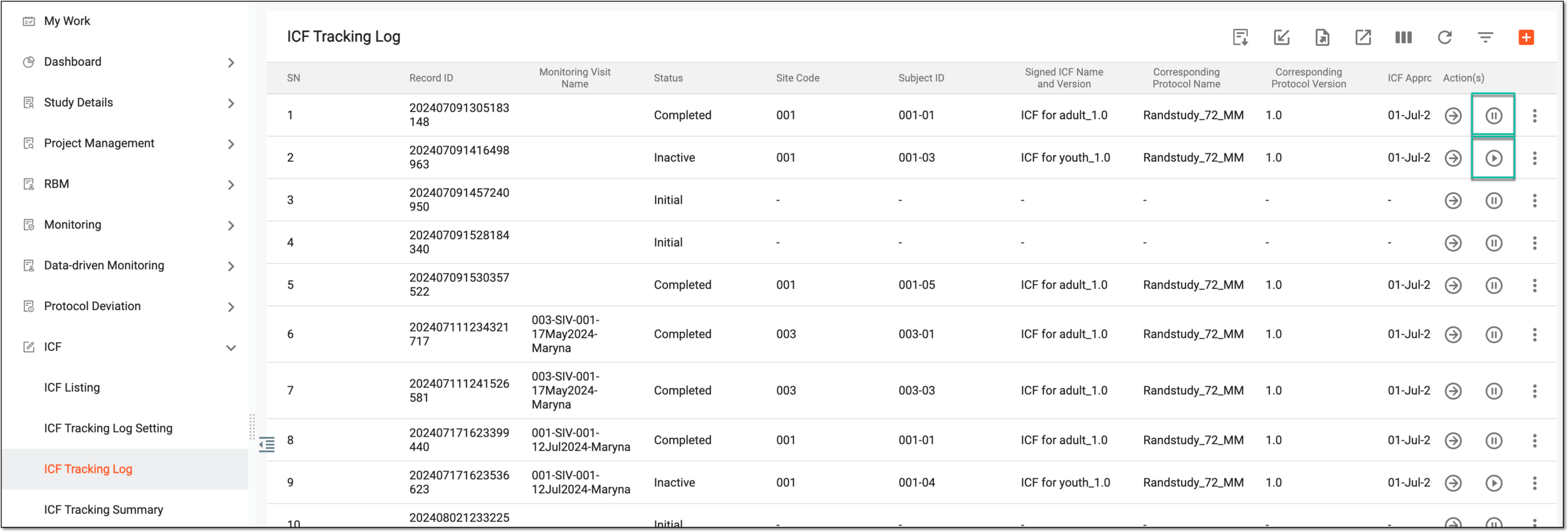 Figure 3. Activating/Inactivating ICF tracking log record
-
In the Reason dialog that appears, enter the reason for activation or inactivation of the ICF tracking record and select
 to
confirm your action.
to
confirm your action.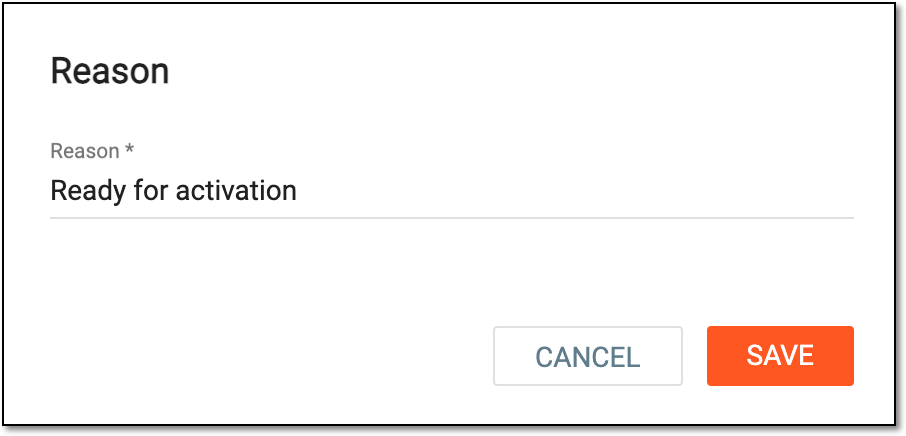 Figure 4. Providing reason for activation
Once confirmed, the ICF tracking record is activated or inactivated as per your action.