Add ICF tracking record
ICF tracking log is a functionality used to track the distribution, collection, and status of Informed Consent Forms (ICFs) from participants in the trial. It is a management tool that ensures proper documentation and completion of all steps related to informed consent throughout the trial process.
Once you have selected the ICF tracking log template for your study, you can start adding log records and track ICF completion for subjects of your study.
In CTMS, you can add ICF tracking records from scratch in the system or import them from your computer as explained in the following sections.
Once you have selected the ICF tracking log template for your study, you can start adding log records and track ICF completion for subjects of your study. This section explains how to add a new ICF tracking record in the CTMS system from scratch.
-
Access the study management page in one of the following ways:
-
In the CTMS application header, select the DASHBOARD tab and then select the study dashboard of your interest.
 Figure 1. Accessing study management from dashboard
-
In the CTMS application header, select the STUDY MANAGEMENT tab. Then from the Study Data List table, select the study name of your interest.
 Figure 2. Accessing study management from study data list
-
-
On the page that opens, from the left pane, select ICF > ICF Tracking Log.
-
On the ICF Tracking Log page that opens, from the workspace toolbar, select New Item
 .
.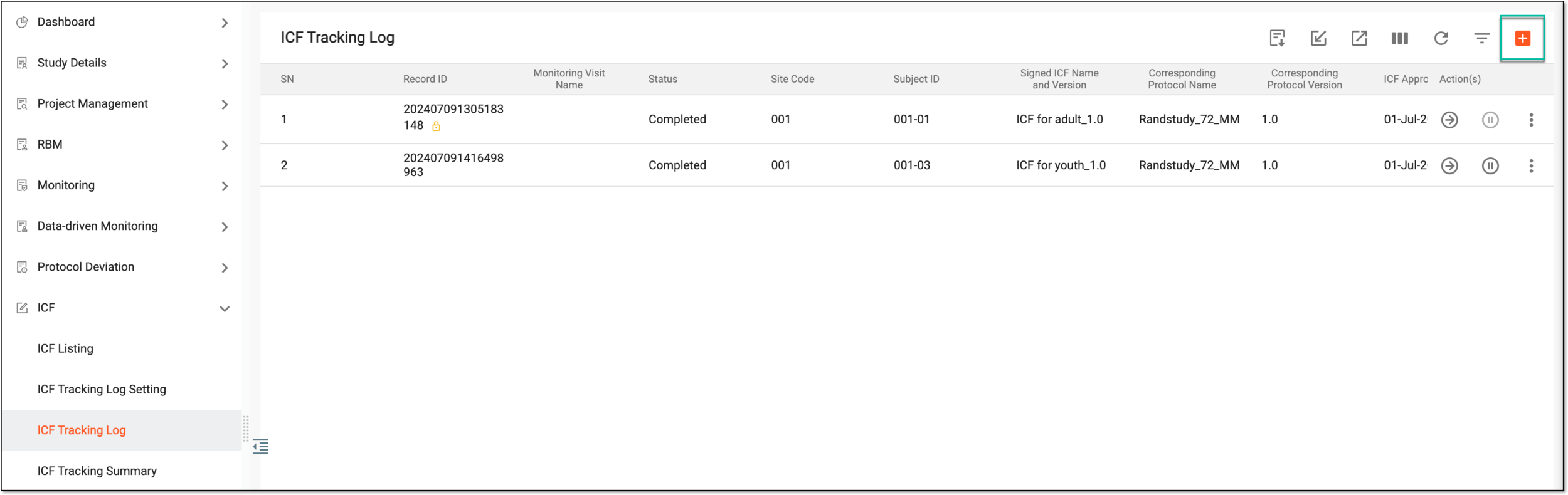 Figure 3. Adding new ICF tracking record
-
In the form that opens, complete the details according to your study requirements. The form fields depend on the ICF tracking log template selected for your study.
Tip
At this point, you can leave the page by selecting Back
 and the record is saved with
the Initial status. You can return to complete it later.
and the record is saved with
the Initial status. You can return to complete it later.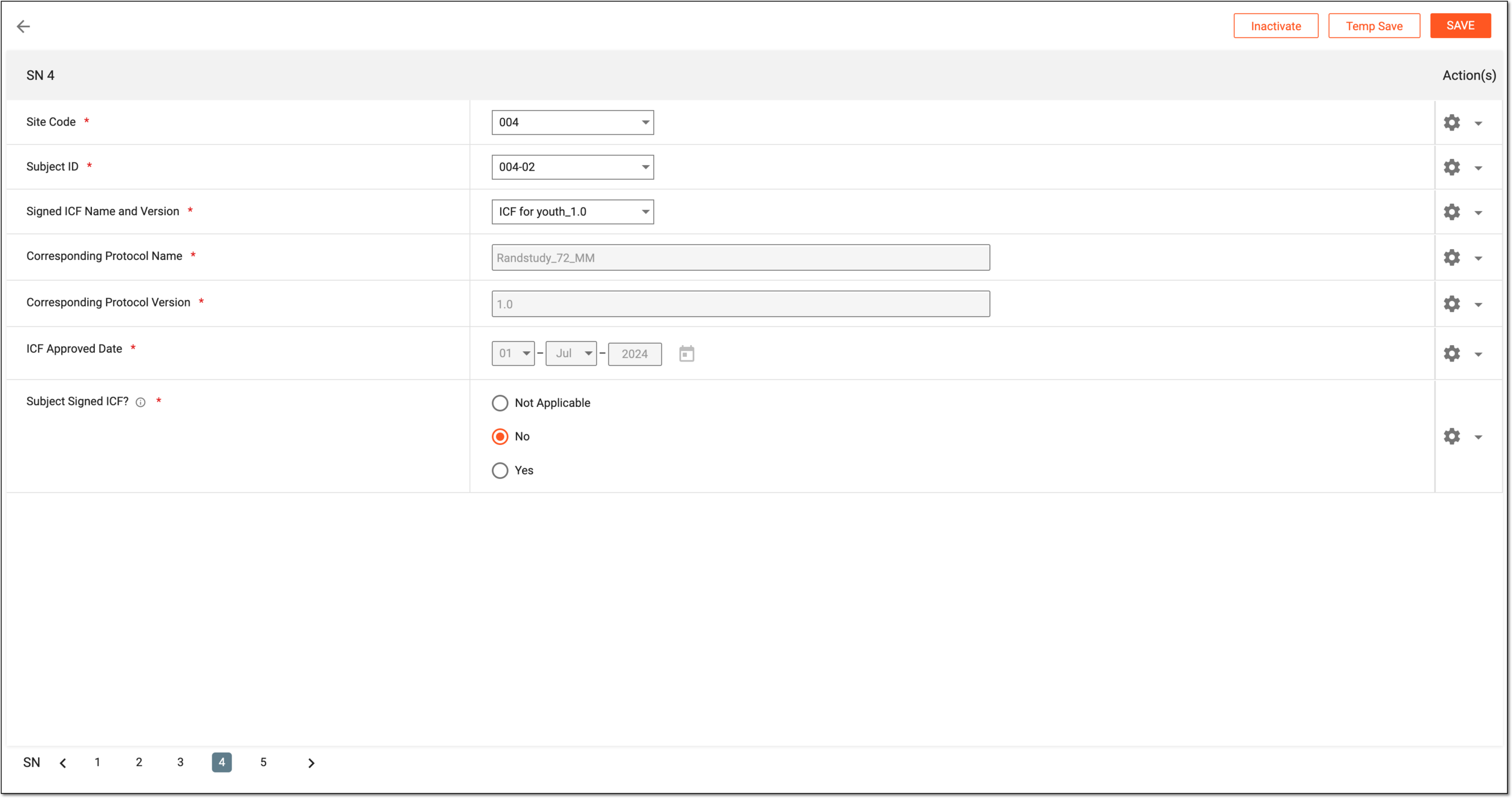 Figure 4. Completing ICF tracking record form
-
Once the form is initiated or completed, there are a few actions available to you as explained in the following table.
Action
Details
SAVE
Select
 to save and submit the completed form.
Temp Save
Select
 to save the changes if the form is not entirely completed or requires further details. Thus, the form remains in the Initial status until completed.
Inactivate
Select
 to deactivate the ICF tracking record. Inactive records cannot be completed or otherwise maintained.
For deactivation, you must provide the reason.
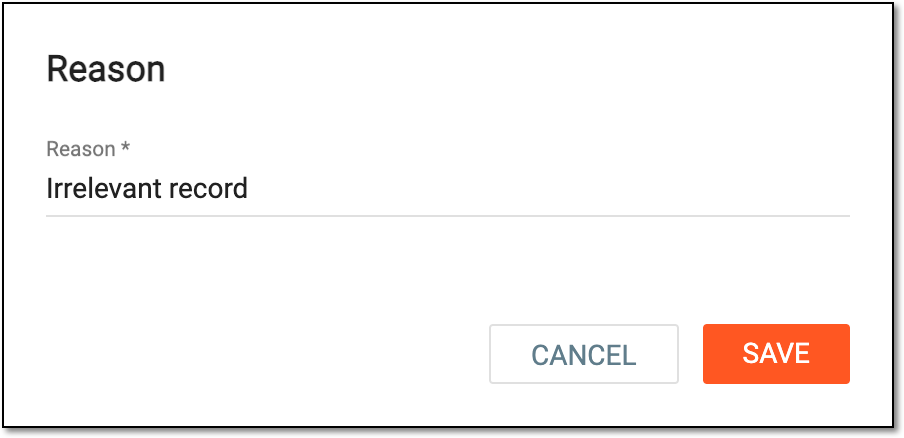 Figure 5. Providing deactivation reason
Activate
Select
 to activate the previously deactivated ICF tracking record. For activation, you must provide the reason.
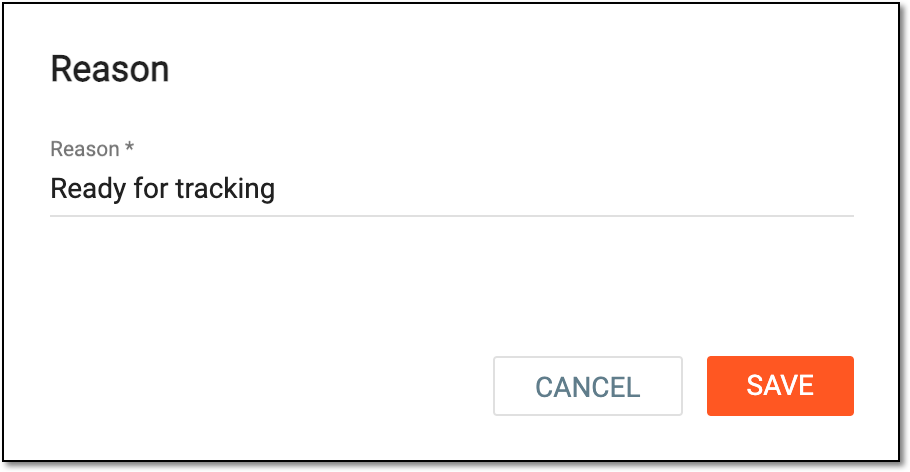 Figure 6. Providing activation reason
Upon saving, the form is submitted and its status becomes Completed.
Once you have selected the ICF tracking log template for your study, you can start adding log records and track ICF completion for subjects of your study. This section explains how to add a new ICF tracking record by importing a file from your computer to the CTMS system. This becomes helpful if you want to fill out all the needed details offline in XLSX format and then simply upload the completed file to the CTMS system.
Important
Before initiating import, download the ICF tracking log template in XLSX and fill out the details following its predefined structure. This ensures the compatibility of imported files with system requirements and facilitates error-free upload.
-
Access the study management page in one of the following ways:
-
In the CTMS application header, select the DASHBOARD tab and then select the study dashboard of your interest.
Figure 1. Accessing study management from dashboard
-
In the CTMS application header, select the STUDY MANAGEMENT tab. Then from the Study Data List table, select the study name of your interest.
Figure 2. Accessing study management from study data list
-
-
On the page that opens, from the left pane, select ICF > ICF Tracking Log.
-
On the ICF Tracking Log page that opens, from the workspace toolbar, select Import
 .
.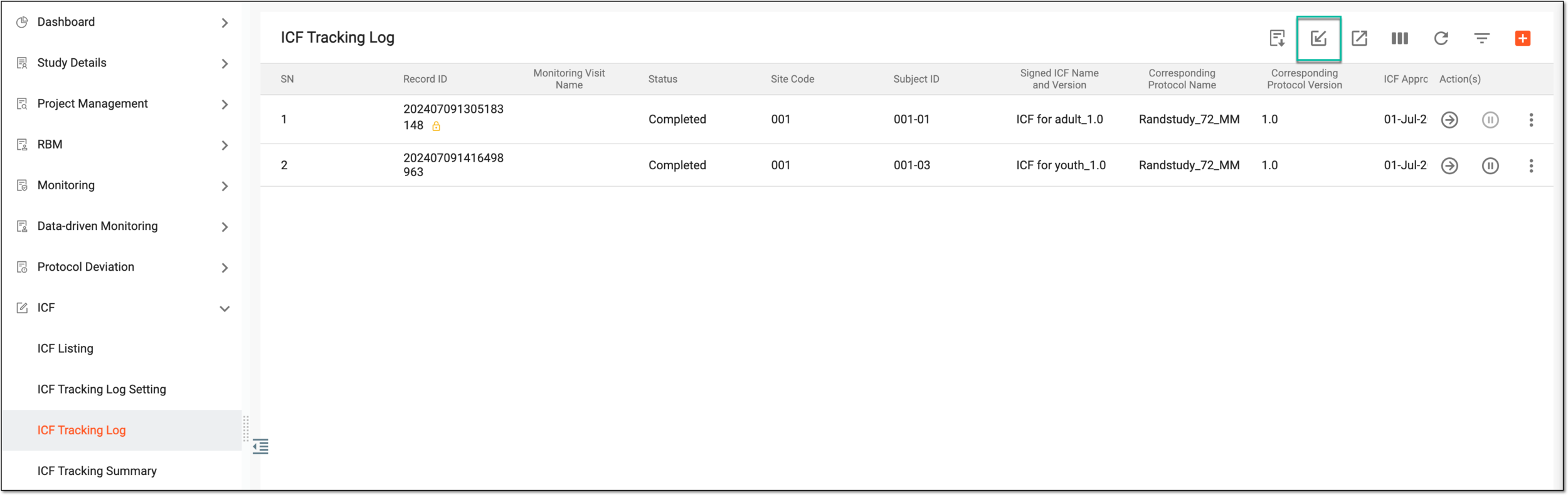 Figure 3. Importing ICF tracking record
-
In the file explorer dialog, select the file from your computer to upload it to CTMS.
Once uploaded, the details from the file are imported to the system and a new record with the Completed status is added to the ICF Tracking Log table.