Add new site manually
In a clinical trial, sites are the locations that cover various study activities intended for subject treatment and data collection.
All sites are preconfigured and added to your study in the CTMS application. However, in IWRS, you can add sites to your study manually if the configuration is done in CTMS but not autopopulated to IWRS for some reasons, for instance, due to technical or connectivity issues.
-
In the IWRS application header, select the SITE tab.
 Figure 1. Accessing site management
-
On the Site List page that opens, on the far right, select New Item
 .
. Figure 2. Selecting to add site to study
-
In the Add dialog that appears, from the Site Code dropdown list, select the needed site code.
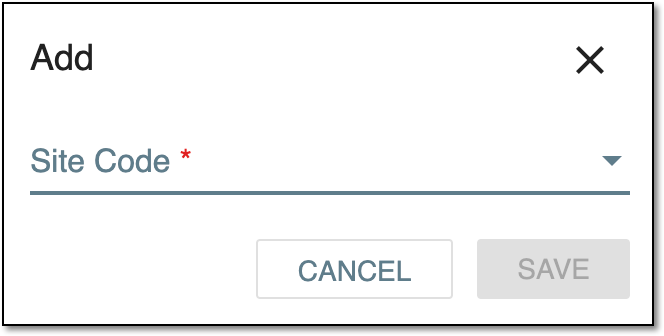 Figure 3. Adding new site
Important
The sites available for selection depend on the access permissions granted to your user group via the ADMIN application.
-
Select
 to save the implemented changes.
Upon saving, the new site is added to the list. You can now manage site details and request the initial shipment.