View integration configuration execution log
In eTMF, you can configure an integration with a particular external server preconfigured for your study in the ADMIN app, thus, enabling the system to pull external files automatically on a regular schedule and land them in your desired directory of file management or essential documents. Such automation simplifies cooperation with vendors and reduces the risk of human error compared to manual file extraction and upload.
All the integrations in the Active status are executed on their preconfigured schedule or manually if there is a need to extract the files immediately. The complete history of every integration execution can be reviewed via Execution Log, allowing for traceable file management and system or user operation integrity.
-
In the eTMF application header, select the ADMIN tab.
-
From the left pane of the page that opens, select System Integration > Integration Configuration.
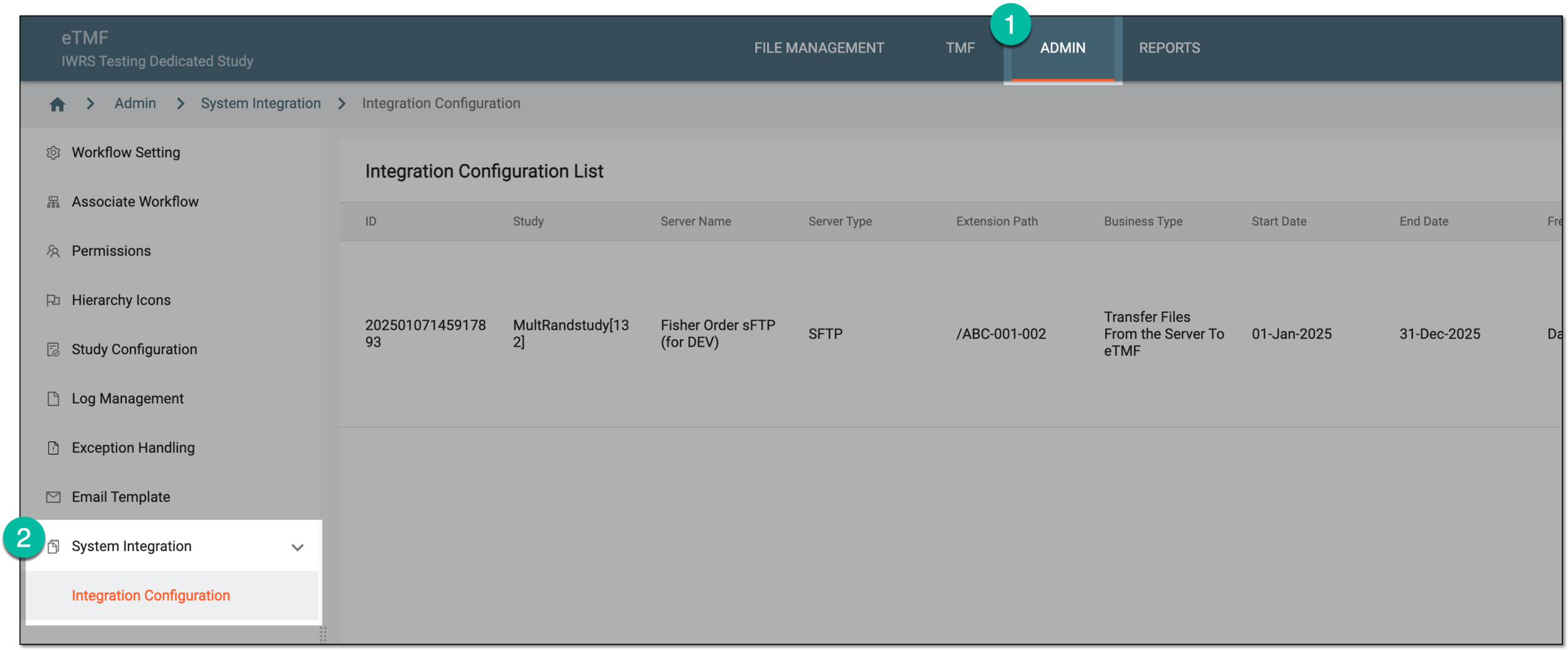 Figure 1. Accessing integration configuration
-
In the Integration Configuration List table that opens, locate the record for which you want to review the history of executions. Then next to it, select More
 > Execution Log
  .
.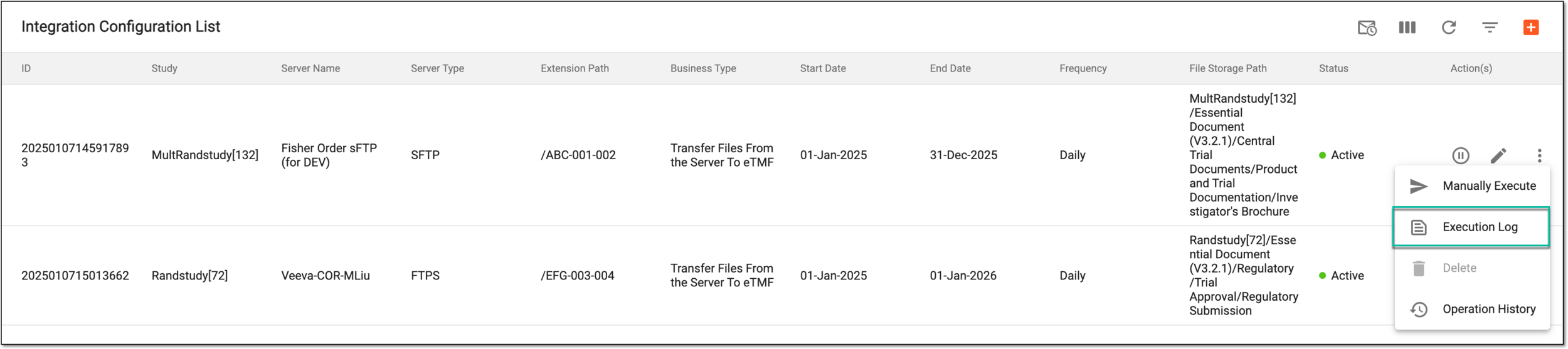 Figure 2. Accessing integration execution log
-
In the Execution Log dialog that opens, review the details of all executions for your integration configuration, along with the execution result, the number of transferred files, the path to where they landed in eTMF, and other details.
If there are files extracted upon execution, you can select the # of Transferred Files link and access the directory where they reside. You can also select the download option
 next to the execution log record to download the extracted files.
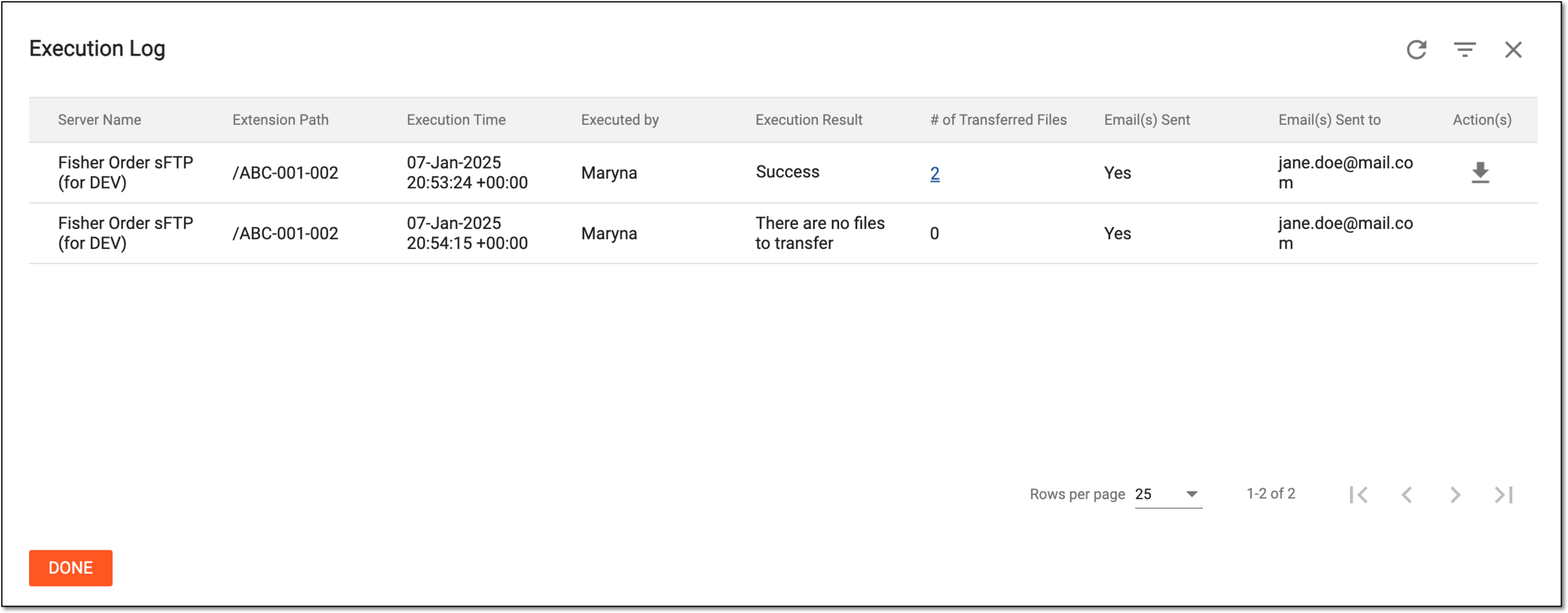 Figure 3. Reviewing execution log for integration configuration
You have now reviewed all the integration configuration executions. Select  to close the dialog and return to Integration
Configuration List.
to close the dialog and return to Integration
Configuration List.