Generate domain delta change report
The Domain Delta Change report is a valuable tool for comparing verbatim term (VT) coding results across different batches or datasets within the same coding domain. This report highlights any changes or inconsistencies in coding assignments, helping you assess the consistency and accuracy of coding over time or across similar datasets.
By generating this report, you can:
-
Identify discrepancies in coding outcomes between batches or datasets.
-
Evaluate the impact of updates to the synonym list or manual coding decisions.
-
Ensure consistency in coding practices across similar data domains.
-
In the Medical Coding application header, select the REPORTS tab.
 Figure 1. Accessing reporting functionality
-
On the page that opens, in the left pane, select Domain Delta Change.
 Figure 2. Accessing domain delta change reporting functionality
-
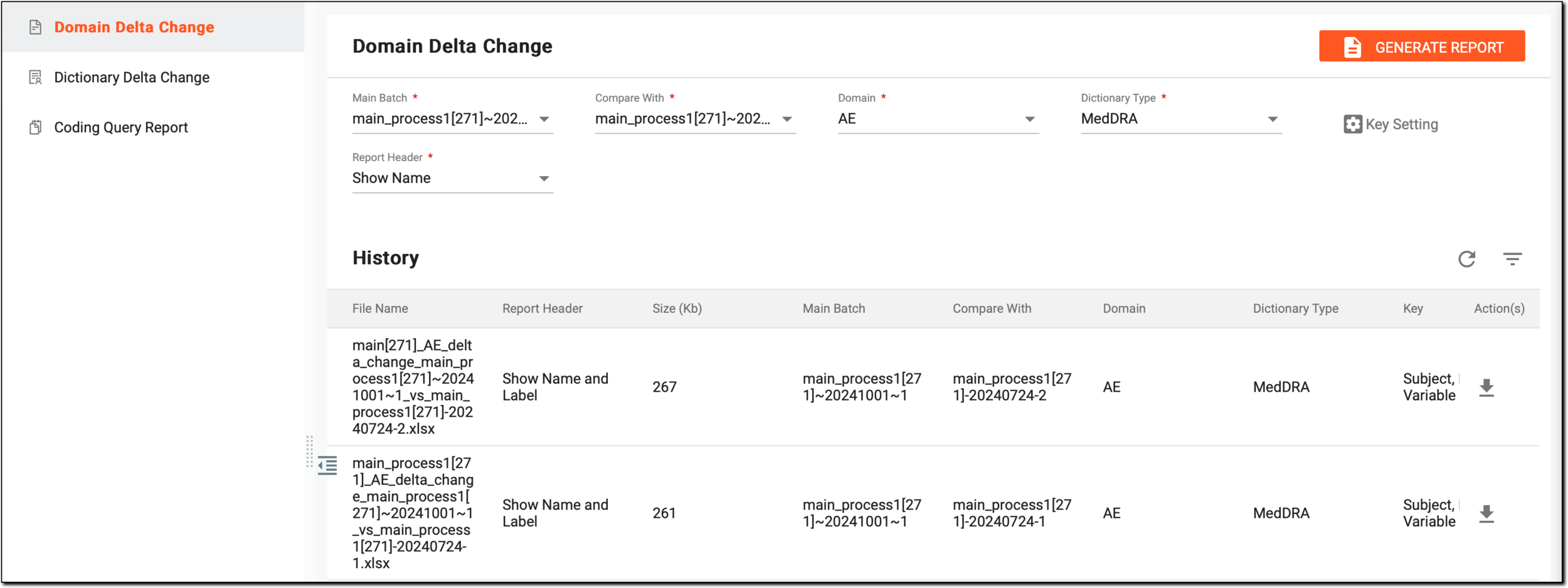
On the Domain Delta Change page, customize the data for comparison as explained in the following table.
Tip
In the following table, mandatory elements are marked with an asterisk (*).
Parameter
Details
Main Batch*
Select the primary batch of verbatim terms (VTs) that serves as the baseline for comparison. This batch contains the coding results you want to evaluate against another dataset.
Compare With*
Choose the secondary batch to compare against the main batch. This helps you identify any differences in coding outcomes between the two datasets.
Domain*
Specify the coding domain, (for example, AE) relevant to the report. This ensures that only VTs from the selected domain are included in the comparison.
Dictionary Type*
Define the type of dictionary (MedDRA or WHODrug) used for coding. This helps to ensure accurate mapping and comparison of terms based on the dictionary standards.
Report Header*
Select how the report headers should display information:
-
Show Name: displays only the verbatim term (VT) names in the report header.
-
Show Label: displays only the VT descriptions (labels).
-
Show Name and Label: displays both the VT names and their descriptions.
Figure 3. Preparing domain delta change report
-
-
Select Key Setting to customize the parameters for your report.
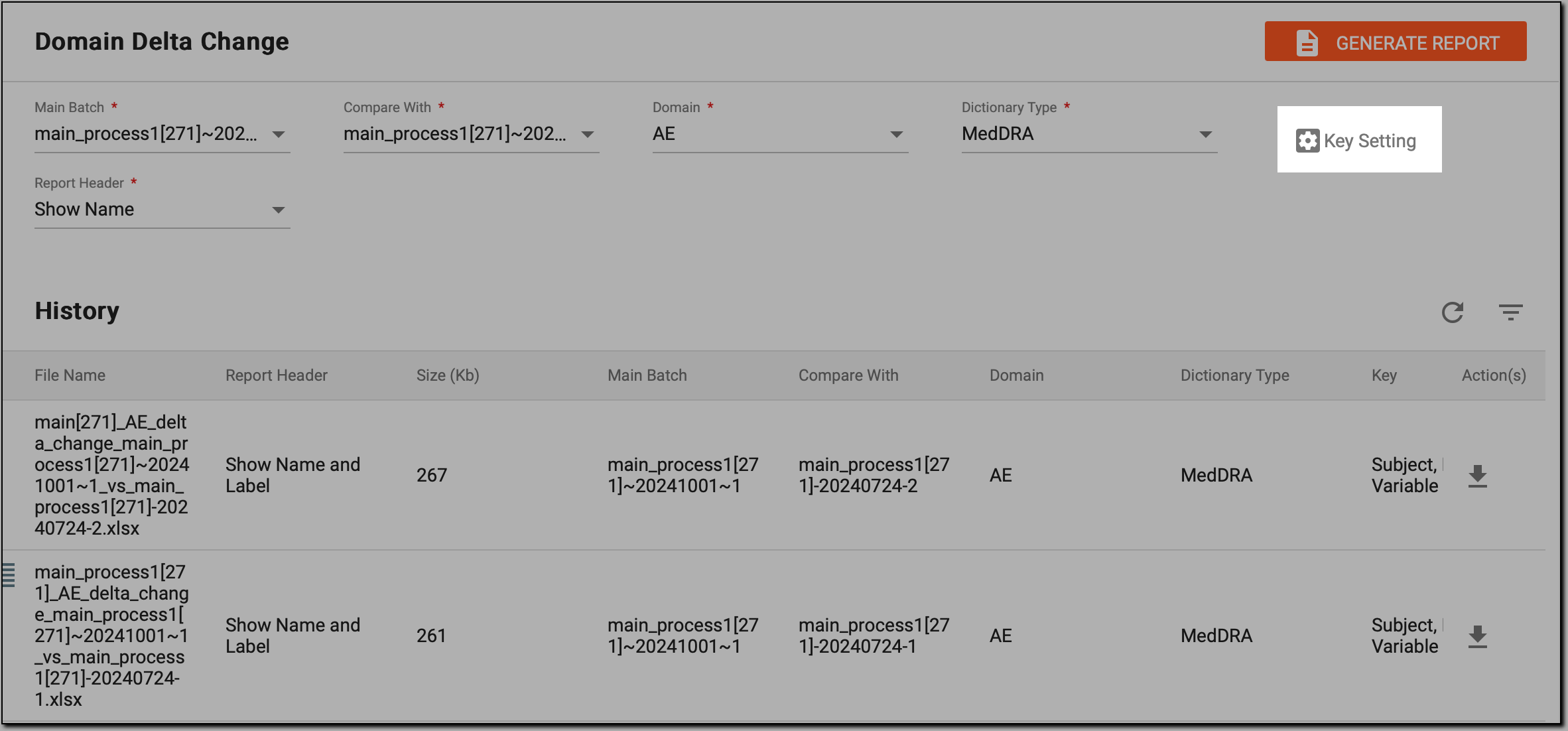 Figure 4. Customizing report parameters
-
In the Key Setting dialog that opens, define the context of the data being compared as explained in the following table.
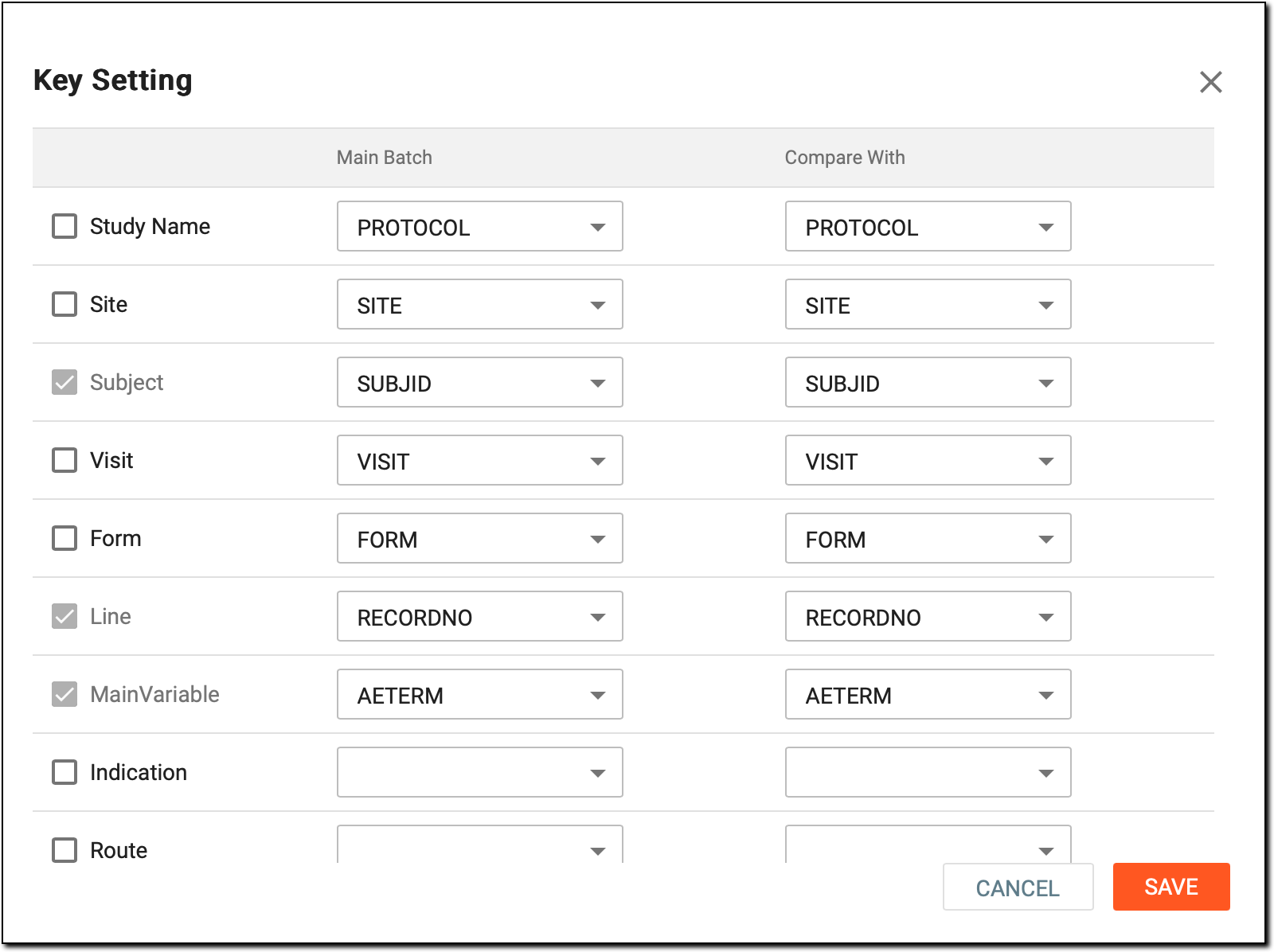 Figure 5. Defining data to compare
Element
Details
Study Name
Specify the study to which the report relates.
Site
Select the site to be included in the report data.
Subject
This field is preselected and inactive, automatically including data for the selected subject only.
Visit
Specify a visit to ensure the report focuses on data from that specific visit.
Form
Select a form to include data captured in that particular form.
Line
This field is preselected and inactive, showing the specific data entry line in the Case Report Form (CRF) where the main variable is located.
MainVariable
This field is preselected and inactive, indicating the primary variable that the report analyzes.
Indication
Specify the indication to include data relevant to a specific medical condition or symptom.
Route
Define the route (administration method) to focus the report on terms associated with that route.
SAVE
Select
 to create the new report.
CANCEL
Select
 to cancel the report generation and dismiss any changes made.
 -
In the upper-right corner, select GENERATE REPORT.
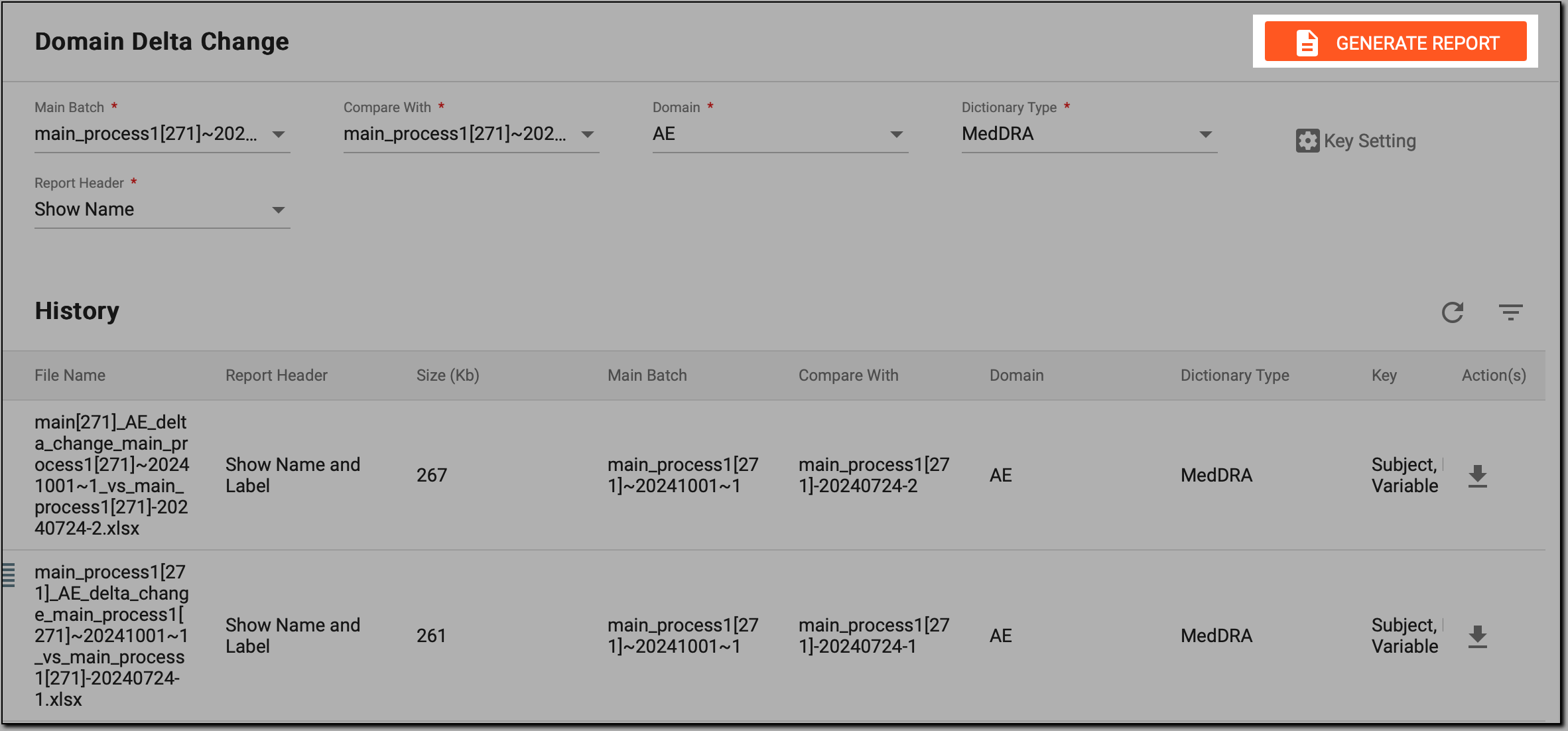 Figure 6. Generating domain delta change report
Once done, the generated report appears in the History table. The newest report is always displayed at the top of the list for easy access. You can download the report in an XLSX format to analyze the results, compare data, and assess changes based on the selected parameters.