View individual manual query details
The Manual Query Details report displays all the manually created queries per visit, form, record, and item. The report includes data on the query status, topic, due and overdue status, replies, users addressing them, and other useful details. For each query in the report, you can open the details and get all the relevant data on one comprehensive page.
Tip
The query details in the report are provided in the site's primary language—which can differ from the study language—as the site's primary language is the original language of data entry and record keeping.
-
In the EDC application header, select the REPORTS tab.
-
On the page that opens, in the left pane, select the Query Report subtab to expand the list of available reports and select Manual Query Details.
-
On the Manual Query Details page, you can adjust your report data with the following options:
-
Display Site Name: turn this toggle on/off to show/hide the Site Name column in your report.
-
Only show activated data: turn this toggle on/off for your report to exclude/include the data on queries that belong to inactivated forms.
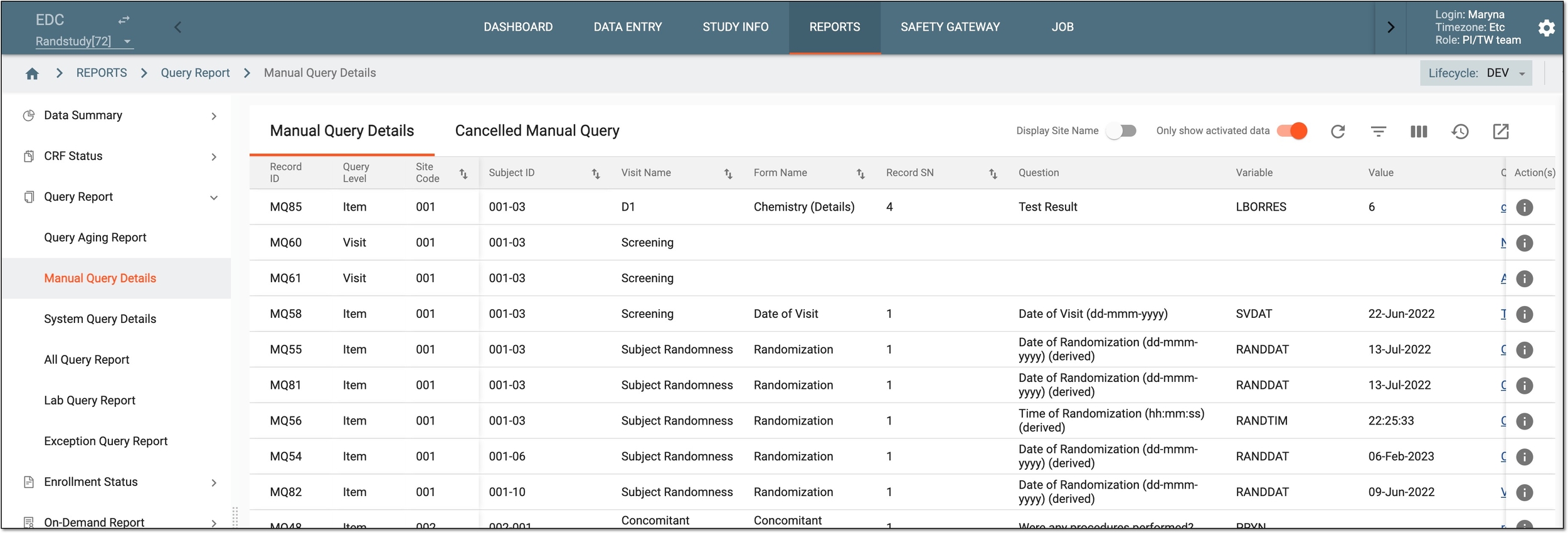 Figure 1. Accessing manual query report
-
-
In the resulting report, locate the manual query whose details you want to access and review. Then in the Action(s) column, select Details
 .
.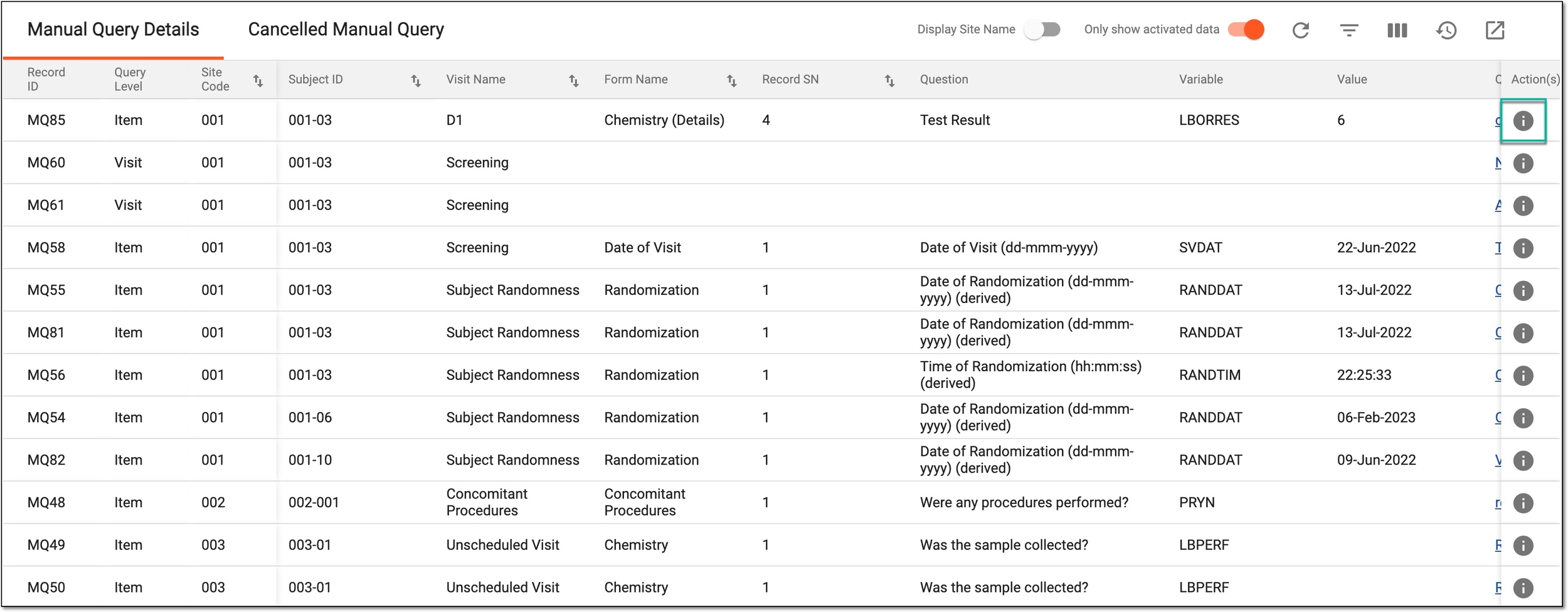 Figure 2. Accessing manual query details
-
On the page that opens, review the query details as explained in the following table.
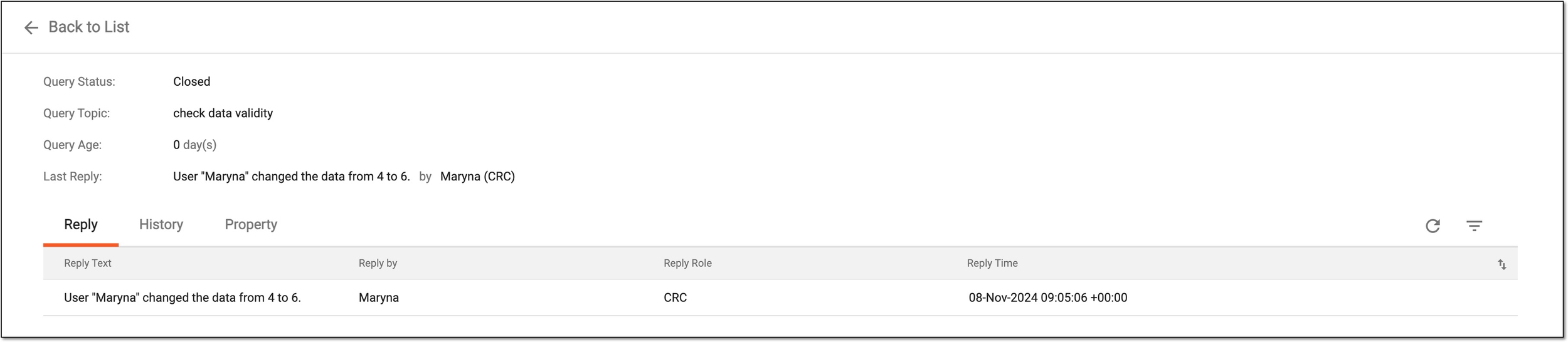 Figure 3. Reviewing manual query details
Element
Details
Query Status
Represents the current status of the manual query in the EDC system.
Query Topic
Represents the topic (inquiry text) of the query.
Query Age
Represents the age of the query—for how many days the query is open and active before it is resolved. The query age can be different from the period passed from the creation date if, for some time, the form to which it belongs was inactivated. The query aging is only calculated when the form of its location is active.
Last Reply
Represents the latest update on the query, such as a user-added or system-generated reply.
Reply
Under this tab, you can review all the replies to a certain query—both user-added and system-generated.
History
Under this tab, you can review the complete history of actions with the query—from it being opened and up to date.
Property
Under this tab, you can study all the query properties, such as:
-
Query ID: represents the unique identification number assigned to the query by the system.
-
Query Level: represents the element for which the query is created in EDC—visit, form, record, or item.
-
Created by: represents the name of the system user who opened the query and their role in brackets.
-
Owner Role: represents the user role currently responsible for opening and handling queries in the EDC system.
-
Assignee Role: represents the role of the user to whom the query is assigned.
-
Expected Days: represents the period (in days) during which an action must be taken on the query by the assignee before the query becomes overdue.
-
Hierarchical structure: represents the details on all levels of elements where the query belongs.
For instance, for the visit-level query, you can see the subject ID, site code, and name of the visit for which the query is created. The deeper the query hierarchy, the more details you find here for a complete understanding of query location.
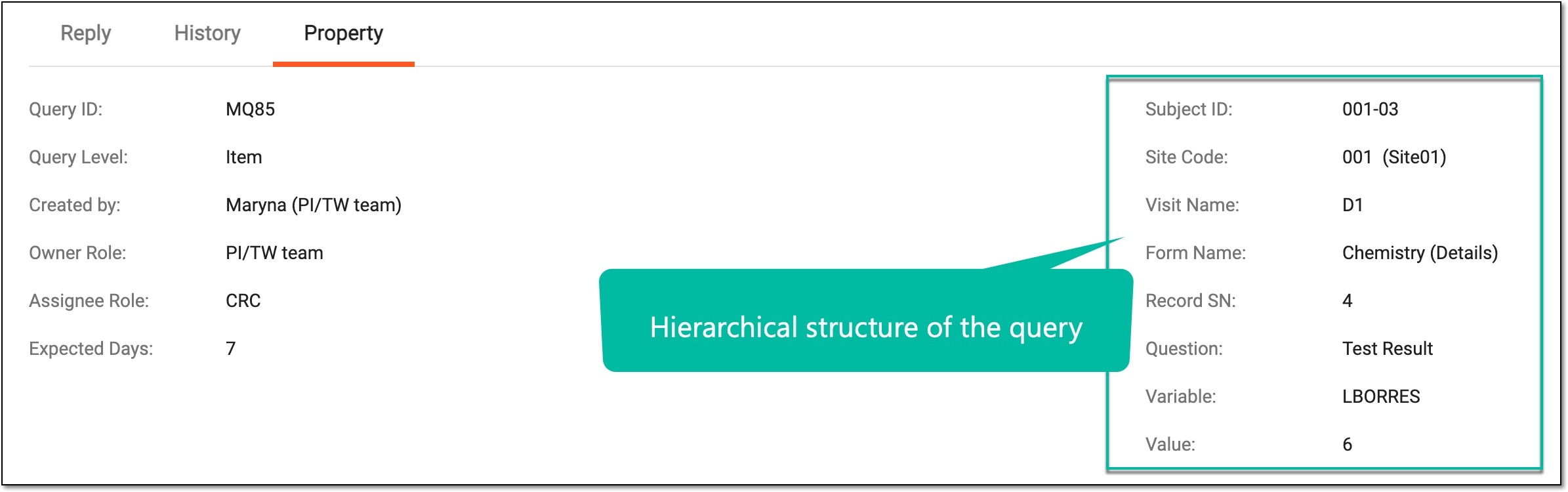 Figure 4. Hierarchical structure of query
-
You have reviewed the details of the query of your interest.