Review summary statistics
The Summary Statistics dashboard shows the statistical charts and visual representation for all the studies of a specific sponsor giving the opportunity to assess various aspects of their investigational processes.
In CTMS, you can analyze your studies' division by therapeutic areas, investigational products, world presence, and more. This helps you build a general picture of the business, outlining your main course of activities and identifying opportunities for improvement.
The summary statistics charts are represented by pie charts and bar charts. Pie charts show the proportions of a whole with each slice representing a category’s contribution to the total. Bar charts compare different categories or groups with each bar representing a category’s value. These charts are best for detecting trends or comparing multiple categories.
-
In the CTMS application header, select the DASHBOARD tab.
-
On the page that opens, select the Study Insights tab.
-
From the Category dropdown menu, select the Summary Statistics category of reports.
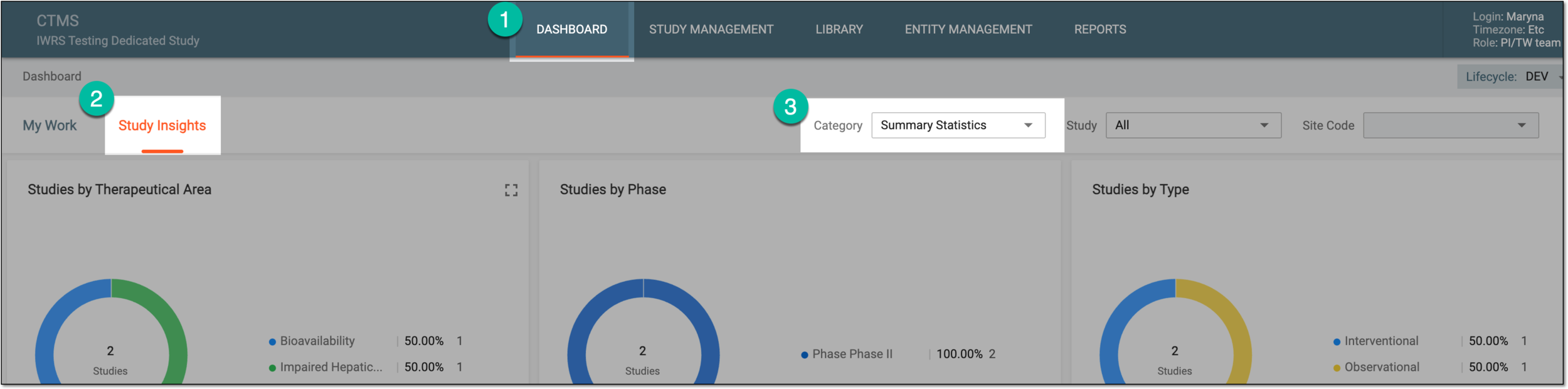 Figure 1. Accessing summary statistics
-
In the charts of the Summary Statistics dashboard, review the data as explained in the following table.
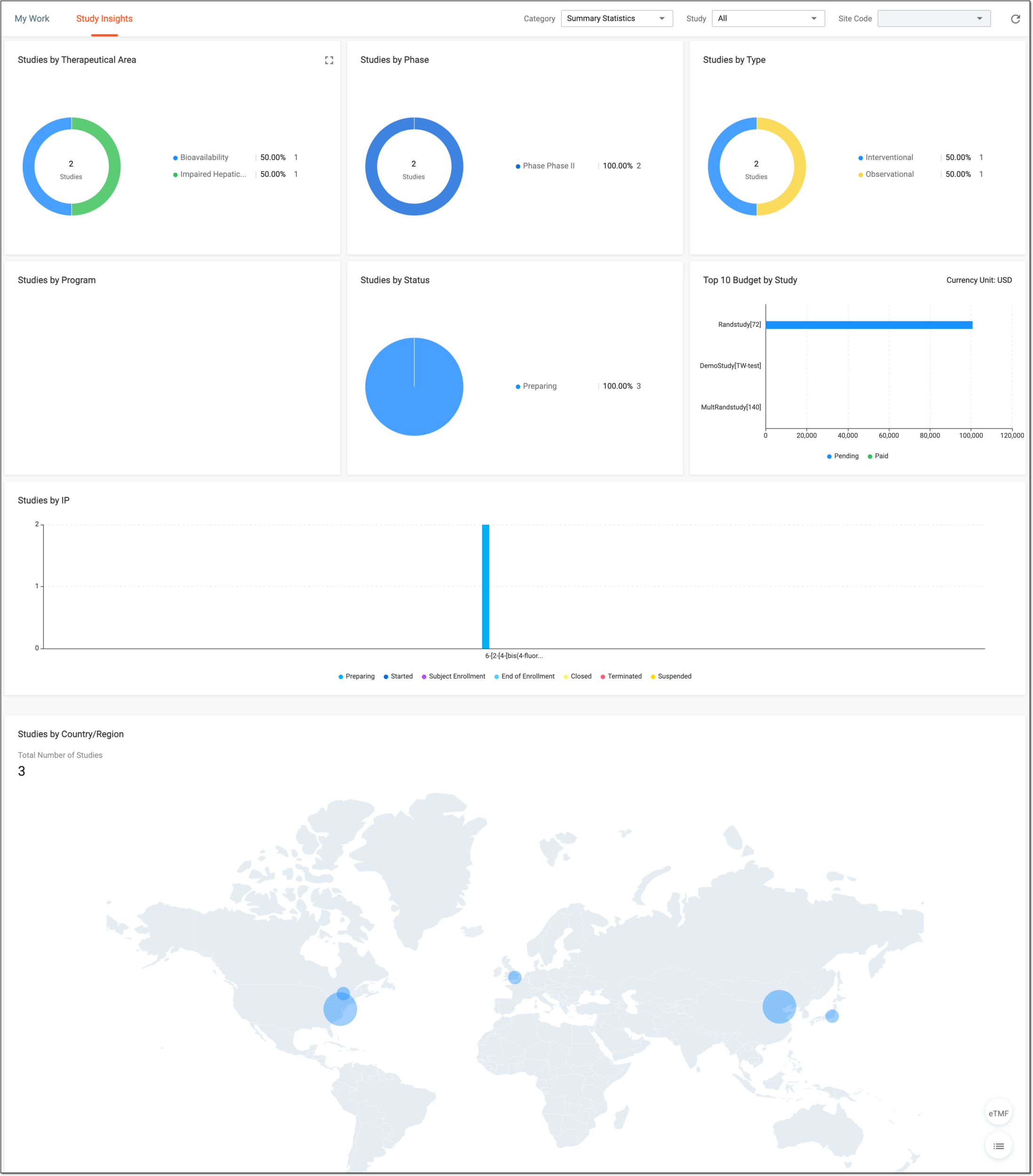 Figure 2. Summary statistics
Chart
Details
Studies by Therapeutical Area
Represents the pie chart and statistical data on all the studies of the sponsor by the therapeutic area specified in the study information.
Studies by Phase
Represents the pie chart and statistical data on all the studies of the sponsor by their phase specified in the study information.
Studies by Type
Represents the pie chart and statistical data on all the studies of the sponsor by their type specified in the study information.
Studies by Program
Represents the pie chart and statistical data on all the studies of the sponsor by their program specified in the study information.
Studies by Status
Represents the pie chart and statistical data on all the studies of the sponsor by their current status set under the Study Data List page.
Top 10 Budget by Study
Represents the bar chart that depicts the ten highest budget figures planned for the study financial operations.
Studies by IP
Represents the bar chart of all the studies of the sponsor by their investigational product specified in the study information.
Studies by Country/Region
Represents the map depicting the geographical presence of the sponsor in the world based on the countries added to the studies.
Tip
Optionally, from the bottom right, you can select the following options:
-
eTMF: select to access the study's overview in the Electronic Trial Master File (eTMF) application.
-
Show Reports
 : select to access the summary statistics data presented in table-view reports for
your convenience. Switch between the available tabs to access and review all the data.
: select to access the summary statistics data presented in table-view reports for
your convenience. Switch between the available tabs to access and review all the data.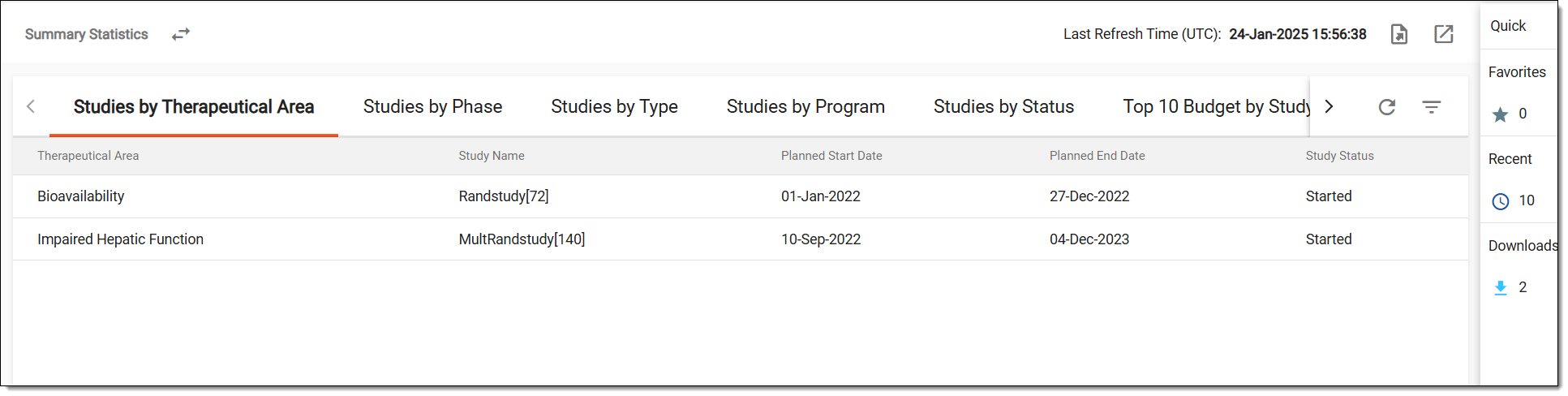 Figure 3. Reviewing summary statistics reports
If required, you can also export the data displayed in this table.
Click Show Charts
 to go back to the chart view.
-
You have reviewed the statistical study summary for a sponsor. You can also export the report details if you prefer working with data offline.