Analyze source document tracker details
The Tracker Details report outlines the current state of source document acquisition in the Source Document module of EDC. Using this report, you can assess per subject how many files are already uploaded and still missing, as well as their current auditing status. From this report, you can also preview any of the available source documents.
-
In the EDC application header, select the REPORTS tab.
-
On the page that opens, from the left pane, select Source Document Tracker.
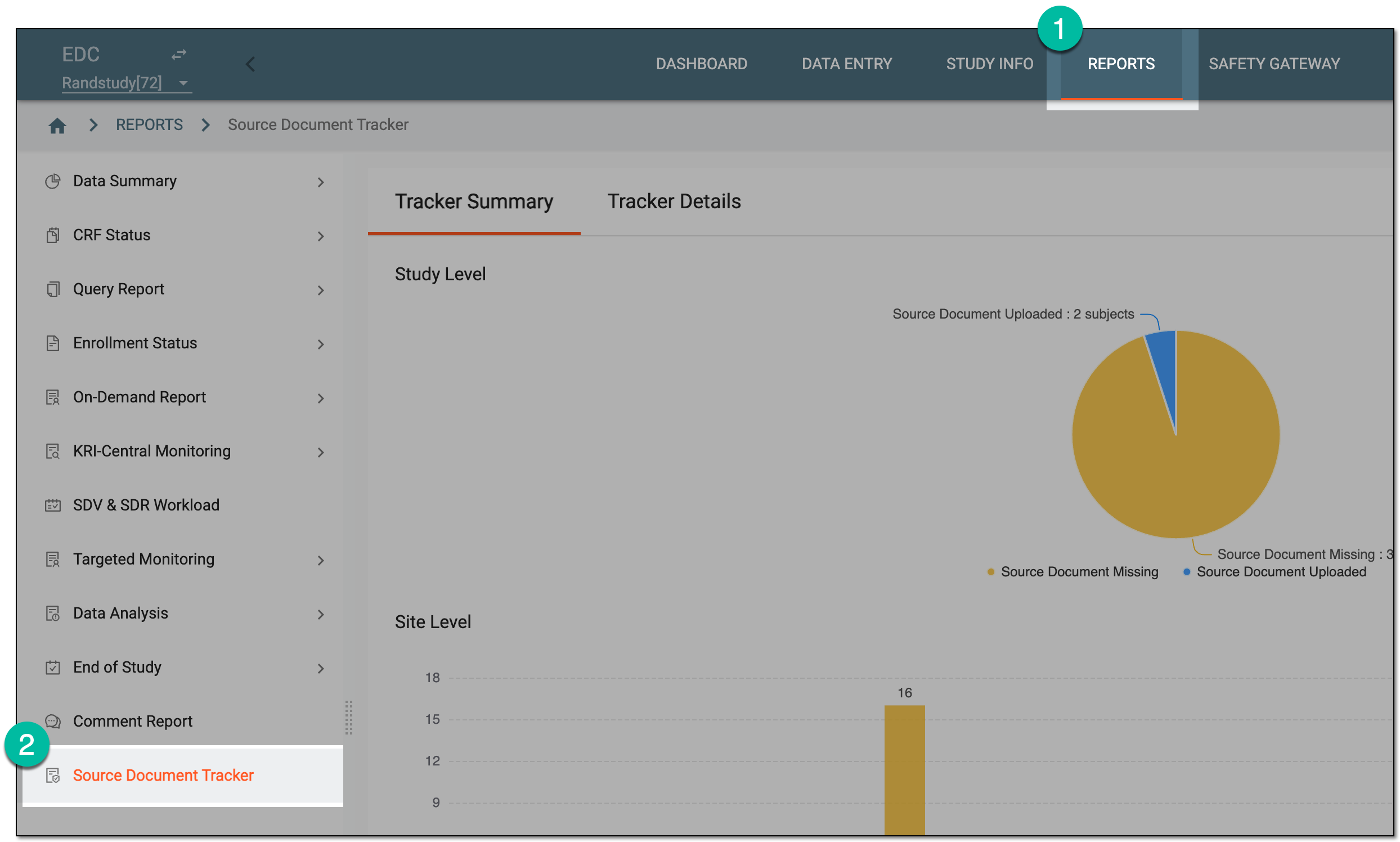 Figure 1. Accessing source document tracker
-
On the page that opens, select the Tracker Details tab and review the statistical data as explained in the following table.
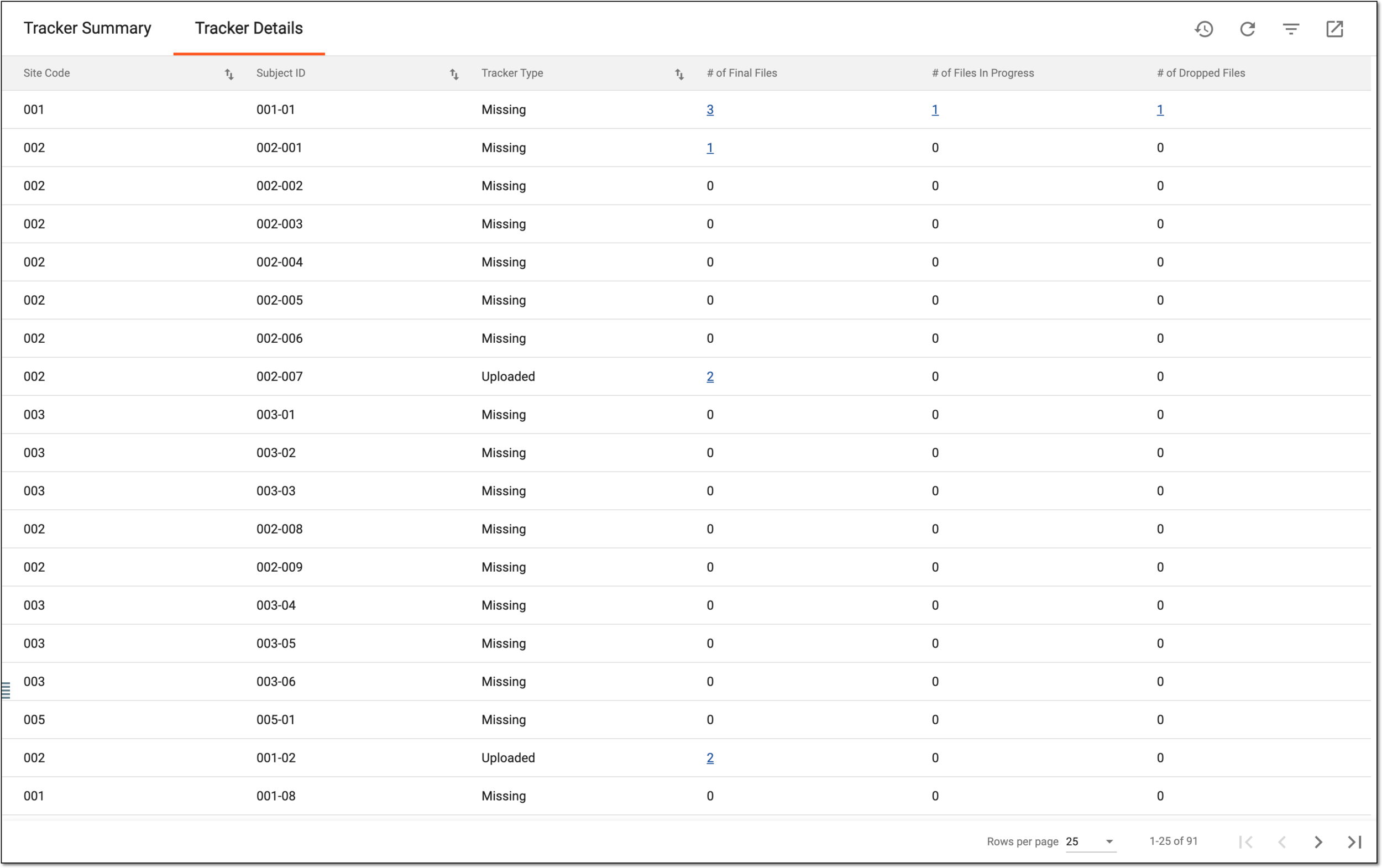 Figure 2. Reviewing source document status statistics
Column
Details
Site Code
Represents the unique identifier of the site at which the source document is already or is to be collected.
[Unique ID Label]
Represents the unique identifier of the subject for whom the source document is already or is to be collected.
The column name depends on the unique ID label configuration of your study in IWRS.If there are additional IDs configured for your study, you see as many such columns as there are IDs.Tracker Type
Represents the current state of the source document acquisition—Uploaded or Missing.
# of Final Files
Represents the total number of files uploaded for the respective subject with the Final status, meaning that the audit is completed and the document is approved by all users in charge.
All numbers except for a zero are active links for you to open the list of respective files and preview
                                  options.
# of Files In Progress
Represents the total number of files uploaded for the respective subject with the Auditing status, meaning that the audit for the document is in progress and the document is not yet verified.
# of Dropped Files
Represents the total number of files uploaded for the respective subject with the Dropped status, meaning that the audit for the document is terminated and the file is considered invalid.
-
Next to the site of your interest, select the link number of the file count.
 Figure 3. Accessing file list
-
In the dialog that appears, review the list of all available documents as explained in the following table.
Tip
The name of the dialog represents the status of the files selected for detailed review. For instance, if you want to review details of the finalized documents for the subject, the open dialog is Final Files.
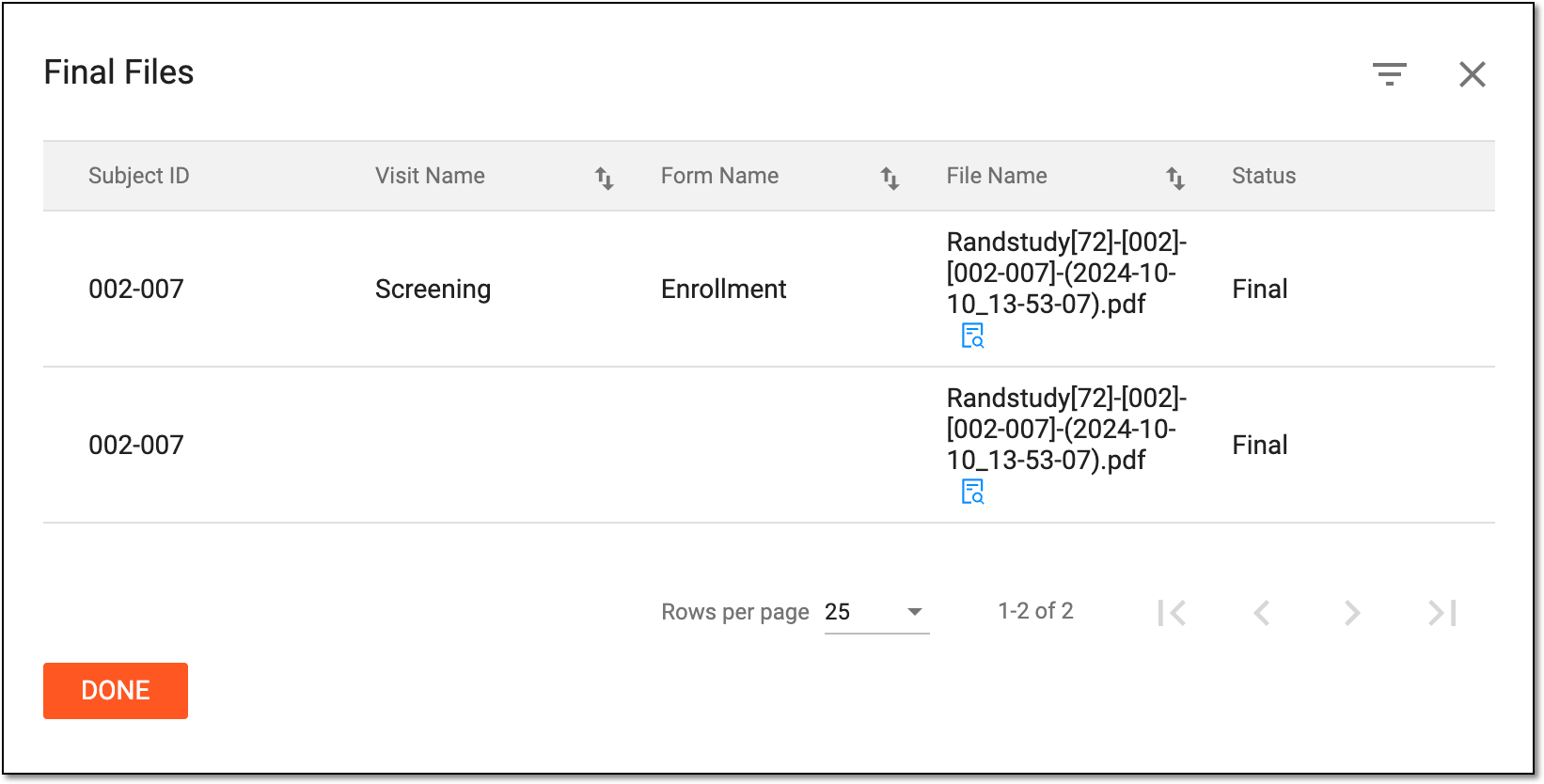 Figure 4. Final file list example
Element
Details
[Unique ID Label]
Represents the unique identifier of the subject for whom the source document is collected.
The column name depends on the unique ID label configuration of your study in IWRS.If there are additional IDs configured for your study, you see as many such columns as there are IDs.Visit Name
Represents the name of the subject visit at which the source document is collected.
Form Name
Represents the name of the case report form (CRF) for which the source document is collected.
File Name
Represents the name of the source document file.
Status
Represents the current auditing status of the file.

Select this symbol next to the needed file to open its content preview in the new browser tab.
DONE
Select
 to close the dialog.
You have reviewed the detailed statistics of the source documents per subject of your study.