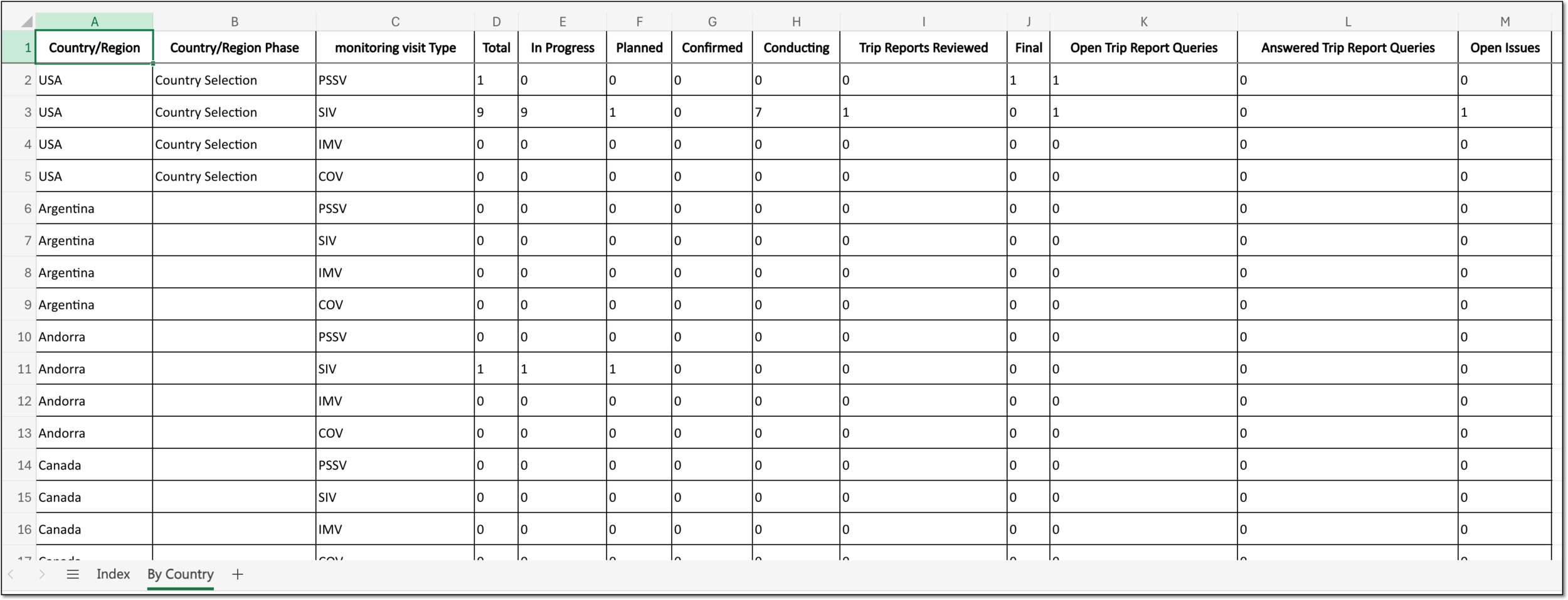
Monitoring visit summary
A monitoring visit refers to an activity when a monitor, usually a clinical research associate (CRA), visits sites to review and verify study-related activities, including data collection, patient safety, and adherence to the study protocol. The monitor also verifies that the study is conducted in compliance with relevant regulatory requirements and GCP guidelines.
The CTMS application contains a set of tools to plan, schedule, and track monitoring visits. A monitoring visit summary report is one of the tracking instruments that helps you assess monitoring activity for your entire study and by specific categories. With this report's data, you can review the number of monitoring visits performed in your study, get precise statistics on specific visit types, generate the summary by country or site, and more.
A Monitoring Visit Summary report is a useful analitical instrument that helps you assess monitoring visits for your entire study and by specific categories. In this section, you can learn how to use and interpret the report data organized by countries involved in your study.
-
Access the study management page in one of the following ways:
-
In the CTMS application header, select the DASHBOARD tab and then select the study dashboard of your interest.
 Figure 1. Accessing study management from dashboard
-
In the CTMS application header, select the STUDY MANAGEMENT tab. Then from the Study Data List table, select the study name of your interest.
 Figure 2. Accessing study management from study data list
-
-
On the study page that opens, in the left pane, expand Monitoring and select Monitoring Visit Summary.
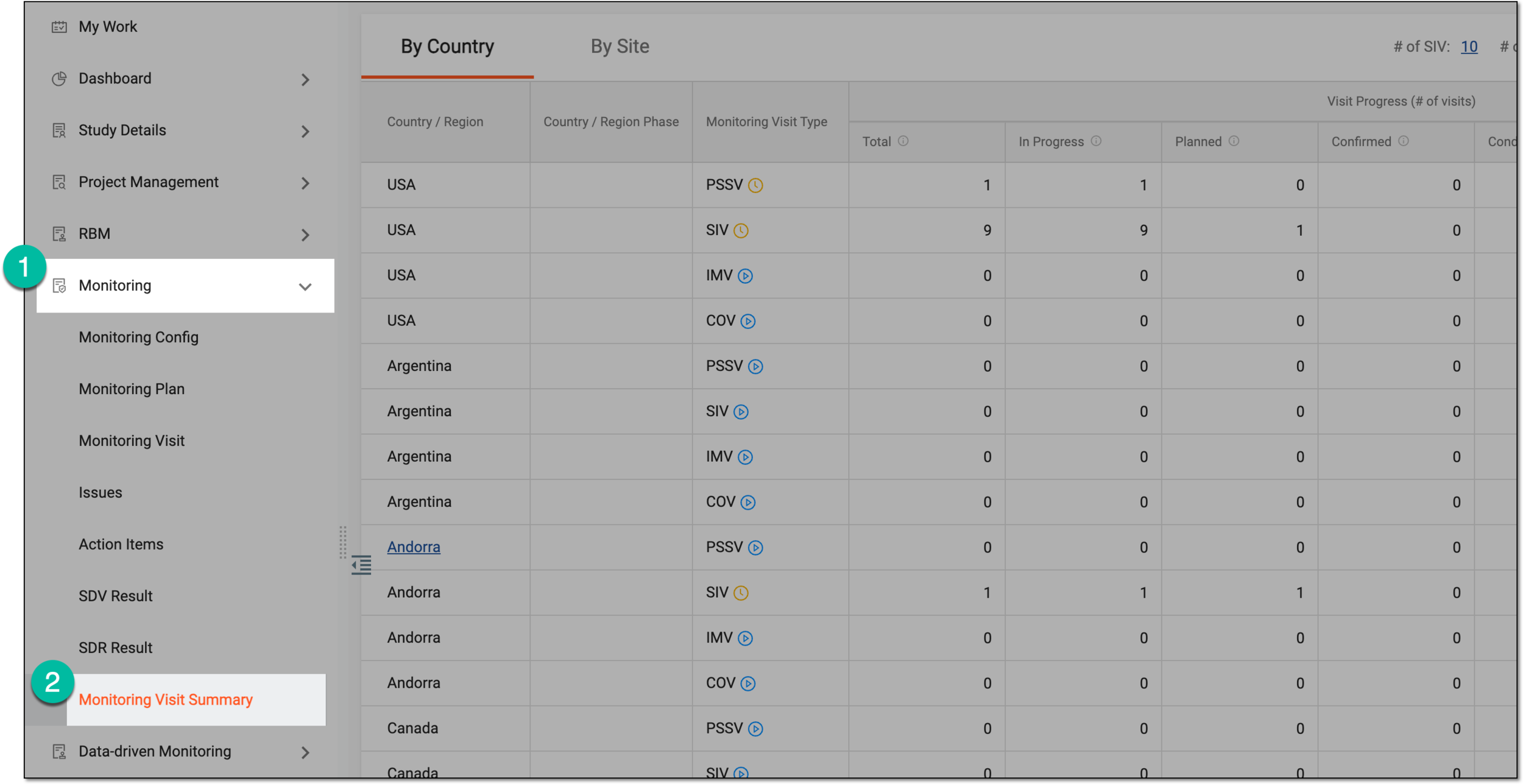 Figure 3. Accessing monitoring visit summary
-
On the page that opens, under the By Country tab, review the report details as explained in the following table.
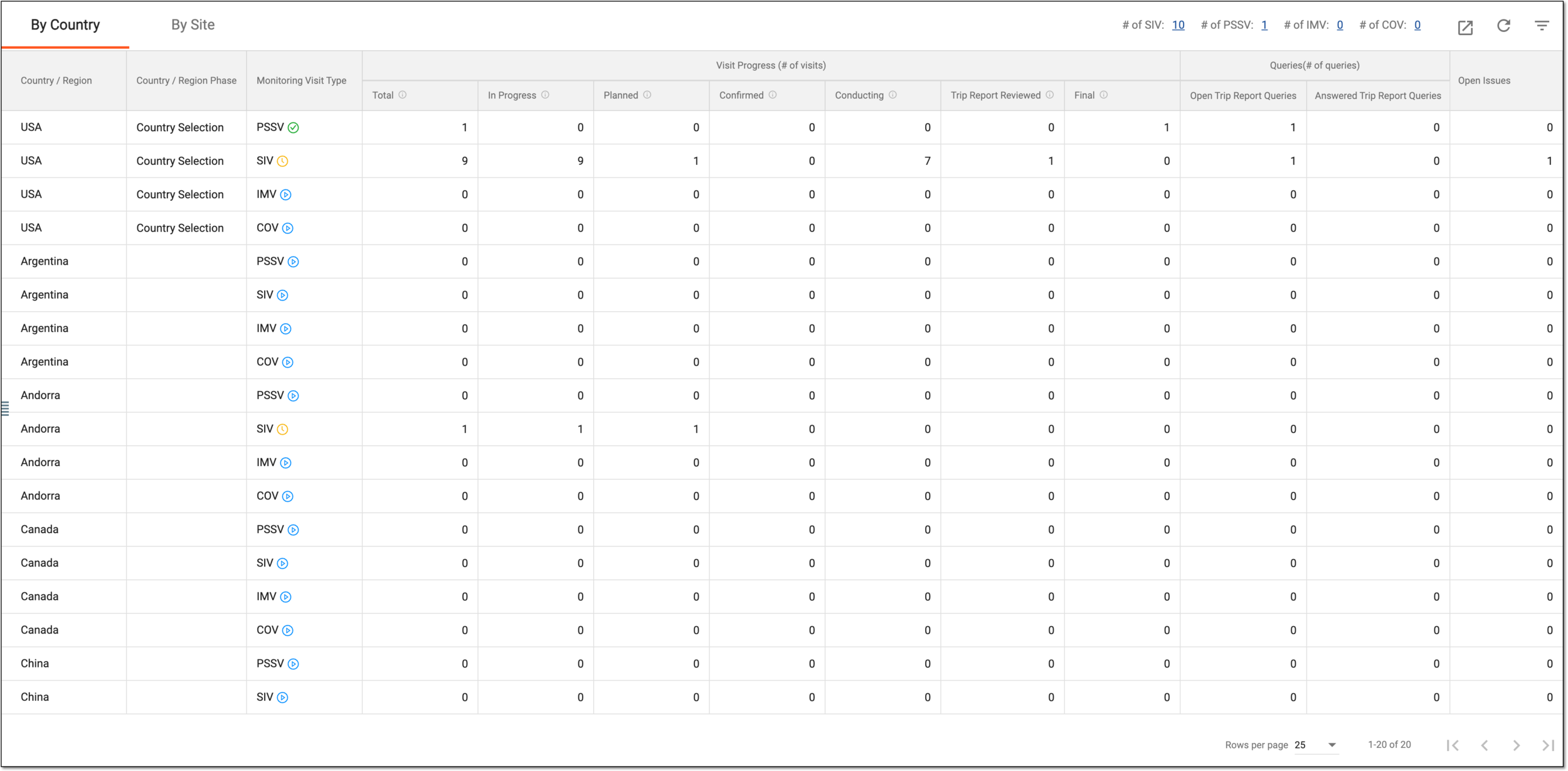 Figure 4. Reviewing monitoring visit summary by country
Tip
You can sort the report data by monitoring visit type using the workspace toolbar filters. Simply select the number next to the category of your interest, and the report is filtered accordingly. To discard filtering, from the workspace toolbar, select
 .
.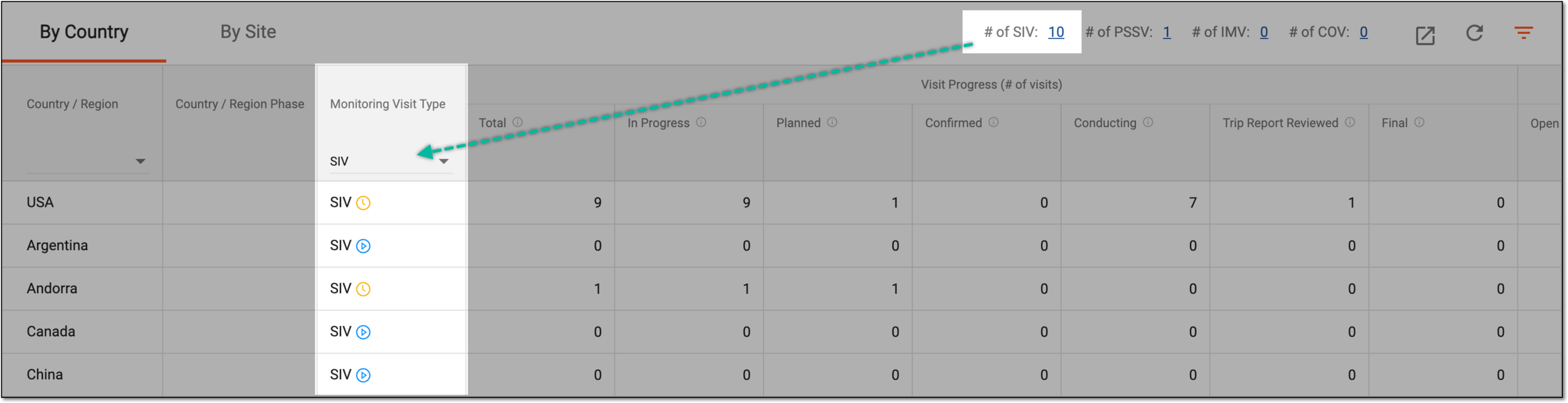 Figure 5. Filtering monitoring visit summary by type
Column
Details
Country / Region
Represents the country of the site location where the monitoring visit takes place.
Select the country value to expand the action menu with the following options:
-
Go to 'Monitoring Visit': select this option to open the Monitoring Visit list in a new browser tab. The monitoring visit list is automatically sorted out by sites located in the selected country.
-
Go to 'By Site' Tab: select this option to go to the By Site tab of the monitoring visit summary report. The list is automatically sorted out by the selected country.
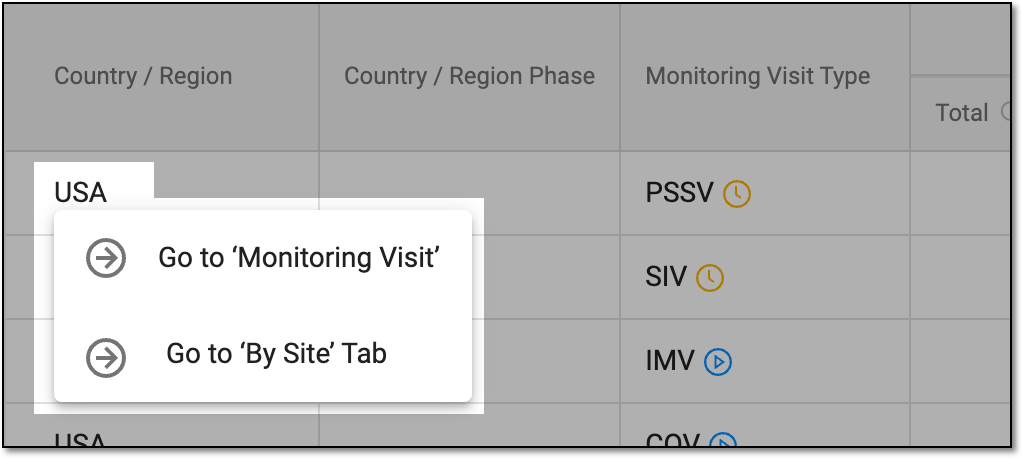 Figure 6. Monitoring visit country actions
Country / Region Phase
Represents the current phase of the country, such as screening, termination, or else, that is set from the Country / Region List page.
Select the country phase value to expand the action menu with the following options:
-
Go to 'Monitoring Visit': select this option to open the Monitoring Visit list in a new browser tab. The monitoring visit list is automatically sorted out by sites located in the selected country.
-
Go to 'By Site' Tab: select this option to go to the By Site tab of the monitoring visit summary report. The list is automatically sorted out by the selected country.
Monitoring Visit Type
Represents the type of monitoring visit and can be one of the following: PSSV (Pre-Study Site Visit), SIV (Site Initiation Visit), IMV (Interim Monitoring Visit), or COV (Close Out Visit).
The icon next to the monitoring visit represents the visit status: Not Started
 , Incomplete
  , or Completed
  .
.Select the visit type value to expand the action menu with the following options:
-
Go to 'Monitoring Visit': select this option to open the Monitoring Visit list in a new browser tab. The list is automatically sorted out by the selected monitoring visit type and sites located in the country from the preceding column.
-
Go to 'By Site' Tab: select this option to go to the By Site tab of the monitoring visit summary report. The list is automatically sorted out by the selected visit type and country from the preceding column.
Visit Progress (# of visits)
Represents the total number of visits for the specific country and monitoring type as well as visit number per status—In Progress, Planned, Confirmed, Conducting, Trip Report Reviewed, and Final.
Select any number (except zero) to expand the action menu with the following options:
-
Go to 'Monitoring Visit': select this option to open the Monitoring Visit list in a new browser tab. The list is automatically sorted out by the selected visit status, as well as monitoring visit type and sites located in the country from the preceding columns.
-
Go to 'By Site' Tab: select this option to go to the By Site tab of the monitoring visit summary report. The list is automatically sorted out by the selected visit status, as well as visit type and country from the preceding columns.
Queries(# of queries)
Represents the total number of open and answered queries for the monitoring visit trip report.
Select any number (except zero) to expand the action menu with the following options:
-
Go to 'Trip Report Queries': select this option to open the Trip Report Queries list in a new browser tab. The list is automatically sorted out by the selected query status—open or answered—as well as monitoring visit type and sites located in the country from the preceding columns.
-
Go to 'By Site' Tab: select this option to go to the By Site tab of the monitoring visit summary report. The list is automatically sorted out by the selected query status, as well as visit type and country from the preceding columns.
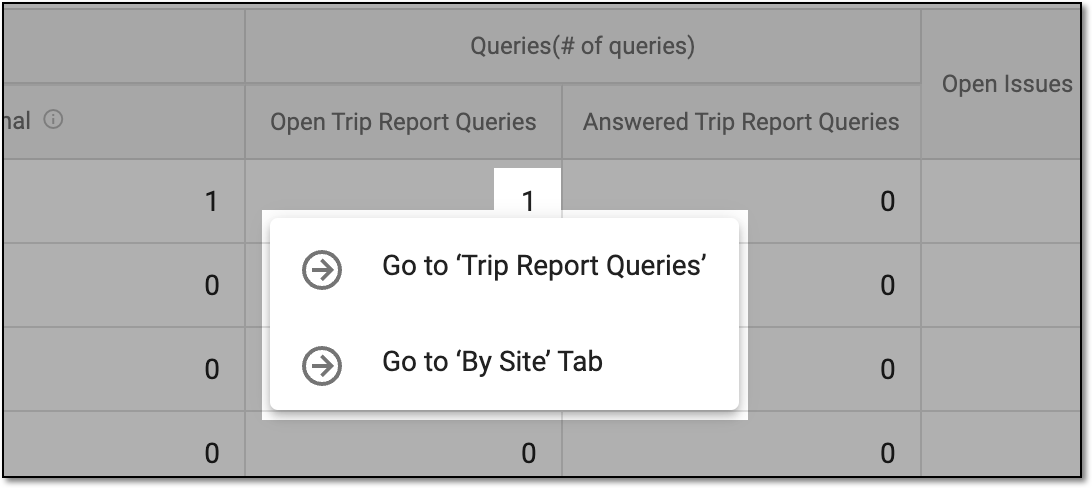 Figure 7. Trip report query actions
Open Issues
Represents the total number of open issues of the monitoring visit.
Select any number (except zero) to expand the action menu with the following options:
-
Go to 'Issue': select this option to open the Issue List page in a new browser tab. The list is automatically sorted out by the selected issue.
-
Go to 'By Site' Tab: select this option to go to the By Site tab of the monitoring visit summary report. The list is automatically sorted out by the selected issue.
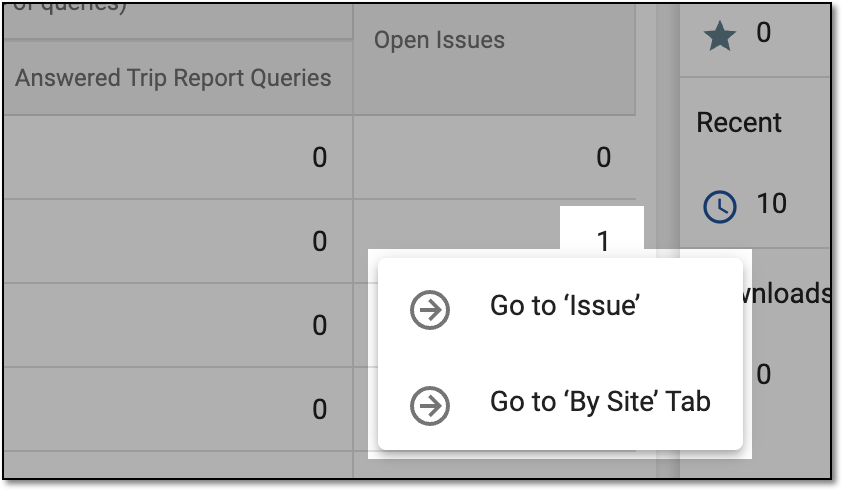 Figure 8. Open issue actions
-
You have reviewed the monitoring visit summary report organized by country.
A Monitoring Visit Summary report is a useful analitical instrument that helps you assess monitoring visits for your entire study and by specific categories. In this section, you can learn how to use and interpret the report data organized by sites involved in your study.
-
Access the study management page in one of the following ways:
-
In the CTMS application header, select the DASHBOARD tab and then select the study dashboard of your interest.
Figure 1. Accessing study management from dashboard
-
In the CTMS application header, select the STUDY MANAGEMENT tab. Then from the Study Data List table, select the study name of your interest.
Figure 2. Accessing study management from study data list
-
-
On the study page that opens, in the left pane, expand Monitoring and select Monitoring Visit Summary.
Figure 3. Accessing monitoring visit summary
-
On the page that opens, select the By Site tab and review the report details as explained in the following table.
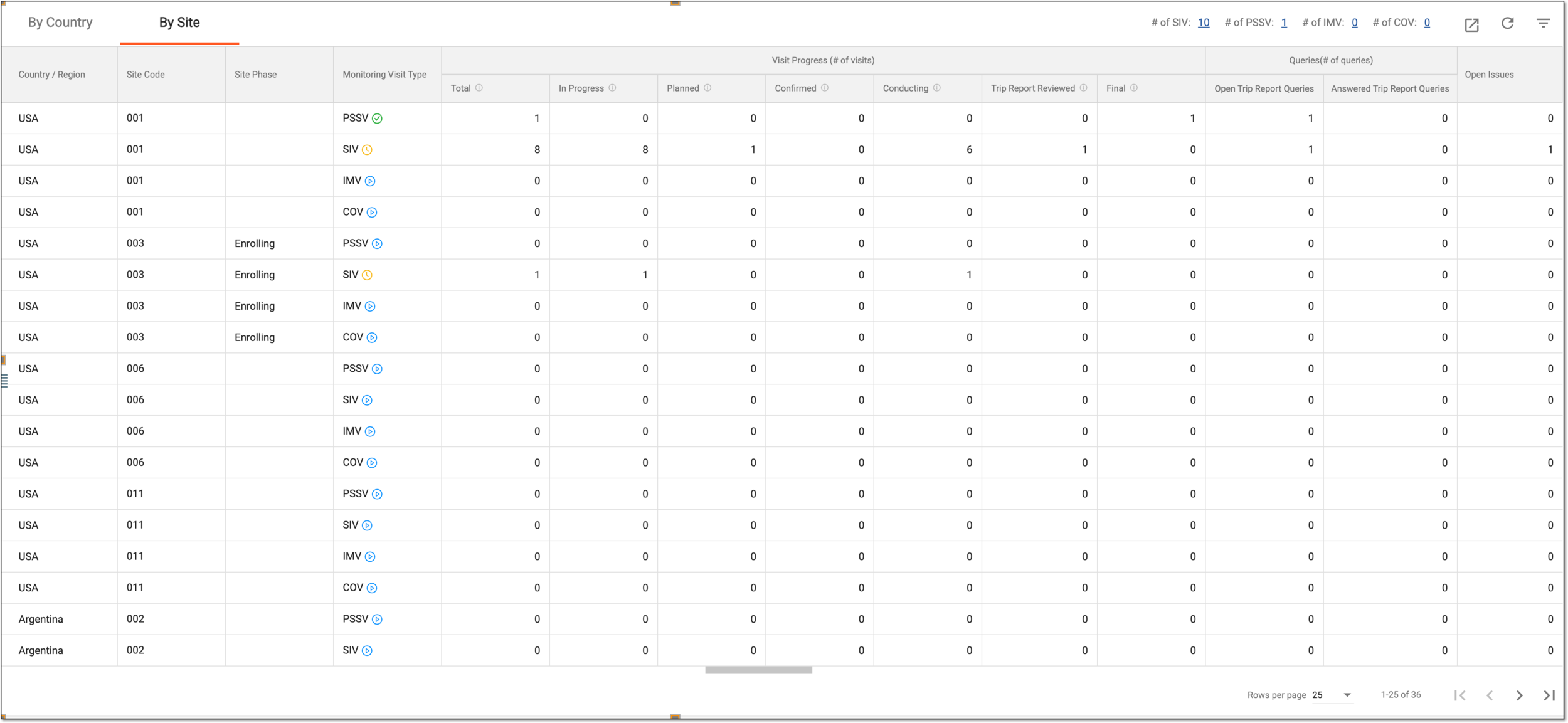 Figure 4. Reviewing monitoring visit summary by site
Tip
You can sort the report data by monitoring visit type using the workspace toolbar filters. Simply select the number next to the category of your interest, and the report is filtered accordingly. To discard filtering, from the workspace toolbar, select
. Figure 5. Filtering monitoring visit summary by type
Column
Details
Country / Region
Represents the country of the site location where the monitoring visit takes place.
Select the country value to expand the action menu with the following options:
-
Go to 'Monitoring Visit': select this option to open the Monitoring Visit list in a new browser tab. The monitoring visit list is automatically sorted out by the site indicated in the following column.
-
Go to 'By Country' Tab: select this option to go to the By Country tab of the monitoring visit summary report. The list is automatically sorted out by the selected country.
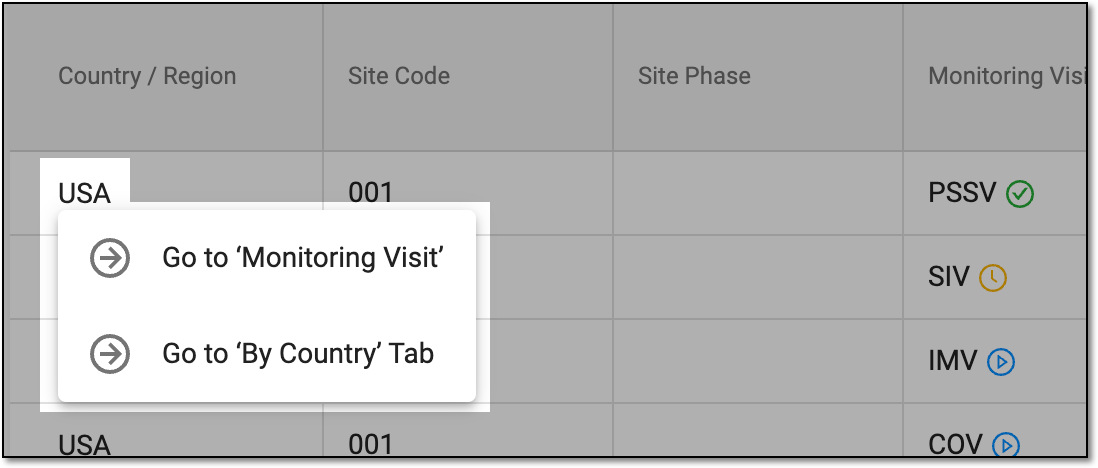 Figure 6. Monitoring visit country actions
Site Code
Represents the unique identification code of the site where the monitoring visit takes place.
Select the site code value to expand the action menu with the following options:
-
Go to 'Monitoring Visit': select this option to open the Monitoring Visit list in a new browser tab. The monitoring visit list is automatically sorted out by the selected site.
-
Go to 'By Country' Tab: select this option to go to the By Country tab of the monitoring visit summary report. The list is automatically sorted out by the country of the selected site location.
Site Phase
Represents the current phase of the site, such as screening, enrollment, completion, or else, that is set from the Site List page.
Select the site phase value to expand the action menu with the following options:
-
Go to 'Monitoring Visit': select this option to open the Monitoring Visit list in a new browser tab. The monitoring visit list is automatically sorted out by the selected site.
-
Go to 'By Country' Tab: select this option to go to the By Country tab of the monitoring visit summary report. The list is automatically sorted out by the country of the selected site location.
Monitoring Visit Type
Represents the type of monitoring visit and can be one of the following: PSSV (Pre-Study Site Visit), SIV (Site Initiation Visit), IMV (Interim Monitoring Visit), or COV (Close Out Visit).
The icon next to the monitoring visit represents the visit status: Not Started
, Incomplete , or Completed .Select the visit type value to expand the action menu with the following options:
-
Go to 'Monitoring Visit': select this option to open the Monitoring Visit list in a new browser tab. The list is automatically sorted out by the selected monitoring visit type and site from the preceding column.
-
Go to 'By Country' Tab: select this option to go to the By Country tab of the monitoring visit summary report. The list is automatically sorted out by the selected visit type and the country of the selected site location.
Visit Progress (# of visits)
Represents the total number of visits for the specific site and monitoring type as well as visit number per status—In Progress, Planned, Confirmed, Conducting, Trip Report Reviewed, and Final.
Select any number (except zero) to expand the action menu with the following options:
-
Go to 'Monitoring Visit': select this option to open the Monitoring Visit list in a new browser tab. The list is automatically sorted out by the selected visit status, as well as monitoring visit type and site from the preceding column.
-
Go to 'By Country' Tab: select this option to go to the By Country tab of the monitoring visit summary report. The list is automatically sorted out by the selected visit status, as well as visit type and the country of the selected site location.
Queries(# of queries)
Represents the total number of open and answered queries for the monitoring visit trip report.
Select any number (except zero) to expand the action menu with the following options:
-
Go to 'Trip Report Queries': select this option to open the Trip Report Queries list in a new browser tab. The list is automatically sorted out by the selected query status—open or answered—as well as monitoring visit type and site from the preceding column.
-
Go to 'By Country' Tab: select this option to go to the By Country tab of the monitoring visit summary report. The list is automatically sorted out by the selected query status, as well as visit type and the country of the selected site location.
Figure 7. Trip report query actions
Open Issues
Represents the total number of open issues of the monitoring visit.
Select any number (except zero) to expand the action menu with the following options:
-
Go to 'Issue': select this option to open the Issue List page in a new browser tab. The list is automatically sorted out by the selected issue.
-
Go to 'By Country' Tab: select this option to go to the By Country tab of the monitoring visit summary report. The list is automatically sorted out by the selected issue.
Figure 8. Open issue actions
-
You have reviewed the monitoring visit summary report organized by site.
Monitoring Visit Summary is a tracking instrument that helps you assess monitoring visit details for your entire study and by specific categories—by countries or sites of location, monitoring types, and so on.
For your convenience, you can export the monitoring visit summary by country or site as an XLSX file to work with it offline or share it with third parties who have no access to the CTMS application.
-
Access the study management page in one of the following ways:
-
In the CTMS application header, select the DASHBOARD tab and then select the study dashboard of your interest.
Figure 1. Accessing study management from dashboard
-
In the CTMS application header, select the STUDY MANAGEMENT tab. Then from the Study Data List table, select the study name of your interest.
Figure 2. Accessing study management from study data list
-
-
On the study page that opens, in the left pane, expand Monitoring and select Monitoring Visit Summary.
Figure 3. Accessing monitoring visit summary
-
On the page that opens, select the By Country or By Site tab. Then from the workspace toolbar, select Export
 .
.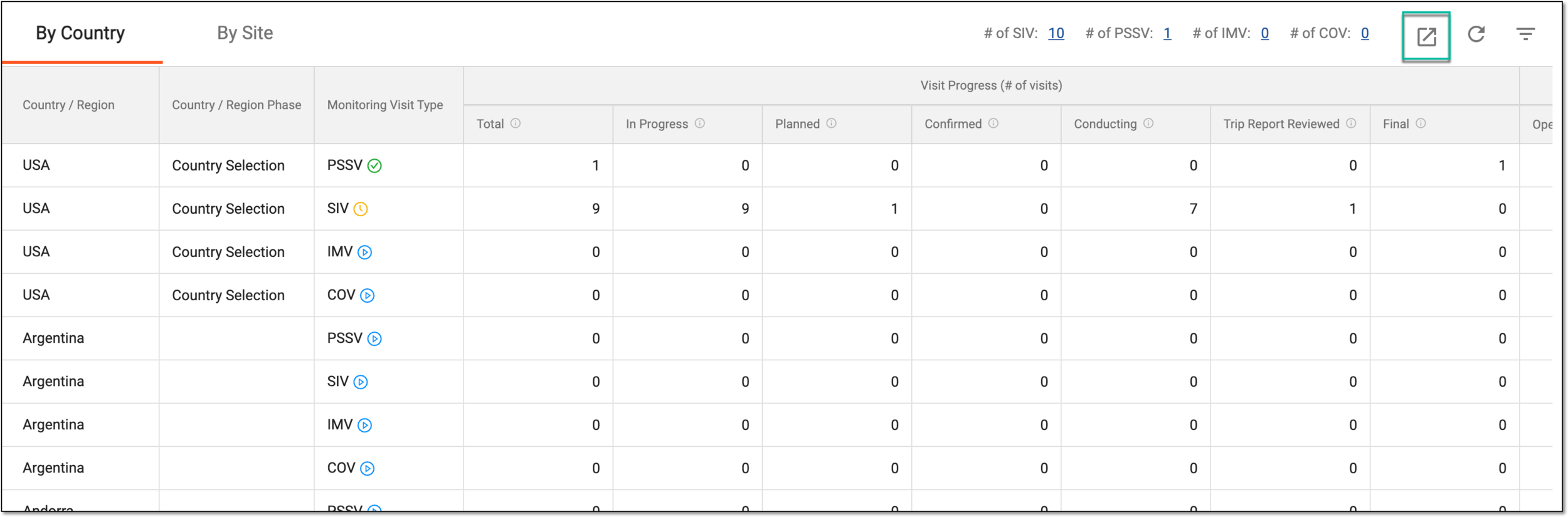 Figure 4. Exporting monitoring visit summary
Tip
You can sort the report data by monitoring visit type using the workspace toolbar filters. Simply select the number next to the category of your interest, and the report is filtered accordingly. If filtered, the exported report contains only selective data.
Figure 5. Filtering monitoring visit summary by type
To discard filtering, from the workspace toolbar, select
.
Once the file is exported, it is downloaded to your computer as an XLSX file.