SDV and SDR result
Source Data Verification (SDV) involves the review and comparison of data recorded in the source documents such as laboratory results, medical history, adverse event records, and so on against the data captured on the case report forms (CRFs).
Source Data Review (SDR) refers to a comprehensive review of the collected data to evaluate its quality, consistency, and compliance with the study protocol, standard operating procedure, and regulatory requirements.
In eClinical, SDV and SDR are conducted in EDC for different forms and form items, and in CTMS, you can analyze and extract the result records as explained in the following sections.
In CTMS, you can analyze the extensive data on the results of SDV conducted in EDC for different forms and form items. The SDV result records reflect the most current state of this process.
Important
The SDV result report contents depend on the SDV type selected for the study in EDC—global, general, or target.
-
Access the study management page in one of the following ways:
-
In the CTMS application header, select the DASHBOARD tab and then select the study dashboard of your interest.
 Figure 1. Accessing study management from dashboard
-
In the CTMS application header, select the STUDY MANAGEMENT tab. Then from the Study Data List table, select the study name of your interest.
 Figure 2. Accessing study management from study data list
-
-
On the study page that opens, in the left pane, expand Monitoring and select SDV Result.
-
In the SDV Result table that appears, view the full list of all SDV result records under the Form tab.
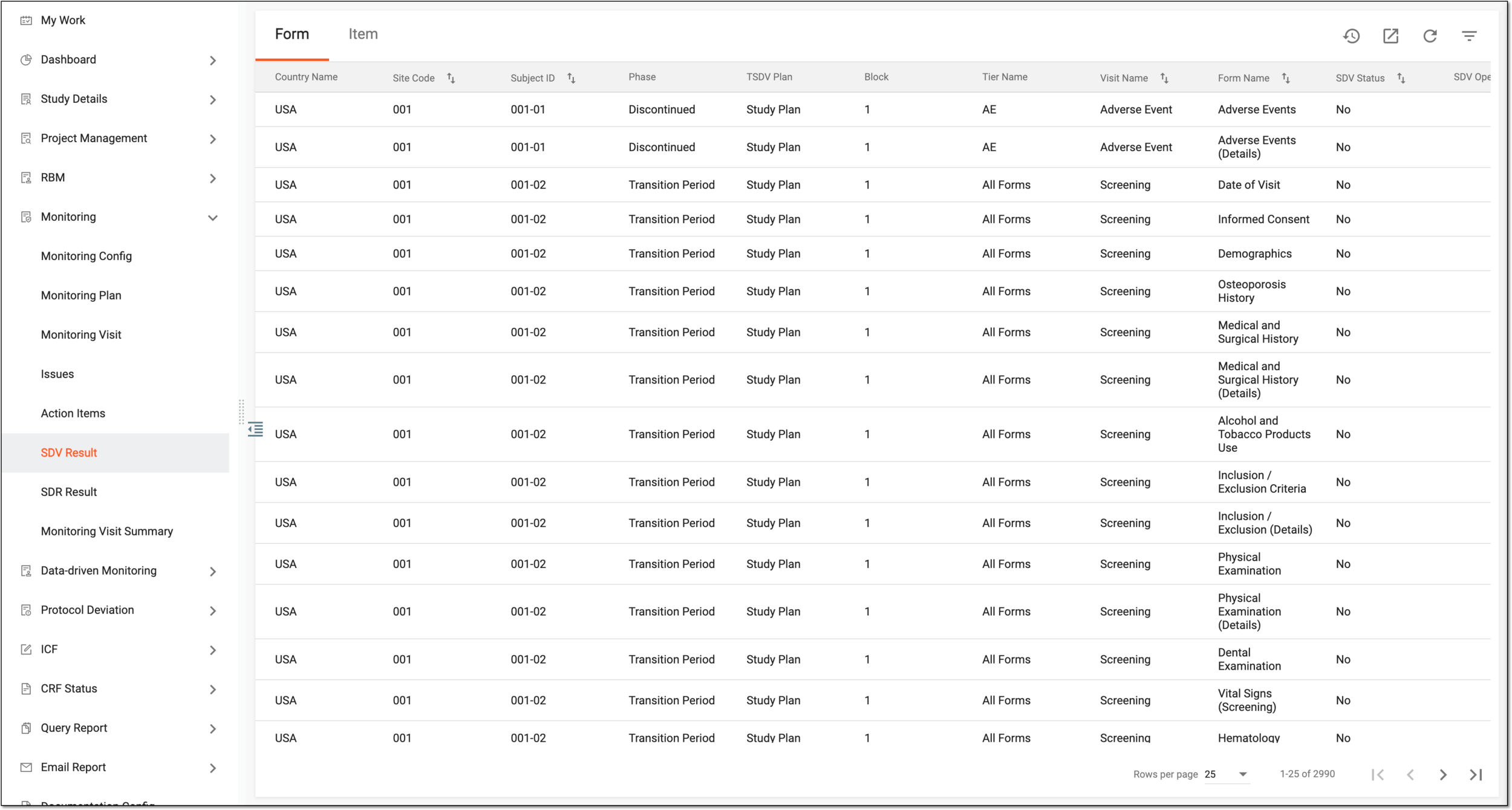 Figure 3. Viewing SDV result records for forms
-
Switch to the Item tab to view the list of SDV result records for different form items.
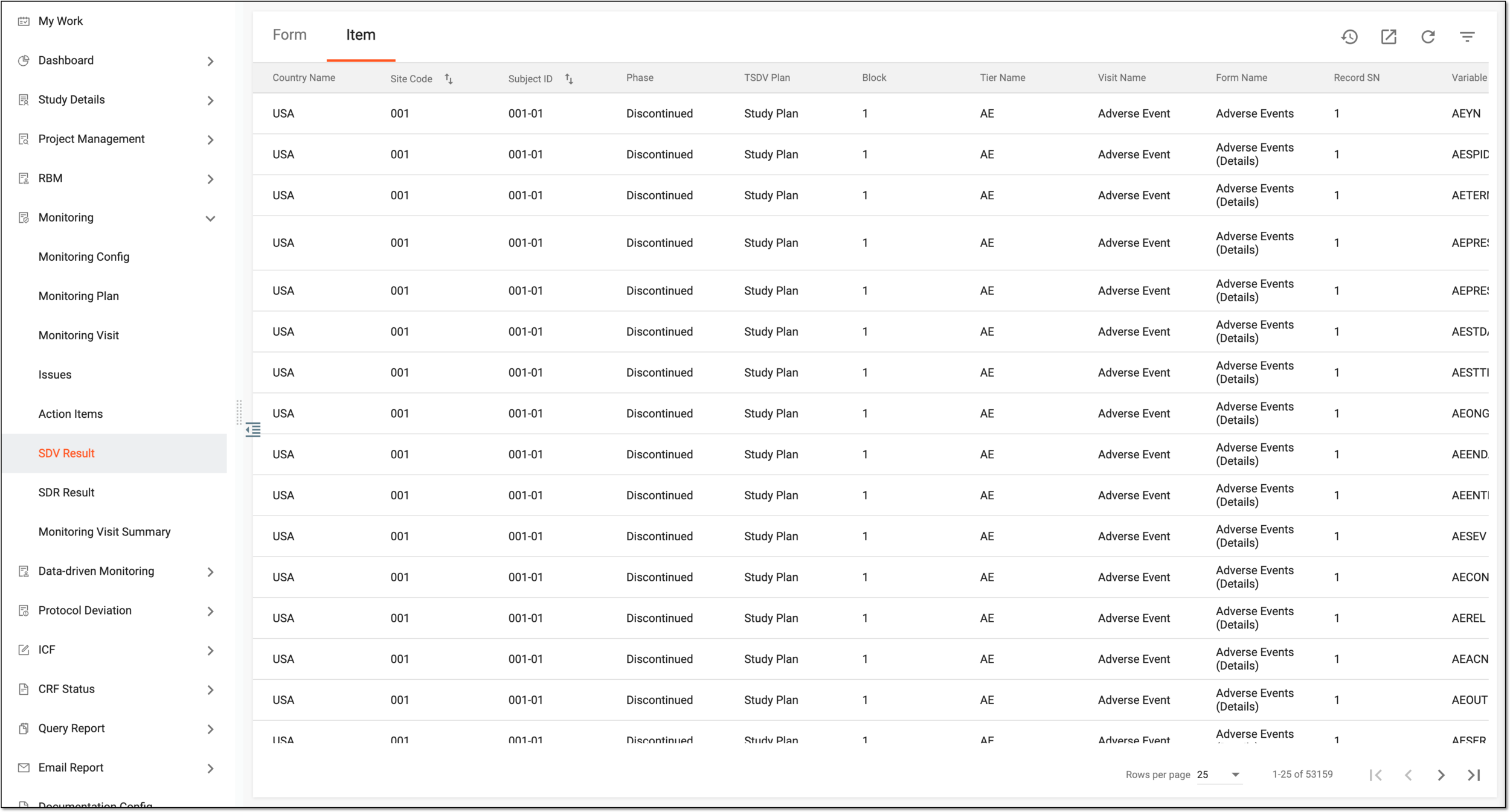 Figure 4. Viewing SDV result records for form items
You have viewed SDV result records in CTMS.
In CTMS, you can extract the extensive data on the results of SDV conducted in EDC for different forms and form items. The extracted file in the XLSX format contains the most current SDV result records to date.
-
Access the study management page in one of the following ways:
-
In the CTMS application header, select the DASHBOARD tab and then select the study dashboard of your interest.
Figure 1. Accessing study management from dashboard
-
In the CTMS application header, select the STUDY MANAGEMENT tab. Then from the Study Data List table, select the study name of your interest.
Figure 2. Accessing study management from study data list
-
-
In the left pane of the page that opens, expand Monitoring and select the SDV Result tab.
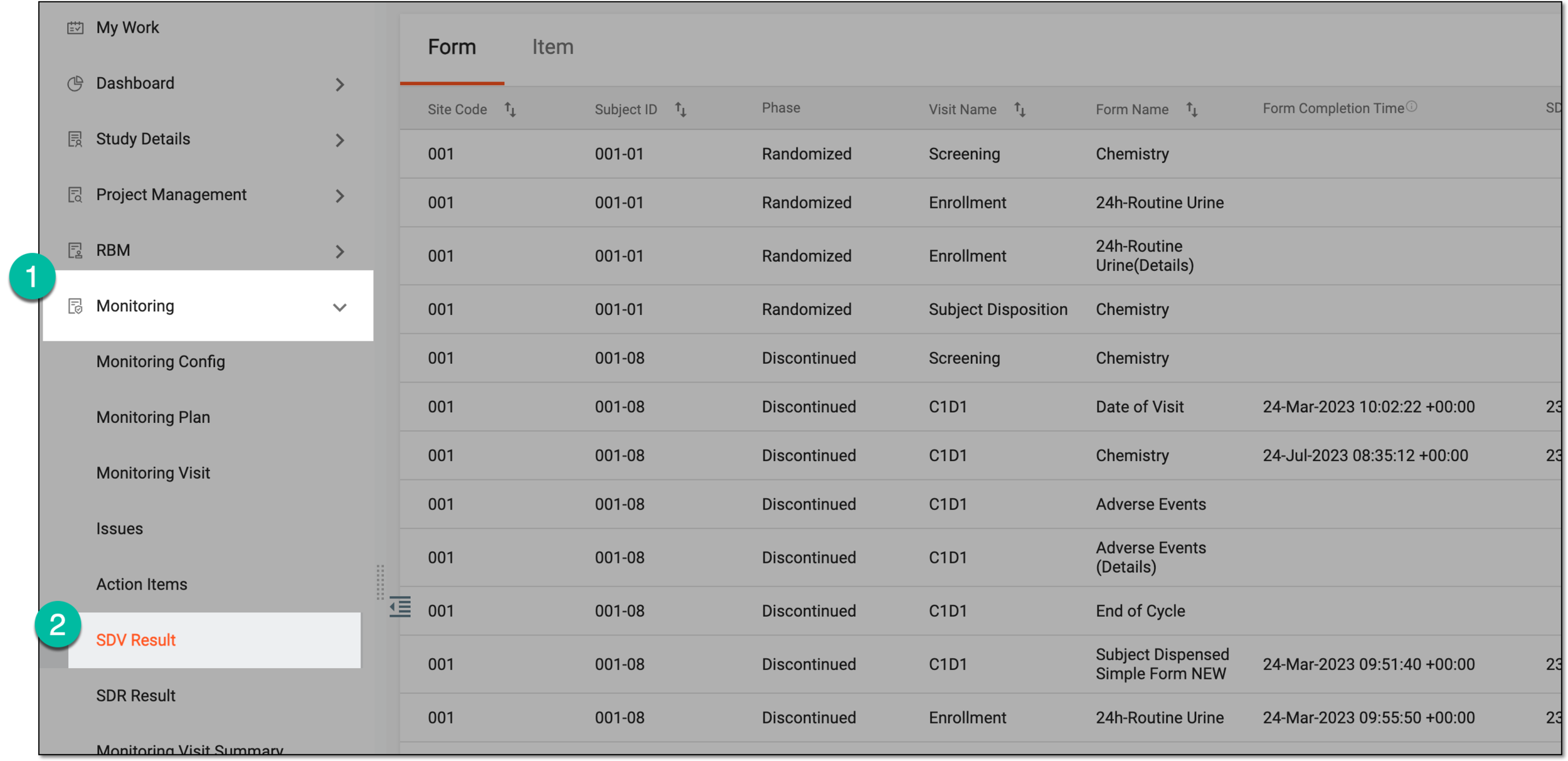 Figure 3. Accessing SDV result
-
On the page that appears, select the Form or Item tab depending on what type of SDV result records you want to export.
-
Then from the workspace toolbar, select Export
 and one of the available options:
-
Export all data as Excel: select this option if you want the exported XLSX file to contain all the records of the SDV result report.
-
Export filtered data as Excel: select this option if you want the exported XLSX file to contain only the records of the SDV result report that satisfy the applied filtering.
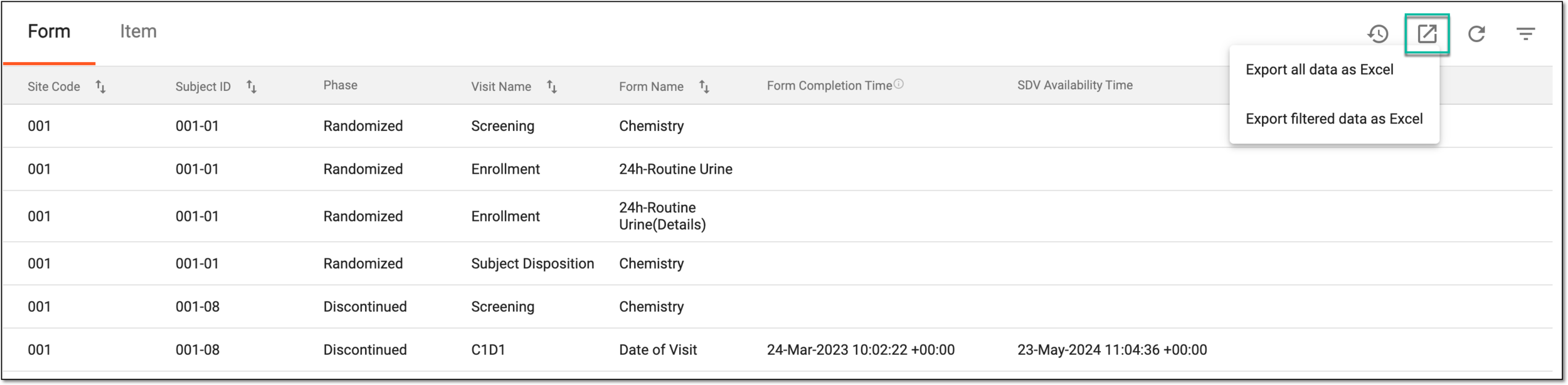 Figure 4. Exporting SDV result records
-
-
In the confirmation dialog that opens, select
 to confirm that you acknowledge the preparation of the file for the download in the background.
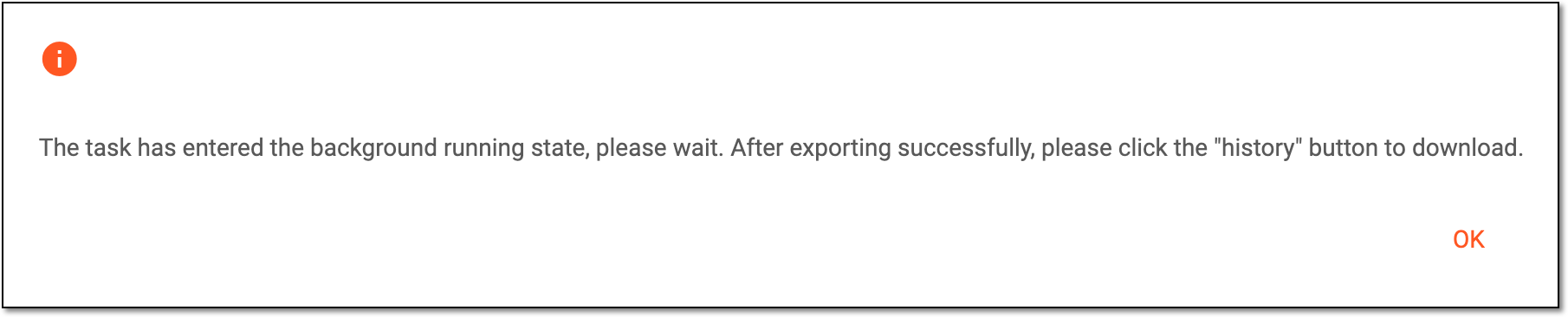 Figure 5. Confirming download
-
Then from the workspace toolbar, select Export History
 to open the dialog with the prepared file.
 -
In the Export History dialog that opens, select
 next to the file that you want to download.
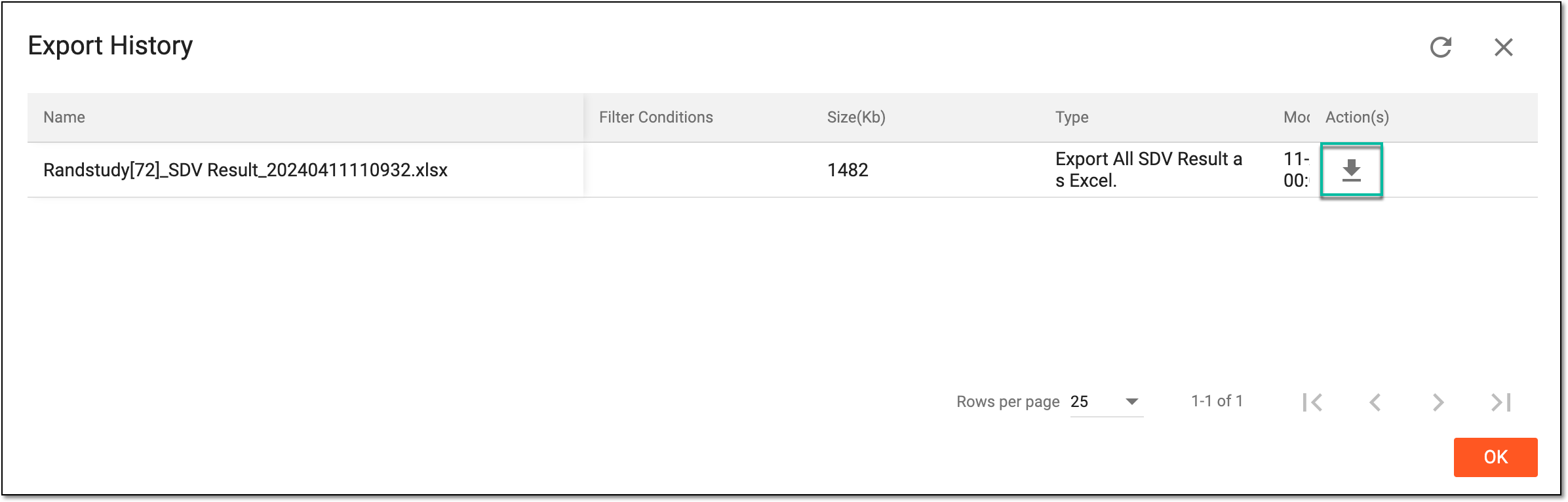 Figure 6. Downloading exported SDV result file
Once exported, the SDV result file is downloaded to your computer. You can now work with the file offline.
In CTMS, you can analyze the extensive data on the results of SDR conducted in EDC for different forms and form items. The SDR result records reflect the most current state of this process.
-
Access the study management page in one of the following ways:
-
In the CTMS application header, select the DASHBOARD tab and then select the study dashboard of your interest.
Figure 1. Accessing study management from dashboard
-
In the CTMS application header, select the STUDY MANAGEMENT tab. Then from the Study Data List table, select the study name of your interest.
Figure 2. Accessing study management from study data list
-
-
On the study page that opens, in the left pane, expand Monitoring and select SDR Result.
-
In the SDR Result table that appears, view the full list of all SDR result records.
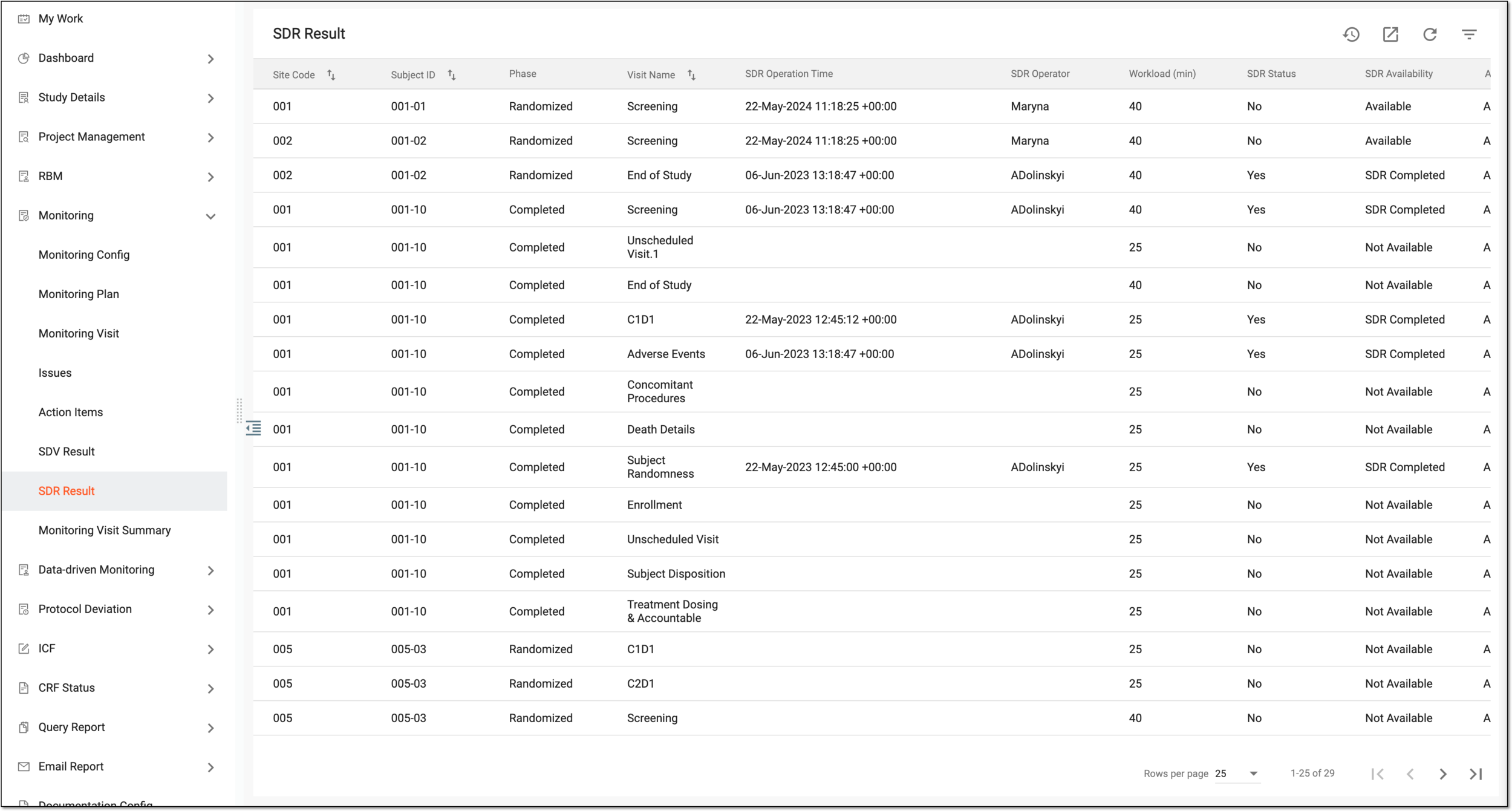 Figure 3. Viewing SDV result records
Once done, the SDR records have been viewed.
In CTMS, you can ex the extensive data on the results of SDR conducted in EDC for different forms and form items. The extracted file in the XLSX format contains the most current SDR result records to date.
-
Access the study management page in one of the following ways:
-
In the CTMS application header, select the DASHBOARD tab and then select the study dashboard of your interest.
Figure 1. Accessing study management from dashboard
-
In the CTMS application header, select the STUDY MANAGEMENT tab. Then from the Study Data List table, select the study name of your interest.
Figure 2. Accessing study management from study data list
-
-
In the left pane of the page that opens, expand Monitoring and select the SDR Result tab.
-
From the workspace toolbar of the page that opens, select Export
. Figure 3. Exporting SDR result records
-
In the confirmation dialog that opens, select
to confirm that you acknowledge the preparation of the file for the download in the background.Figure 4. Confirming download
-
Then above the same table, from the workspace toolbar, select
to open the dialog with the prepared file. -
In the Export History dialog that opens, select
next to the file that you want to download.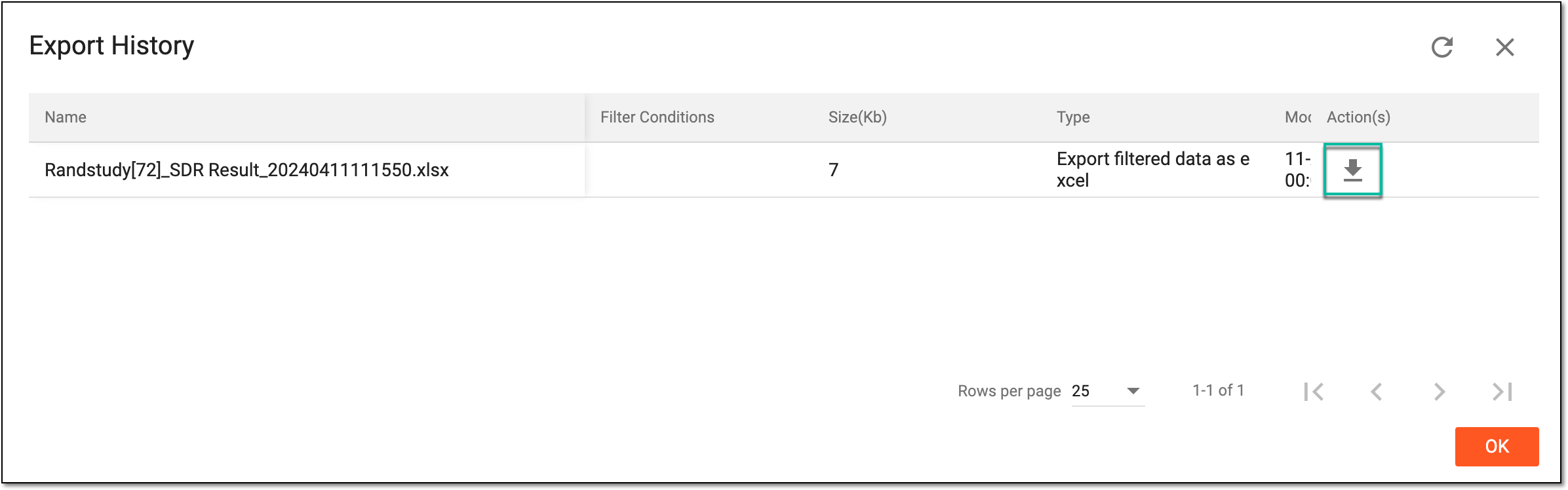 Figure 5. Downloading SDR result file
Once exported, the SDR result file is downloaded to your computer. You can now work with the file offline.