Analyze operation history of email template
An email template is a model created in eTMF to facilitate user interaction with the system, as you can create several versatile templates and then reuse them for different occasions instead of composing new letters every time.
Once an email template is created, you can perform various actions with the template, such as editing, activating/inactivating, and so on. The Operation History functionality captures and maintains all relevant records related to the actions performed on the template, such as the name of the action, its time, and so on. This feature helps you study a comprehensive log of all actions performed on an email template.
For instance, an email template has been inactivated by a user and you want to know the reason of its inactivation. By making use of Operation History, you can know the reason for its inactivation from the Comment field and also the details of the user who inactivated the email template.
-
In the eTMF application header, select the ADMIN tab.
-
On the page that opens, in the left pane, select Email Template.
-
On the Email Template page that appears, next to the needed template, select More
 >
Operation History
>
Operation History  .
.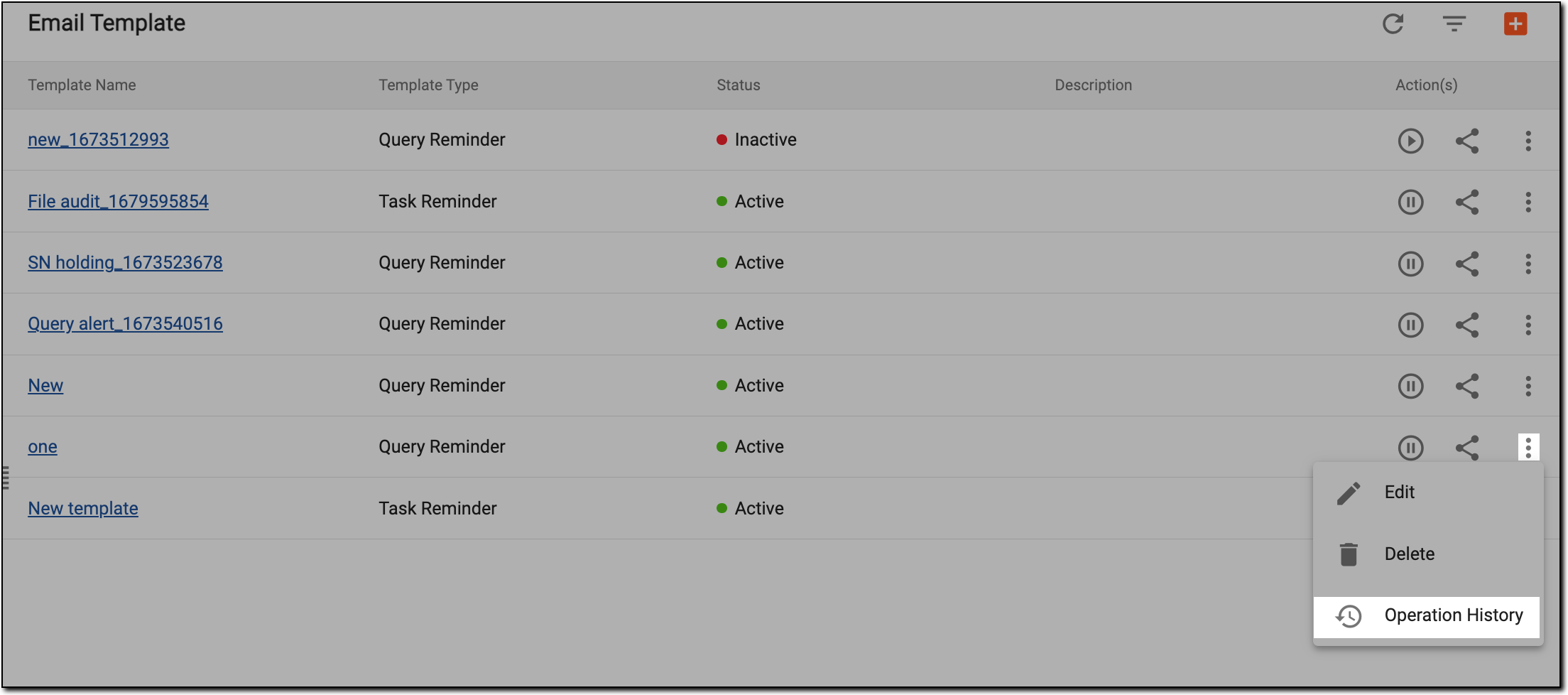 Figure 1. Selecting to view operation history details
-
In the Operation History dialog that appears, view the details as explained in the following table.
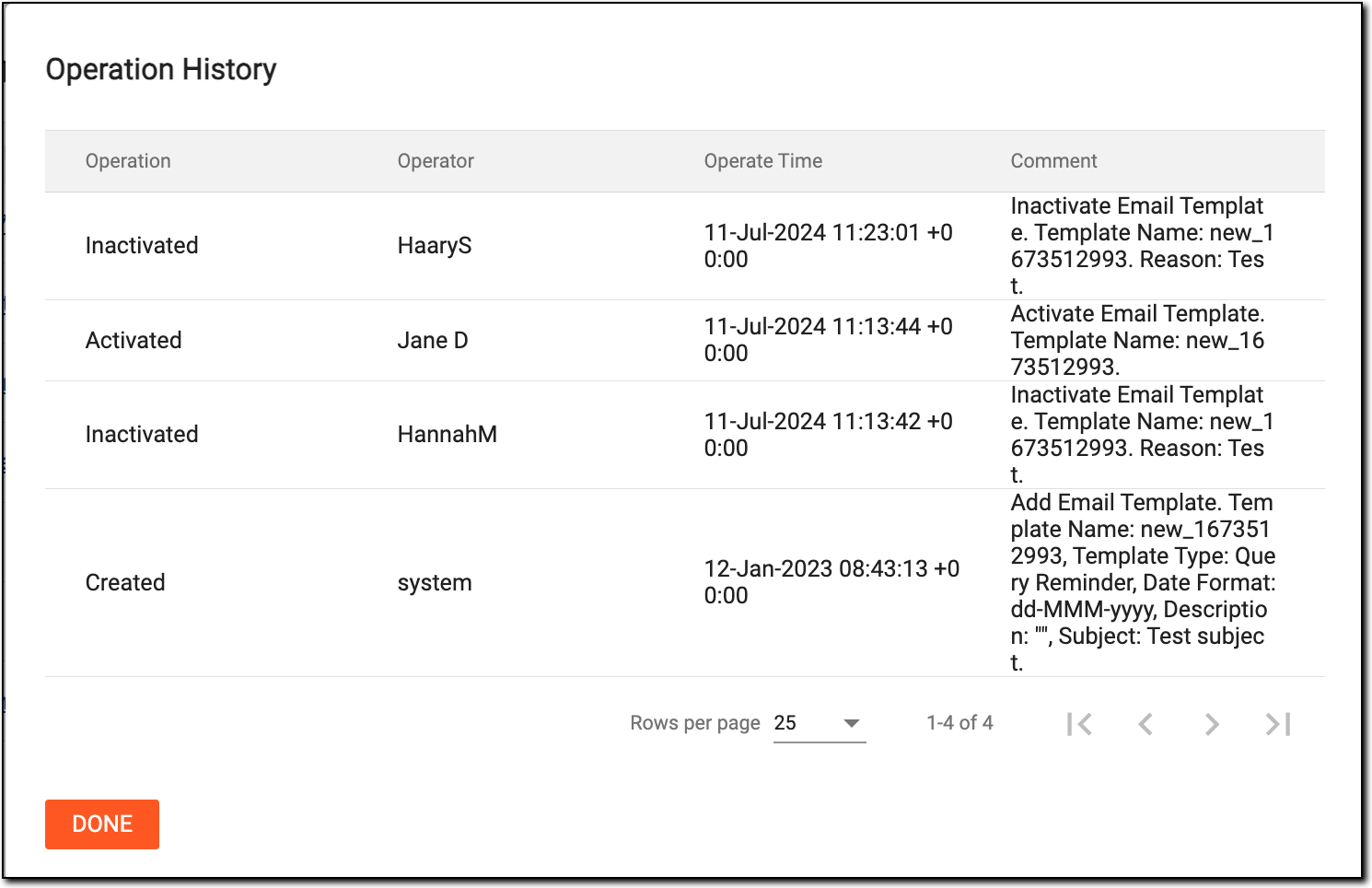 Figure 2. Viewing operation history of email template
Element
Details
Operation
Represents the action performed on the email template, such as editing or else.
Operator
Represents the username of the individual who performed the action on the email template.
Operate Time
Represents the date and time at which the action is performed on the email template.
Comment
Represents the content that is updated by the user or on which the operation is performed.
DONE
Select
 to close the dialog.
You have analyzed the operation history details of the selected template.