Activate/Inactivate email template
In eTMF, once an email template is created, by default, it is active. If needed, you can inactivate an email template if you currently do not need it for workflow, task alert, or query reminder configuration however, you suspect that in the future, it might become useful again.
-
In the eTMF application header, select the ADMIN tab.
-
On the page that opens, in the left pane, select Email Template.
-
On the Email Template page that appears, next to the needed format, select either of the following to activate or inactivate an email template.
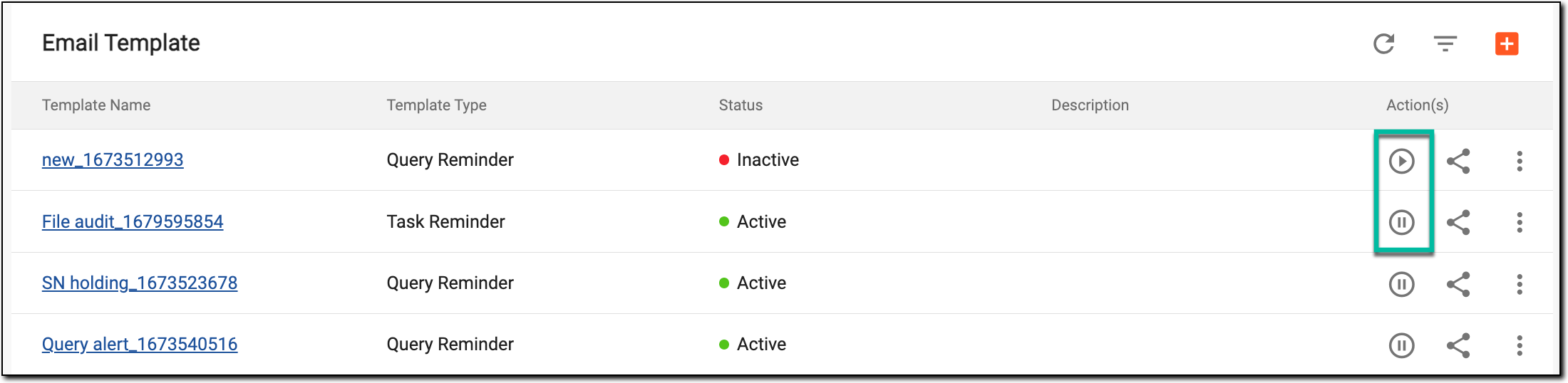 Figure 1. Activating/Inactivating template
-
Activate
 : select this icon to activate an
inactive email template. The active email template can then be used by workflows to send task and query reminders.
: select this icon to activate an
inactive email template. The active email template can then be used by workflows to send task and query reminders. -
Inactivate
 : select this icon to inactivate
an active email template. In the Reason dialog that appears, enter a reason for inactivating the email template and select
: select this icon to inactivate
an active email template. In the Reason dialog that appears, enter a reason for inactivating the email template and select  to save your changes.
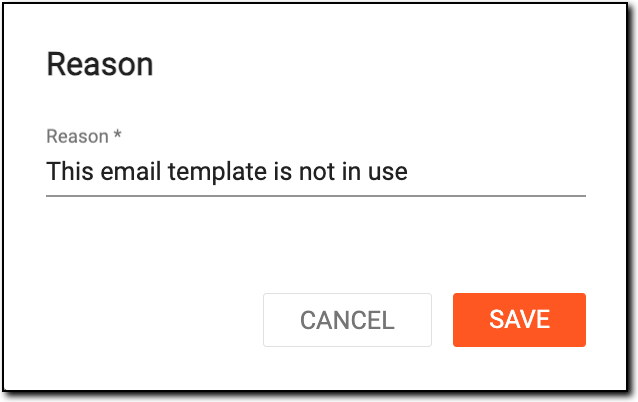 Figure 2. Providing inactivation reason
-
Based on the action, the email template is either activated or inactivated.
A schema, each step of which represents a stage of a specific entity lifecycle in the system.
A workflow can be considered an instrument to help control various actions on system entities for the sake of accountability, as it limits the actions that can be performed on the entity associated with a workflow. This provides an additional tier of scrutiny, and the approval/rejection mechanism reduces the risk of unintended impact on sensitive resources and important information.
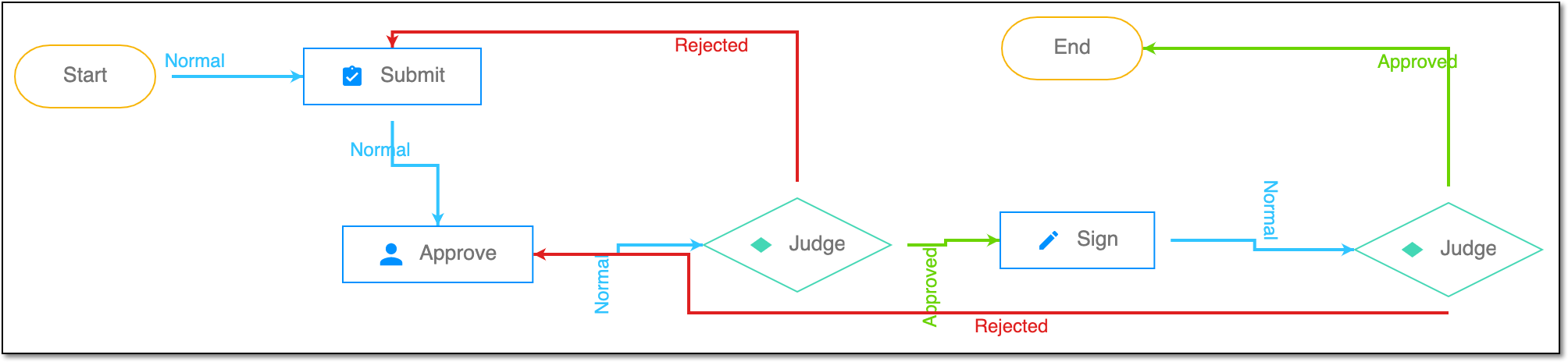 |
For instance, in eTMF, the workflow dictates the procedure of file and folder management from the moment of upload to the approval stage; in CTMS, the workflow controls the process of creation, completion, and approval of a trip report; in EDC, the workflow covers the process of source document handling.