Create email template
An email template is a model created in eTMF to facilitate user interaction with the system, as you can create several versatile templates and then reuse them for different occasions instead of composing new letters every time.
There are a few scenarios that benefit from utilizing an email template:
-
Workflow configuration: associate the email template with the event occurring according to the workflow, such as the approval or rejection of a file.
-
Task reminder configuration: use the email template to create a reminder to perform a certain system task.
-
Query reminder configuration: use the email template to create a reminder to resolve queries assigned to the user.
In this section, you can learn how to create an email model that can later be used for configuring query and task reminders, as well as workflows.
-
In the eTMF application header, select the ADMIN tab.
-
On the page that opens, in the left pane, select Email Template.
-
On the Email Template page that opens, from the toolbar, select New Item
 .
.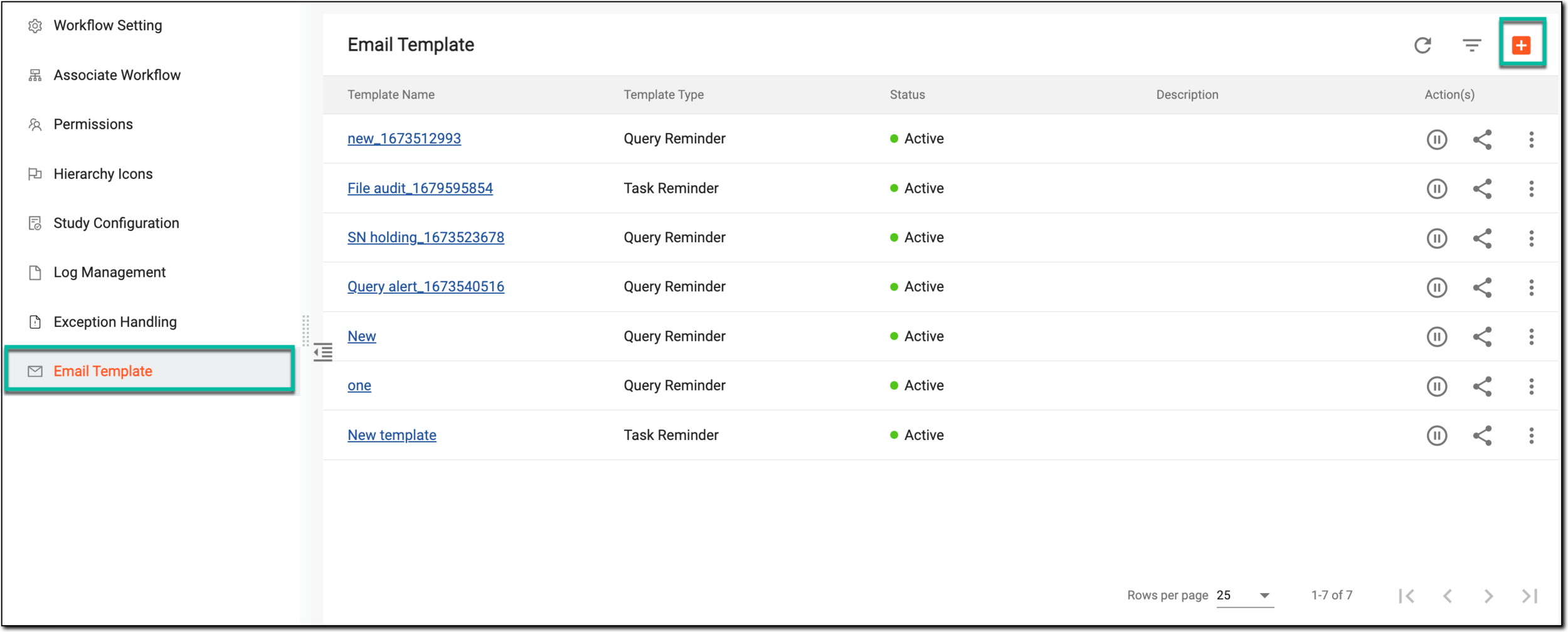 Figure 1. Adding new email template
-
On the page that opens, add the details as explained in the following table.
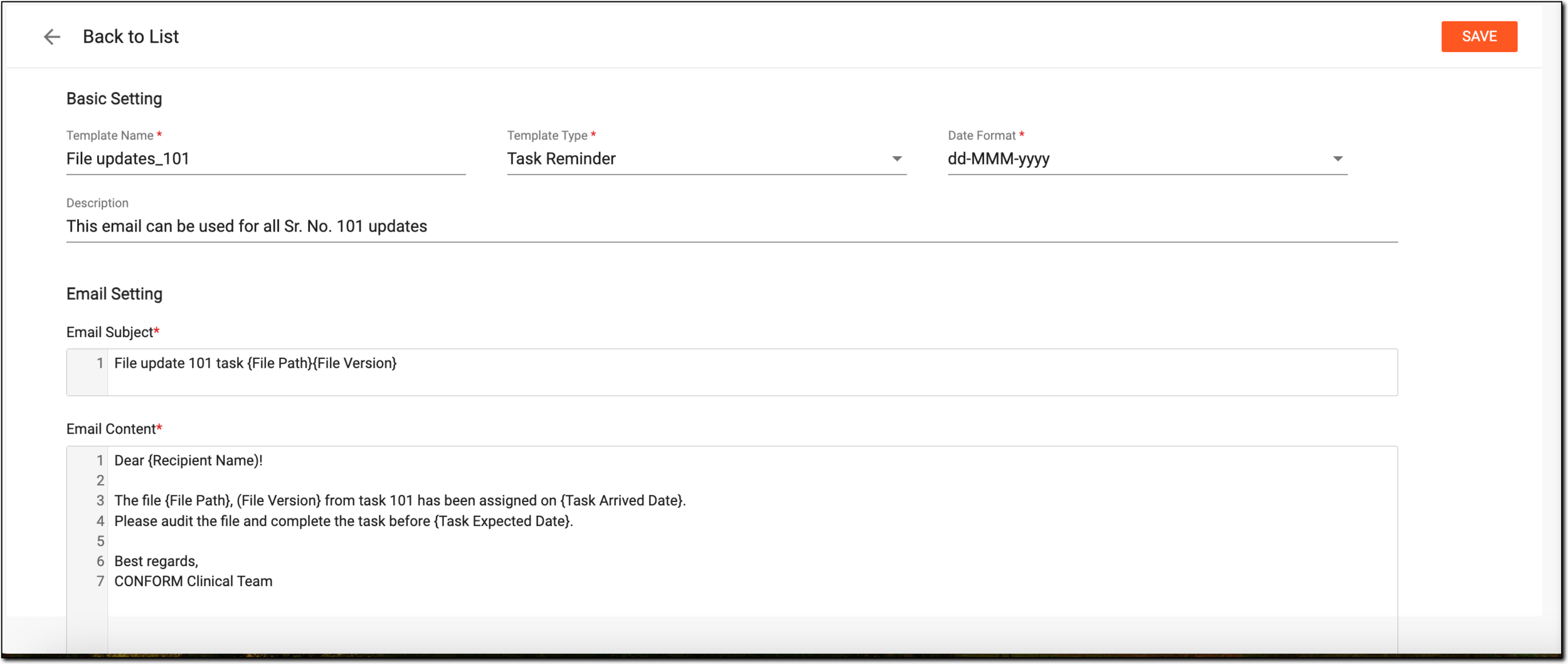 Figure 2. Creating email template
Tip
In the following table, mandatory elements are marked with an asterisk (*).
Element
Details
Basic Setting
Template Name*
Enter the name of the email model.
Template Type*
Select either of the following categories for the email template:
-
Task Reminder: select this category to create a model that can be used for configuring activity-related reminders.
-
Query Reminder: select this category to create a model that can be used for configuring query-related reminders.
Date Format*
Select the format of the date of the email template, for instance, dd-MMM-yyyy.
Description
Enter brief information explaining the purpose of creating the email model.
Email Setting
Email Subject*
Enter the subject of the email that is to be used as a template for sending task and query reminders. You can also start typing with the opening brace "{" to expand the list of predefined values that you want to include in the email subject.
For instance, if you want your email subject to include query status and age, simply enter { and from the expanded list, select the needed placeholders.
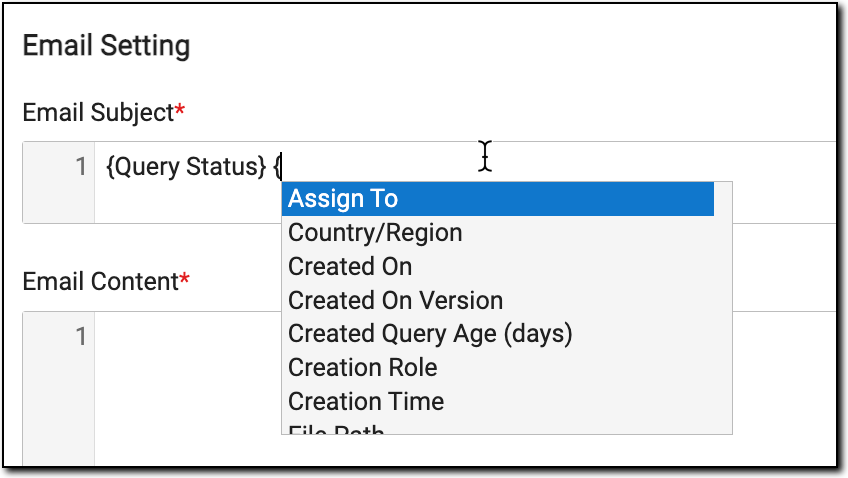 Figure 3. Adding placeholders to email subject
Note that the list of placeholders is generated depending on selected Template Type so that only the relevant ones are available for selection.Email Content*
Enter the content of the email body that is to be used as a template for sending task and query reminders. You can also start typing with the opening brace "{" to expand the list of predefined values that you want to include in the email content.
Note that the list of placeholders is generated depending on selected Template Type so that only the relevant ones are available for selection.SAVE
Select
 to implement your changes.
 -
Upon saving, the email template is created and it appears in the Email Template table with the Active status. Once created, you can now use the email template for configuring task and query reminders.