Add query alert
Queries are created to report any discrepancies, inconsistencies, or missing data found in study files. In eTMF, you can manually create query alerts for users responsible for addressing and fixing such issues. When a query alert is triggered, the respective recipient(s) receive an email notification with all the required information on the query.
-
In the eTMF application header, select the TMF tab.
-
In the Study List table that appears, locate the study for which you need to add a task alert. Then, in the Actions column next to it, select More
 > Query Alerts
  .
.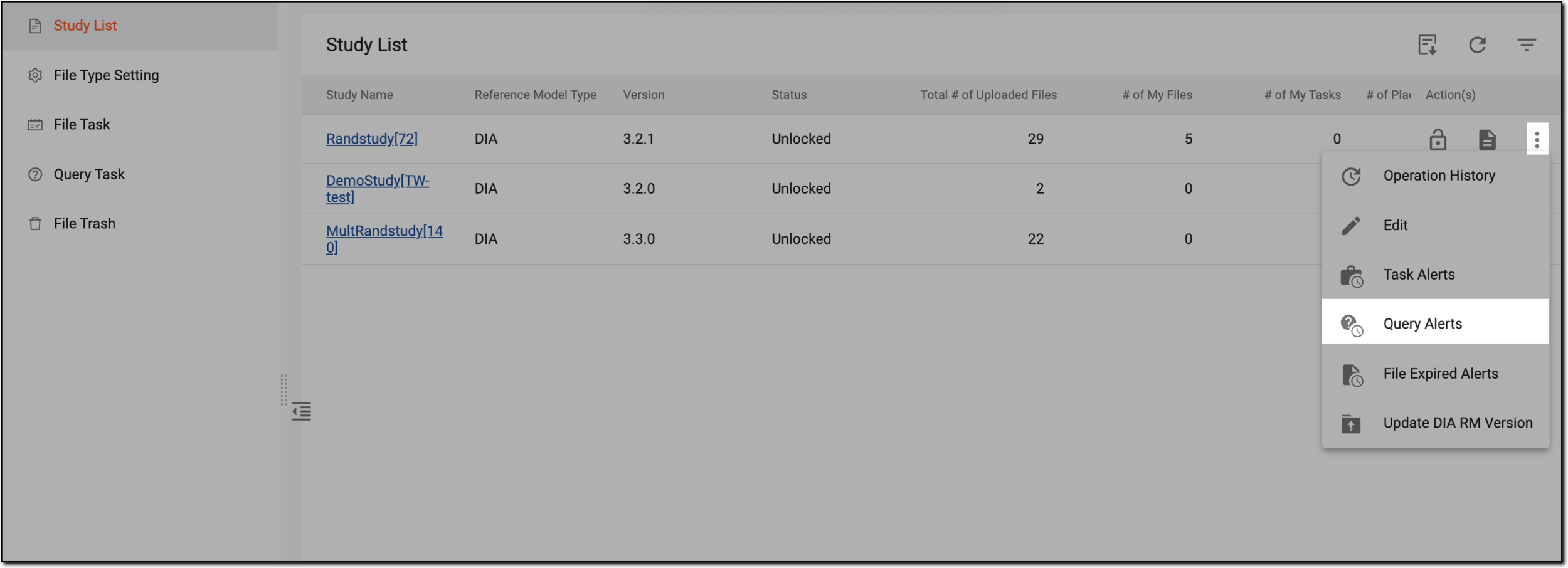 Figure 1. Accessing query alerts list
-
On the Query Alerts page that opens, on the workspace toolbar, select New
 .
. -
In the dialog that appears, fill in the fields to add a new query alert as explained in the following table.
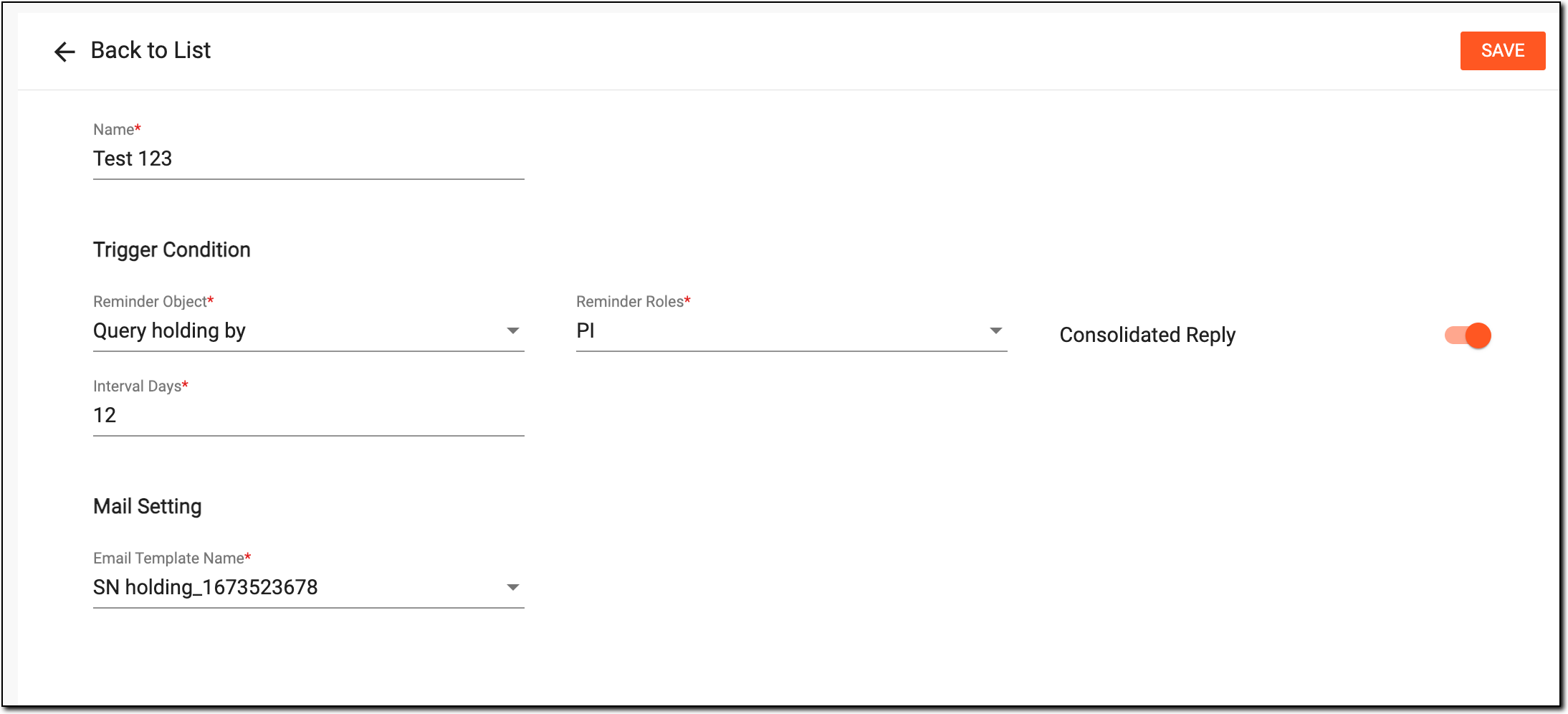 Figure 2. Adding query alert
Tip
In the following table, mandatory elements are marked with an asterisk (*).
Element
Details
Name*
Enter a descriptive query alert name.
Trigger Condition
Reminder Object*
Select one of the following trigger conditions:
-
Query created by: when the query is created by you and a certain time has passed but no actions are taken on it, therefore, the query remains in the Open status.
-
Query holding by: when the query requires action by another user, another user is holding it, and the selected roles must be informed about the query status.
For example, a query is created by the Data Manager (DM) and assigned to the Clinical Research Associate (CRA), therefore, the query is being held by the CRA and the query status is set to Open until further action is taken. When the CRA answers the query, the status is changed to Answered and the query is now held by the DM, until further action is taken.
The Highest Tolerance of Query Age (Days)*
Enter the age of the query (in days) at which the query triggers an alert.
This option is enabled when the Query created by option is selected from the Reminder Object dropdown list.Reminder Roles*
Select one or more roles that receive notifications about the query.
This option is enabled when the Query holding by option is selected from the Trigger Condition dropdown
                                  list.
Consolidated Reply
Do one of the following:
-
Turn the toggle on to send a detailed response about the query to the recipient(s) when a notification is sent.
-
Turn the toggle off to disable a consolidated response. The recipients only receive a reminder notification but not a detailed response about the query.
This option is enabled when the Query holding by option is selected from the Reminder Object field.Interval Days
Enter the interval in days after which a consolidated response is automatically sent.
This option is enabled when the Consolidated Reply toggle is turned on.Mail Setting
Email Template Name*
Select the name of the query alert email format from the dropdown list.
The recipients receive the information in the email that is described in the selected email template.SAVE
Select
 to implement the changes.
CANCEL
Select
 to discard the implemented changes without saving.
 -
Upon saving, the query alert is added to the Query Alerts page. The added query alert is inactive by default and can be activated when required. Once activated, the system starts sending alert emails to the recipient when triggered.