Configure task alert
In eTMF, a task alert is a notification feature designed to keep users and stakeholders informed about important actions or deadlines related to the operations on files and folders in TMF.Task alerts ensure that all necessary activities are completed on time, helping to maintain the smooth operation of clinical trials.
For your convenience, it is possible to configure task alerts in eTMF so that you do not miss your assignments.
Important
The task alerts are created with an inactive status, so you need to activate your alert to start triggering and sending out the email notifications.
-
In the eTMF application header, select the TMF tab.
-
In the Study List table that appears, locate the study for which you need to add a task alert, and in the Action(s) column next to it, select the More
 > Task Alerts
  .
.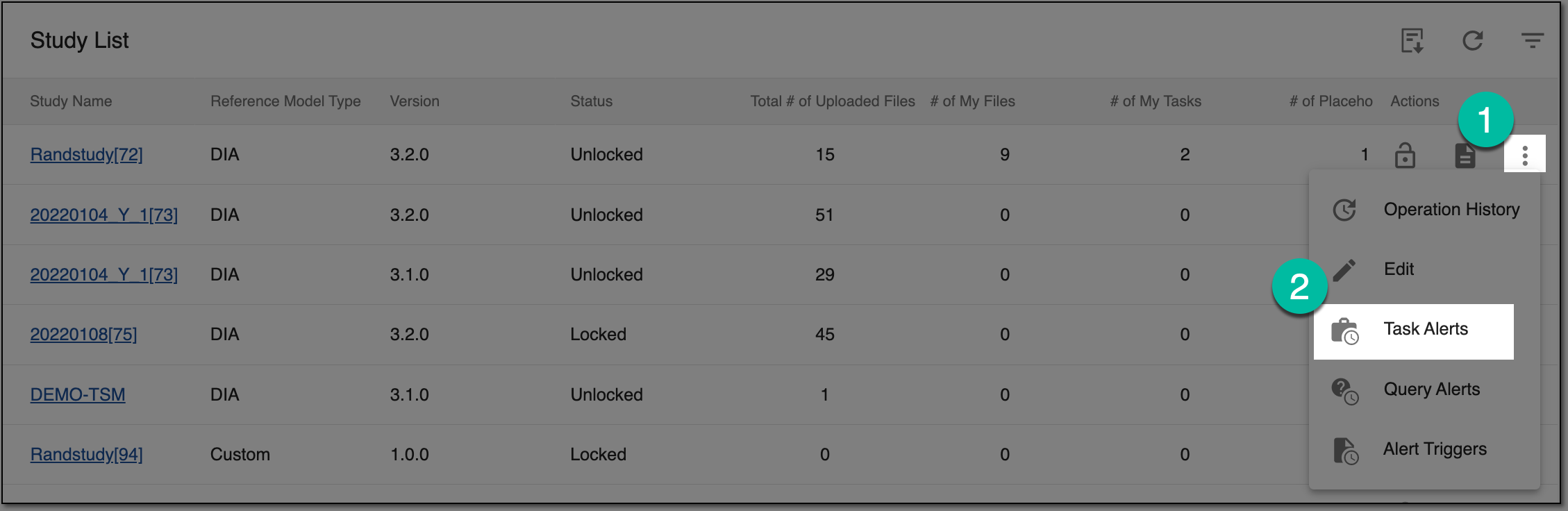 Figure 1. Accessing task alerts
-
On the Task Alerts page that opens, select New Item
 and in the form that appears,
configure the fields as explained in the following table.
and in the form that appears,
configure the fields as explained in the following table.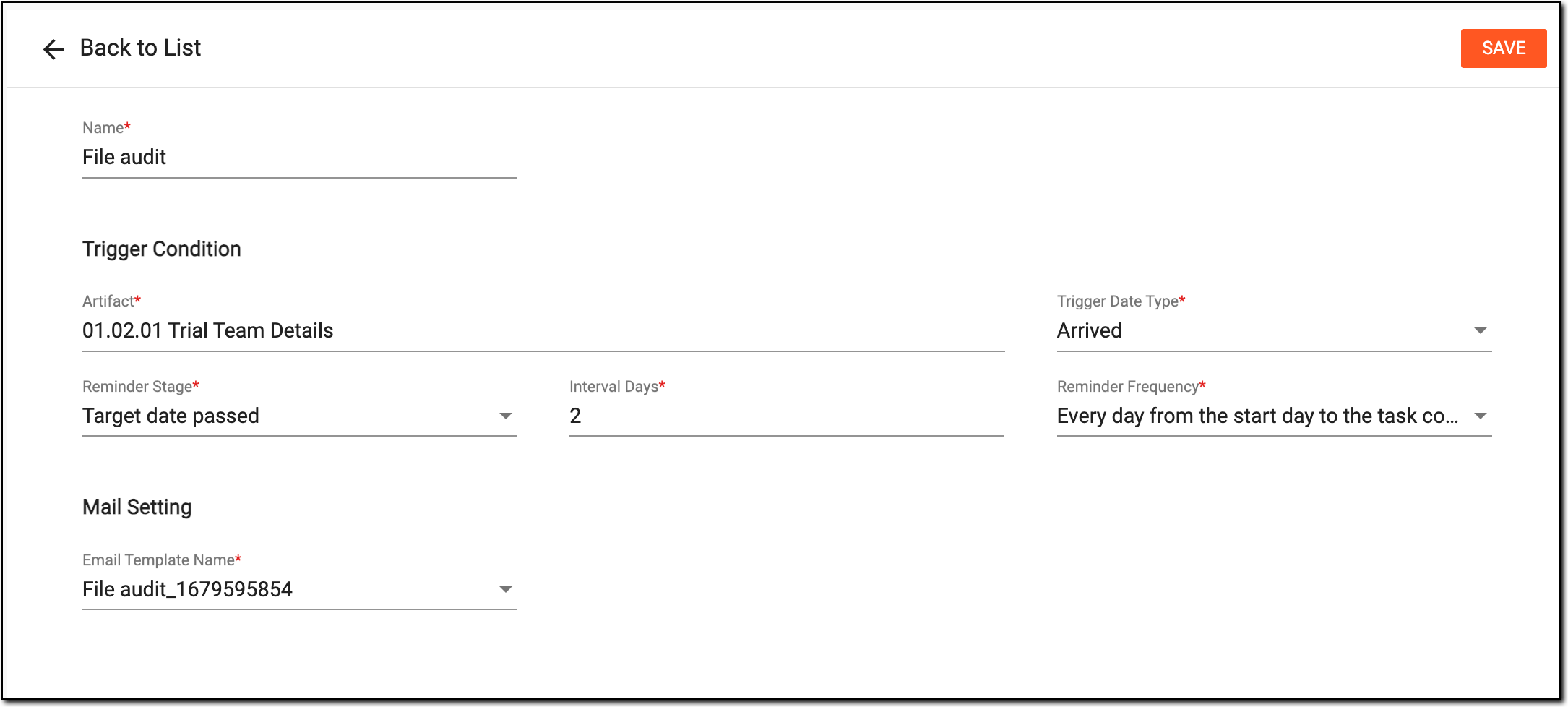 Figure 2. Configuring new task alert
Tip
In the following table, mandatory elements are marked with an asterisk (*).
Element
Details
Name*
Enter the descriptive reminder name.
Trigger Condition
Artifact*
Expand the explorer tree to select the directories (folders) to trigger the alert for the tasks on objects within.
Turn the Apply to All toggle on to select all the folders from the explorer tree.
Select
 to apply your changes.
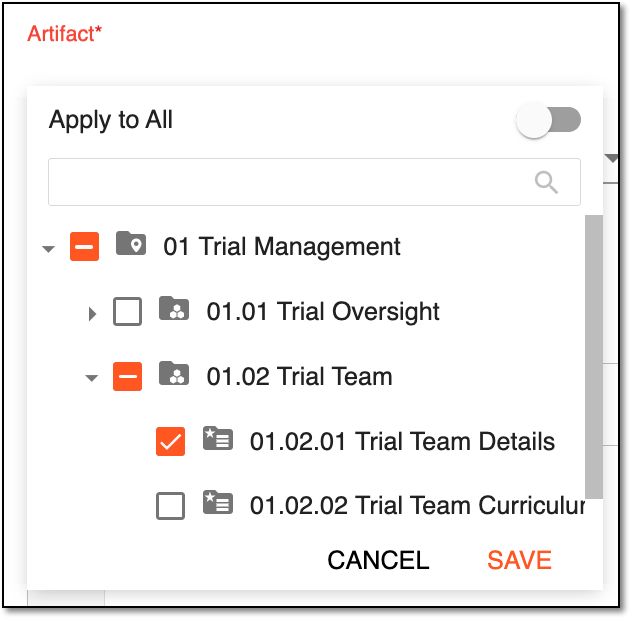 Figure 3. Selecting artifacts for task alert
Trigger Date Type*
Select one of the following options to specify when the alert must be triggered:
-
Arrived: to trigger the alert as soon as the task has arrived (has been assigned).
-
Overdue: to trigger the alert as soon as the task has passed its due date and become overdue.
Reminder Stage*
Select one of the following options to specify when the alert must be triggered:
-
Before target date: to trigger the alert before the target date—the date when the task must be completed.
This option is available for both the Arrived and Overdue trigger types. -
Target date passed: select this value to trigger the alert upon passing the target date.
This option is only available for the Arrived trigger type.
Interval Days*
Enter the number of days to pass in between repeated task alerts.
Reminder Frequency*
Select one of the following options to specify the frequency with which the alert must be triggered:
-
Start day: to trigger the alert once.
-
Every day from the start day to the task completion date: to trigger the alert daily until the task is completed.
-
Every day from the start day to the end day: to trigger the alert daily until the task end date.
Mail Setting
Email Template Name*
Select the name of the preconfigured email template to be used when generating a task alert. The recipients receive the information in the email that is described in the selected email template.
SAVE
Select
 to save the implemented changes.
 -
Upon saving, the task alert is configured but yet inactive. Activate your alert to trigger when the set conditions are met.