Activate/Inactivate task alert
In eTMF, a task alert is a notification feature designed to keep users and stakeholders informed about important actions or deadlines related to the operations on files and folders in TMF.Task alerts ensure that all necessary activities are completed on time, helping to maintain the smooth operation of clinical trials.
The task alerts are created with an inactive status, so you need to activate your alert to start triggering and sending out the email notifications. If you do not need the alert to trigger, you can inactivate it again.
-
In the eTMF application header, select the TMF tab.
-
In the Study List table that appears, locate the study for which you need to activate/inactivate the task alert email content, and in the Action(s) column next to it, select More
 > Task Alerts
  .
.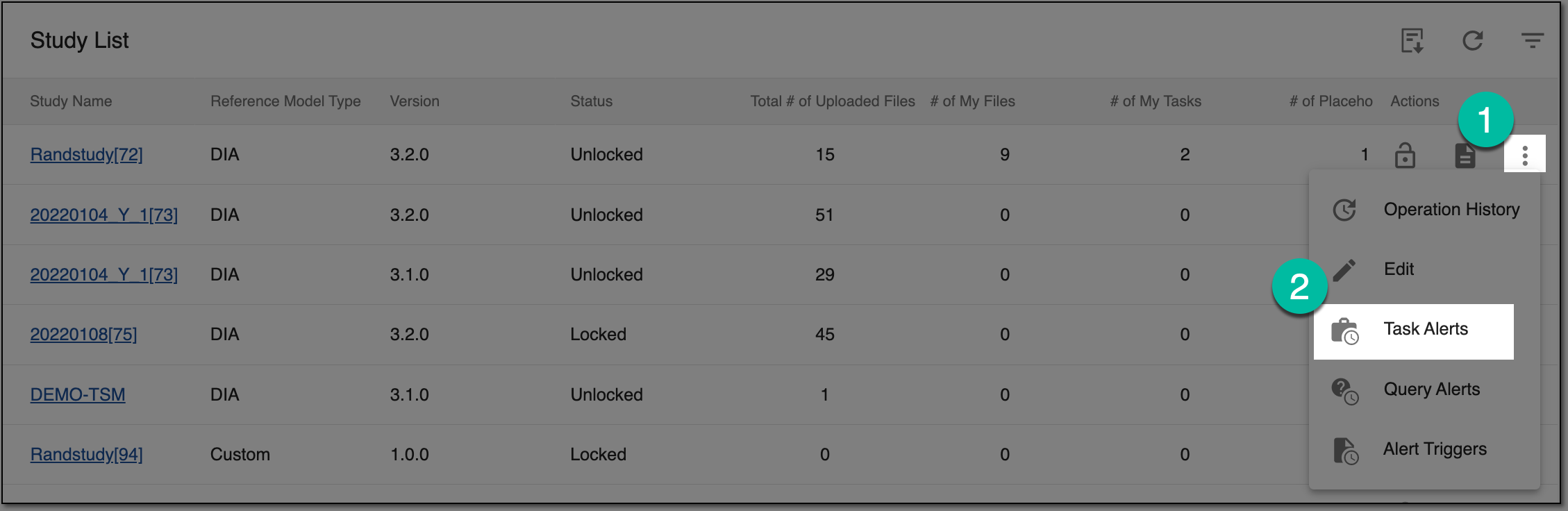 Figure 1. Accessing task alerts
-
On the Task Alerts page that opens, locate the task alert you want to activate/inactivate and in the Action(s) column next to it, select one of the following options:
-
Activate
 : to make the task alert active and send emails when the configured trigger conditions are met.
 -
Inactivate
 : to make the task alert inactive and do not send emails even when the configured trigger conditions are
met.
: to make the task alert inactive and do not send emails even when the configured trigger conditions are
met.
-
Based on your selection, your task alert becomes either active or inactive.