ICF tracking summary
The ICF tracking log is used to track the distribution, collection, and status of ICFs from participants in the trial. It is a management tool that ensures proper documentation and completion of all steps related to informed consent throughout the trial process.
In CTMS, to start tracking ICF completion for subjects of your study in CTMS, you need to select the appropriate ICF tracking log template to associate it with your study. Then, you can add ICF tracking records to your log and complete the forms as per the associated template.
Once all the above is done, you can track the ICF completion statistics on the study level from two comprehensive reports—ICF Tracking Summary > By Subject and ICF Tracking Summary > By ICF.
In CTMS, you can review the comprehensive report on the ICF tracking log statistics organized by subjects who signed the ICFs.
-
Access the study management page in one of the following ways:
-
In the CTMS application header, select the DASHBOARD tab and then select the study dashboard of your interest.
 Figure 1. Accessing study management from dashboard
-
In the CTMS application header, select the STUDY MANAGEMENT tab. Then from the Study Data List table, select the study name of your interest.
 Figure 2. Accessing study management from study data list
-
-
On the page that opens, from the left pane, select ICF > ICF Tracking Summary.
-
On the page that opens, under the By Subject tab, review the ICF tracking summary details as explained in the following table.
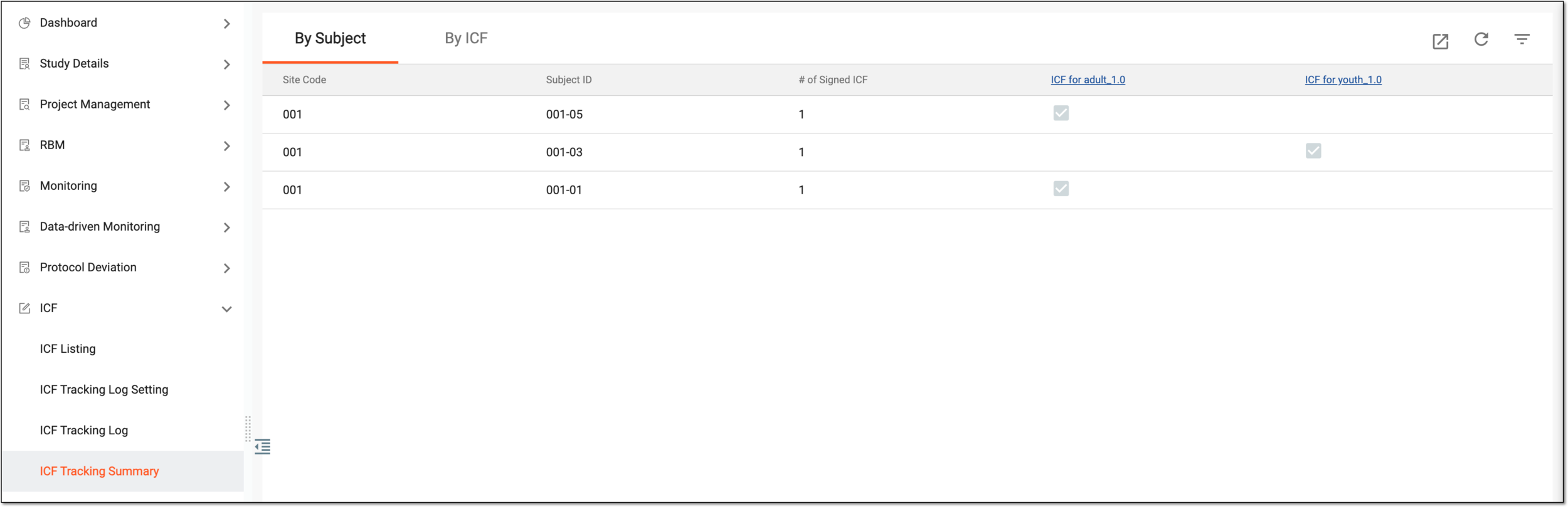 Figure 3. Reviewing ICF tracking summary by subject
Column
Details
Site Code
Represents the code of the site to which belongs the subject who signed the ICF(s).
Subject ID
Represents the unique identifier of the subject who signed the ICF(s).
# of Signed ICF
Represents the total number of ICFs signed by the respective subject.
[ICF Name_Version]
Represents if the ICF of a specific version is signed by the respective subject. The column displays
 if the ICF is signed by the
subject or remains empty if it is not.
if the ICF is signed by the
subject or remains empty if it is not.There can be as many such columns as there are ICFs and their versions created from the ICF Listing module.Selecting the column header brings you to the By ICF report filtered out by the selected ICF version.
You have reviewed the ICF tracking summary by subject.
In CTMS, you can review the comprehensive report on the ICF tracking log statistics organized by ICFs signed by study subjects.
-
Access the study management page in one of the following ways:
-
In the CTMS application header, select the DASHBOARD tab and then select the study dashboard of your interest.
Figure 1. Accessing study management from dashboard
-
In the CTMS application header, select the STUDY MANAGEMENT tab. Then from the Study Data List table, select the study name of your interest.
Figure 2. Accessing study management from study data list
-
-
On the page that opens, from the left pane, select ICF > ICF Tracking Summary.
-
On the page that opens, select the By ICF tab and review the ICF tracking summary details as explained in the following table.
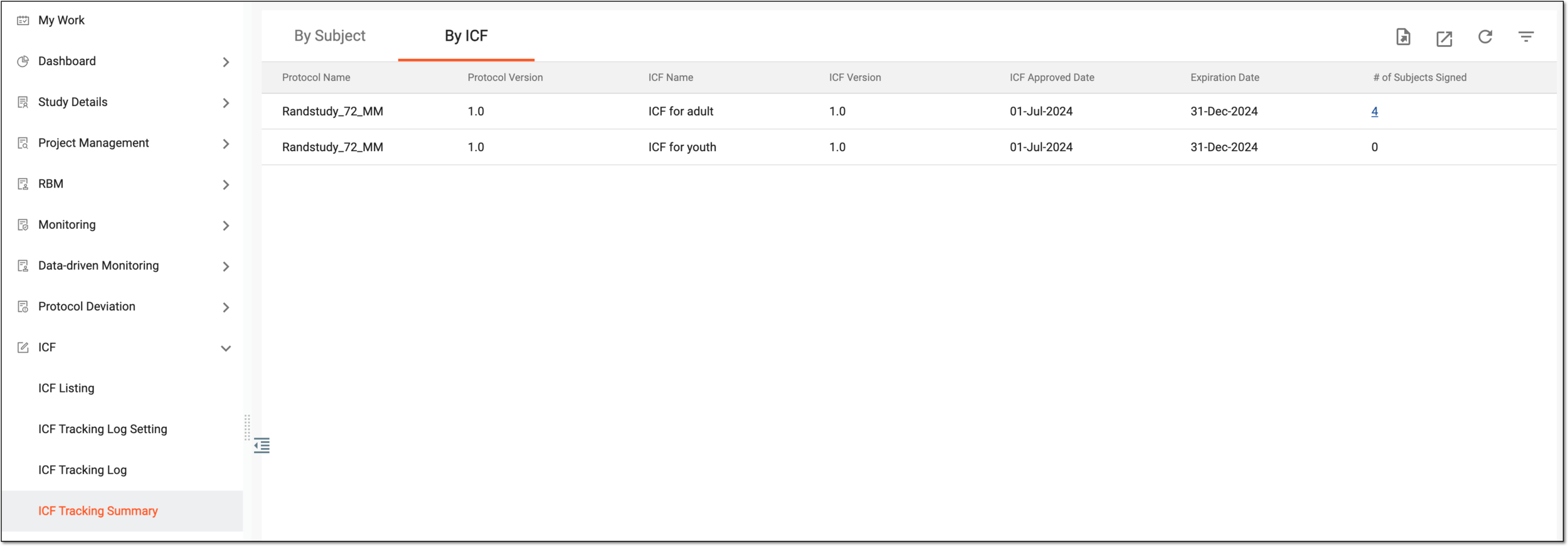 Figure 3. Reviewing tracking summary by ICF
Column
Details
Protocol Name
Represents the name of the study protocol according to which the respective ICF is created.
Protocol Version
Represents the version of the study protocol according to which the respective ICF is created.
ICF Name
Represents the name of the ICF signed by the subjects of the study.
ICF Version
Represents the version of the ICF signed by the subjects of the study.
ICF Approved Date
Represents the date when the ICF version is approved and becomes valid for the study.
Expiration Date
Represents the date when the ICF version expires and becomes invalid for the study.
# of Subjects Signed
Represents the total number of subjects who signed the respective ICF version.
Selecting the number brings you to the By Subject report filtered out
                                        by the selected subjects.
You have reviewed the ICF tracking summary by ICF.
In CTMS, you can track the ICF completion statistics on the study level from two comprehensive reports—ICF tracking summary by subject and by ICF.
The ICF tracking summary data can also be extracted as the XLSX file to your computer for sharing with stakeholders or other business purposes.
-
Access the study management page in one of the following ways:
-
In the CTMS application header, select the DASHBOARD tab and then select the study dashboard of your interest.
Figure 1. Accessing study management from dashboard
-
In the CTMS application header, select the STUDY MANAGEMENT tab. Then from the Study Data List table, select the study name of your interest.
Figure 2. Accessing study management from study data list
-
-
On the page that opens, from the left pane, select ICF > ICF Tracking Summary.
-
On the page that opens, under the By Subject or By ICF tab, from the workspace toolbar, select Export
 .
.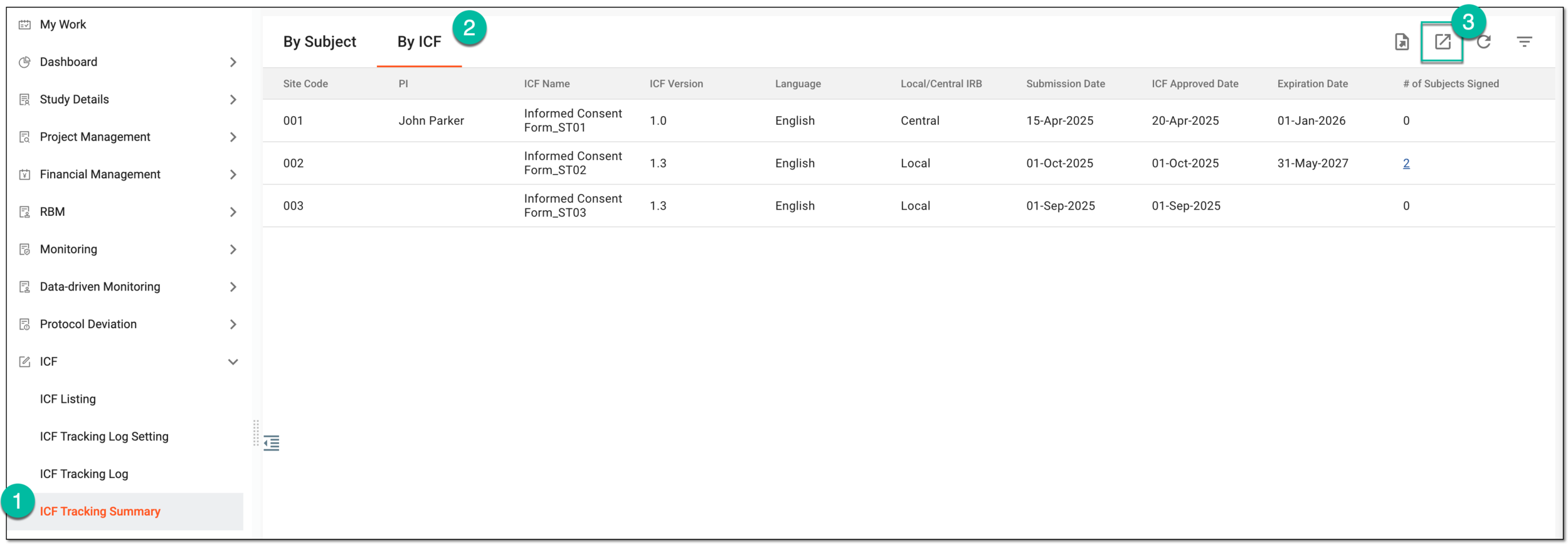 Figure 3. Selecting option to export ICF tracking summary
-
In the downloads widget that appears, view your download progress. Select the widget to open the My Downloads dialog.
 Figure 4. Downloads widget for ICF tracking summary
-
In the My Downloads dialog that opens, you can find the following tabs:
-
Preparing: lists all the files whose export is in progress, and they are not yet ready for download. Wait until the needed file moves to the Download is Ready tab.
-
Download is Ready: lists the files whose export is complete, and they can be downloaded to your computer by selecting
 .
.
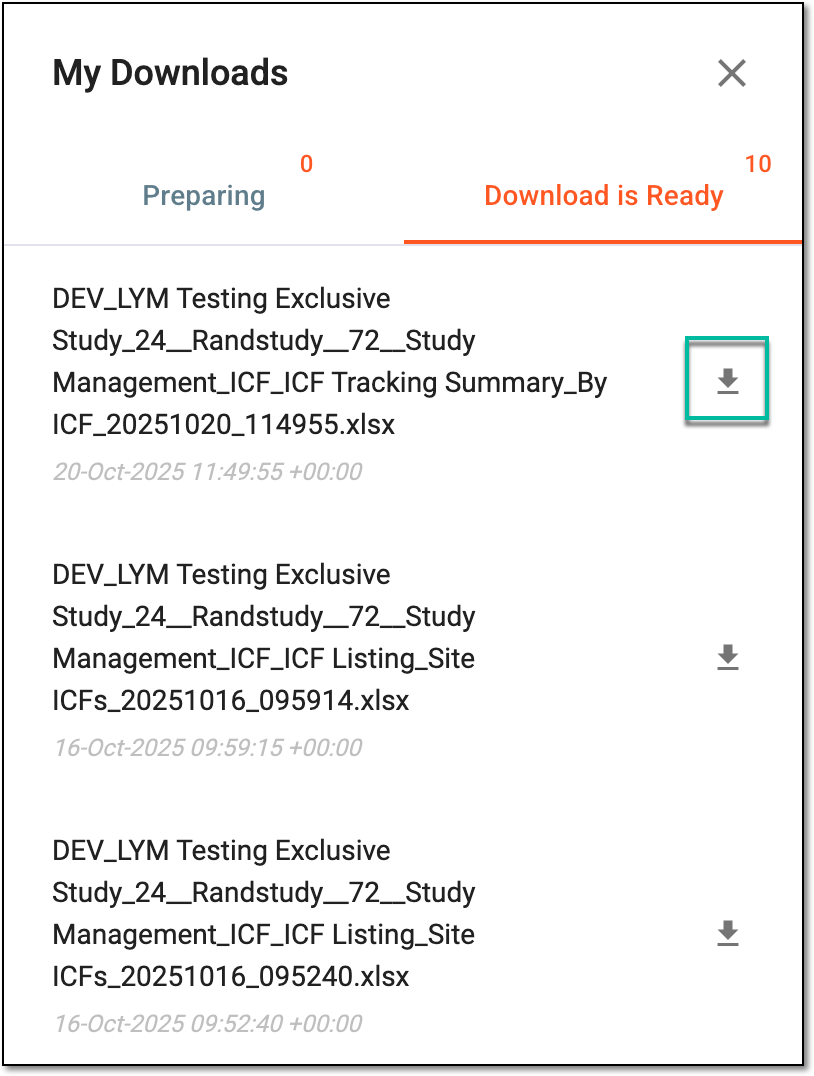 Figure 5. Downloading extracted ICF tracking summary data
-
Once downloaded and saved, the ICF tracking summary data in the XLSX format becomes available on your computer.
Tip
The extracted file version is saved in the system and can be accessed from Export History  .
.
