Site ICFs
The site Informed Consent Forms (ICFs) are designed based on the master ICFs to satisfy certain site-specific requirements and adjustments due to geographical, regulatory, auditorial, and other aspects.
In CTMS, the Site ICFs list displays all the existing site-specific ICFs of the study with their respective details as explained in the following table.

Important
You can configure site ICF listing and add more custom data elements if needed. The following table only lists the preset general columns of Site ICFs.
|
Element |
Details |
|---|---|
|
ID |
Represents the unique identifier of the ICF listing record autogenerated upon its creation by the CTMS system.
|
|
ICF Name |
Represents the name of the site ICF entered manually upon creation or editing by the CTMS user. |
|
ICF Version |
Represents the current version of the site ICF. |
|
Consent Method |
Represents how the subjects of the study can give their consent for this ICF.
|
|
Language |
Represents the language of the site ICF. |
|
Local/Central IRB |
Represents whether the site ICF is reviewed and approved by the central Institutional Review Board (IRB) for the study or the local IRB in the region where this ICF applies. |
|
Submission Date |
Represents the date when the site ICF has been submitted for review to the IRB. |
|
ICF Approved Date |
Represents the date when the IRB has approved the site ICF. |
|
Applicable Site Code |
Represents the unique identifier of the site where this ICF applies. |
|
PI |
Represents the name of the principal investigator (PI) at the site to which this ICF applies. |
|
Expiration Date |
Represents the date when the site ICF becomes expired. |
|
Description |
Represents auxiliary details provided upon creation or editing of the site ICF listing record in CTMS. |

In the following sections, you can learn how to manage the site ICF listing records in CTMS:
Configure site ICF listing
The site Informed Consent Forms (ICFs) are designed based on the master ICFs to satisfy certain site-specific requirements and adjustments due to geographical, regulatory, auditorial, and other aspects.
When managing site ICFs for the study, you can configure the data elements to be included in the ICF listing record to provide exhaustive details for efficient management.
-
Access the study management page in one of the following ways:
-
In the CTMS application header, select the DASHBOARD tab and then select the study dashboard of your interest.
 Figure 1. Accessing study management from dashboard
-
In the CTMS application header, select the STUDY MANAGEMENT tab. Then from the Study Data List table, select the study name of your interest.
 Figure 2. Accessing study management from study data list
-
-
On the study management page that opens, from the left pane, select ICF > ICF Listing.
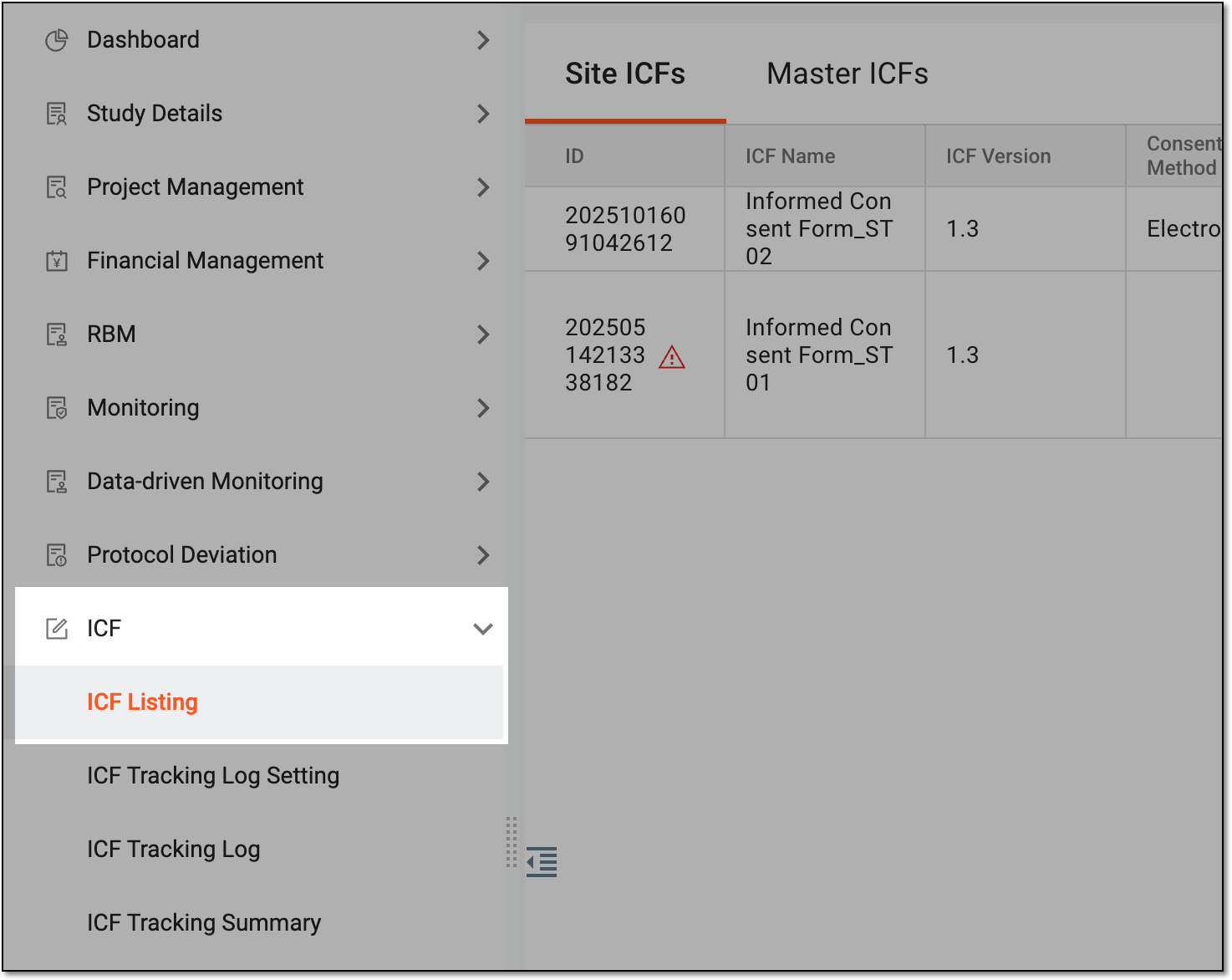 Figure 3. Accessing ICF listing
-
On the page that opens, under the Site ICFs tab, from the workspace toolbar, select Setting
 .
.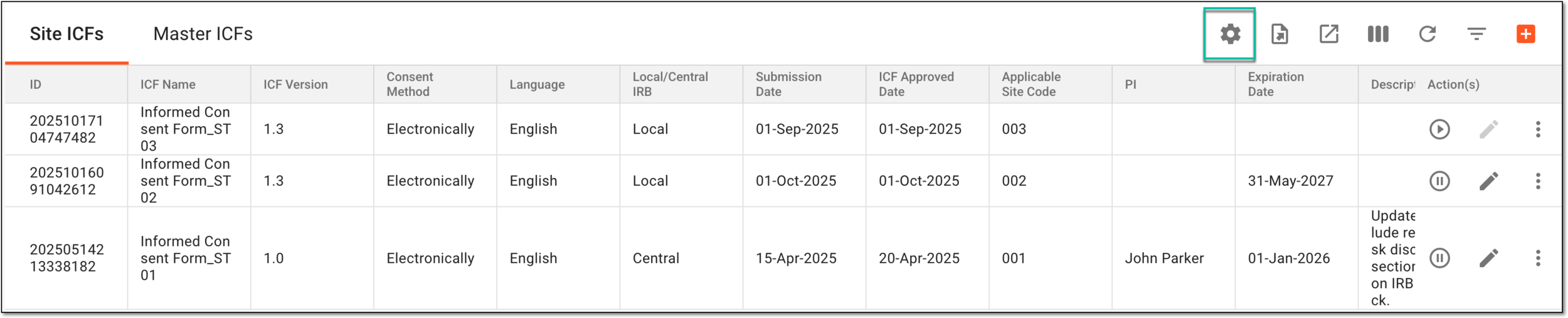 Figure 4. Accessing site ICF listing setting
-
In the dialog that appears, under the Settings tab, you can view all the currently existing data elements of the site ICF listing. To add a new data element, from the workspace toolbar, select New Item
 .
.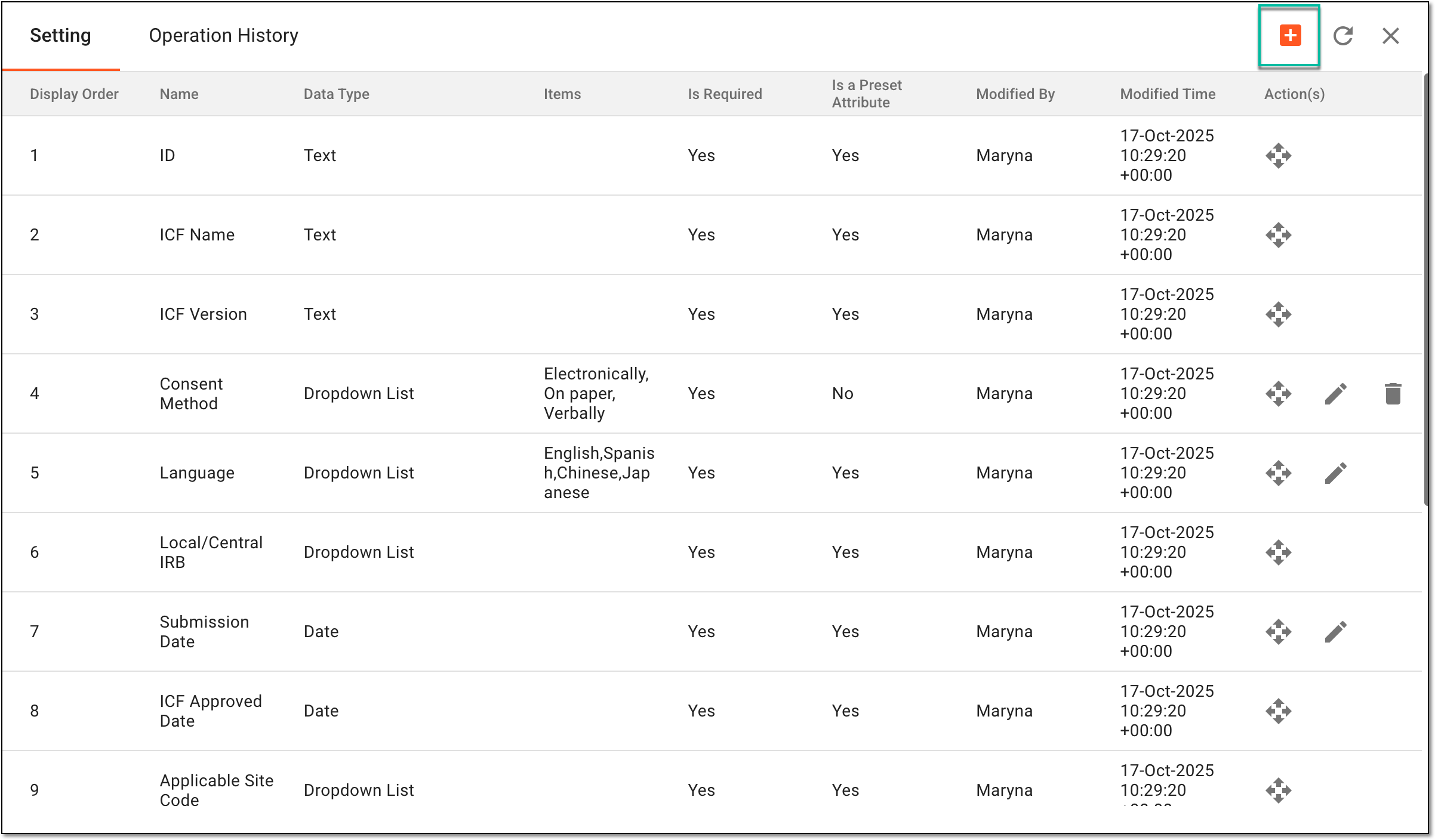 Figure 5. Selecting to add site ICF listing data element
-
At the bottom of the list, in the new row added, enter the details as explained in the following table.
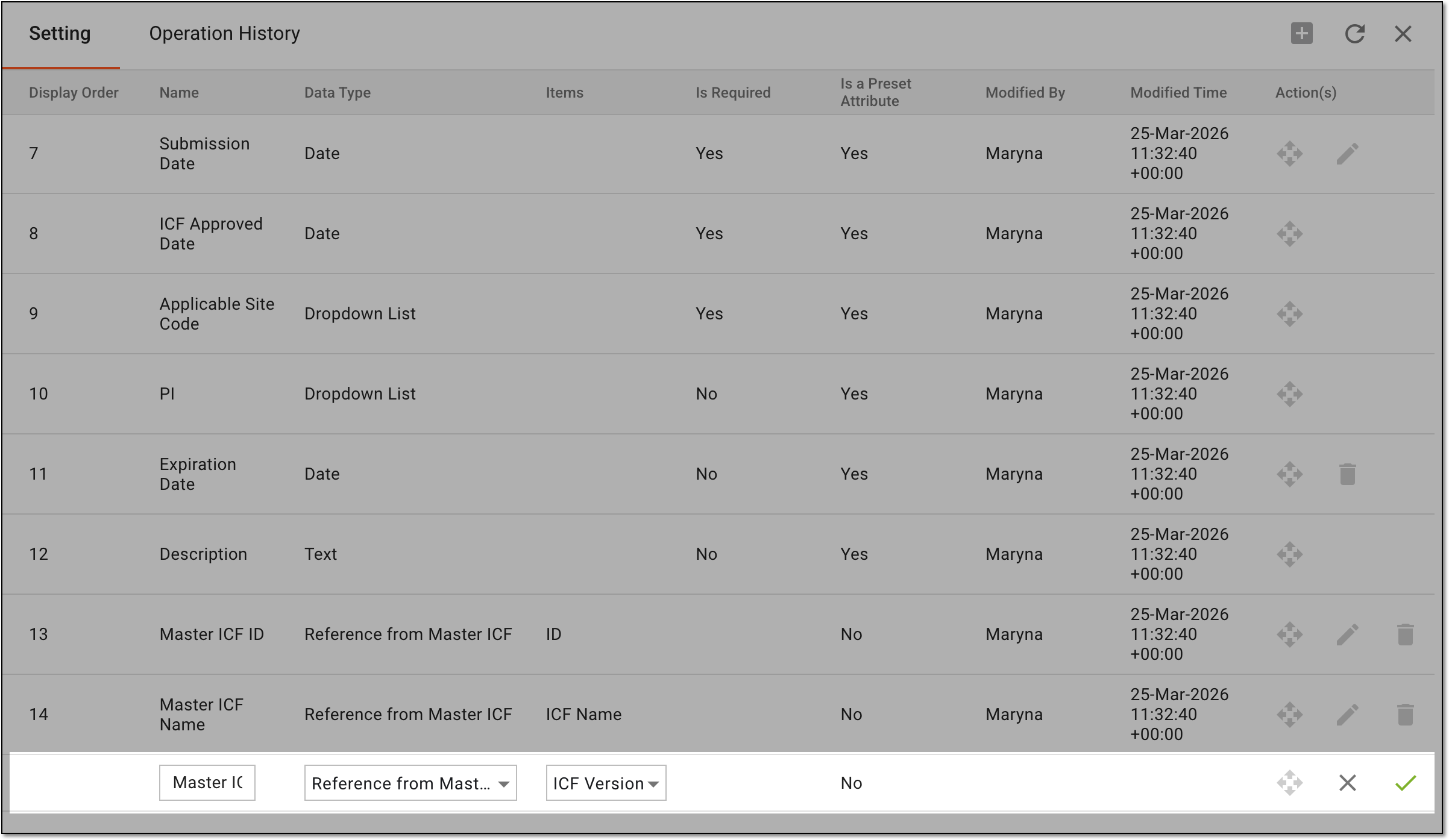 Figure 6. Adding new data element to site ICF listing
Element
Details
Name
Enter the name of the new field you want to add to ICF.
Data Type
Select the data type of the field, such as:
-
Text: requires the user to enter any text as value.
-
Numeric: requires the user to enter only a numeric value.
-
Date: requires the user to select the date as value.
-
Dropdown List: requires the user to select one of the preset values. For this data type, you need to configure items.
-
Dropdown List and Text: gives the user options to enter free text, select one of the predefined values, or select and edit the predefined values.
-
Reference from Master ICF: requires the user to select one of the data elements configured in the master ICF to be referenced in site ICF.
Adding this data type generates the Related Master ICFs block of details in site ICFs and enables the
                                          cross-reference functionality between site and master ICFs.
Items
Add the values for the added data element based on its data type, such as:
-
For Dropdown List and Dropdown List and Text, enter the values from which the user will select a value for the field. Use commas to separate multiple dropdown values.
For example, for the Consent Method field, you can enter values like: Electronically, On paper, Verbally.
-
For Reference from Master ICF, select the data elements configured in the master ICF to be referenced in the site ICF.
For example, if the site ICF is based on the specific version of a certain master ICF, you can refer to the master ICF ID, name, and version.
Is Required
Select Yes or No to indicate whether the data element is a mandatory or optional field for completion when creating or editing the site ICF.
Is a Preset Attribute
Represents if a data element in ICF is system-defined (predefined) or created by a user.
Modified By
Represents the user who last modified the data element.
Modified Time
Represents the time when the data element was last modified.
Save
Select
 to add the data element to ICF.
Close
Select
 to discard the changes without saving.
 -
-
Once saved, the new data element is added. You can now perform the following actions to it.
Next to the data element you want to update, select Edit
 . In the fields that become editable, update the
values as explained in the preceding table.
. In the fields that become editable, update the
values as explained in the preceding table. Figure 7. Editing data elements of site ICF listing
Next to the data element you want to remove from the site ICF listing, select Delete
 . Once selected, in the
confirmation dialog that appears, enter the reason for deletion and select SAVE.
. Once selected, in the
confirmation dialog that appears, enter the reason for deletion and select SAVE.Important
For the Expiration Date data element, the deletion is reversible, this element can be restored.
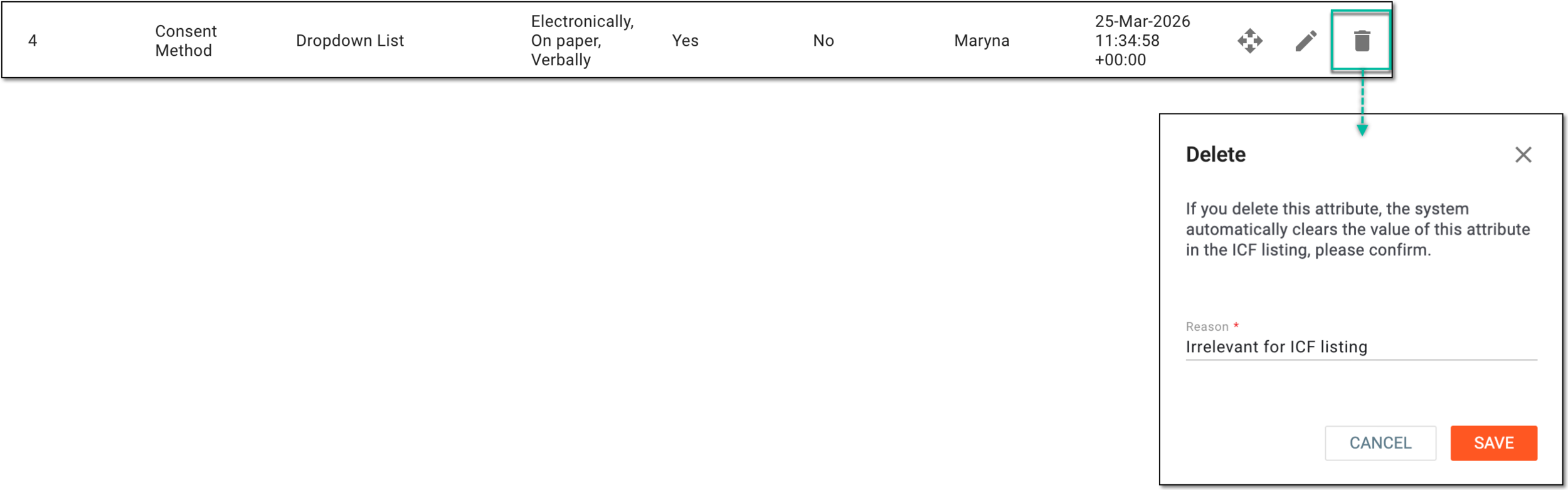 Figure 8. Deleting data element
Select the Operation History tab to access the log of all actions on the site ICF listing configurations for analysis purposes. Recording operation history ensures keeping track of all customizations and being responsible for them.
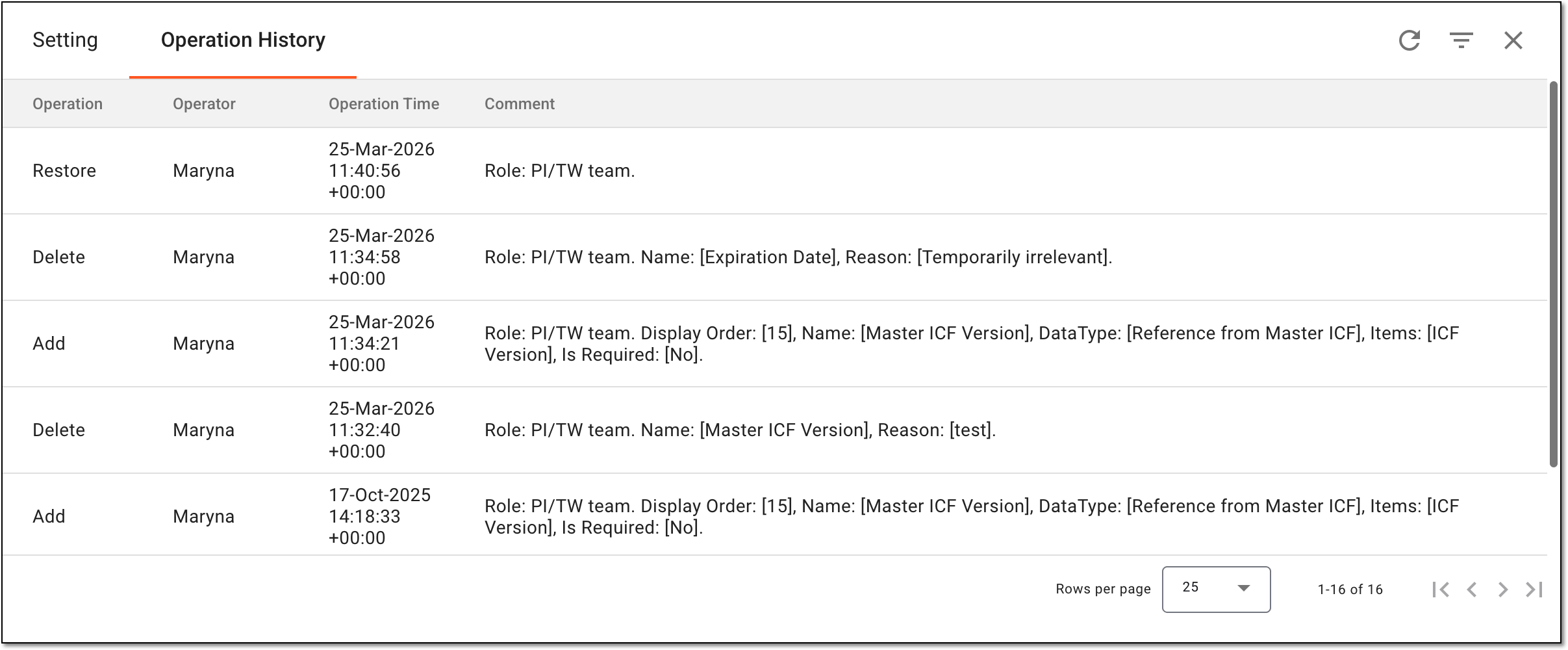 Figure 11. Analyzing operation history for site ICF listing configurations



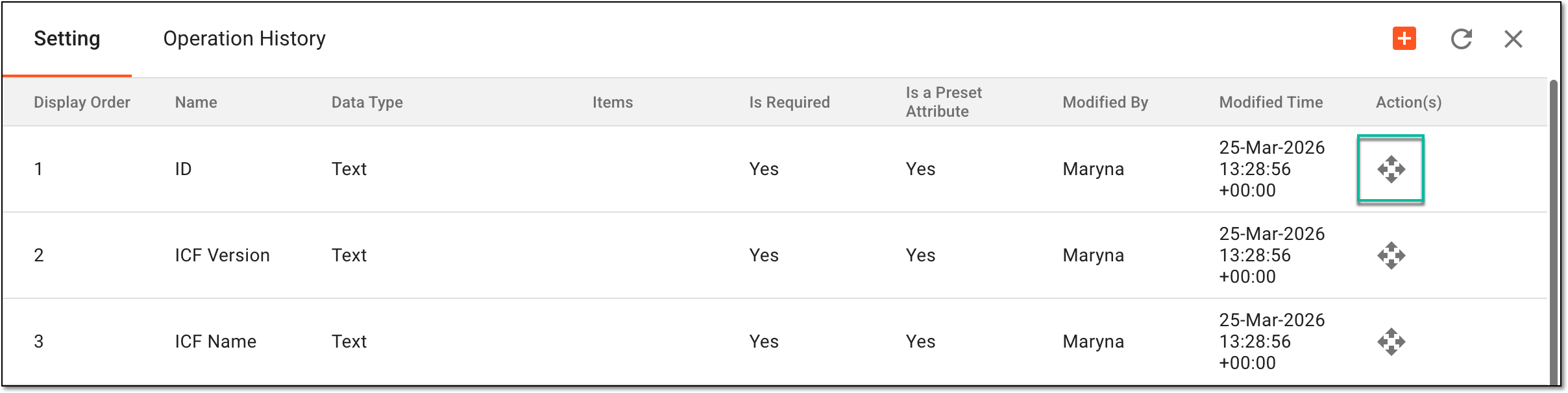
You have configured the data elements of the site ICF listing.
Create new site ICF listing record
The site Informed Consent Forms (ICFs) are designed based on the master ICFs to satisfy certain site-specific requirements and adjustments due to geographical, regulatory, auditorial, and other aspects.
In CTMS, to manage the site ICFs and their relations to the master ones, as well as maintain versioning, you need to add all the site ICFs as listing records to the system.
-
Access the study management page in one of the following ways:
-
In the CTMS application header, select the DASHBOARD tab and then select the study dashboard of your interest.
Figure 1. Accessing study management from dashboard
-
In the CTMS application header, select the STUDY MANAGEMENT tab. Then from the Study Data List table, select the study name of your interest.
Figure 2. Accessing study management from study data list
-
-
On the study management page that opens, from the left pane, select ICF > ICF Listing.
Figure 3. Accessing ICF listing
-
On the page that opens, under the Site ICFs tab, from the workspace toolbar, select New Item
.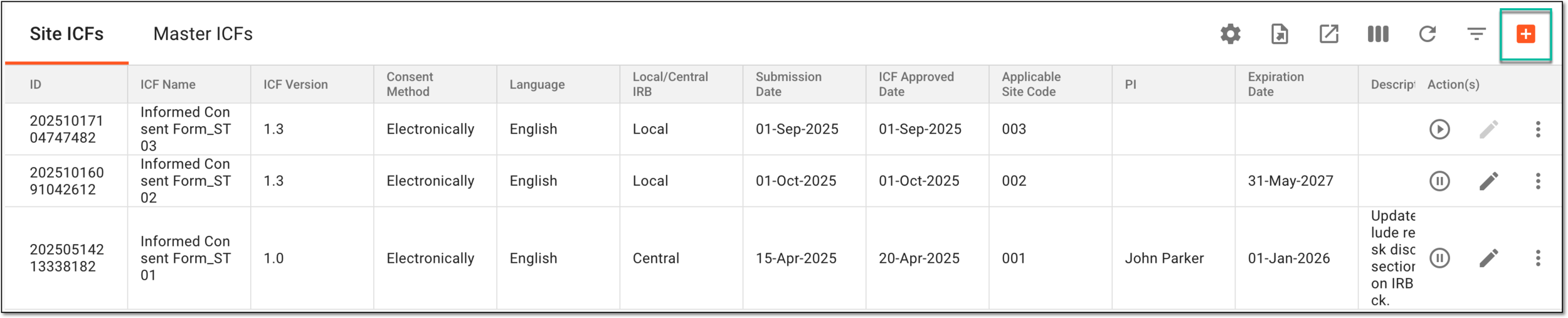 Figure 4. Selecting option to add new site ICF listing record
-
In the New dialog that appears, add the ICF and protocol versioning details as explained in the following table.
Important
The fields in this dialog may vary based on the defined ICF listing setting.
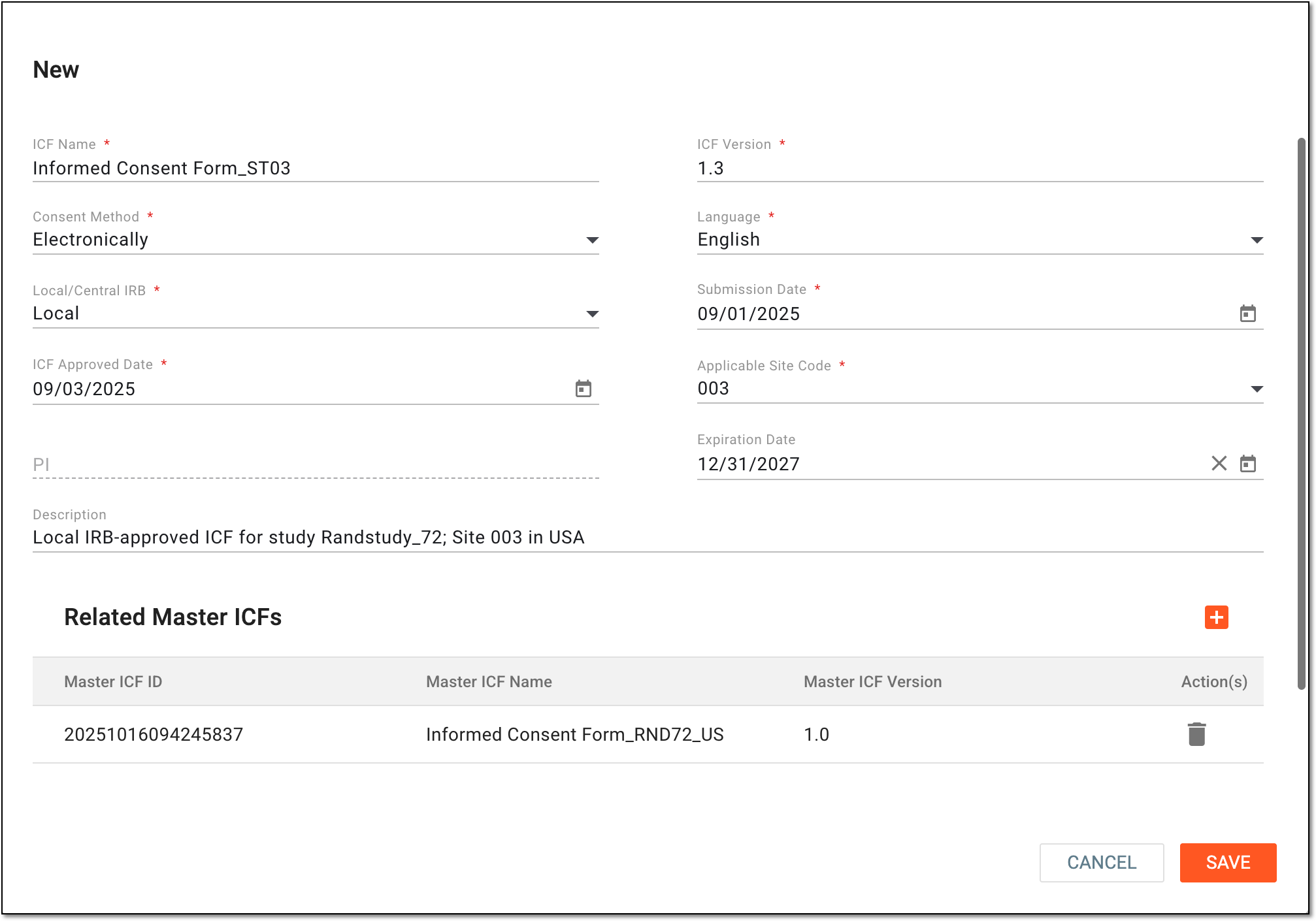 Figure 5. Adding new site ICF listing record details
Tip
In the following table, mandatory elements are marked with an asterisk (*).
Element
Details
ICF Name*
Enter the name of the site ICF for which you are creating the listing record.
ICF Version*
Enter the version of the site ICF for which you are creating the listing record.
Consent Method*
Select the method how the subjects of the study can give their consent for this ICF.
The values can be customized to suit your study business needs, for instance, they can be Electronically or On paper, or you can add Verbally if it is acceptable.Language*
Select the language of the site ICF.
Local/Central IRB*
Select whether the site ICF is reviewed and approved by the central Institutional Review Board (IRB) for the study or the local IRB in the region where this ICF applies.
Submission Date
Select the date when the site ICF has been submitted for review to the IRB.
ICF Approved Date*
Select the date when the site ICF version has been approved by the IRB.
Applicable Site Code*
Select the unique identifier of the site where this ICF is applicable for subjects.
Note that once the site ICF listing record is saved, the site selection cannot be changed.PI
Represents the name of the principal investigator (PI) at the site to which this ICF applies. The value is autopopulated from the site profile based on the selected site code.
Expiration Date
Select the date, if any, when the site ICF expires and becomes outdated.
Description
Enter additional details about the site ICF for other users' acknowledgment.
Related Master ICFs
In this block, select
and in the dialog that opens, select the checkboxes next to the master ICFs that you want to reference to this site ICF.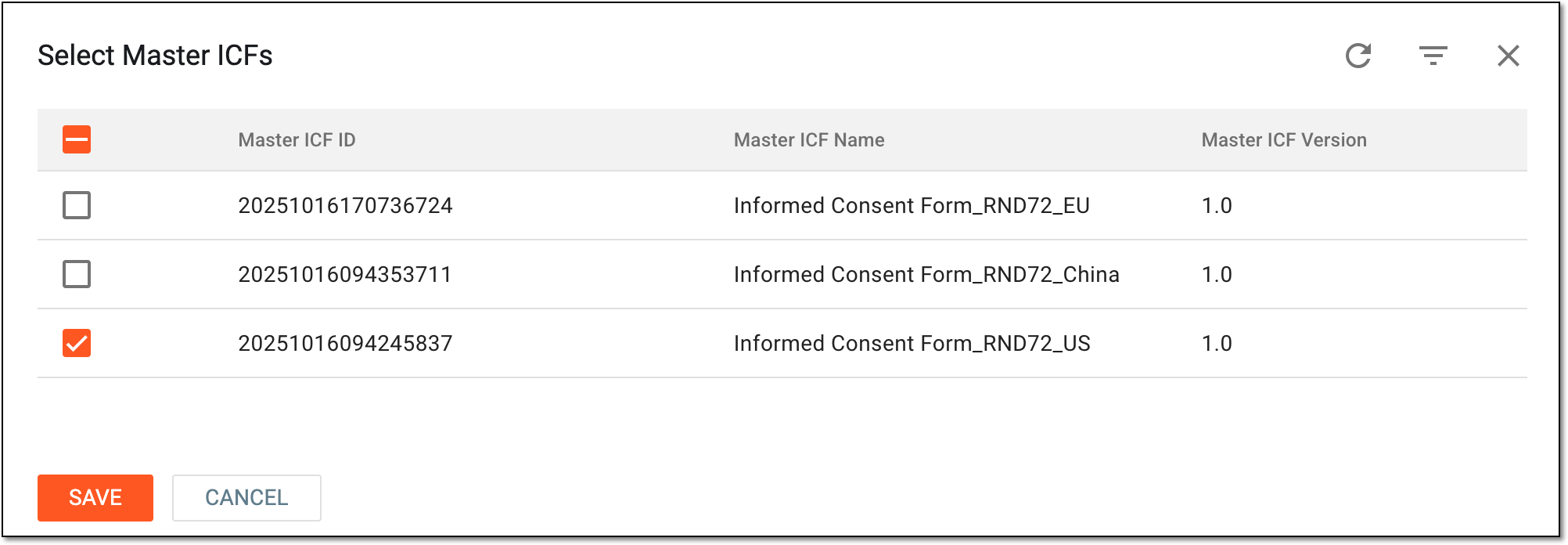 Figure 6. Selecting related master ICFs
This block of settings is only available if you add the Reference from Master ICF data type elements to your ICF listing setting, thus enabling cross-referencing between site and master ICFs. The available properties of the master ICFs depend on the items added to the data element, such as ID, name, version, and so on.SAVE
Select
 to implement the changes.
CANCEL
Select
 to discard the changes without saving.
Once saved, the site ICF listing record is added. You can now refer to this ICF when adding ICF tracking records.
Edit site ICF listing record
The site Informed Consent Forms (ICFs) are designed based on the master ICFs to satisfy certain site-specific requirements and adjustments due to geographical, regulatory, auditorial, and other aspects.
In CTMS, to manage the site ICFs and their relations to the master ones, as well as maintain versioning, you need to add the site ICFs as listing records to the system. Once added, the site ICF listing record can be edited to adjust it to the changing study requirements.
Tip
You cannot edit the inactive site ICF listing record.
-
Access the study management page in one of the following ways:
-
In the CTMS application header, select the DASHBOARD tab and then select the study dashboard of your interest.
Figure 1. Accessing study management from dashboard
-
In the CTMS application header, select the STUDY MANAGEMENT tab. Then from the Study Data List table, select the study name of your interest.
Figure 2. Accessing study management from study data list
-
-
On the study management page that opens, from the left pane, select ICF > ICF Listing.
Figure 3. Accessing ICF listing
-
On the page that opens, under the Site ICFs tab, locate the record whose details you need to update. Then from the Action(s) column next to the record, select Edit
.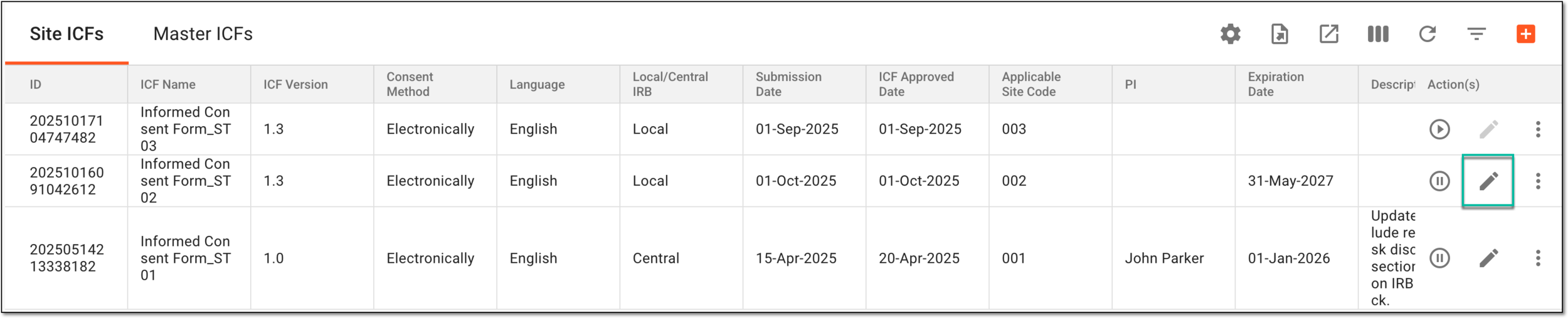 Figure 4. Selecting to edit site ICF listing record
Tip
If your site ICF has a tracking log added, the notification appears that changing the ICF details can affect the tracking log data. Select CONFIRM to acknowledge the warning and proceed to editing.
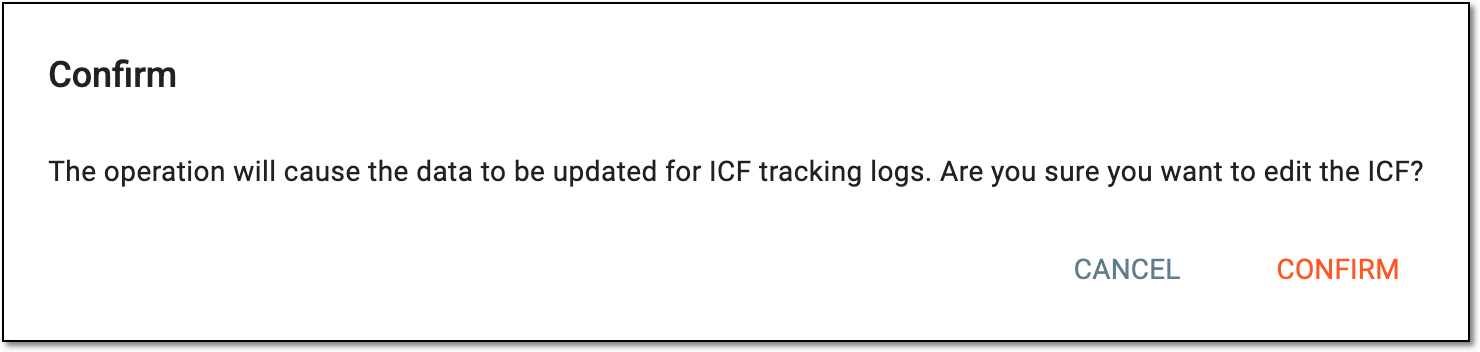 Figure 5. Receiving notification on potential data change
-
In the Edit dialog that appears, update the site ICF listing record details as needed. These details are the same as the ones explained in the table of the Create new site ICF listing record section.
Important
The ID field is read-only as this value is autogenerated by the system for the site ICF listing record upon creation for tracking purposes.
Also, you cannot change the site where the ICF applies, it is set once upon creation.
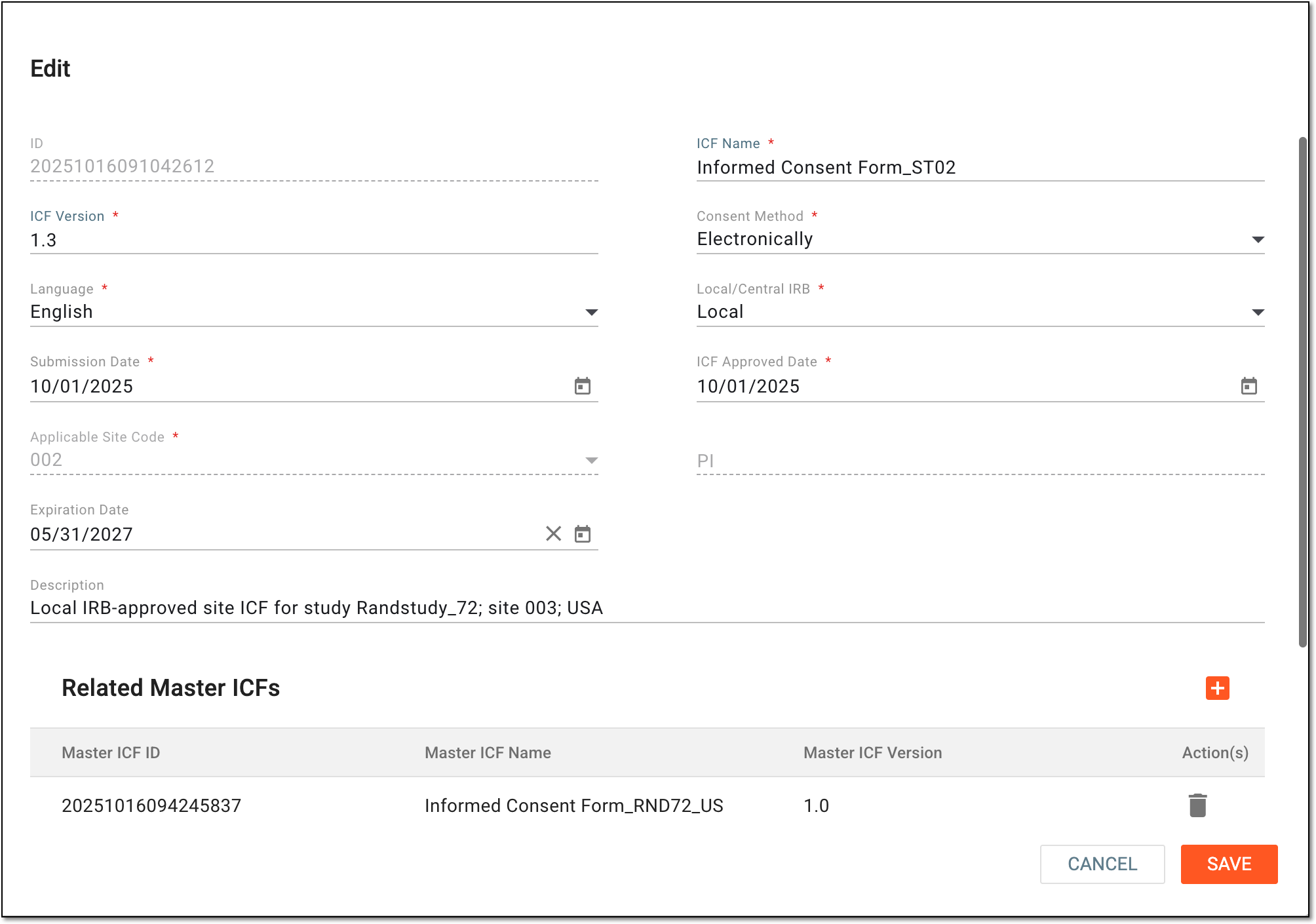 Figure 6. Editing site ICF listing record details
Once saved, the site ICF listing record is updated.
Activate/Inactivate site ICF listing record
The site Informed Consent Forms (ICFs) are designed based on the master ICFs to satisfy certain site-specific requirements and adjustments due to geographical, regulatory, auditorial, and other aspects.
The site ICF listing record must be activated to be able to reference it when adding the tracking log records. If you have created the site ICF listing record that is not ready or is no longer relevant for tracking, you can inactivate it. Thus, when creating tracking log records, only the active site ICFs will be available for selection.
-
Access the study management page in one of the following ways:
-
In the CTMS application header, select the DASHBOARD tab and then select the study dashboard of your interest.
Figure 1. Accessing study management from dashboard
-
In the CTMS application header, select the STUDY MANAGEMENT tab. Then from the Study Data List table, select the study name of your interest.
Figure 2. Accessing study management from study data list
-
-
On the study management page that opens, from the left pane, select ICF > ICF Listing.
Figure 3. Accessing ICF listing
-
On the page that opens, under the Site ICFs tab, locate the record of your interest. Then next to your record, from the Action(s) column, select Activate
 or Inactivate
  .
.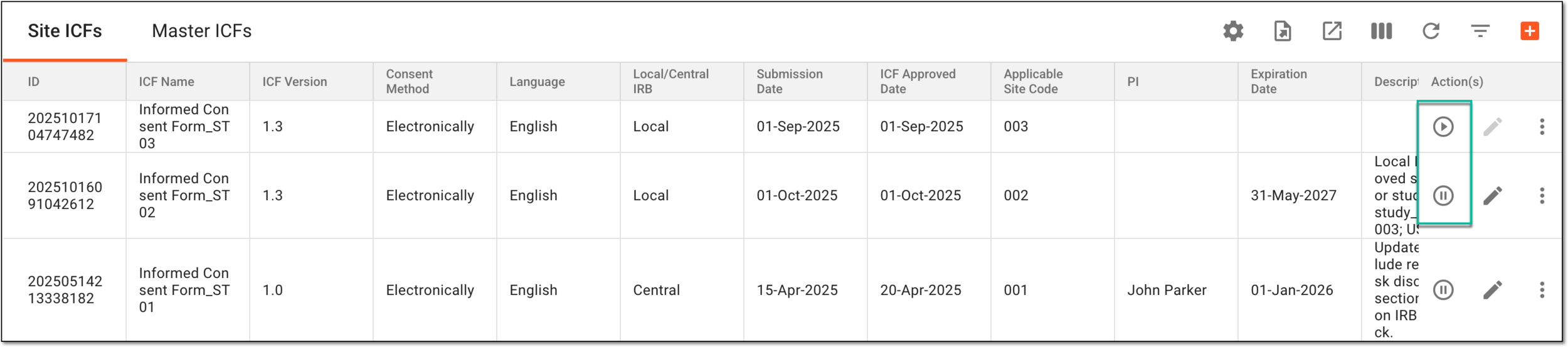 Figure 4. Selecting to activate or inactivate site ICF listing record
-
In the Reason dialog that appears, provide the arguments to justify your action. Then select
.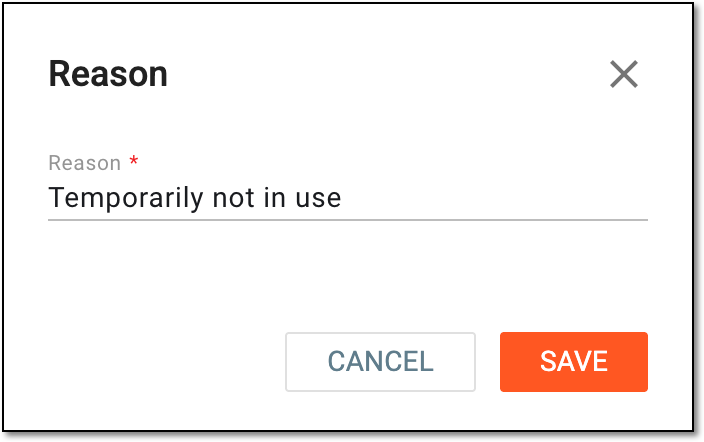 Figure 5. Providing reason for inactivating ICF listing record
Once the reason is saved, the site ICF listing record becomes active or inactive based on your performed action.
Review site ICF listing record reference items
The site Informed Consent Forms (ICFs) are designed based on the master ICFs to satisfy certain site-specific requirements and adjustments due to geographical, regulatory, auditorial, and other aspects.
In CTMS, you add the site ICFs as listing records to the system to then reference them when adding ICF tracking log records. For convenience and traceability, you can review the list of all tracking records associated with each site ICF.
-
Access the study management page in one of the following ways:
-
In the CTMS application header, select the DASHBOARD tab and then select the study dashboard of your interest.
Figure 1. Accessing study management from dashboard
-
In the CTMS application header, select the STUDY MANAGEMENT tab. Then from the Study Data List table, select the study name of your interest.
Figure 2. Accessing study management from study data list
-
-
On the study management page that opens, from the left pane, select ICF > ICF Listing.
Figure 3. Accessing ICF listing
-
On the page that opens, under the Site ICFs tab, locate the record whose references you want to check. Then from the Action(s) column next to the record, select Reference Item
 .
.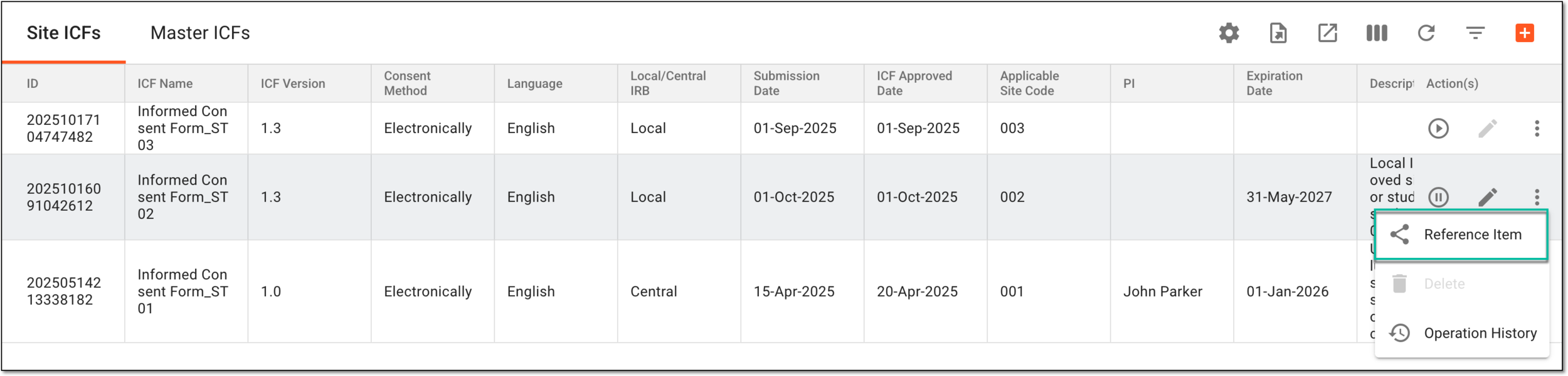 Figure 4. Selecting to view references for site ICF
-
In the Reference Item dialog that opens, review all the ICF tracking log records associated with the site ICF.
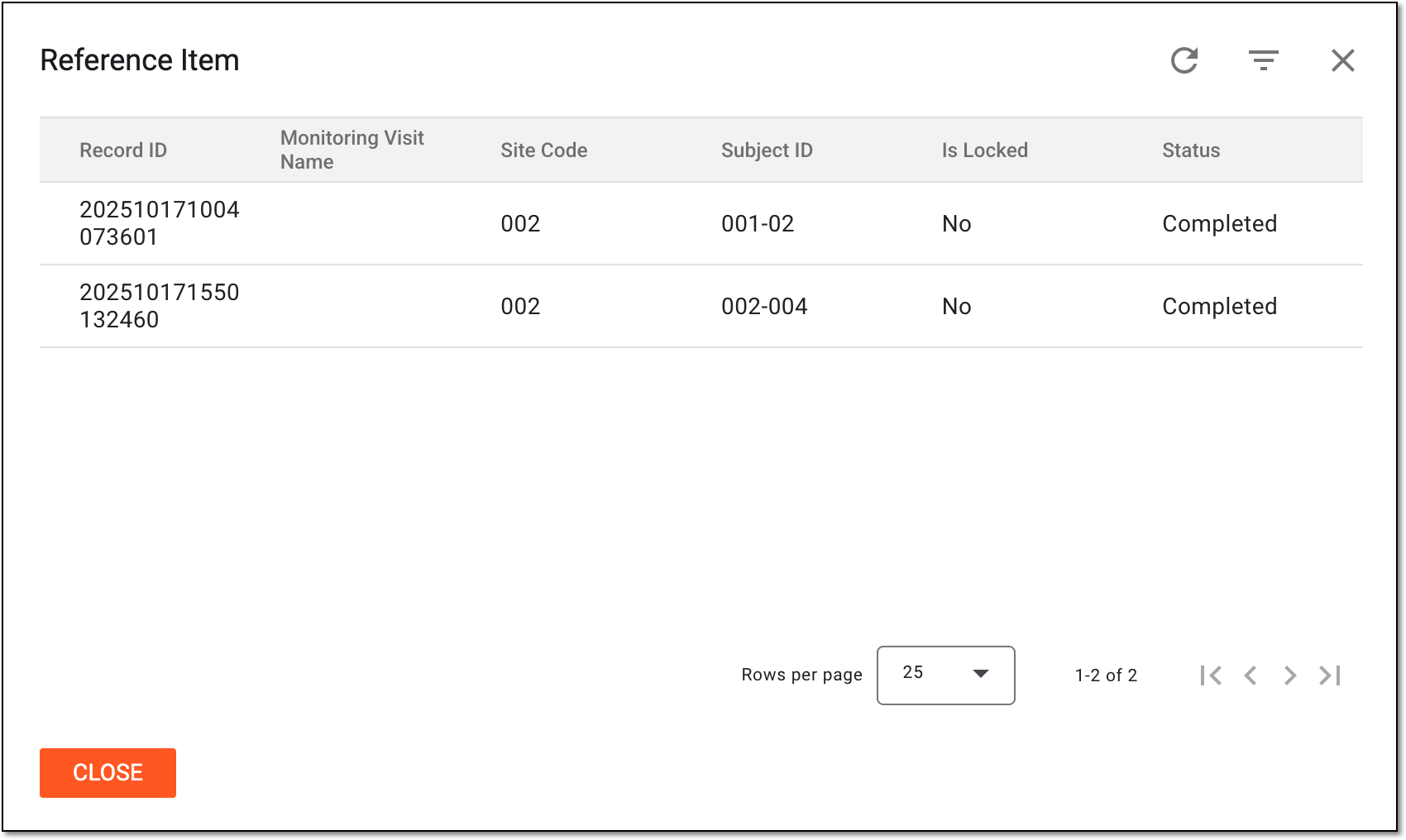 Figure 5. Reviewing referenced item list for site ICF
You have reviewed the list of the ICF tracking log records associated with a certain site ICF. You can now select  to return to the Site
ICFs list.
to return to the Site
ICFs list.
Analyze site ICF listing record operation history
The site Informed Consent Forms (ICFs) are designed based on the master ICFs to satisfy certain site-specific requirements and adjustments due to geographical, regulatory, auditorial, and other aspects.
In the course of a clinical trial, various modifications can be made to the site ICF listing record, and it is vital to keep track of such changes for compliance and traceability reasons. The operation history provides an exhaustive, structured log of events, helping you trace what they were, who performed them, and when.
-
Access the study management page in one of the following ways:
-
In the CTMS application header, select the DASHBOARD tab and then select the study dashboard of your interest.
Figure 1. Accessing study management from dashboard
-
In the CTMS application header, select the STUDY MANAGEMENT tab. Then from the Study Data List table, select the study name of your interest.
Figure 2. Accessing study management from study data list
-
-
On the study management page that opens, from the left pane, select ICF > ICF Listing.
Figure 3. Accessing ICF listing
-
On the page that opens, under the Site ICFs tab, locate the record whose history of changes you want to review. Then from the Actions column next to it, select More
 > Operation History
  .
.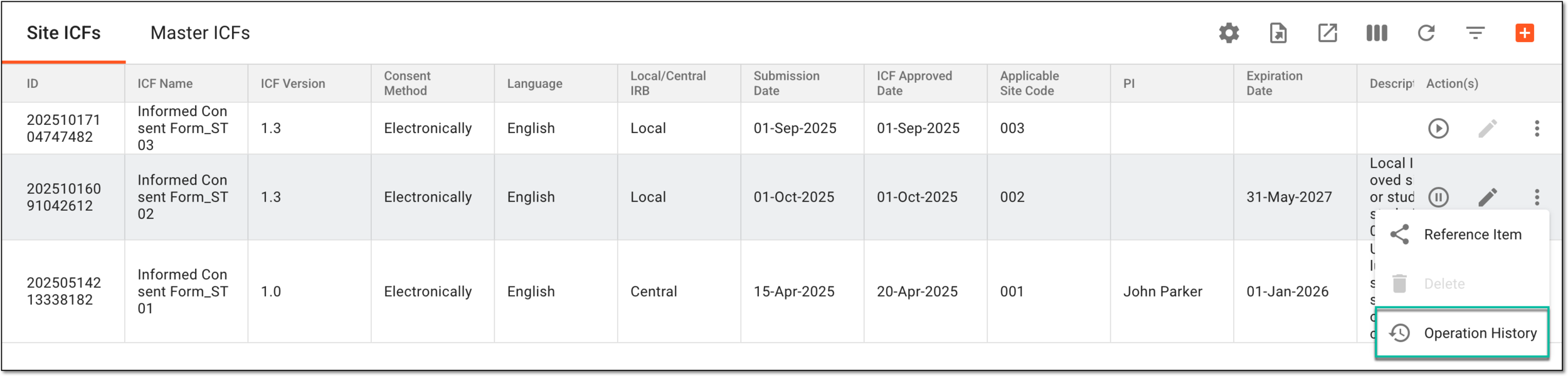 Figure 4. Accessing site ICF listing record operation history
-
In the Operation History dialog that opens, review the complete history of actions performed to the ICF listing record.
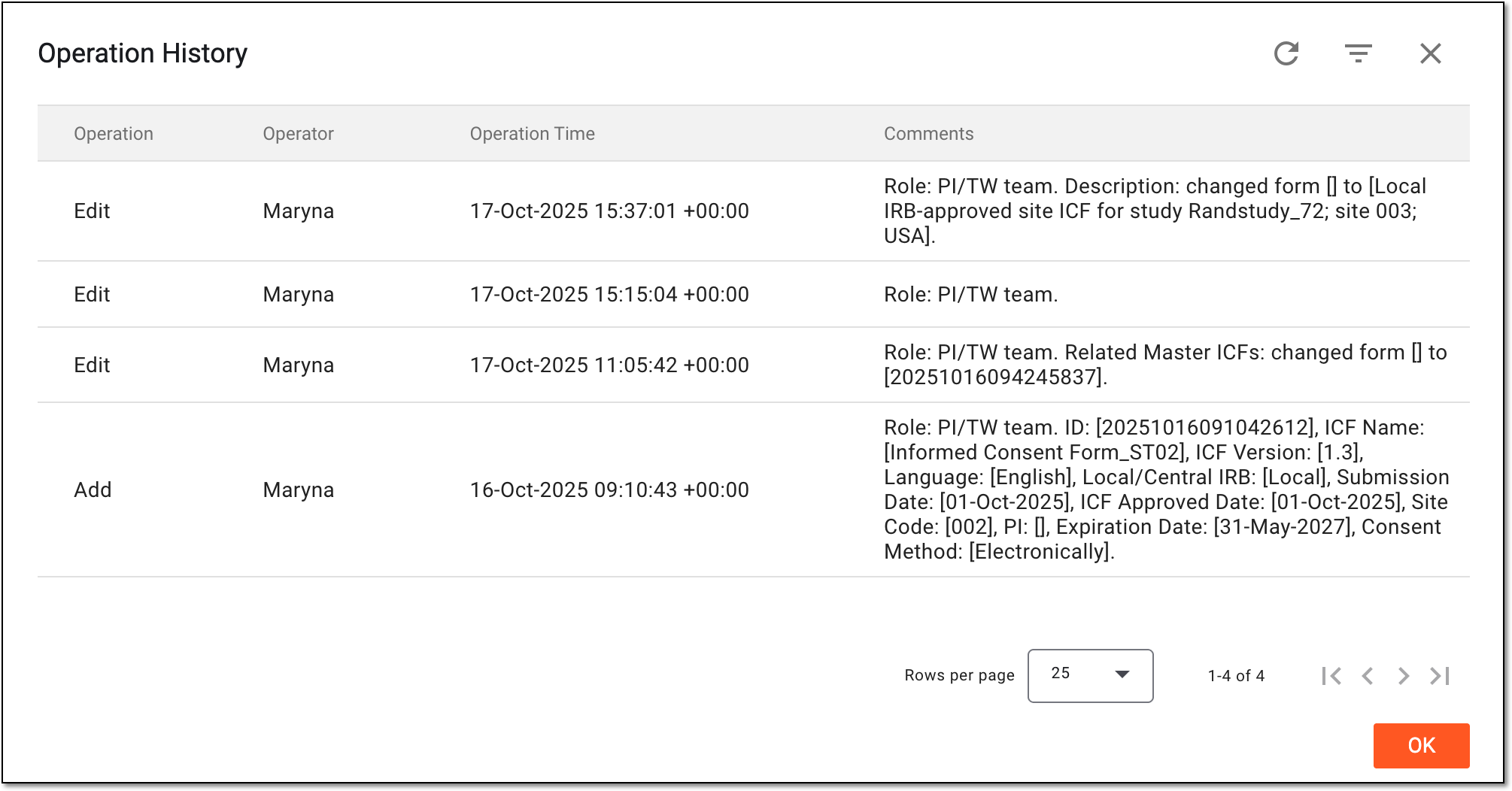 Figure 5. Analyzing operation history for site ICF listing record
You have analyzed the operation history for the site ICF listing record. You can now select OK to close the dialog and return to the Site ICFs list.
Delete site ICF listing record
The site Informed Consent Forms (ICFs) are designed based on the master ICFs to satisfy certain site-specific requirements and adjustments due to geographical, regulatory, auditorial, and other aspects.
Since throughout the study the protocol and the ICF requirements can change due to evolving circumstances, you need to maintain the site ICF listing records up-to-date. If some record is no longer relevant to your study, you can remove it from the list to avoid records cluttering.
Important
To delete the site ICF listing record it must have no ICF tracking record added and be inactivated.
-
Access the study management page in one of the following ways:
-
In the CTMS application header, select the DASHBOARD tab and then select the study dashboard of your interest.
Figure 1. Accessing study management from dashboard
-
In the CTMS application header, select the STUDY MANAGEMENT tab. Then from the Study Data List table, select the study name of your interest.
Figure 2. Accessing study management from study data list
-
-
On the study management page that opens, from the left pane, select ICF > ICF Listing.
Figure 3. Accessing ICF listing
-
On the page that opens, under the Site ICFs tab, locate the record you want to remove. Then from the Actions column next to it, select More
> Delete  .
. Figure 4. Deleting site ICF listing record
-
In the Reason dialog that appears, provide the arguments to justify your action. Then select
. Figure 5. Providing reason for ICF listing record deletion
Once confirmed, the site ICF listing record is deleted.