Interaction with CODING UI
The CODING application consists of two modules: Medical Coding and Coding Admin, each featuring a unique user interface (UI) tailored to its specific functions.
The UI of each module is generic and looks similar to most of the CONFORM eClinical applications. In the Cross-eClinical UI components section, you may find a designation and description of all such common UI elements. Whereas, in this section, you can find the explanation of unique module elements not available in the other eClinical applications.
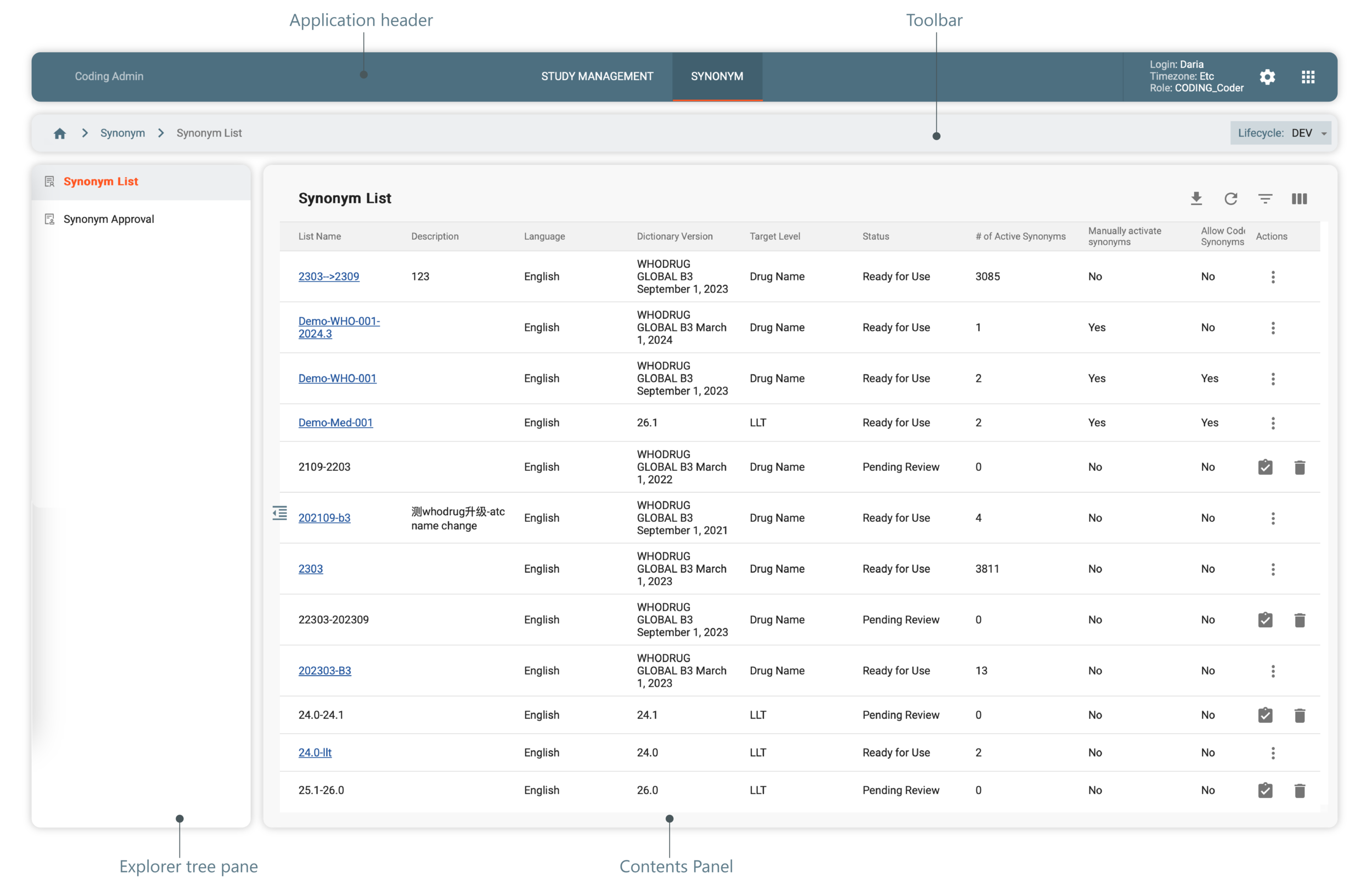
The only difference in the UI lies in the application header and the quick panel. Here are the unique UI elements available:
-
Switcher: to toggle between CODING and EDC/SD/IWRS. The dropdown menu beside it allows you to switch between different studies for which coding configurations are performed.
-
Tabs: tabs are available in all eClinical apps, but the tabs themselves and their number differ in each application. In the Medical Coding module, the available tabs are:
-
CONFIGURATION: designed to manage and customize study settings and coding preferences. Here, you can view general study information, configure coding details such as dictionary version, language, and target level, manage domains and coding batches, and define data processing and split rules.
-
BATCH: designed for medical terms originating from external EDC systems. Here, you can create and manage batches of files with medical terms, facilitating operations for handling large volumes of data.
-
CODING: the primary workspace for performing and reviewing coding assignments. It provides tools and options for assigning medical codes, reviewing coding decisions, and ensuring the accuracy and consistency of the coding process.
-
REPORTS: dedicated to tracking domain and dictionary delta changes.
-
-
Quick panel: provides a user-specific list of recently coded terms, letting you quickly access them.
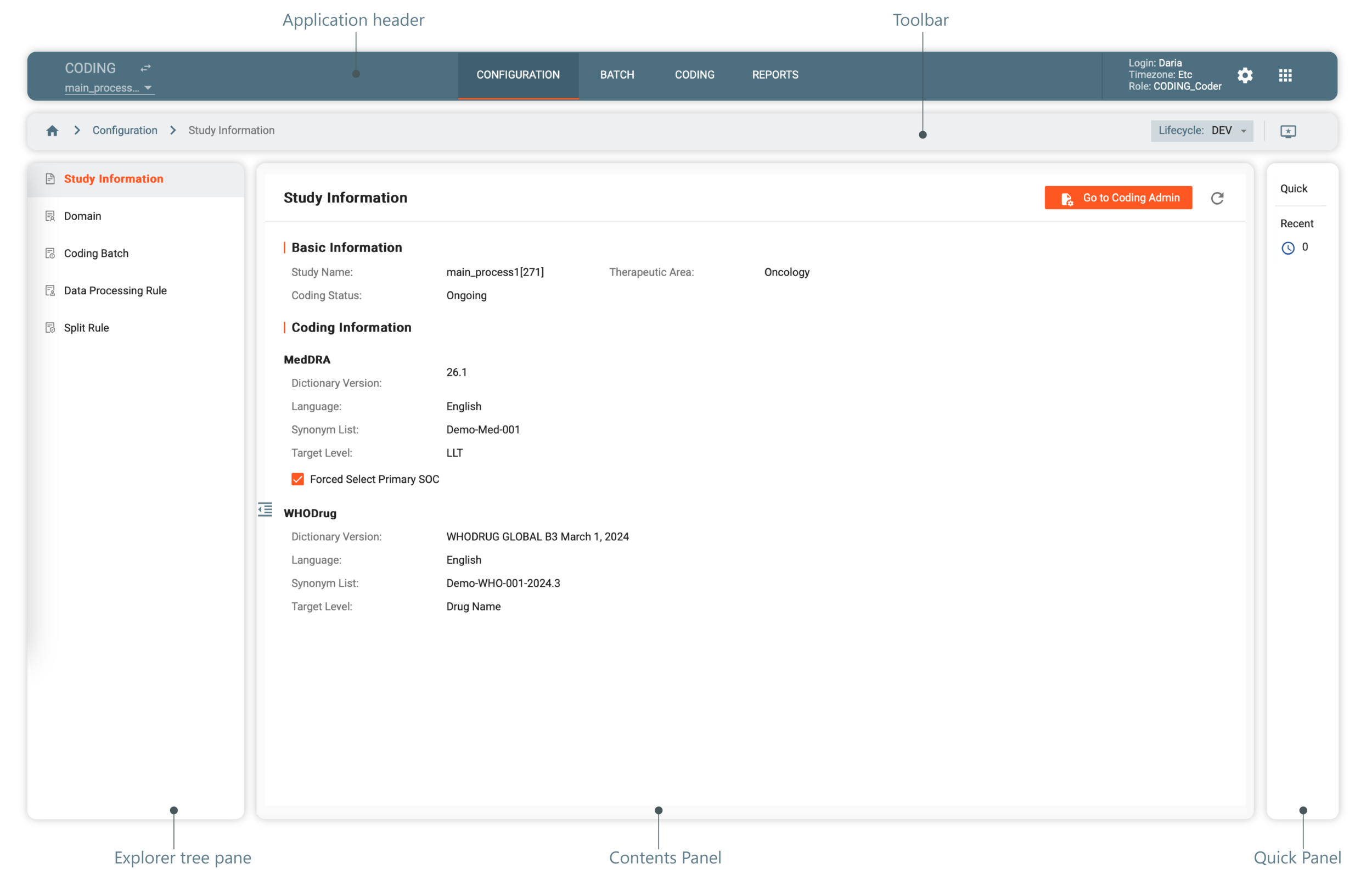
The only difference in the UI are tabs. In the Coding Admin module, the available tabs are:
-
STUDY MANAGEMENT: displays a list of available studies that have been created beforehand in the ADMIN application. Administrators use this tab to define the status of each study, such as Not Started, Ongoing, Upgrading, or Locked. This allows for clear tracking and management of the progress and status of coding configurations for each study.
-
SYNONYM: designed to manage and approve synonym lists used in coding processes.