Add form-level result record for general/global SDV
Source Data Verification (SDV) involves the review and comparison of data recorded in the source documents such as laboratory results, medical history, adverse event records, and so on against the data captured on the case report forms (CRFs).
Once you have selected the SDV type for your study and configured either global, general, or target SDV settings, the planning stage may be considered complete. You can now start to verify the CRF data against the source documentation and then track the outcomes under the SDV Result tab.
For Global and General SDV procedures, under the SDV Result tab, you can track the SDV completion status for the subject data on various forms and CRF items. If some data elements need to undergo SDV and are not on the list, you can add them manually by the subject CRF or subject unique form.
Important
For the studies with a global SDV model set to less than 100%, the forms added to the SDV Result list become obligatory for SDV. The form that is deleted from the list becomes optional for SDV and it is added to the random SDV system algorithm.
This section explains how to add a new SDV result record for a CRF that belongs to a specific subject and their visit.
-
In the EDC application header, select the STUDY INFO tab.
-
In the left pane of the page that opens, expand SDV and select the SDV Result tab.
-
From the workspace toolbar of the SDV Result page that opens, select New Item
 and then select the By Subject CRF Form option.
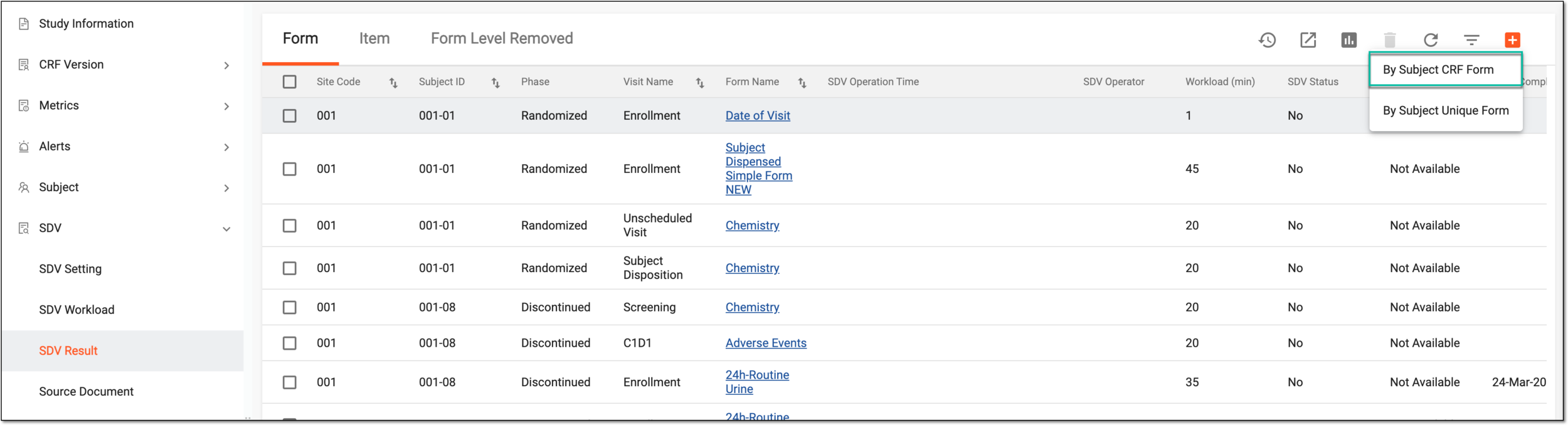 Figure 1. Adding SDV result by subject CRF
-
In the dialog that appears, fill in the form as explained in the following table.
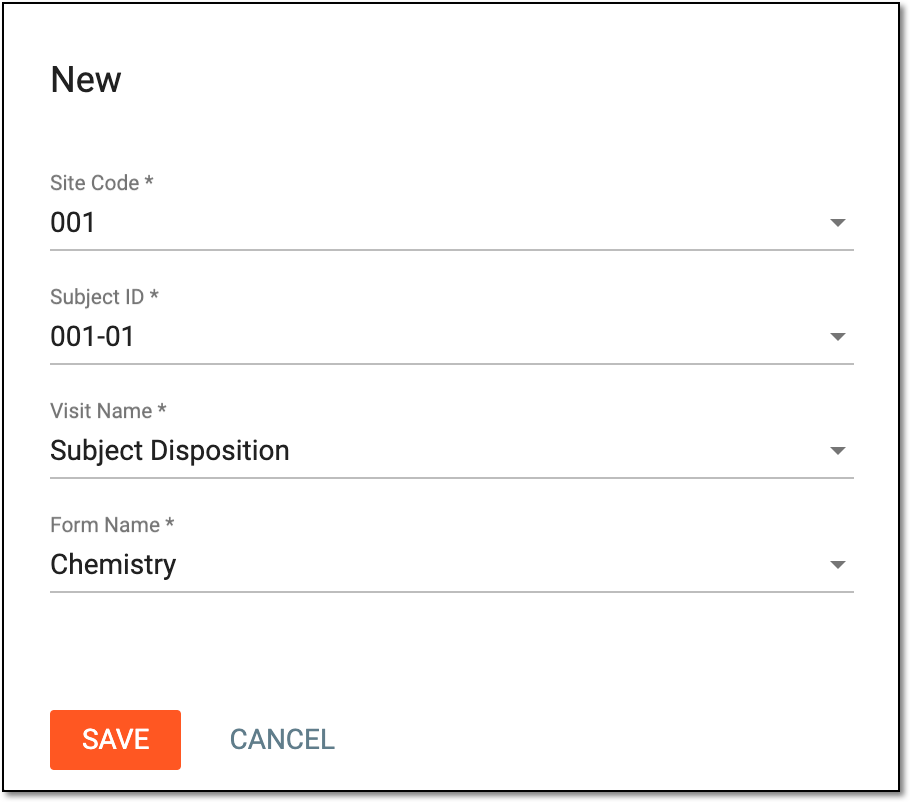 Figure 2. Adding new SDV result record
Tip
In the following table, mandatory elements are marked with an asterisk (*).
Element
Details
Site Code*
Select the site code of the subject for whom you want to track SDV.
Subject ID*
Select the ID of the subject for whom you want to track SDV.
Visit Name*
Select the visit whose form data you want to add for SDV tracking.
Form Name*
Select the CRF whose data you want to add for SDV tracking.
SAVE
Select
 to add the SDV result record.
CANCEL
Select
 to discard the changes and close the dialog.
Once saved, the new SDV result record is added to the list so the corresponding CRF needs to undergo SDV during data entry.
This section explains how to add a new SDV result record for a CRF that belongs to a specific subject regardless of the visit to which the form attains.
For instance, if the 12-Lead ECG form is going to be completed at various visits, the SDV is performed for all such completed forms.
-
In the EDC application header, select the STUDY INFO tab.
-
In the left pane of the page that opens, expand SDV and select the SDV Setting tab.
-
From the workspace toolbar of the SDV Result page that opens, select New Item
and then select the By Subject Unique Form option.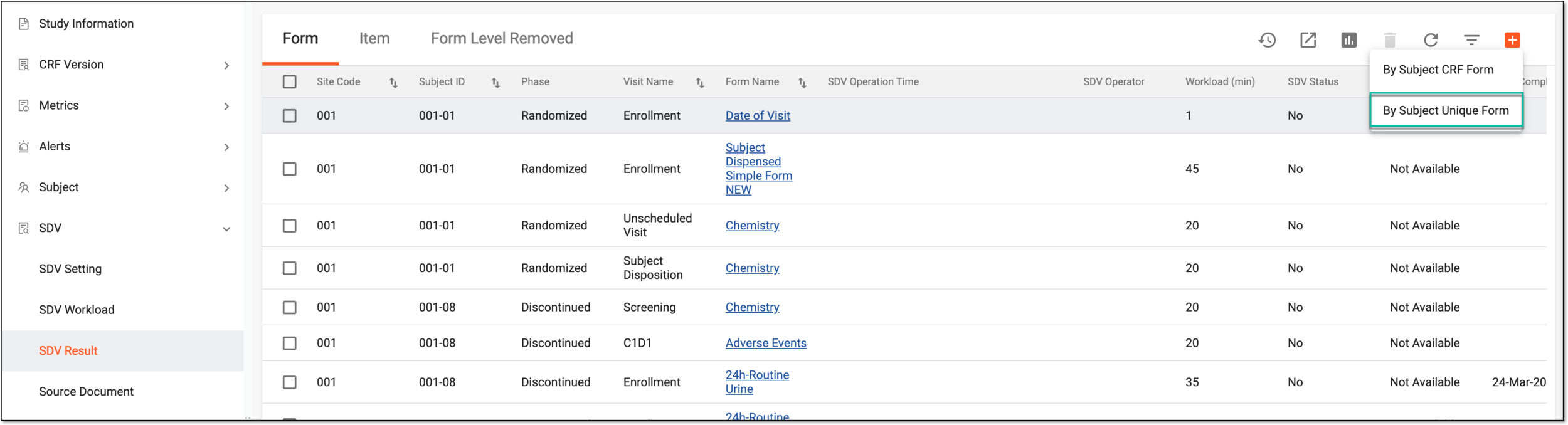 Figure 1. Adding SDV result by subject unique form
-
In the New dialog that opens, fill in the form as explained in the following table.
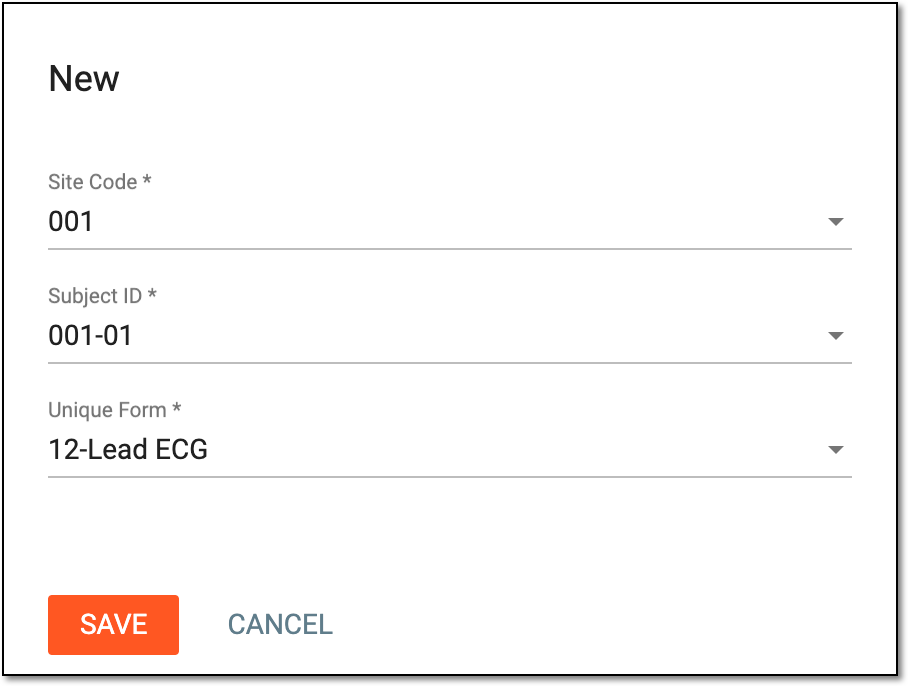 Figure 2. Adding new SDV result record
Tip
In the following table, mandatory elements are marked with an asterisk (*).
Element
Details
Site Code*
Select the site code of the subject for whom you want to track SDV.
Subject ID*
Select the ID of the subject for whom you want to track SDV.
Unique Form*
Select the unique form whose data you want to add for SDV tracking.
SAVE
Select
to add the SDV result record.CANCEL
Select
to discard the changes and close the dialog.
Once saved, the new SDV result record is added to the list so the corresponding unique form needs to undergo SDV during data entry.