Set stratification factors for system-generated randomization scheme
Stratification factors are the variables that are used to divide a group of subjects into subgroups according to certain criteria. You can add stratified factors for a randomization scheme of the system-generated type.
-
In the IWRS application header, select the TREATMENT DESIGN tab.
-
On the page that opens, in the left pane, select the Period subtab.
-
In the Period List table that appears, locate the period of your interest. Then in the Period Name column, select the value to open the period configurator.
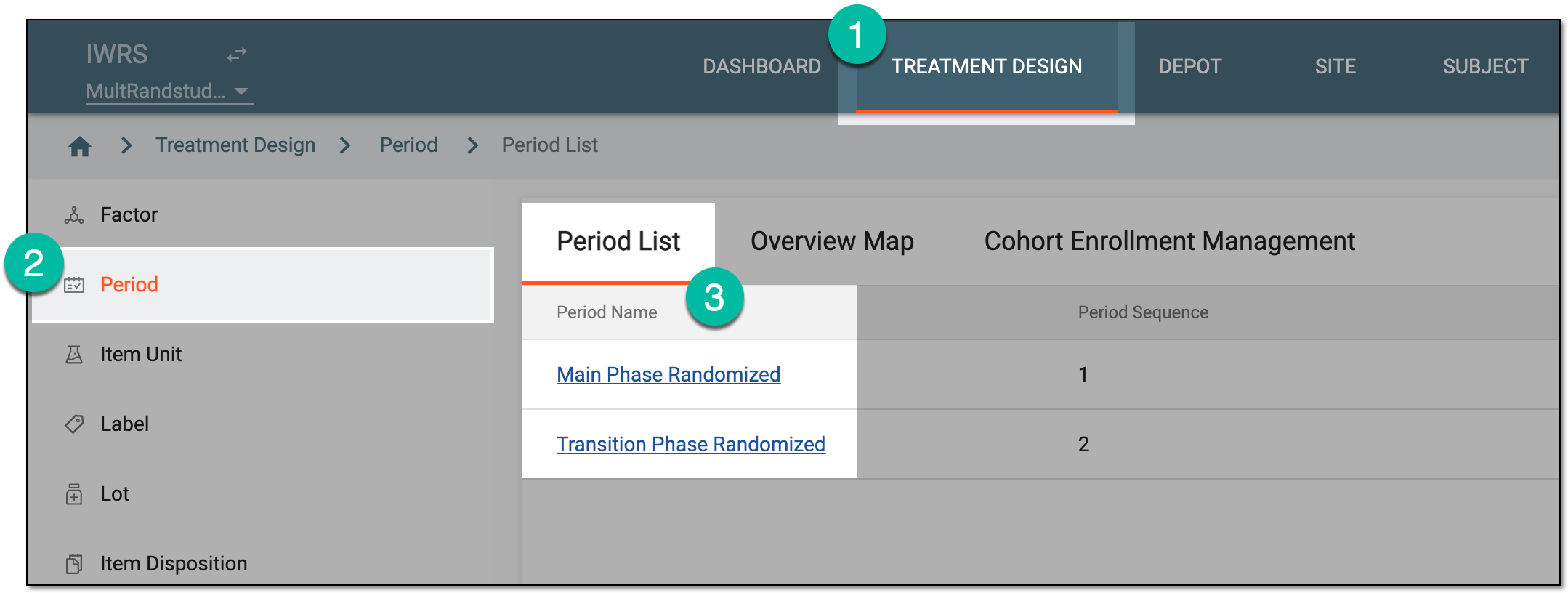 Figure 1. Selecting period to configure
-
In the period configurator, drill down the explorer tree and select Scheme
 .
. -
In the Scheme Setting form that appears, select Stratified setting
 .
.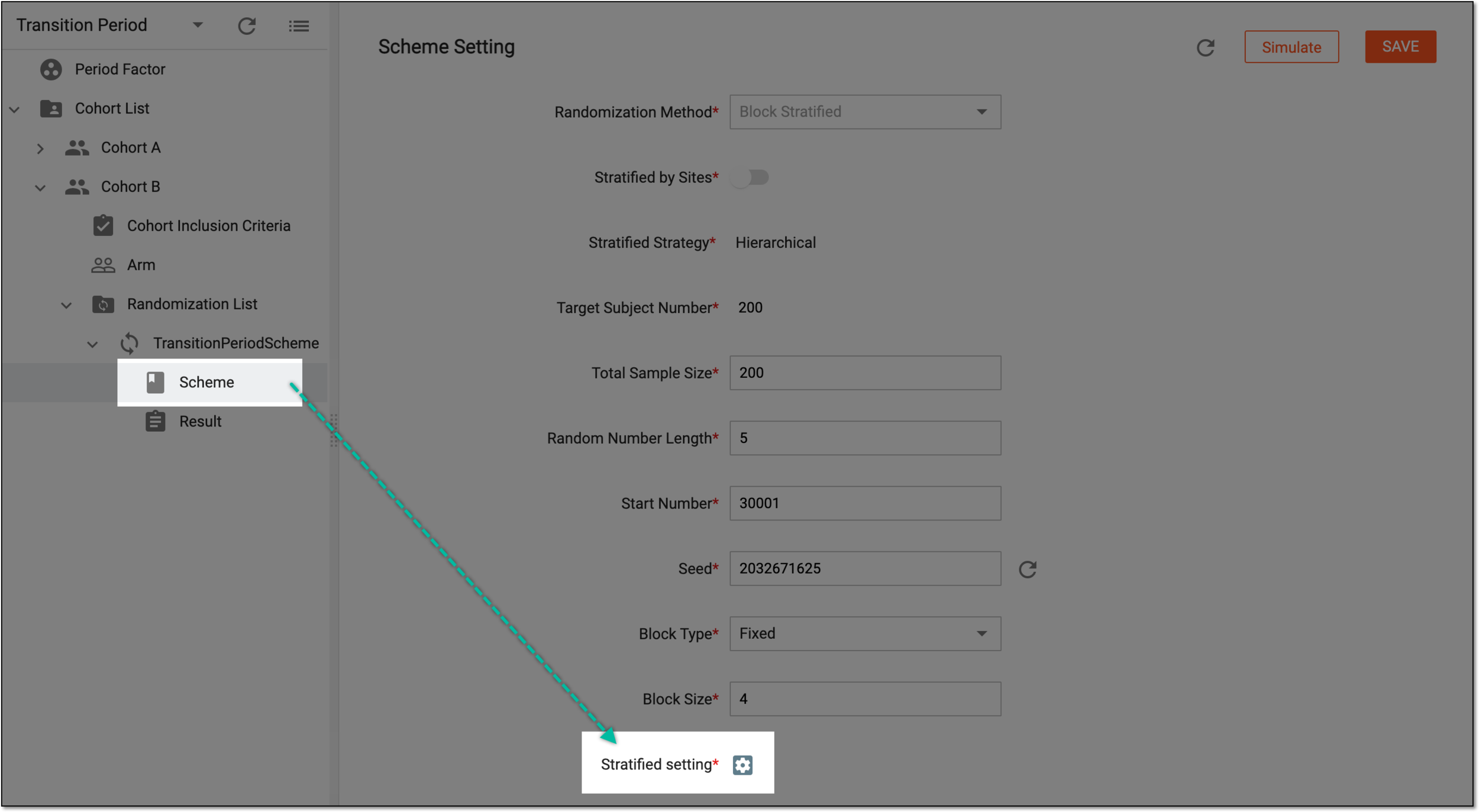 Figure 2. Stratified setting option
-
In the randomization scheme configurator that appears, at the Multi Central Setting stage, assign the enrollment limits for each site and select
 .
.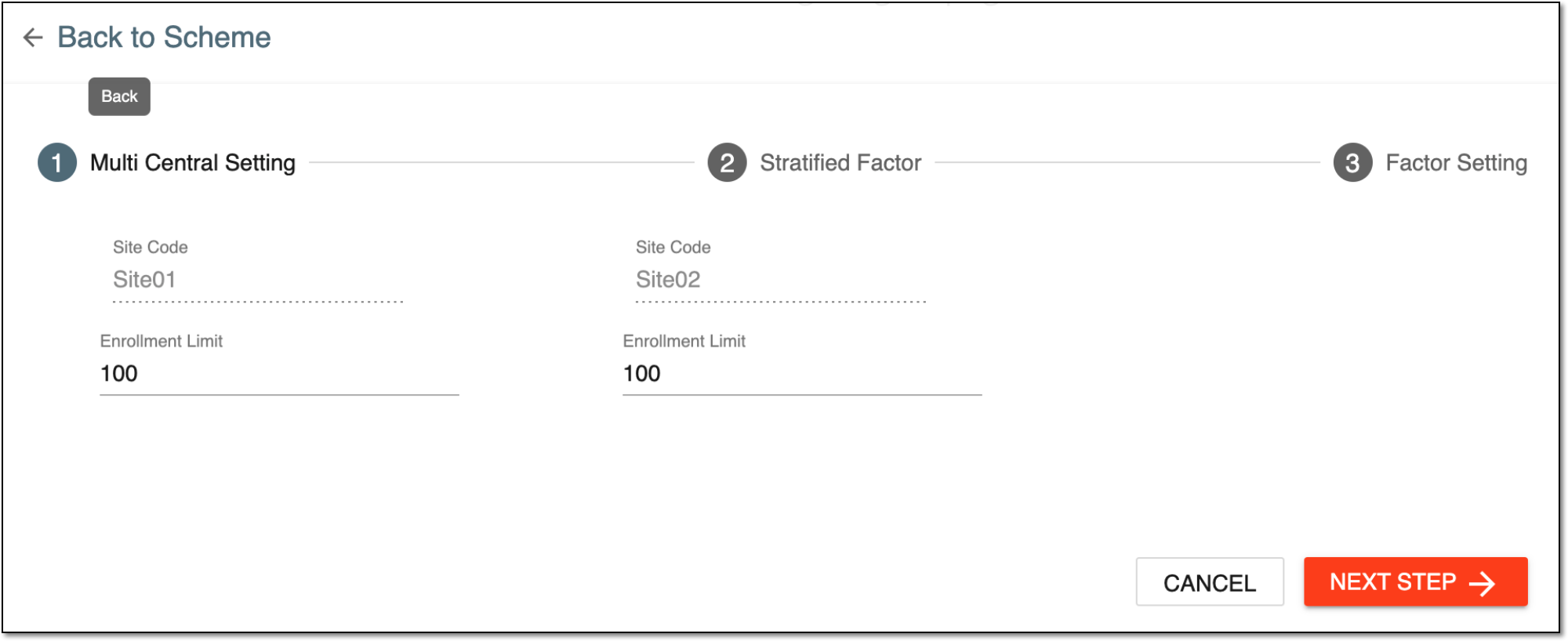 Figure 3. Defining multicentral settings
Important
The fields and settings available in the randomization scheme configurator vary depending on the type of randomization scheme you configure.
For example, for a multicentric scheme, the settings of the Multi Central Setting stage are mandatory. In contrast, for a block-stratified scheme, the Stratified Factor and Factor Setting stages are mandatory.
-
At the Stratified Factor stage, add the stratified factors you need: above the Factor List table that appears, in the workspace toolbar, select New Item
 .
.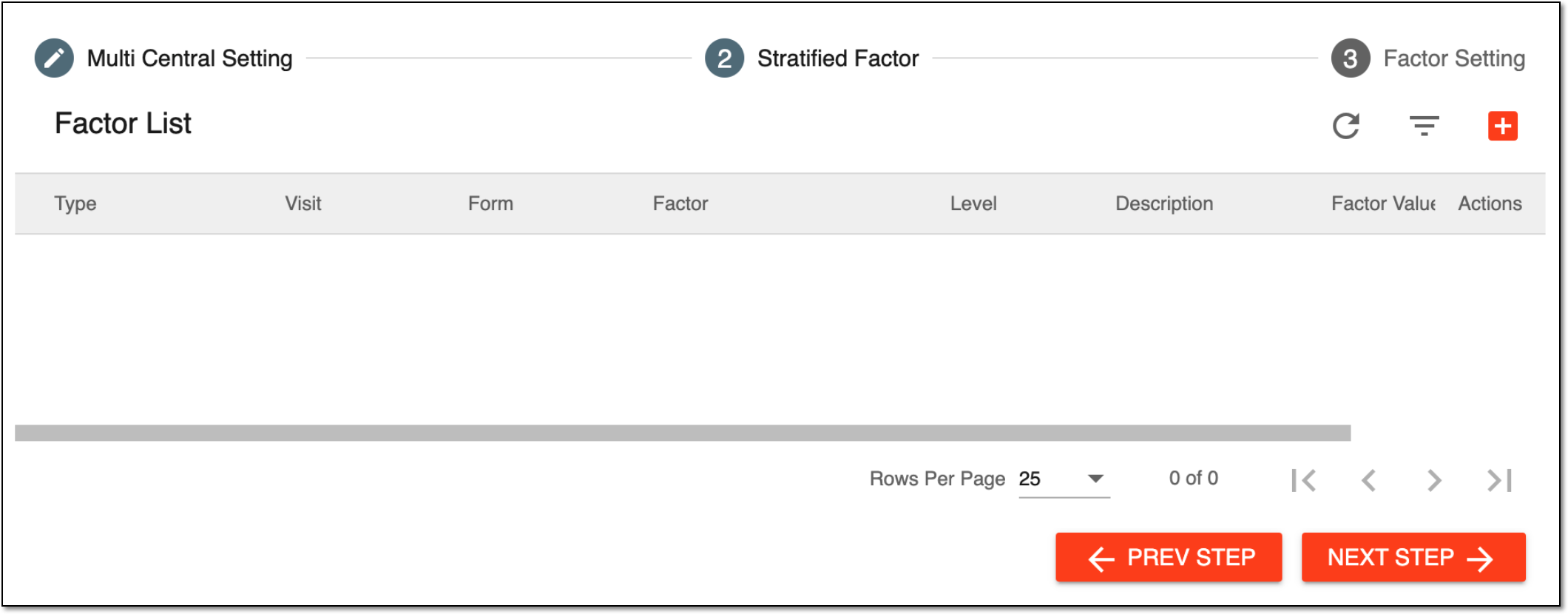 Figure 4. Configuring stratified factors
-
In the Add dialog that appears, define the stratified factor parameters as described in the Set stratification factors for uploaded randomization scheme section and select
 .
.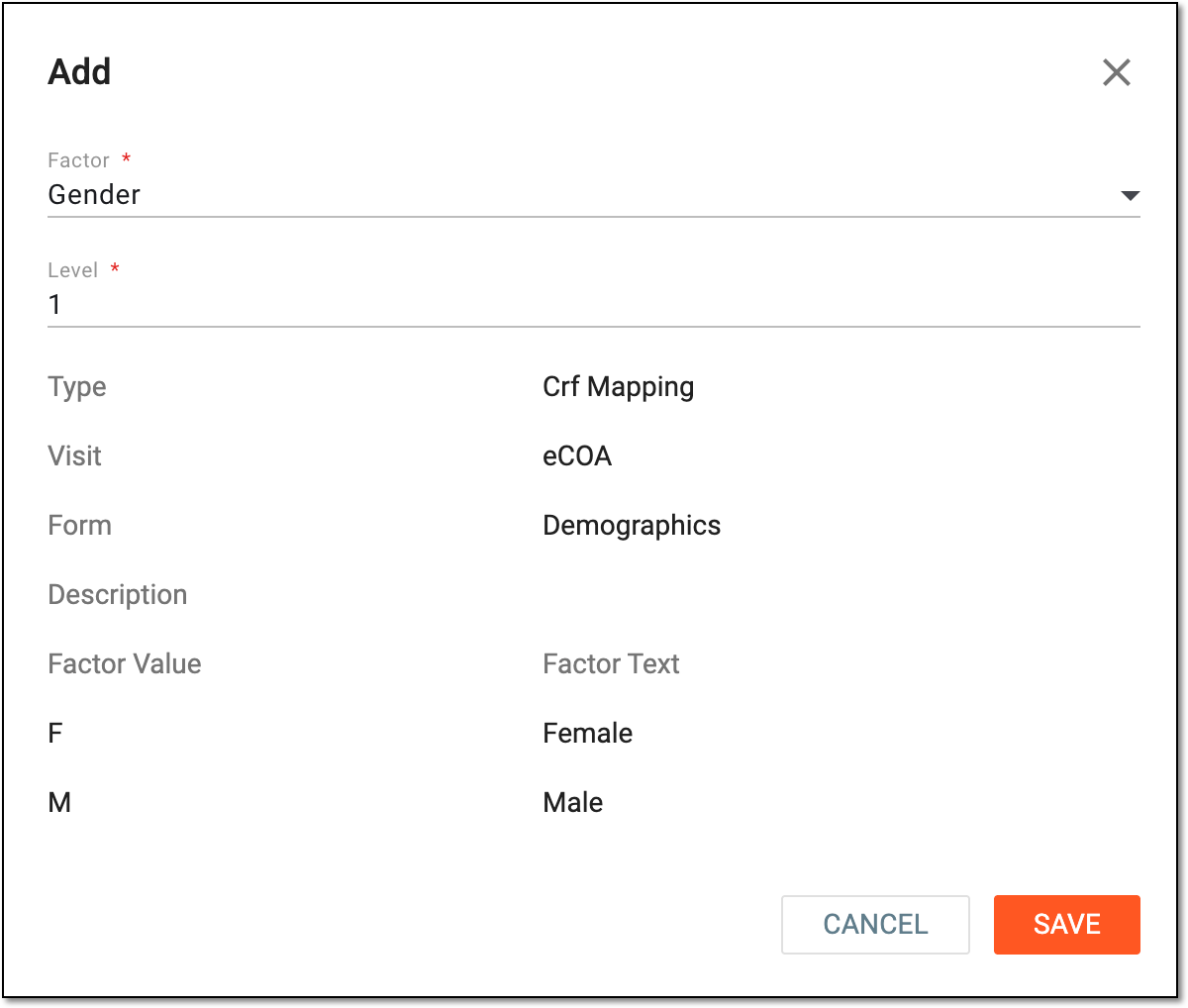 Figure 5. Adding stratified factor
-
Once the factors are added, select
and go to the Factor Setting stage where stratification is
visualized.The stratification schema differs depending on the Stratified Strategy value selected upon randomization scheme creation.
-
For Hierarchical strategy, the visualized schema displays hierarchical levels of stratification factors according to your settings.
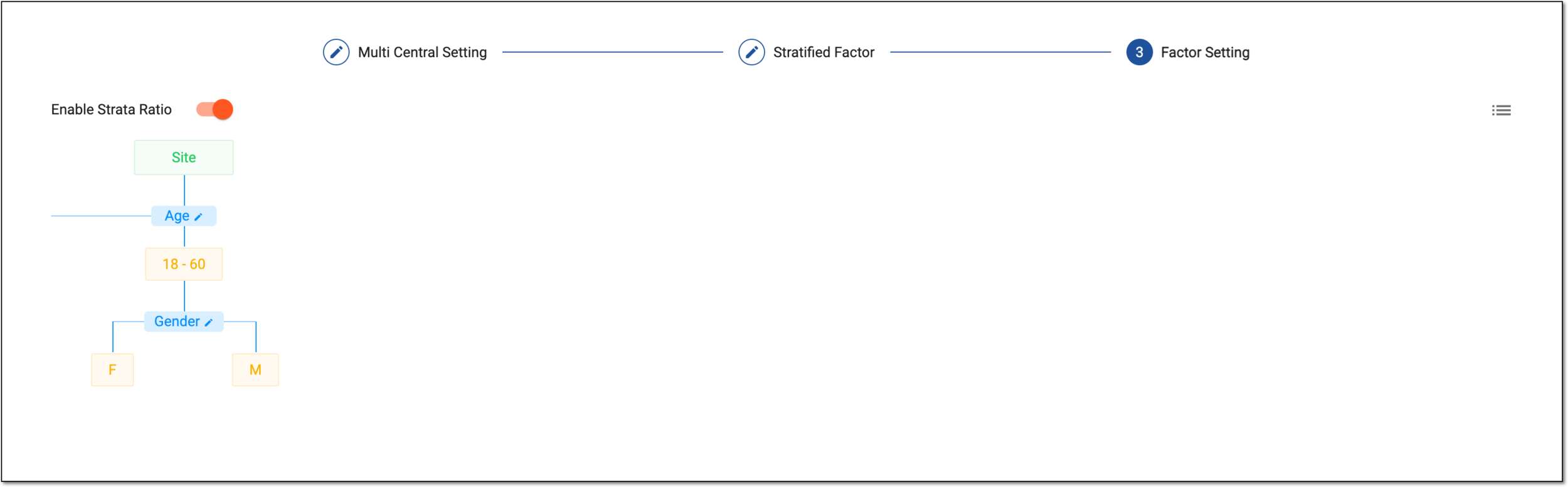 Figure 6. Viewing visualized hierarchical stratification
-
For Parallel strategy, the equipollent stratification schemas are displayed for each factor according to your settings.
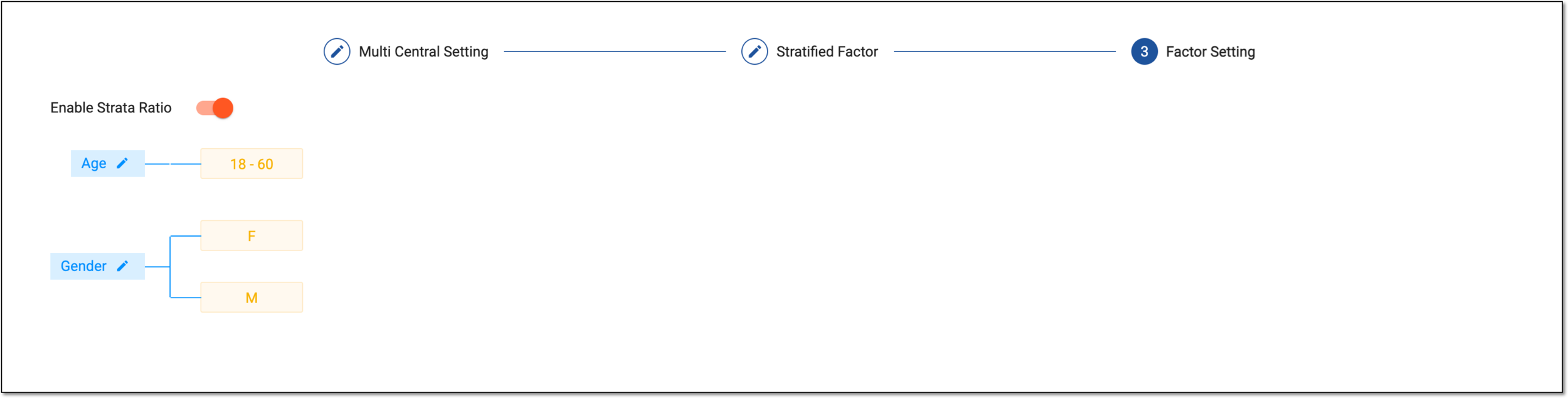 Figure 7. Viewing visualized parallel stratification
Tip
Select the list icon
 to open the Factor List dialog and review all stratification factors involved in
your randomization scheme in the form of a table.
to open the Factor List dialog and review all stratification factors involved in
your randomization scheme in the form of a table.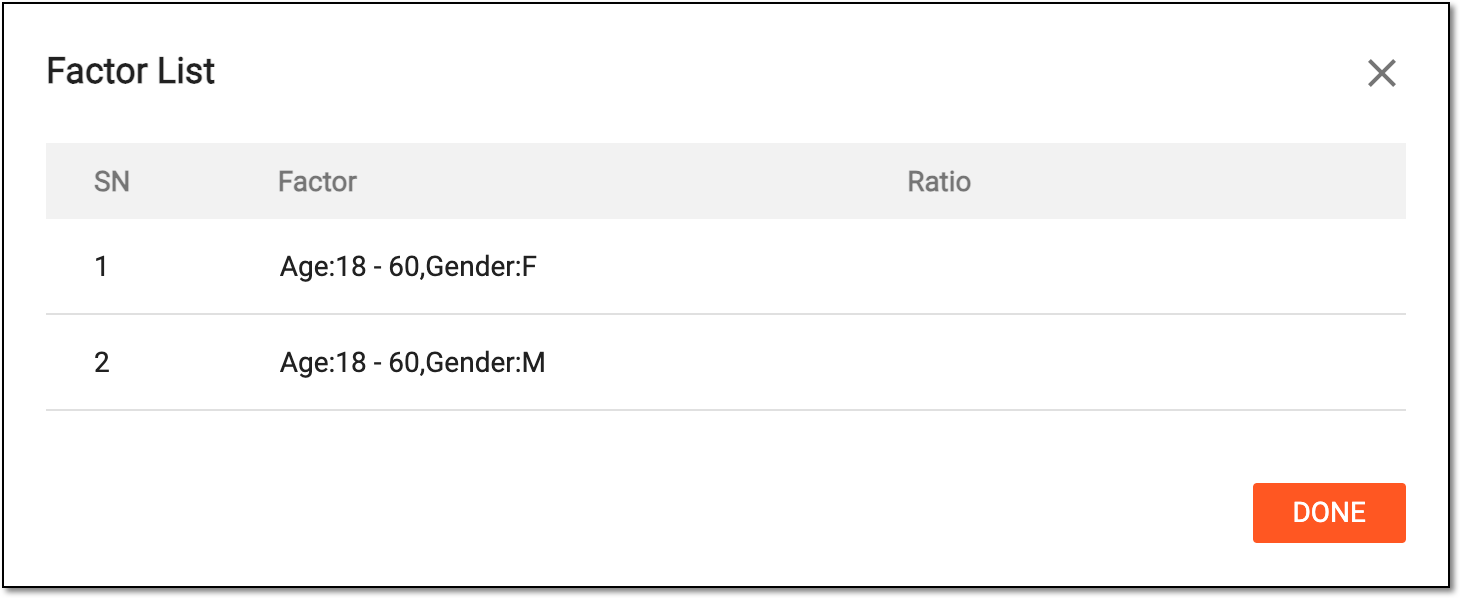 Figure 8. Reviewing stratification factor list
-
-
Turn the Enable Strata Ratio toggle as follows.
-
Turn the toggle on to enable the configuration of the stratification factor ratio and set the proportion of participants from each stratum to be included in the randomization process.
If turned on, you can now set up the ratio of each factor.
-
Turn the toggle off to disable the configuration of the stratification factor ratio. In this scenario, the system does not limit the assignment of participants between randomization blocks based on their strata.
If turned off, no configurations of the Factor Setting stage are available and you can proceed to save the stratification settings.
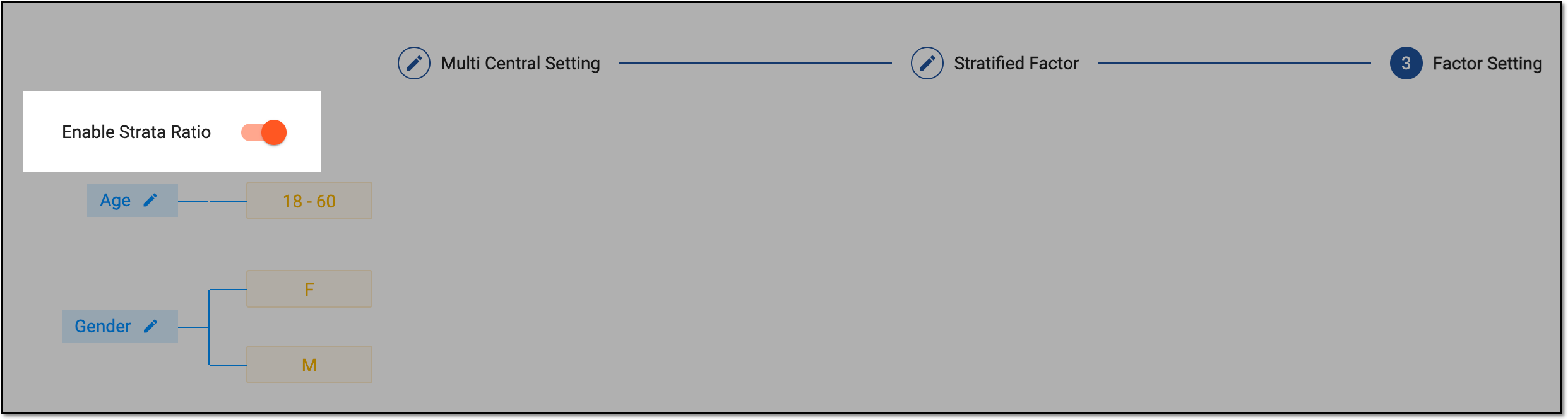 Figure 9. Enabling strata ratio
-
-
For an enabled strata ratio, set the needed parameters by selecting the stratified factor tiles and setting their ratio in the Edit Ratio dialog that appears.
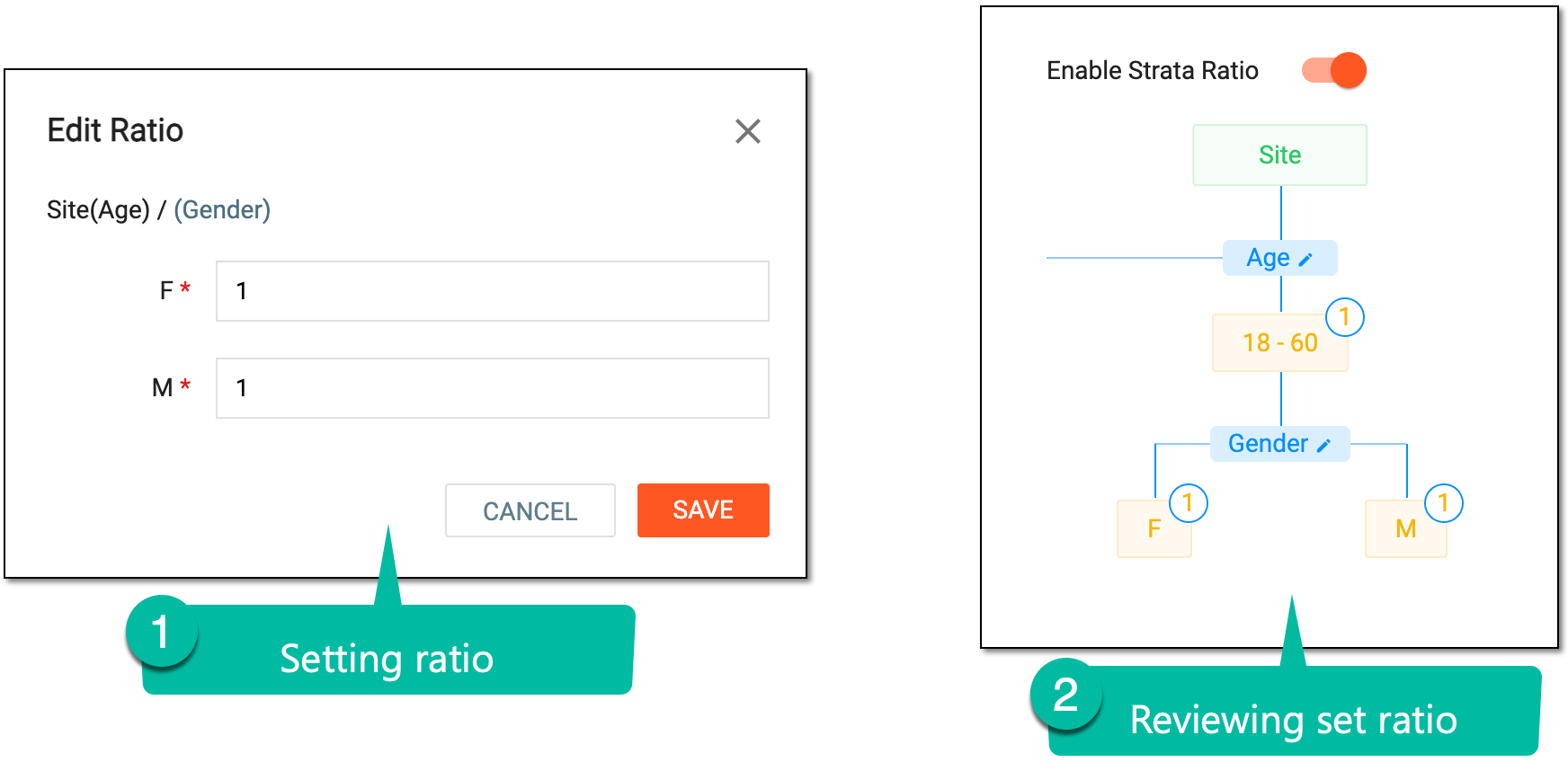 Figure 10. Setting factor ratio
Important
The ratio set for stratification factors at this stage can be changed following the same procedure if the randomization status is Draft, Ongoing, or Suspended.
If the ratio changes, the system recalculates the limits of subject assignment to blocks for subsequent randomization. If, according to the new ratio setting, the limit of the block is achieved, no more subjects are randomized to that block.
-
Once the stratification settings are complete, select
.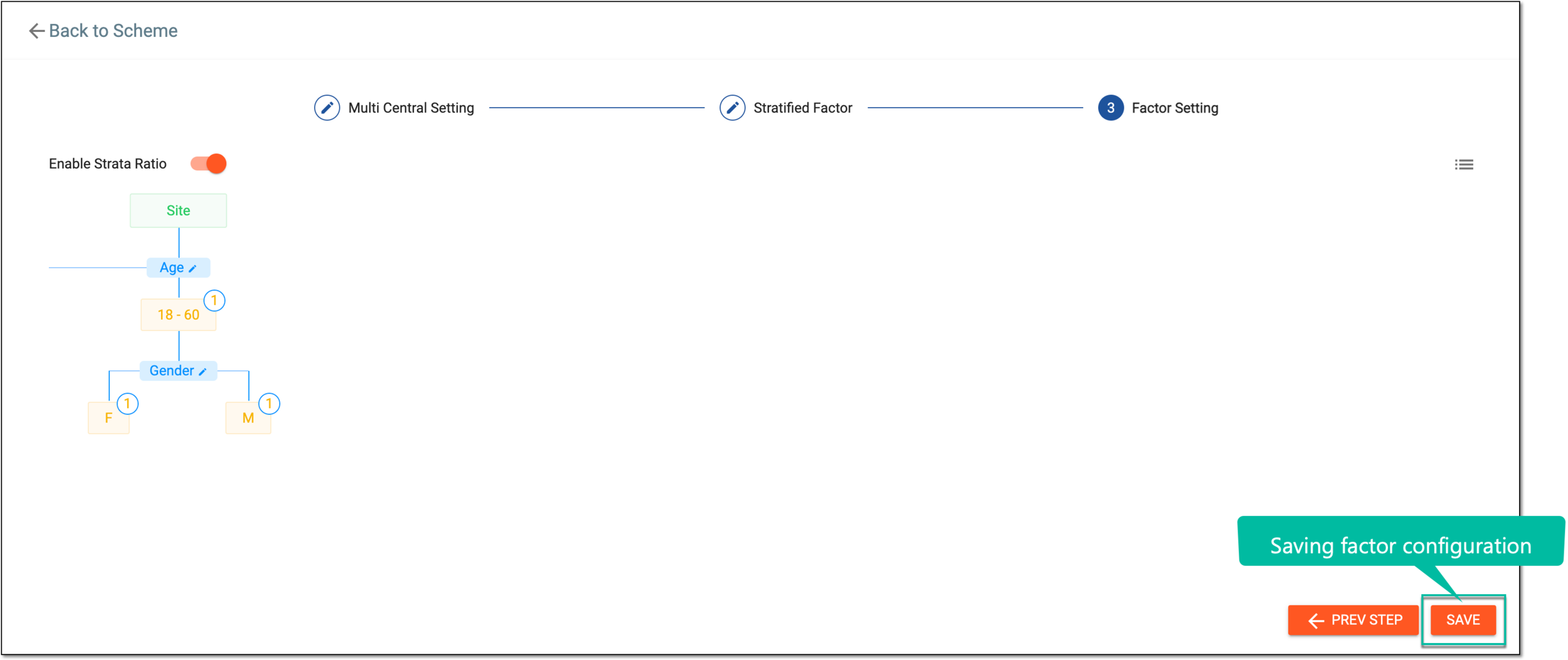 Figure 11. Saving factor configuration
Once saved, the factors for the system-generated randomization scheme are applied. Now you are redirected to the Scheme Setting page.